Applies To: Locally-managed Fireboxes
Some of the features described in this version of Fireware Help are only available to participants in the WatchGuard Beta program. If a feature described in this topic is not available in your version of Fireware, it is a beta-only feature.
A custom dynamic alias is an alias that periodically retrieves IP address and domain entries from an externally hosted feed file.
Custom dynamic aliases help you maintain a single online list of IP addresses or domains and keep Firebox policies up to date automatically without manual edits. For example, you can use a threat intelligence list, your own block list, or a cloud provider's published address ranges.
When the Firebox refreshes the feed, it replaces the previous feed entries with the current content of the file. You can use a custom dynamic alias only in firewall policy From and To lists and in the Blocked Sites list.
For more information about aliases, go to About Aliases.
Custom dynamic aliases are available in Fireware v2026.4 and higher.
About Feed Files
When you configure a custom dynamic alias, you specify an HTTP or HTTPS URL for a feed file that the Firebox can retrieve.
Feed file requirements:
- Plain text .TXT or .CSV file, or a gzip-compressed plain text file
- One entry per line
- Maximum file size of 2 MB
The Firebox ignores blank lines and text after # on a line. The Firebox unpacks a gzip-compressed file automatically. If the Firebox cannot interpret a line, it skips that line and loads the rest of the file.
Supported entries:
- IPv4 and IPv6 addresses
- Subnets
- Address ranges
- Domain names
- Wildcard domains
Unsupported entries:
- Wildcard IPv4 or IPv6 addresses, such as 203.0.113.10/255.255.0.255
- URLs that include a path, such as https://example.com/path
- File formats other than plain text
The host URL for the feed file can include a path. Entries in the feed file are IP addresses, subnets, address ranges, and domain names.
The Firebox skips IPv4 entries in these addresses and networks:
- 0.0.0.0
- 255.255.255.255
- Loopback addresses in the 127.0.0.0/8 network
- Multicast addresses in the 239.0.0.0/8 network
- Private network addresses in the 10.0.0.0/8, 172.16.0.0/12, and 192.168.0.0/16 networks
Example IP address feed file:
# Comments start with # and are ignored
203.0.113.14                 # single address
198.51.100.0/24              # subnet
192.0.2.10-192.0.2.40        # range
2001:db8::/32                # IPv6
Example domain feed file:
malware.example.com
*.phishing.example.net       # wildcard domain
An alias that uses an IP Address/Domain Feed contains only that feed. You cannot add or remove individual entries, and you cannot add other member types to the same alias. You cannot view the synchronized entries in Fireware Web UI or Policy Manager. The feed file is the source of the member list.
A custom dynamic alias can contain approximately 131,000 IP address entries. The Firebox counts IPv4 entries and IPv6 entries separately. If a feed line is an address range, the Firebox converts the range to one or more subnets, and the range can count as more than one entry. A feed that contains domain names supports fewer entries than a feed that contains IP addresses. The number of domain names the Firebox can load depends on the length of the names.
Feed Synchronization
The Firebox downloads the feed file at the refresh interval you specify. The default interval is 60 minutes. Each synchronization replaces the entire member list. The Firebox stops a download after 5 minutes. The Firebox also stops the download if the transfer does not progress for 60 seconds.
The Firebox generates a log message when a synchronization succeeds or fails. A connection, authentication, or file error appears in a log message at the next synchronization.
If the feed server is unavailable, or the Firebox cannot use the file, the Firebox keeps the last successfully synchronized entries. A failed synchronization does not remove the current entries. The Firebox also keeps those entries after a reboot.
In a FireCluster, one cluster member downloads the feed file and shares the file with the other cluster member. The feed server receives one connection from the FireCluster.
Add a Custom Dynamic Alias

- Select Firewall > Aliases.
The Aliases page opens. - Click Add.
The Aliases / Add page appears. - In the Name text box, type a unique name to identify the alias.
- In the Description text box, type a description of the alias.
- Click Add.
The Add Member dialog box opens. - From the member type drop-down list, select IP Address/Domain Feed.
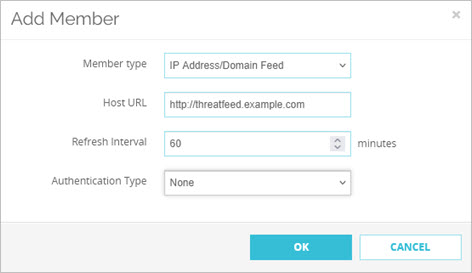
- In the Host URL text box, type the HTTP or HTTPS URL of the feed file.
- In the Refresh Interval text box, type or select how often the Firebox retrieves the feed, in minutes.
The default value is 60 minutes. - From the Authentication Type drop-down list, select one of these options:
- None — No authentication credentials are required.
- HTTP — Type a user name and password for HTTP basic authentication.
- API Key/Token — Type the API key or token required by the feed server.
- Click OK.
- Click Save.
- Select Setup > Aliases.
The Aliases dialog box opens. - Click Add.
The Add Alias dialog box opens. - In the Alias Name text box, type a unique name to identify the alias.
- In the Description text box, type a description of the alias.
- Click Add.
The Add Member dialog box opens. - From the Choose Type drop-down list, select IP Address/Domain Feed.
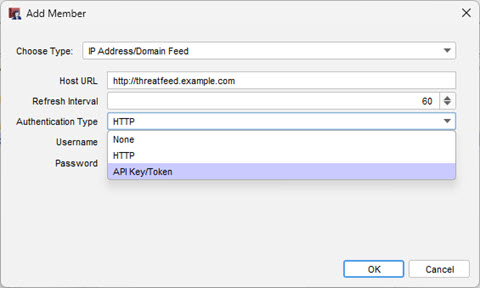
- In the Host URL text box, type the HTTP or HTTPS URL of the feed file.
- In the Refresh Interval text box, type or select how often the Firebox retrieves the feed, in minutes.
The default value is 60 minutes. - From the Authentication Type drop-down list, select one of these options:
- None — No authentication credentials are required.
- HTTP — Type a user name and password for HTTP basic authentication.
- API Key/Token — Type the API key or token required by the feed server.
- Click OK.
- Click OK.
Edit a Custom Dynamic Alias
You can change the host URL, refresh interval, and authentication settings for a custom dynamic alias. You cannot change the alias name or the member type after you create the alias as an IP Address/Domain Feed.
- Select Firewall > Aliases.
The Aliases page opens. - From the Aliases list, select the custom dynamic alias.
- Click Edit.
The Edit Alias page appears. - Update the feed settings as necessary.
- Click Save.
- Select Setup > Aliases.
The Aliases dialog box opens. - From the Aliases list, select the custom dynamic alias.
- Click Edit.
The Edit Alias dialog box opens. - Update the feed settings as necessary.
- Click OK.
Delete a Custom Dynamic Alias
You can delete a custom dynamic alias only if it is not used in a firewall policy, the Blocked Sites list, or another alias.
- Select Firewall > Aliases.
The Aliases page opens. - From the Aliases list, select the custom dynamic alias.
- Click Remove.
- Select Setup > Aliases.
The Aliases dialog box opens. - From the Aliases list, select the custom dynamic alias.
- Click Remove.
- Click OK.
Use a Custom Dynamic Alias in Policies and Blocked Sites
After you add a custom dynamic alias, you can use it only in these places:
- As a source or destination in a firewall policy From or To list
- As an alias entry in the Blocked Sites list
You cannot use a custom dynamic alias in the Blocked Sites Exceptions list or in NAT settings.
You must create or update the firewall policy or Blocked Sites configuration to use the alias. To change the feed entries, update the feed file. The Firebox replaces the member list the next time it synchronizes the feed.
For more information, go to: