Applies To: Locally-managed Fireboxes
You can use Policy Manager to remove and add members to the FireCluster.
If you want to disable and remove a FireCluster, and not just remove individual cluster members, go to Disable FireCluster.
Remove a Device from a FireCluster
To remove a device from a FireCluster:
- In WatchGuard System Manager, open the configuration for the cluster master.
- Click
 .
.
Or, select Tools > Policy Manager.
Policy Manager appears. - Select FireCluster > Configure.
The FireCluster Cluster Configuration dialog box appears. - Click the Members tab.
A list of cluster members appears.
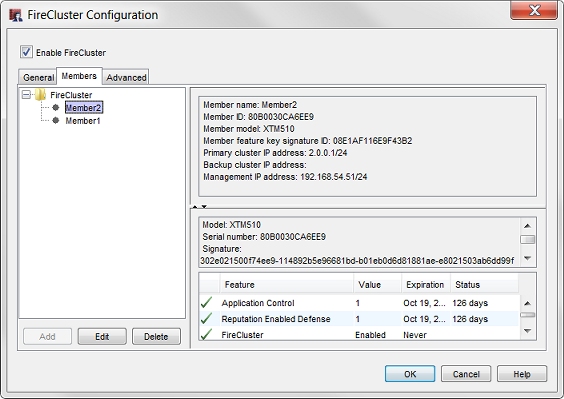
- Select the name of the cluster member you want to delete.
If the device you remove from the configuration is the current cluster master, when you save the configuration this forces a failover and the backup master becomes the new cluster master. If the failover succeeds, the configuration change is saved. If the failover does not succeed, Policy Manager does not allow you to save the configuration to the cluster.
- Click Delete.
The device is removed from the member list. - Click OK.
- Save the configuration file to the cluster.
The device is removed from the cluster.
The removed device reboots and the device is reset to factory default settings. The other member becomes the cluster master.
For information about how to see which device is the cluster master, or to manually force failover from the cluster master to another member, go to Monitor and Control FireCluster Members.
Add a New Device to a FireCluster
You can add a new cluster member on the FireCluster Configuration dialog box Members tab.
To add a new device to the cluster:
- Click Add.
- Configure the settings for the new cluster member as described in Configure FireCluster Manually.
When FireCluster is enabled, you must have at least one device in the cluster.
- To remove both devices from the cluster, you must Disable FireCluster.