Monitor BOVPN over WireGuard
Applies To: Locally-managed Fireboxes
To use this feature, your Firebox must run Fireware v2026.4 or higher. Fireware 2026.4 is supported on these models: Firebox M Series M4850, M5850, M6850, M695, M595, M495, M395, and M295, and Firebox T Series T185, T175, T145, T125, and T115.
After you configure a WireGuard branch office virtual private network (BOVPN) between Fireboxes, you can monitor peer status and verify that traffic passes between the local and remote networks. For more information about WireGuard BOVPN behavior and limitations, go to About BOVPN over WireGuard.
WireGuard does not use Internet Key Exchange (IKE) or Phase 1 and Phase 2 negotiation. Peers authenticate with public keys. The Firebox establishes WireGuard communication when you send traffic through the tunnel. You might have to generate traffic before peer status, handshake information, and route activity appear.
Monitor Tunnel Status
You can monitor the current status of a WireGuard BOVPN on the VPN Statistics page in Fireware Web UI. To view the status and any VPN diagnostic messages if a VPN tunnel connection fails, select a tunnel.
Because WireGuard establishes communication when you send traffic, generate traffic before you evaluate peer statistics and route activity.
From Fireware Web UI:
- Select System Status > VPN Statistics.
The VPN Statistics page opens. - Select the Branch Office VPN tab.
- From the drop-down list, select WireGuard Tunnels.
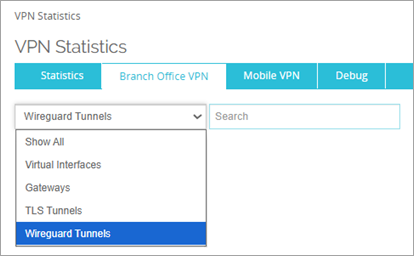
- In the Tunnels list, select a WireGuard tunnel.
- Verify that the tunnel status shows that the tunnel is established.
- Verify that the Last Handshake Time shows a recent handshake.
- To confirm that the Firebox sends and receives traffic through the tunnel, review the sent and received traffic statistics.
The Rekey Tunnel options on the VPN Statistics page do not apply to BOVPN over WireGuard. WireGuard rotates session keys as part of the protocol.
Firebox System Manager (FSM) and WatchGuard System Manager (WSM) show WireGuard tunnel status on the Front Panel and Device Status tabs. For more information about VPN status in FSM, go to VPN Tunnel Status and Subscription Services.
From WSM:
- Select the Device Status tab.
- Select the Firebox to examine.
- Expand the WireGuard tunnel entry for the Firebox.
The tunnel status and details appear. - Verify that the tunnel status shows that the tunnel is established.
- Verify that the Last Handshake Time shows a recent handshake.
- To confirm that the Firebox sends and receives traffic through the tunnel, review the sent and received traffic statistics.
From FSM:
- From WSM, select the Device Status tab.
- Select the Firebox to examine.
- Select Tools > Firebox System Manager.
Firebox System Manager opens with the Front Panel tab selected. - In the Firebox Status area, expand the WireGuard tunnel.
The tunnel status and details appear. - Verify that the tunnel status shows that the tunnel is established.
- Verify that the Last Handshake Time shows a recent handshake.
- To confirm that the Firebox sends and receives traffic through the tunnel, review the sent and received traffic statistics.
- (Optional) To verify the networks associated with the peer, expand the Allowed Resources node.
In Firebox System Manager, the rekey options that appear when you right-click do not apply to BOVPN over WireGuard. WireGuard rotates session keys as part of the protocol.
If the tunnel is not established, verify the public key, endpoint address, UDP listening port, and preshared key settings on both Fireboxes. Make sure that upstream firewalls allow UDP traffic on the configured WireGuard port.
Verify Routes
WireGuard uses allowed resources to determine which networks are reachable through each peer. When you configure allowed resources, the Firebox adds routes for those networks to the WireGuard interface.
From Fireware Web UI:
- Select System Status > Routes.
- Verify that routes for the configured allowed resources show in the routing table.
- Verify that the routes use the WireGuard interface.
From WSM:
- Select the Device Status tab.
- Select the Firebox to examine with FSM.
- Select Tools > Firebox System Manager.
Firebox System Manager opens with the Front Panel tab selected. - Select the Status Report tab.
- Scroll down to the Routes section.
- Verify that routes for the configured allowed resources show in the routing table.
- Verify that the routes use the WireGuard interface.
If the expected routes do not appear, verify the allowed resources configuration for the peer. For more information, go to Read the Firebox Route Tables.
Review Log Messages
To identify configuration or connectivity issues, review Firebox log messages.
Scan for log messages related to:
- WireGuard peer connectivity and handshakes
- Invalid public keys or public keys that are not the same
- Preshared keys that are not the same
- Routing issues
- Denied traffic
From Fireware Web UI:
- Select System Status > Log Messages.
- Review log messages related to WireGuard activity.
From WSM:
- Select the Device Status tab.
- Select the Firebox to examine with FSMr.
- Select Tools > Firebox System Manager.
Firebox System Manager opens with the Front Panel tab selected. - Select the Traffic Monitor tab.
- Review log messages related to WireGuard activity.
For more information about how to read log messages, go to Read a Log Message.