Applies To: Endpoint Security Elite, Endpoint Security 360, Endpoint Security Prime, WatchGuard EDR, WatchGuard EDR Core, Endpoint Security Basic
A security settings profile is a group of settings for a specific security area that you use to configure the endpoint security product and specify how it operates on your network computers and devices.
You can create as many settings profiles with different settings as necessary to manage network security for different types of computers and devices. We recommend that you create separate settings profiles for groups of computers with similar protection needs.
- Computers used by people with different levels of IT knowledge require different levels of permissiveness with respect to the running of software, access to the Internet, or to peripherals.
- Users with different tasks to perform and therefore with different needs require settings that allow access to different resources.
- Users who handle confidential or sensitive information require greater protection against threats and attempts to steal the organization’s intellectual property.
- Computers in different offices require settings that allow them to connect to the Internet using a variety of communication infrastructures.
- Critical servers require specific security settings.
On the Settings page, you can:
- Create a Settings Profile
- Copy a Settings Profile
- Import a Settings Profile
- Export a Settings Profile
- Edit a Settings Profile
- Delete a Settings Profile
You assign profiles to one or more groups, and all computers and devices in the groups receive the settings in the profile.
Settings profiles created by and inherited from a Service Provider account display with a green  label and are read-only. For more information, go to Multi-Tenant Management — Settings Inheritance for Subscriber Accounts.
Create a Settings Profile
Each settings profile is created for an area of security protection, such as network services or network settings. You can create as many settings profiles with different settings as necessary to manage network security for different types of computers and devices. You cannot modify the default settings profile.
We recommend that you create separate settings profiles for groups of computers with similar protection needs.
Copy a Settings Profile
Copy a settings profile to create a profile based on an existing profile. You cannot modify default settings. Copy default settings if you want to customize them.
To copy a settings profile:
- In WatchGuard Cloud, select Configure > Endpoint Security.
- Select Settings.
- From the left pane, select the type of security settings profile you want to copy.
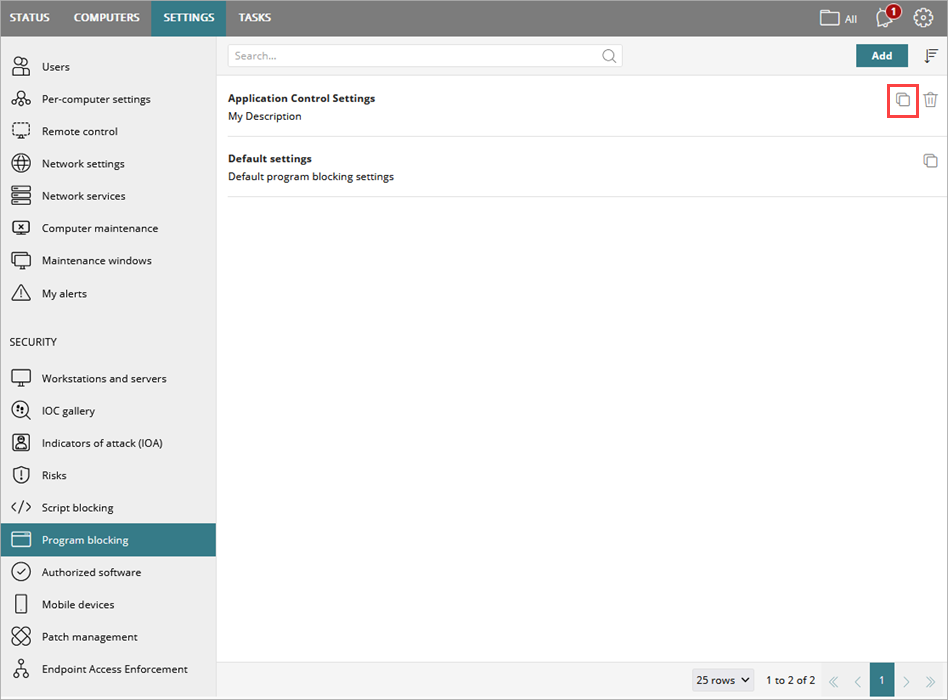
- In the right pane, next to the security profile you want to copy, click
 .
.
The Add Settings page opens.
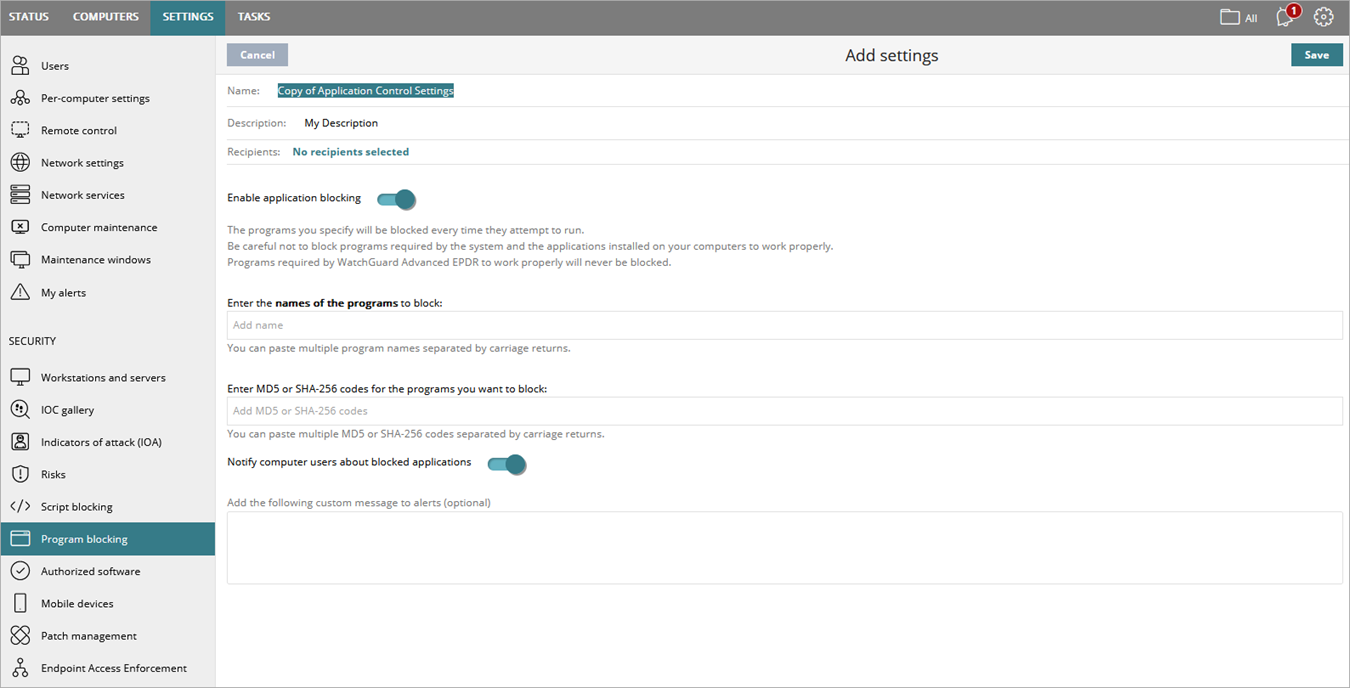
- In the Name box, type a new name for the profile.
- Expand each section, where appropriate, and configure the settings.
- Click Save.
Import a Settings Profile
You can import configuration settings in a .JSON file format. This can be useful for accounts that want to migrate their endpoints from Panda to WatchGuard Endpoint Security products. The file that you import must be exported from a supported version of the Panda console or the Endpoint Security management UI. You cannot modify the exported file before you import it in the Endpoint Security management UI.
To import a settings profile:
- In WatchGuard Cloud, select Configure > Endpoint Security.
- Select Settings.
- From the left pane, select the type of security settings profile you want to import settings for. The file that you import must include settings from the same configuration area (for example, workstations and servers).
- In the upper-right corner, click
 .
. - Select the file to import. You can import only one configuration file at a time.
- Click Import.
Export a Settings Profile
You can export the configuration settings in a profile to a .JSON file. Each .JSON file contains all parameters in the settings profile except for recipients and passwords or QR codes. It also includes a signature to verify the integrity of the file and prevent manual modification.
To export a settings profile:
- In WatchGuard Cloud, select Configure > Endpoint Security.
- Select Settings.
- From the left pane, select the type of security settings profile you want to export.
- In the right pane, in the row for the settings profile you want to export, click
 .
.
The .JSON file automatically downloads to your computer.
Do not modify the file after you download it.
Edit a Settings Profile
When you edit an existing settings profile, your endpoint security product automatically applies your changes to computers on the network that use that settings profile.
To edit a settings profile:
- In WatchGuard Cloud, select Configure > Endpoint Security.
- Select Settings.
- From the left pane, select the type of settings you want to edit.
Available settings profiles display in the right pane.

- To search for a settings profile, type the name in the Search box.
- To sort the available settings profiles, in the upper-right corner, click
 and select Sorted by Creation Date, Sorted by Name, Ascending, or Descending.
 - Select the settings profile you want to edit.
You cannot modify default settings. Copy the settings if you want to customize them.

- Expand each section, where appropriate, and configure the settings.
- Click Save.
The changes are applied to all recipient computers on the network.
Delete a Settings Profile
You cannot delete default settings. You cannot delete a settings profile that is assigned to a device or computer.
To delete a settings profile:
- In WatchGuard Cloud, select Configure > Endpoint Security.
- Select Settings.
- From the left pane, select the type of security settings you want to delete.
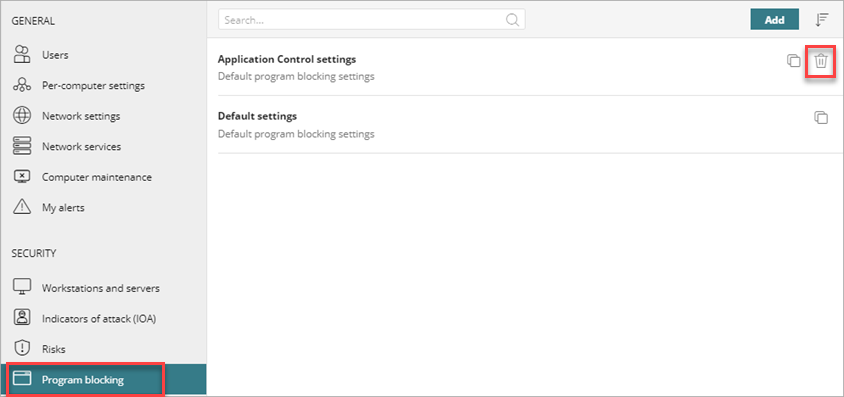
- In the right pane, next to the security profile you want to delete, click
 .
.
- In the confirmation dialog box, click Delete.
Manage Endpoint Groups in Endpoint Security
About Multi-Tenant Management in Endpoint Security
Multi-Tenant Management — Settings Inheritance for Subscriber Accounts