Applies To: Endpoint Security Elite, Endpoint Security 360, Endpoint Security Prime, Endpoint Security Basic
Program rules examine the headers of the network and transport protocols of the packets that each program sends and receives, and block or allow traffic based on the rules you define. In the Firewall settings of a workstations and servers settings profile, you can configure custom program rules to control which programs can communicate with the local network and Internet.
To enable firewall rules when the user computer connects to a public network, you can enable predefined WatchGuard rules to prevent incoming connections:
- Deny remote administration of Internet Information Server (IIS)
- Deny remote desktop connections
When these rules are enabled, the computer is not visible to other users on the network and resource sharing is limited.
Your operator role determines what you can see and do in WatchGuard Cloud. Your role must have the Configure Security for Workstations and Servers permission to view or configure this feature. For more information, go to Manage WatchGuard Cloud Operators and Roles.
To add a rule programs must meet to communicate with the local network and Internet:
- Select Firewall (Windows computers).
- In the Program Rules section, from the Take the following action if no predefined rule is found drop-down list, select the default action (Allow or Deny).
- To enable predefined rules to deny remote administration of IIS and remote desktop, select Enable WatchGuard Rules.
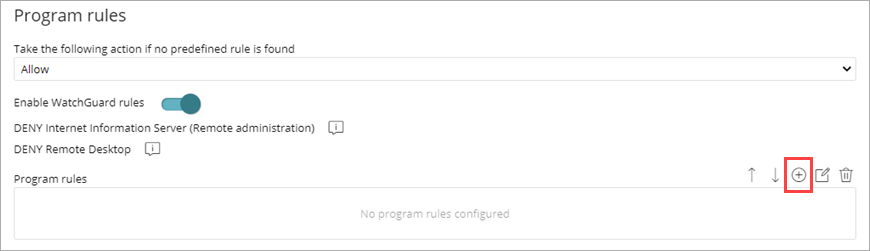
- Click
 .
.
The Add Program Rules dialog box opens. .

- In the Description text box, type a description of the new rule.
- Next to the Program text box, click Browse and select a program you want to configure connection options for.
- From the Connections allowed for this program drop-down list, select an option to specify whether to allow or deny connections for the program.
- If you select Advanced Permissions, specify parameters of the traffic you want to allow or deny.
Action
Defines the action that Endpoint Security takes when the examined traffic matches the rule.
Allow: Allows the traffic.
Deny: Blocks the traffic. It drops the connection.
Direction
Sets the traffic direction for connection protocols such as TCP.
Outbound: Traffic from the user's computer to another computer on the network.
Inbound: Traffic to the user's computer from another computer on the network.
Zone
Applies only if the zone matches the zone configured for the network type. For more information, go to Firewall Settings – Network Types. Rules whose Zone is set to All are applied at all times irrespective of the network type configured in the Firewall settings.
Protocol
Allows you to establish the layer 3 protocol for the traffic generated by the program you want to control (All, TCP, or UDP).
IP
All: Rule does not take into account the connection source and target IP addresses.
Custom: Allows you to specify the source or target IP address of the traffic to control. You can enter multiple addresses, separated by commas. To specify a range, use a hyphen (-). From the drop-down menu, select if the IP addresses are IPv4 or IPv6. You cannot mix different types of IP addresses in the same rule.
Ports: Allows you to specify the communication port. Select Custom to enter multiple ports, separated by commas. To specify a range, use a hyphen (-).
- Click OK.
When there are multiple rules for different programs, click the up and down arrows to change the order that the rules run. To delete a rule, click
  .
.