Applies To: WatchGuard CloudDR
Threat rule templates in WatchGuard CloudDR are available as a beta feature.
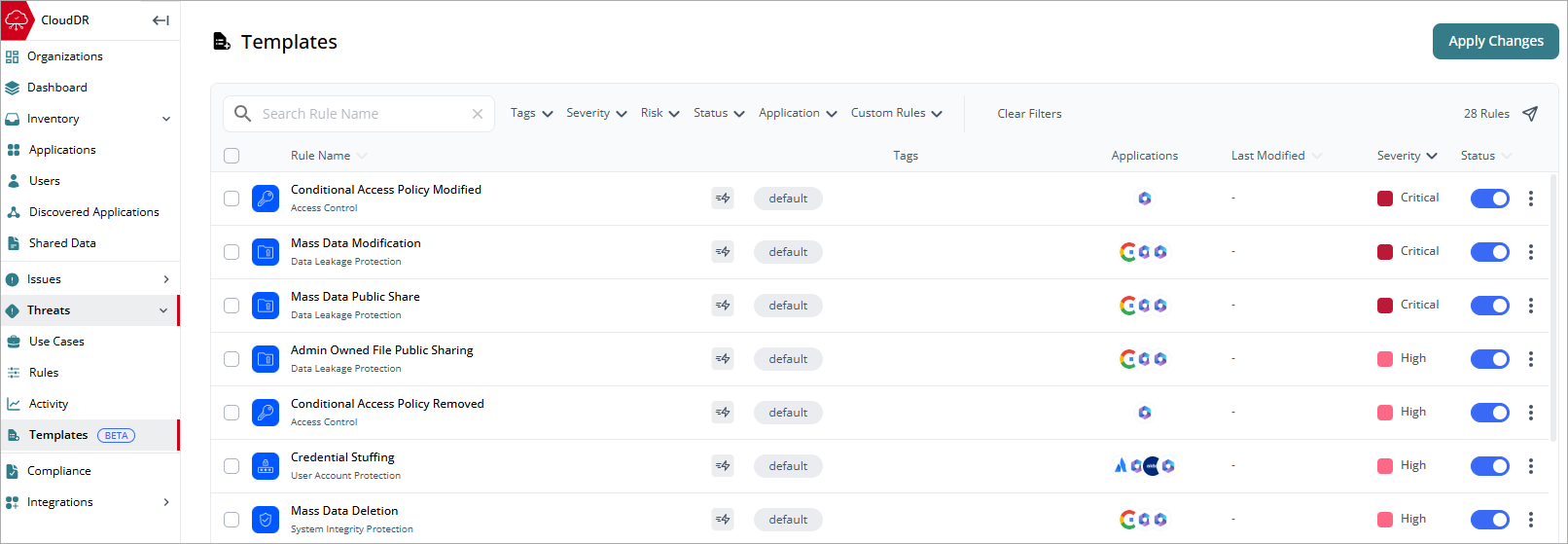
On the Threats > Templates page, Service Providers can centrally manage and apply threat rule templates to their Subscriber accounts. Templates use a tag-based assignment model. When a rule tag matches an organization tag, CloudDR deploys that rule template to the organization.
Create a Rule Template
Before you add tags to a rule on the Templates page, you should add tags to your organizations. Tags act as logical groups that help you organize organizations and determine which rule templates apply to them. For information on how to add a tag to an organization, go to About Organizations in WatchGuard CloudDR.
To create a rule template:
- Select Threats > Templates.
- From the list, select a built-in rule that you want to apply tags to.
The Rule details page opens. - Next to Applied Tags, click
 .
.

- Below the Tags text box, select the tags you want to apply. You can select more than one tag. You can also enter a new tag in the text box. If you enter a new tag, make sure to assign the new tag to organizations.

- Click Save.
- On the Rules details page, make additional changes to the rule, if required. Click Update Rule.
If you cannot edit the details, create a duplicate of the rule and customize it. - On the Templates page, click Apply Templates.
Changes to rules and tag assignments are automatically saved as you make them. Updates are not deployed to organizations until you click Apply Templates.
Duplicate a Rule
If you cannot edit the details of a rule you want to use as a template (for example, the rule pass criteria), then you can duplicate the rule and make changes.
To duplicate a rule:
- Select the rule you want to duplicate.
- On the Rules details page, click Duplicate Rule.
- In the Rule Name text box, type a new name for the rule.
- Click Create New Rule.
The new rule shows in the templates list. - From the templates list, select the new rule.
 shows in the row for custom rule templates.
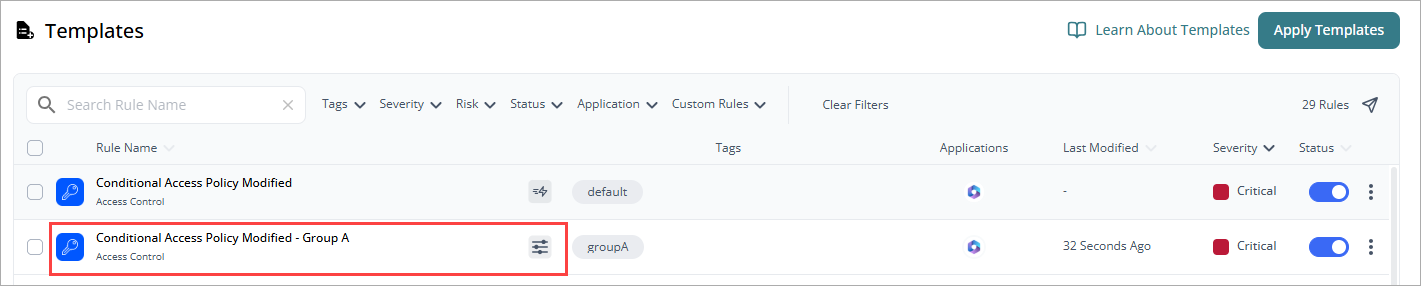
- To edit the details and rule pass criteria, click .
For information on how to edit the rule pass criteria in a threat rule, go to Edit Rule Pass Criteria in WatchGuard CloudDR. - Add tags to the rule.
- Click Update Rule.
- On the Templates page, click Apply Templates.
CloudDR deploys the rule template to the tagged organizations.
Manage Templates
The templates list includes all available system rules, including this information:
- Rule Name — The name of the threat rule and the related security domain. Point to the rule name for a detailed description.
- Tags — Text descriptors applied to the rule and organizations. A rule can have multiple tags. Tags enable CloudDR to apply a rule to an organization with the same tag.
- Applications — The application where the threat was detected.
- Last Modified — The date when the last activity on the threat (opened or resolved) occurred.
- Severity — The severity level of the threat rule.
- Status — Enable or disable a single rule template. To enable or disable multiple rules, select the check boxes next to the rules, then click Enable Rules or Disable Rules.
To search for a specific rule, enter the rule name in the Search Rule Name text box.
You can filter the list by:
- Tags
- Severity
- Risk
- Status
- Application
- Custom Rules
Change Rule Severity
You can change the severity for an existing rule or create a new rule.
To change the rule severity:
- Click
 in the row.
 - Select Change Severity.
- From the drop-down list, select a new severity level.
- Click Update Rule.
- To create a new rule, click Create New Rule.
Enable and Disable Rules on the Templates Page
To enable or disable multiple rules in the list:
- On the Templates page, select the rules you want to update.
- Click Enable Rules or Disable Rules.
- Confirm that you want to enable or disable the rules.
Rule Details Page
To view more detailed information about a rule template, select a rule from the list. The rule details page opens.
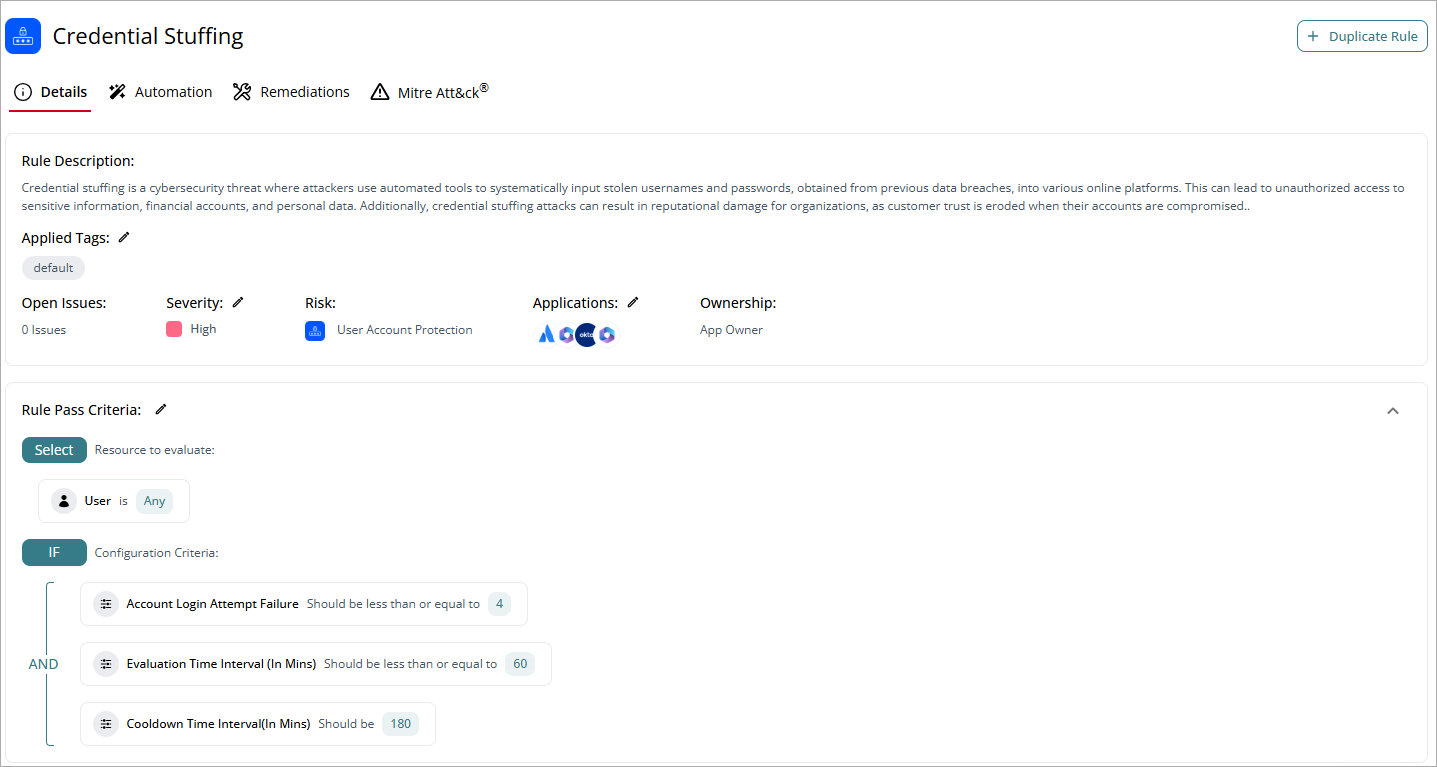
If you cannot edit details of the rule (for example, the rule pass criteria), then you can duplicate the rule and make changes. For more information, go to Duplicate a Rule.
The rule details page includes information on these tabs:
Click a tab to view additional information for the rule.
On the Details page, review a description of the threat rule or policy, the tags applied, the number of open issues, severity, and risk. You can edit the Severity and Applications in the rule. You can also view and edit the tags applied to the rule template.
In the Rule Pass Criteria section, you cannot edit the values. To make changes, you can create a duplicate of the rule, or edit the rule directly on the Rules page.
For information on how to duplicate a rule, go to Duplicate a Rule.
For information on how to edit the rule pass criteria in a threat rule, go to Edit Rule Pass Criteria in WatchGuard CloudDR.
On the Remediations page, you can view the general instructions to resolve or remediate threats.
On the Automation page, you can set up a quick action to run when a new threat is detected for the rule. For more information, go to Add Autofix Automation for Threats in WatchGuard CloudDR.
Template rules support tag-specific automations.This enables different organizations to initiate different response actions while they share the same overall rule framework. For example:
- Organizations with the New tag could send an email notification when a rule triggers.
- Organizations with the Default tag could automatically remediate the same threat.
On the MITRE page, review the MITRE techniques and sub-techniques associated with the threat.
Automated Threat Response Actions in WatchGuard CloudDR