Applies To: WatchGuard CloudDR
Google Workspace (previously named G Suite) is a cloud-based productivity and collaboration suite designed for businesses, educational institutions, and organizations. Google Workspace bundles popular tools such as Gmail, Docs, Drive, Calendar, Meet, and Chat into a subscription service, and features custom email domains, enhanced security, and centralized administration. This guide describes how to integrate Google Workspace with CloudDR.
Available Features
- Misconfiguration Rules
- Identity Rules
- Discovered Application Rules (Auto-Fix Available)
- Discovered Application Inventory (Auto-Fix Available)
- User Inventory
- Devices Inventory
- Shared Data Rules (Auto-Fix Available)
- Shared Data Inventory (Auto-Fix Available)
Prerequisites
To configure this integration, you must have:
- A Google Workspace Business Starter subscription or higher.
- A user account within the Google Workspace instance with the required privileges, or a Super Admin account.
Required Privileges
To configure this integration, you must have these privileges assigned to the user.
| Scope | Use |
|---|---|
| https://www.googleapis.com/auth/userinfo.email | View your primary Google Account email address |
| https://www.googleapis.com/auth/userinfo.profile | View your personal information, including any personal info you have made publicly available |
| https://www.googleapis.com/auth/directory.readonly | View the Google Workspace directory of your organization |
| https://www.googleapis.com/auth/admin.directory.user.readonly | View information about users on your domain |
| https://www.googleapis.com/auth/admin.directory.user.security | Read permissions for users on your domain |
| https://www.googleapis.com/auth/admin.directory.rolemanagement.readonly | View delegated admin roles for your domain |
| https://www.googleapis.com/auth/admin.directory.group.readonly | View groups on your domain |
| https://www.googleapis.com/auth/admin.directory.device.mobile.readonly | View metadata of your mobile devices |
| https://www.googleapis.com/auth/admin.directory.device.chromeos.readonly | View metadata of your ChromeOS devices |
| https://www.googleapis.com/auth/admin.directory.domain.readonly | View domains related to your customers |
| https://apps-apis.google.com/a/feeds/domain/ | View Google Single Sign On information |
| https://www.googleapis.com/auth/apps.groups.settings | View the settings of a Google Workspace group |
| https://www.googleapis.com/auth/admin.reports.audit.readonly | View audit reports for your Google Workspace domain |
Integration Scopes
These scopes are required if a custom role is used for the integration:
| Scope | Use |
|---|---|
| https://www.googleapis.com/auth/admin.directory.device.mobile.readonly | Read mobile devices |
| https://www.googleapis.com/auth/admin.directory.device.chromeos.readonly | Read ChromeOS devices |
| https://www.googleapis.com/auth/admin.directory.domain.readonly | Read organization domains |
| https://www.googleapis.com/auth/admin.directory.rolemanagement.readonly | Read roles |
| https://www.googleapis.com/auth/admin.directory.user.security | Read user OAuth tokens |
(Optional) Misconfiguration Scopes
To provide finer misconfiguration insights on an organizational unit level, add these optional misconfiguration scopes:
| Scope | Use |
|---|---|
| https://www.googleapis.com/auth/cloud-identity.policies.readonly | Read configurations |
| https://www.googleapis.com/auth/cloud-identity.inboundsso.readonly | Read Single Sign On Information |
| https://www.googleapis.com/auth/admin.directory.orgunit.readonly | Read organization units |
| https://www.googleapis.com/auth/apps.licensing | Read user license details |
To create a custom role with the required privileges:
- Log in to the Google Admin console.
- Select
 Account > Admin roles.
 - Click Create new role.
- In the Name text box, enter a name.
- (Optional) In the Description text box, enter a description that describes the purpose of the role.
- From the Privilege Name list, select the check box next to these privileges:
- Reports
- User Security Management
- Organization Units > Read
- Users > Read
- Services > Groups for Business > Groups Service Settings
- Click Continue.
- Review the privileges. Click Create Role.
To assign the custom role:
- Select Directory > Users.
- Click the name of the user to open the user account details.
- Expand the Admin roles and privileges section.
- Next to the custom role, enable Assigned.
- Click Save.
Configure the Google Workspace Integration in CloudDR
Service Providers can configure integration in CloudDR for a single organization or for all of their managed organizations. If you select a managed Service Provider from Account Manager, you can configure integration for all organizations managed by the Service Provider.
Before you begin, select the account you want to configure integration for:
- To configure integration for all organizations, from Account Manager, select Overview.
- To configure integration for a single organization, from Account Manager, select the account you want to integrate the application in CloudDR.
To integrate Google Workspace with CloudDR, from WatchGuard Cloud:
- Select Configure > CloudDR.
- Select Integrations > SaaS Services.
- (Service Providers) Click Add Integration.
- Select the product you want to integrate.
- Click Next.
- Select the organization where you want to integrate the product.
- Click Start Integration.
- In the Google Workspace widget, click Add.
- Click Start Integration.
- On the OAuth page, click Sign in with Google to log in to your Google Admin account.
- Click Next.
- (Optional) On the Additional Features page, you can configure domain-wide delegation to enable additional features. For more information, go to (Optional) Configure Domain-Wide Delegation.
- Click Finish.
Enable Additional Feature Access
To enable access to user data without their explicit consent, add scopes in Domain-Wide Delegation.
(Optional) Configure Domain-Wide Delegation
You can use the Domain Management page in WatchGuard CloudDR to specify which of the domains discovered from your directory and IdP applications are internal and external domains. For more information, go to Domain Management in WatchGuard CloudDR.
To configure domain-wide delegation:
- In the Google Admin console, go to Security > Access and data control > API controls.
- In the Domain wide delegation section, click Manage domain wide delegation.
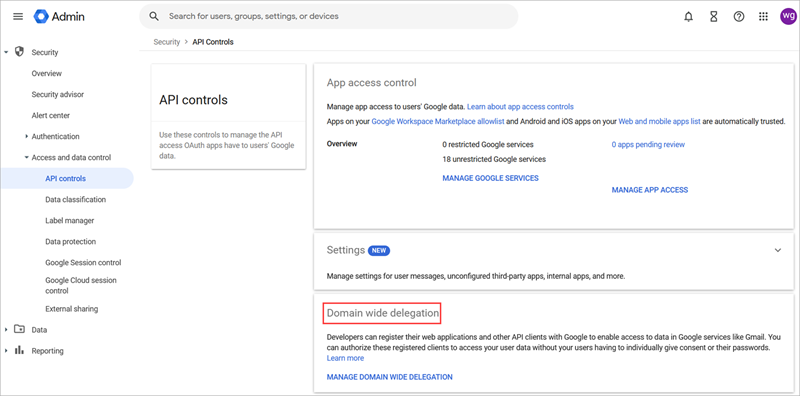
- Click Add new.

- In the Add a new Client ID text box, paste 101707398122463816262 as the Client_ID.
- In the OAuth scopes (comma-delimited) section, paste these scopes:
- https://www.googleapis.com/auth/admin.directory.device.mobile.readonly — Read Mobile Devices
- https://www.googleapis.com/auth/admin.directory.device.chromeos.readonly — Read ChromeOS Devices
- https://www.googleapis.com/auth/admin.directory.domain.readonly — Read Organization Domains
- https://www.googleapis.com/auth/admin.directory.rolemanagement.readonly — Read Roles
- https://www.googleapis.com/auth/admin.directory.user.security — Read User OAuth Tokens
- Click Authorize.
Discovered Applications
When a user grants CloudDR access to read organizational email metadata, the platform scans the metadata across the entire organization to detect and identify cloud application usage (known as Shadow IT). CloudDR only accesses email metadata to retain security of the email content.
This process provides visibility into discovered third-party applications used within the organization and helps IT and security teams authorize and manage potential risks and take corrective action.
| Scope | Use |
|---|---|
| https://www.googleapis.com/auth/gmail.metadata | Read user email metadata |
| https://www.googleapis.com/auth/admin.directory.user.readonly | Read directory users |
Shared Data
This is essential to identify user activity and threats related to data transfers.
| Scope | Use |
|---|---|
| https://www.googleapis.com/auth/drive.readonly | Read drive file metadata |
| https://www.googleapis.com/auth/drive | Modify file sharing |
| https://www.googleapis.com/auth/drive.activity.readonly | Read drive file sharing changes |