Applies To: Locally-managed Fireboxes
When you enable FireCluster, the cluster master can automatically discover the other cluster member Firebox the first time you save the configuration to the cluster master.
The other Firebox must be started with factory-default settings to be discoverable. You can also use the Discover member command to trigger the cluster master to discover a cluster member.
Before you begin, make sure that the device is:
- Connected to the network correctly, as described in Connect the FireCluster Hardware
- Configured as a cluster member in the cluster configuration. Use one of these methods:
- To discover a new cluster member from the cluster master, the new cluster member must be started with factory-default settings. For more information, go to Start The Firebox with Factory-Default Settings.
To trigger the cluster master to discover a device:
- In WatchGuard System Manager, connect to the cluster master.
- Start Firebox System Manager.
- Select Tools > Cluster > Discover member.
The Discover member dialog box appears.
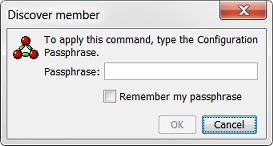
- Type the configuration passphrase for the cluster.
A message appears to tell you the discovery process has started. - Click OK.
The cluster master tries to discover new devices connected to the cluster.
When the cluster master discovers a connected device started with factory-default settings, it checks the serial number of the device. If the serial number matches the serial number in the FireCluster configuration, the cluster master sends the cluster configuration to the second device, and the second device then joins the cluster. The second cluster member synchronizes all cluster status with the cluster master.
After discovery and the initial synchronization is complete, the device appears on the Firebox System Manager Front Panel tab as a member of the cluster.
Verify FireCluster Status
To verify that the cluster has formed, connect to a configured interface IP address for the cluster in WatchGuard System Manager or Fireware Web UI. For more information, go to Monitor and Control FireCluster Members.
If the cluster does not form, or if a cluster member shows an "inactive" status, the cluster master was unable to contact this device. Recheck the connections, particularly the connection between the primary cluster interfaces on each member.
- This status can indicate that the device is powered off, or is in the process of a reboot or upgrade.
- This status can also indicate a model mismatch, Fireware version mismatch, or a failed or disconnected cluster interface.
- Make sure the cluster member Firebox is the same Firebox model and runs the same Fireware version as the cluster master.
- Make sure the Fireboxes are correctly connected to the correct cluster interface port on each Firebox.
If the cluster member was already configured and is not currently in a factory-default state, it will not be automatically or manually discovered by the cluster master. To work around this issue, you can save the configuration file of the cluster master directly to the cluster member Firebox. For more information, go to Alternate FireCluster Configuration.
For more information, go to Troubleshoot FireCluster.
Start The Firebox with Factory-Default Settings
For a Firebox to be discoverable by the cluster master, you must reset it to factory-default settings.
If you use the command line interface (CLI), you can use the restore factory-default command to quickly reset the second device to factory-default settings without a reboot.