Applies To: FireCloud Internet Access, FireCloud Total Access
When you enable security services to block sites, ports, and content, in some cases, you might not want FireCloud to block an IP address, URL, domain, or email address. You can add an exception in FireCloud to allow users access. For example, you might configure FireCloud to block media streaming, but add an exception for a specific streaming service.
There are two ways to add exceptions in FireCloud:
- You can add exceptions manually
- If you have a Firebox, you can upload the XML configuration file to import existing exceptions from your Firebox to FireCloud
For FireCloud to work with Remote Desktop Services, you must add an HTTPS Decryption exception for the hostname of the RDS server.
FireCloud does not perform TLS decryption for enabled domains in the Default HTTPS Decryption Exceptions list or for WebBlocker categories that you have configured to bypass decryption. You can disable an HTTPS decryption exception or configure FireCloud to bypass decryption for a service or content category that you do not want to use. For more information, go to Manage FireCloud HTTPS Decryption Exceptions and Content Filtering in FireCloud.
To import existing exceptions from a Firebox:
- Download the configuration file from your Firebox.
- Locally-Managed Firebox (Policy Manager) — Save the Configuration File
- Locally-Managed Firebox (Fireware Web UI) — Manage the Firebox Configuration File
- Cloud-Managed Firebox — Download the Firebox Configuration File
- In WatchGuard Cloud, select Configure > FireCloud.
- Select Global > Exceptions.
The Exceptions page opens. - Click the import exceptions icon.
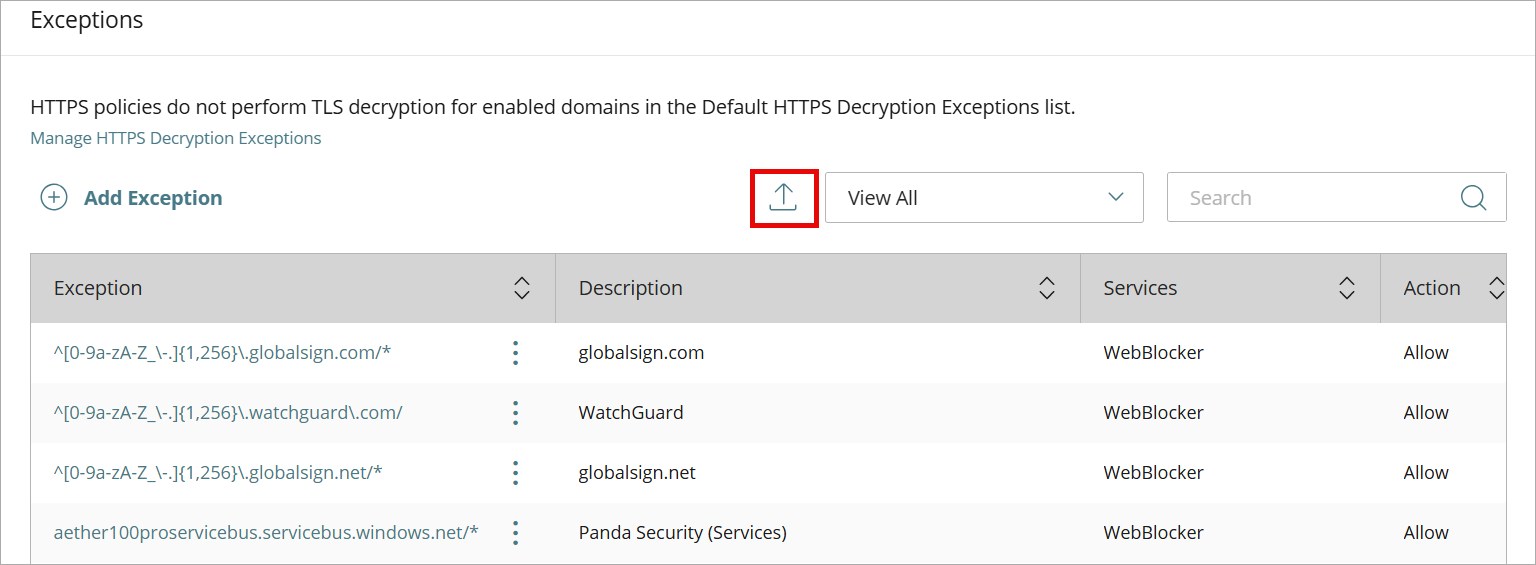
- Upload the XML configuration file from your Firebox.
- Click Next.
- If there are exceptions in the configuration file that already exist in FireCloud, select whether to skip or replace the duplicate exceptions.
- Skip — Select this option to skip the duplicate exceptions in the Firebox configuration file and keep the existing exceptions in FireCloud
- Replace — Select this option to replace the existing exceptions in FireCloud with the duplicate exceptions from the Firebox configuration file.
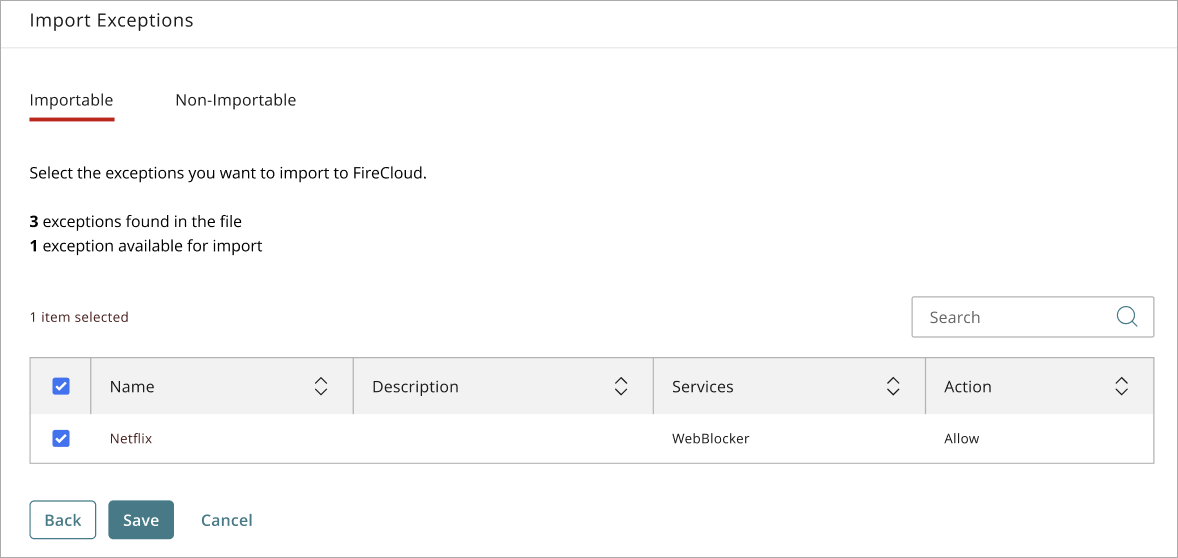
- Review the list of importable and non-importable exceptions, then click Save.
To manually add an exception in FireCloud:
- In WatchGuard Cloud, select Configure > FireCloud.
- Select Global > Exceptions.
The Exceptions page opens. - Click Add Exception.
The Add Exception dialog box opens. - From the Select Service menu, select the service you want to add an exception for. For information about how to use FQDN in exceptions and policies, go to About Policies by Domain Name (FQDN) in Fireware Help.
- Blocked Site — Add an exception for a host IPv4 address, network IPv4 address, host IPv4 address range, or FQDN.
- Botnet Detection — Add an exception for a host IPv4 address, network IPv4 address, host IPv4 address range, or FQDN.
- Gateway AntiVirus / APT Blocker — Add an exception for the MD5 hash value of a file and specify the action to take for the file (Allow or Deny).
- Geolocation — Add an exception for a host IPv4 address, network IPv4 address, host IPv4 address range, or FQDN.
- HTTPS Decryption — Add an exception for an HTTPS domain and specify the action the service takes when the domain is encountered (Allow or Deny).
- IPS — Add an exception for a signature ID and specify the action totake when IPS detects the signature (Allow, Drop, or Block). To generate an alarm for the exception, select the Alarm check box.
- WebBlocker — Add an exception for a website and specify the action WebBlocker takes when users try to go to the website (Allow or Deny). You can add a WebBlocker exception that is an exact match of a URL, a pattern match of a URL, or a regular expression. For more information on how to specify an exception, go to WebBlocker Exceptions. To generate an alarm for the exception, select the Alarm check box.
- (Optional) In the Description text box, type a description of the exception.
- Click Save.