Applies To: WatchGuard Cloud
The geokinetics condition compares the user's current location and the location of their last valid authentication. AuthPoint automatically denies authentications from a location the user could not have travelled to since their previous authentication, based on the distance and time between authentications.
When you create a geokinetics condition, you specify the maximum travel speed that is allowed.
Use Case
An attacker from another country has obtained a user’s login credentials and attempts to log in to a protected resource that is protected by MFA. The attacker uses social engineering or push bombing to get the user to approve the push notification. With geokinetics, even if the user approves the push, AuthPoint denies the authentication if the attacker is in a location that the user could not have travelled to in the time since they last authenticated.
Example
You configure a geokinetics condition that automatically denies authentications if the distance between two authentication locations cannot be travelled at 600 miles per hour (the speed of a plane).
A user successfully authenticates and logs in to JIRA from the corporate office in Seattle (USA) at 9:00 AM. The same user attempts to authenticate 30 minutes later from Paris (France). AuthPoint automatically denies the authentication, even if the user successfully authenticates with MFA, because the user cannot travel from Seattle to Paris in 30 minutes.
Geokinetics conditions work differently than other conditions because they apply after an authentication is complete. Geokinetics can only compare the user's current location and the location of their last valid authentication after AuthPoint receives the location data from the current authentication response.
For other conditions (geofence, time schedule, network locations), when you add the condition to an authentication policy, the policy applies only to user authentications that match those conditions at the time of the authentication. For example, if you add a specific network location to a policy, the policy applies only to user authentications that come from that network location.
Geokinetics do not affect the circumstances of an authentication, so when you add a geokinetics condition to an authentication policy, you do not have to create a second policy without the geokinetics condition.
Limitations
When you configure geokinetics conditions, be aware of this information:
- Geokinetics do not apply for RADIUS authentication.
- Geokinetics conditions apply after the authentication is complete. If the distance between the current authentication and the most recent valid authentication could not be travelled in the elapsed time, at the allowed speed, then the authentication is denied even if the user approved the push or entered the correct OTP or QR code verification.
- Geokinetics compares the location of the current authentication to the location of the most recent successful authentication in the last 24 hours.
- Previous authentications that were denied or not valid are not considered.
- If there is no previous successful authentication within 24 hours, then AuthPoint ignores the geokinetics condition (because 24 hours is enough time to travel between most locations).
- Geokinetics are not applied for Logon app, RD Web, and ADFS resources if the authentication policy requires only a password (no MFA). This is because AuthPoint validates geokinetics after the authentication. In scenarios where AuthPoint does not validate the password, no MFA/authentication request is sent to AuthPoint.
To support authentication with the geokinetics condition, you must install these versions of the AuthPoint agents:
- AuthPoint agent for Windows v2.7.1 or higher
- AuthPoint agent for RD Web v1.4.2 or higher
- AuthPoint agent for ADFS v1.2.0 or higher
To support RD Web has additional requirements to support authentications with location data. For more information, see the Geokinetics for RD Web section.
These resources do not support geokinetics:
- AuthPoint agent for macOS
- RADIUS
For RADIUS authentication, policies that include a geokinetics condition do not apply because AuthPoint cannot determine the IP address of the end user or the origin IP address.
Location Data for Geokinetics Conditions
When a user authenticates, location data identifies the area that the user is authenticating from. When you configure a geokinetics condition, you can choose to allow location data with low accuracy. User locations identified from low accuracy data have a larger radius. For example, high accuracy location data might be accurate to within 10 meters of the actual location of the user, but low accuracy location data might only be accurate to within a kilometer of the actual location.
For browser-based authentication, when a user authenticates, the browser prompts them to share their location. If the user accepts, the browser sends the geographical coordinates of the user location to AuthPoint. AuthPoint uses this information to validate geokinetics. This is high accuracy location data.
If the user does not accept the prompt to share their location, their location is based on the IP address. AuthPoint considers location data based on IP address to be low accuracy.
These resources use browser-based location data:
- IdP portal
- SAML
- RD Web
- ADFS
AuthPoint supports location data based on the IP address for these types of authentication only:
- RDP connections
- Firebox resources
- Windows virtual machines (VMs)
The AuthPoint agent for Windows uses the Windows API to get the location of the user. If the agent is installed on a Windows VM, the location data is always based on the IP address (low accuracy).
Configure a Geokinetics Condition
To configure a geokinetics condition:
- Log in to WatchGuard Cloud.
- Select Configure > Zero Trust.
- Select Conditions.
- Click Add Condition.
The Add Conditions page appears.
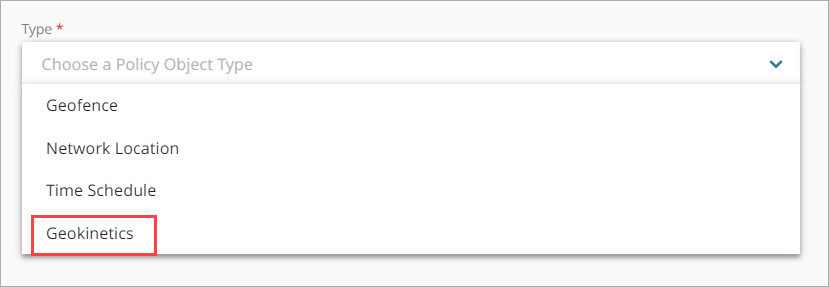
- From the Type drop-down list, select Geokinetics.
Additional fields appear. - In the Name text box, type a name to identify this geokinetics condtion. This helps you identify the geokinetics when you add it to authentication policies.
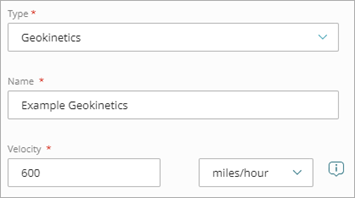
- In the Velocity text box and the adjacent drop-down list, specify a number and unit for AuthPoint to use for this geokinetics condition. AuthPoint denies authentications if the distance between the current authentication and the previous authentication cannot be travelled at this speed.
The default velocity is 600 miles per hour (the average speed of a commercial airplane).
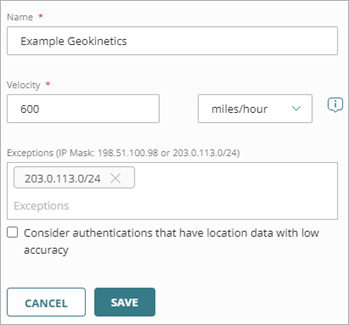
- (Optional) In the Exceptions text box, enter a public IP address or netmask that defines a range of public IP addresses that AuthPoint should ignore for this geokinetics condition, then press Enter or Return. You can specify multiple exceptions. You might do this so that the geokinetics condition does not deny authentications when users connect to a VPN.
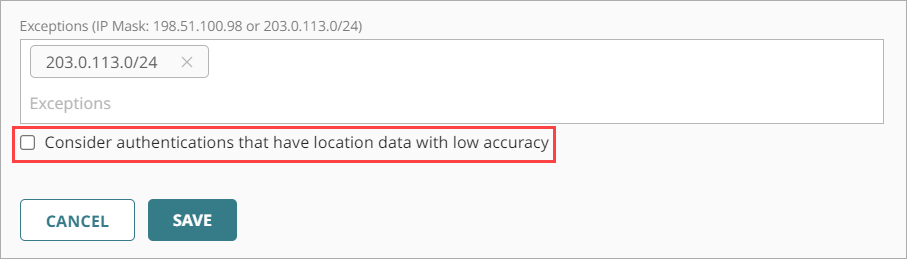
- If you want AuthPoint to consider authentications that have location data with low accuracy when this geokinetics condition is considered, select the Consider authentications that have location data with low accuracy check box.
If you do not select this check box, authentications that have location data with low accuracy are not evaluated against the geokinetics condition.
- Click Save.
- Add this geokinetics condition to the zero trust authentication policies that you want it to apply to.
Unlike other conditions (geofence, time schedule, network locations), when you add a geokinetics condition to an authentication policy, you do not have to create a second policy without the geokinetics condition.
Geokinetics for RD Web
To support the geokinetics condition for RD Web, you must edit the webscripts-domain.js file on your RD Web Access server and configure the client to save the user location as a cookie on the RD Web server. This enables RD Web to send the coordinates of the user to AuthPoint when the user authenticates.
This is also required to support geofence for RD Web. If you have already completed these steps to support the geofence condition, you do not need to do them again for geokinetics.
- Log in to your RD Web Access server.
- Open Windows File Explorer and navigate to C:\Windows\Web\RDWeb\Pages.
- Open the webscripts-domain.js file in a text editor.
- At the end of the onLoginPageLoad function, add this script to get the coordinates from the browser and save them to cookies:
document.cookie = 'WatchGuardGeolocation=;max-age=0';
if (navigator.geolocation) {
var options = { enableHighAccuracy : true };
navigator.geolocation.watchPosition(function(position) {
var geolocation = { latitude: position.coords.latitude, longitude: position.coords.longitude, accuracy: position.coords.accuracy };
var geolocationJson = JSON.stringify(geolocation);
var geolocationEncoded = encodeURIComponent(geolocationJson);
document.cookie = 'WatchGuardGeolocation=' + geolocationEncoded + ';secure;samesite=none;path=/';
}, function(error) { }, options);
}