Applies To: WatchGuard Core MDR, WatchGuard Core MDR for Microsoft, WatchGuard Total MDR, WatchGuard Open MDR
Tier-1 Service Providers can delegate management of the MDR service settings in the Managed Services portal to the administrator for a Subscriber account or owner of a Service Provider account they manage. This allows the tier-n Subscriber or Service Provider of the account to manage their account settings and integrations in the Managed Services portal.
Enable MDR Service Access for a Managed Account
As a tier-1 Service Provider, you enable MDR service access for the account from the Tenant Settings page in the Managed Services portal.
If you enable MDR service access for an account:
- This action cannot be undone.
- Until the administrator or owner accepts the Terms of Service and configures the tenant settings, you continue to receive WatchGuard MDR alert notifications.
- After the administrator or owner configures the tenant settings, you can no longer view the account in the portal or on the Tenant Management page.
Caution: To disable MDR service access after it is enabled, you must contact WatchGuard Support.
To enable MDR service access for an account:
- In WatchGuard Cloud, select Monitor > Managed Services.
The Managed Services portal opens in a new browser tab. - In the upper-right corner of the Managed Services portal, click
 .
. - From the drop-down list, select Onboarding.
- From the navigation menu, select Tenant Management.
The Tenant Management page opens.

- Next to the account you want to enable MDR service access for, click Enable.
The Enable MDR Service Access confirmation dialog box opens.

- Click Enable.
MDR service access is now enabled for the account. The Service Access column in the Tenant Management page shows Pending status until the account administrator or owner accepts the Terms of Service and configures the tenant settings.
Manage MDR Service for Tier-n Subscribers and Service Providers
When a tier-1 Service Provider enables MDR service access to your account, you must accept the Terms of Service and configure your tenant settings before you can manage your account in the Managed Service portal.
To accept the terms of service and configure your tenant settings:
- Log in to your WatchGuard Cloud account.
- Select Monitor > Managed Services.
The MDR Service Access Enabled page opens.

- Click Continue.
The WatchGuard Managed Detection and Response Terms of Service page opens.
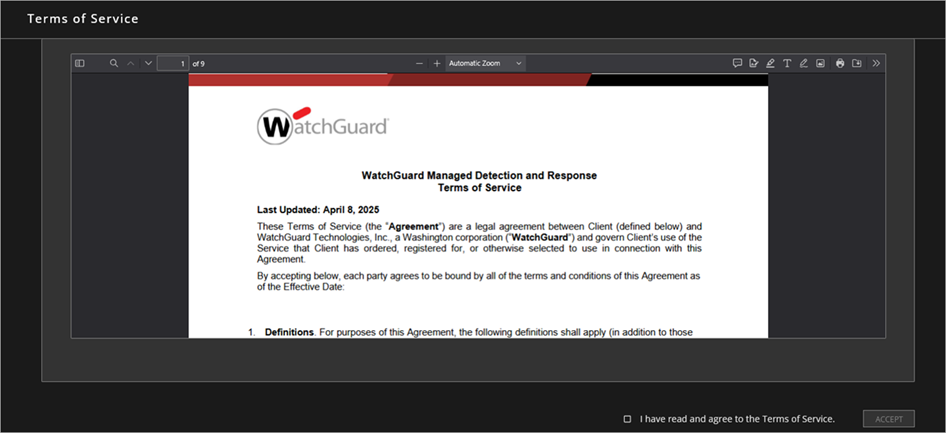
- After you read the agreement, select the I Have Read and Agree to the Terms of Service check box.
- Click Accept.
The Tenant Settings page opens.
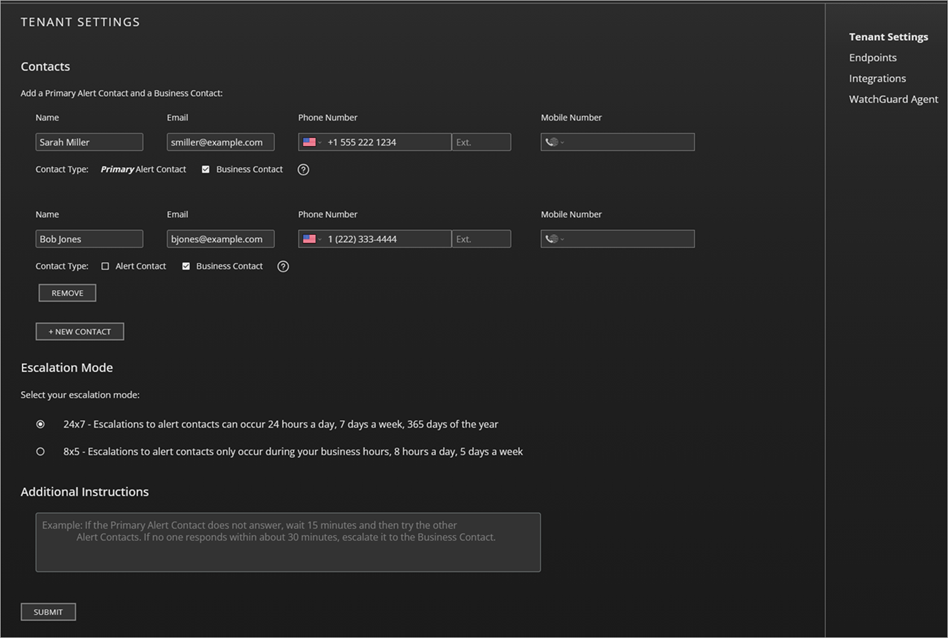
- In the Contacts section, enter contact information for the primary alert contact. This person is the designated contact for security alerts and incident notifications.
- Designate a contact as a business contact. The business contact is the designated contact for all business-related communication for the account. You can designate the primary alert contact as the business contact or you can add additional contacts.
- To add additional contacts, click New Contact and enter the contact information.
- To designate the contact as an alert contact, select the Alert Contact check box.
- To designate the contact as a business contact, select the Business Contact check box.
You must designate at least one alert contact and at least one business contact. You can assign these roles to the same contact or to different contacts.
- In the Escalation Mode section, select an escalation mode:
- 24x7 — Escalations to Alert Contacts Can Occur 24 Hours a Day, 7 Days a Week, 365 Days of the Year
- 8x5 — Escalations to Alert Contacts Only Occur During Your Business Hours, 8 Hours a Day, 5 Days a Week

- If you select 8x5 as the escalation mode, from the Timezone drop-down list, select the time zone for the primary alert contact.
- Select the check boxes for the business days when the alert contacts are available.
- In the Additional Instructions text box, type any special instructions for the MDR team related to your alert contacts.
- Click Submit.
For more information about MDR tenant settings, go to Manage MDR Tenant Settings.