SentinelOne Singularity is an AI-driven, cloud-native endpoint security and XDR platform that provides EDR, automated detection and response, threat hunting, and device visibility.
This document describes the steps to integrate SentinelOne Singularity in ThreatSync, which enables you to view and manage incidents generated by SentinelOne Singularity in the ThreatSync UI. This unifies detection and response activities across environments and provides broader incident visibility and management from a centralized location.
Contents
Integration Summary
The hardware and software used in this guide includes:
- SentinelOne Singularity
Before You Begin
Before you begin these procedures, make sure that:
- You have ThreatSync enabled in WatchGuard Cloud.
- You have a ThreatSync Open license allocated in WatchGuard Cloud.
- You have a SentinelOne Singularity global administrator or user management administrator account.
Retrieve the SentinelOne Singularity API Token
- Log in to the SentinelOne Singularity management console.
- Select your user name/profile icon in the upper portion of the page.
- From the drop-down list, select My User (or go to Settings > My User) to open the user details page.
- From the Actions drop-down list, select Generate API Token (or Regenerate API Token to replace an existing token).
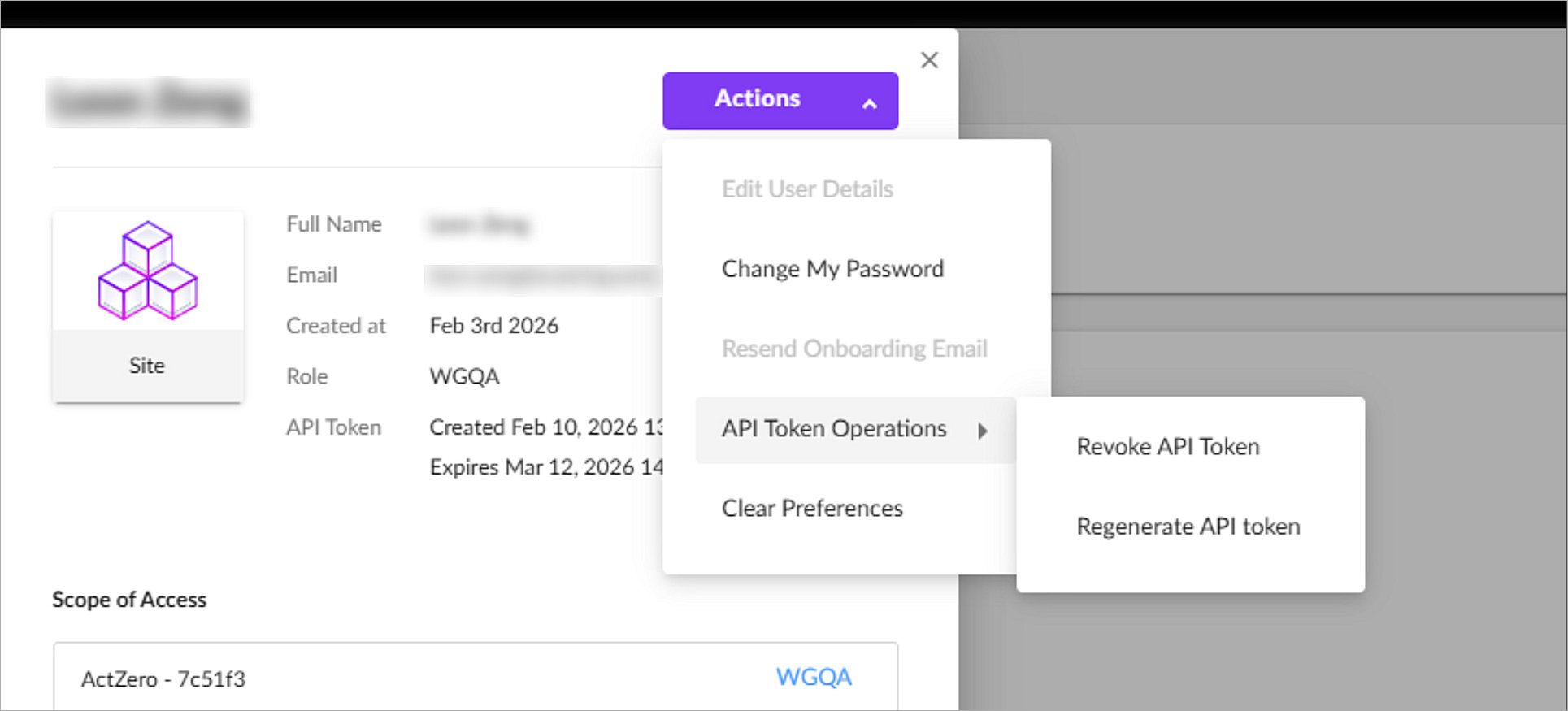
- When the API token appears, click Copy API Token to copy the token to the clipboard
This token is only shown once; you cannot view it again after you close or refresh the page.
- Paste the token to a secure location.
Configure the Integration in ThreatSync
- Log in to WatchGuard Cloud with WatchGuard Cloud operator account credentials.
If you log in as a Service Provider, select a Subscriber account from Account Manager. - Select Configure > ThreatSync > Integrations.
- Click Add Integration.
- From the Product drop-down list, select SentinelOne Singularity.
- In the Name text box, enter a name for the integration. For example, SentinelOne Integration.
- In the Server Name text box, enter the FQDN for the URL you use to access the SentinelOne management console.
- In the Access Token text box, paste the API token you retrieved from the SentinelOne management console.
- (Optional) In the Description text box, enter a description for the integration.
- Click Save.
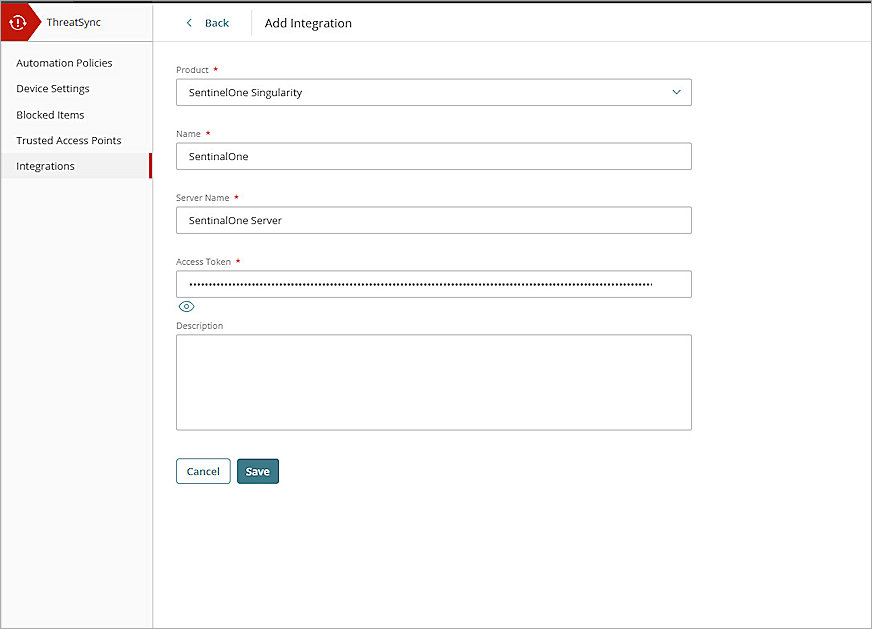
After you save, the new integration appears in the Integrations table on the Integrations page.
Test the Integration
- Log in to WatchGuard Cloud.
If you log in as a Service Provider, select a Subscriber account from Account Manager. - Select Configure > ThreatSync > Integrations.
- In the table, locate the integration you created. Verify the Status of the integration is Success.
