Okta Integration with WatchGuard Open MDR
To enable the WatchGuard MDR team to monitor logs from your Okta environment, you must configure a connection from your Okta installation to WatchGuard.
Contents
Before You Begin
Before you complete the procedures in this document, make sure that:
- You have an Okta account with Read-Only Admin access to your Okta environment.
- You have a WatchGuard Open MDR license allocated in WatchGuard Cloud.
Create the Okta API Token
Okta API tokens inherit the permissions of the user that created them. To enable WatchGuard MDR to monitor Okta system logs and user logs, you must create the Okta API token in Okta with use a user account that has Read-Only Admin access to create the Okta API token in Okta. For more information about Okta roles and permissions, go to Standard Administrator Roles and Permissions in the Okta documentation (external link).
To create the Okta API token:
- Log in to your Okta Admin Dashboard.
- Select Security > API.
The API page opens.
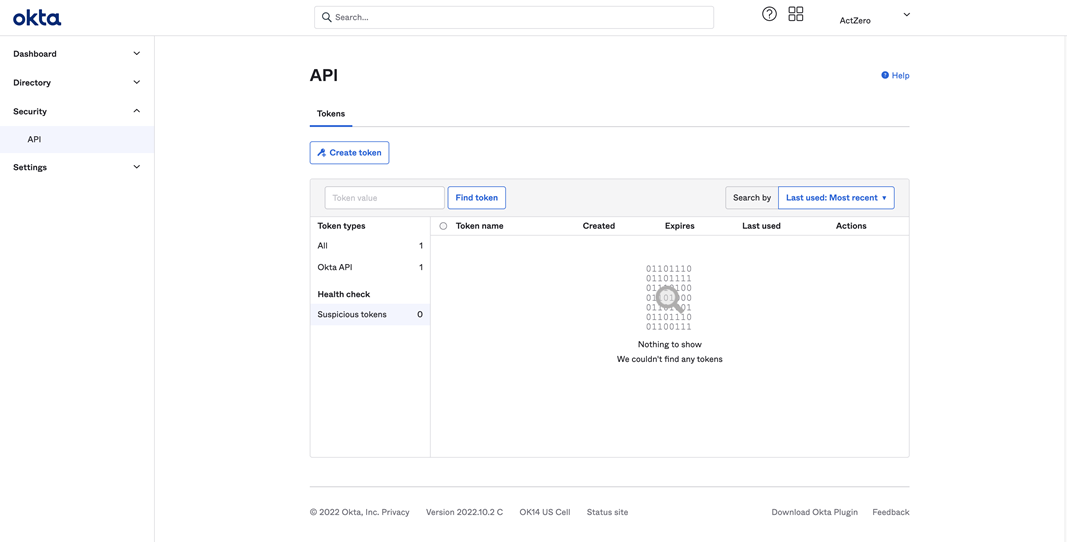
- Click Create Token.
The Create Token dialog box opens.
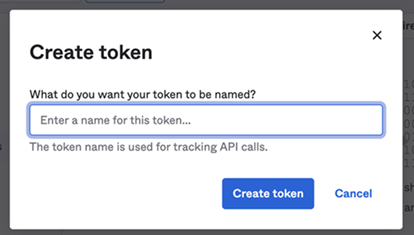
- In the text box, type a name for the token.
- Click Create Token.
The Token Value appears.
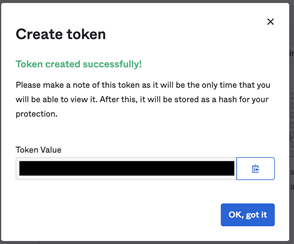
- Next to the Token Value, click the copy icon.
- Click OK, Got It.
The API page opens and shows the new token.
Add the Integration in the Managed Services Portal
To complete the integration, you must add the Okta integration in the Managed Services portal.
To add the Okta integration:
- In WatchGuard Cloud, select Monitor > Managed Services.
The Managed Services portal opens in a new browser tab. - If you are a Service Provider, select your Subscriber account from the drop-down list.
- In the upper, right corner of the Managed Services portal, click
 .
. - From the drop-down list, select Onboarding.
- From the navigation menu, select Integrations.
The Integrations page opens.
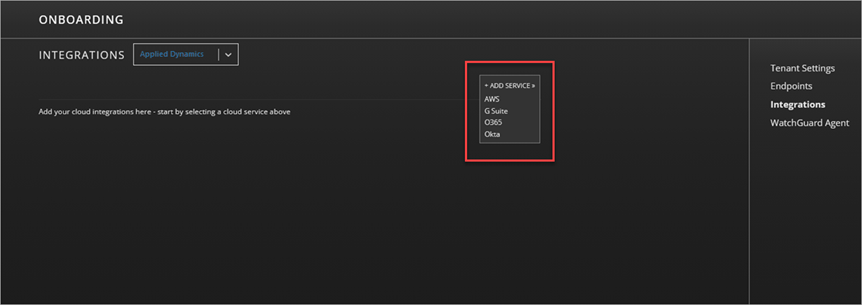
- Click Add Service > Okta.
The Okta tab opens.

- Click Add Integration.
The Add Okta Integration dialog box opens.

- In the Label text box, type a name for the integration.
- In the Hostname text box, type the domain or URL of your Okta service. For example: https://<yourTenanat>.okta.com
For instructions on how to find your Okta domain, go to Find Your Okta Domain in the Okta Developer documentation. (external link)
- In the Auth Token Key text box, paste the token value you copied in the Create the Okta API Token section.
- Click Submit.
Test the Integration
To test the Okta integration with WatchGuard Open MDR:
- In WatchGuard Cloud, select Monitor > Managed Services.
The Managed Services portal opens in a new browser tab. - If you are a Service Provider, select your Subscriber account from the drop-down list.
- In the upper, right corner of the Managed Services portal, click
 .
. - From the drop-down list, select Onboarding.
The Integrations page opens. - Select the Okta tab.
- Next to the integration, click Test.