To enable the WatchGuard MDR team to monitor logs from Duo, you must configure a connection from your Duo installation to WatchGuard.
Contents
Before You Begin
Before you complete the procedures in this document, make sure that:
- You have a Duo account with Read-Only Admin access to your Duo environment.
- You have a WatchGuard Open MDR license allocated in WatchGuard Cloud.
Configure Duo Security Application Protection
To enable WatchGuard MDR to monitor Duo system logs and user logs, you must collect the Integration Key, Secret Key, and API Hostname from Duo, and configure the required permissions for the Admin API in Duo.
WatchGuard provides interoperability instructions to help our customers configure WatchGuard products to work with third-party products created by other organizations. If you need more information or technical support about configuring a non-WatchGuard product, see the documentation and support resources for that product.
To configure Duo Security application protection:
- Log in to Duo.
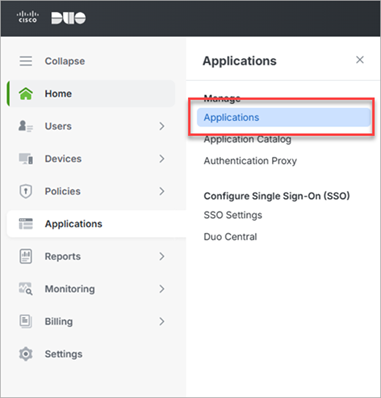
- Select Applications > Applications.
The Applications page opens.
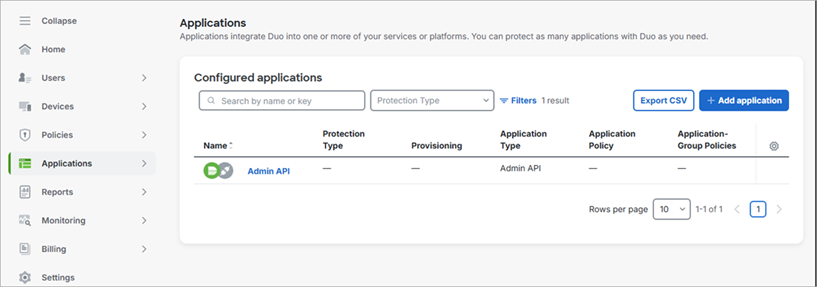
- From the Configured Applications list, select the Admin API application.
The Admin API page opens.
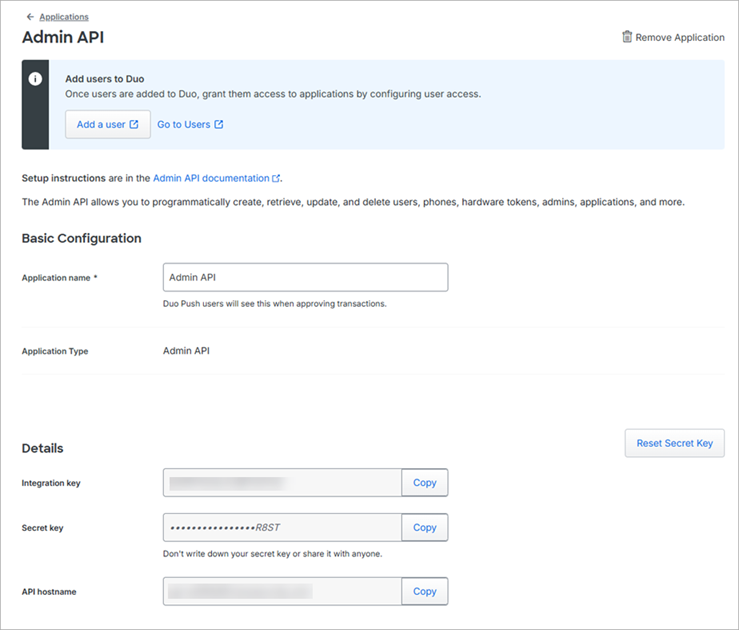
- From the Details section, copy and save the Integration Key, Secret Key, and API Hostname text. You will add this information to the Managed Services portal later.
- Scroll to the Settings section.
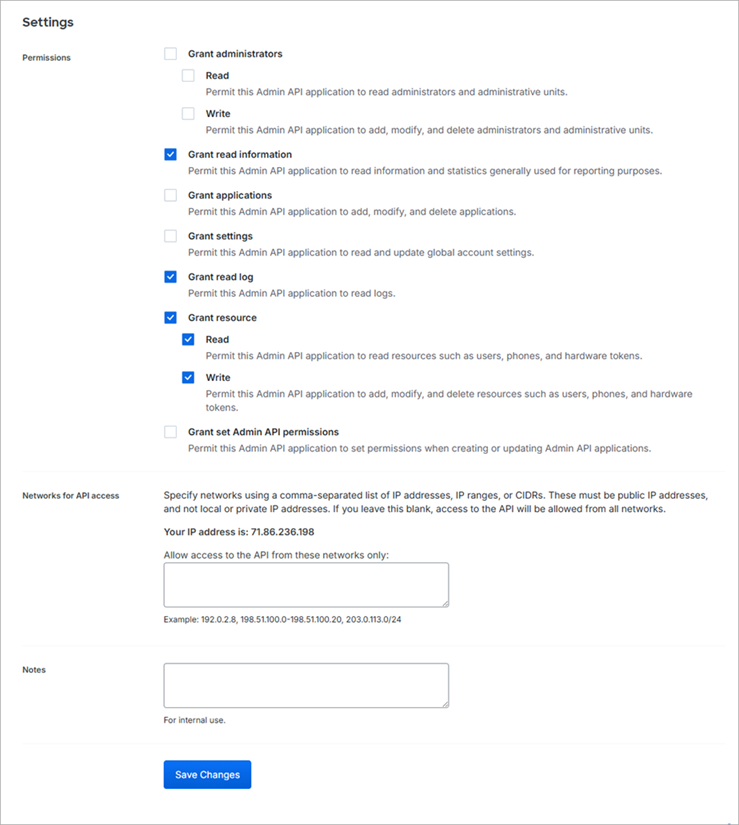
- Next to Permissions, select the Grant Read Information, Grant Read Log, and Grant Read Resource check boxes.
- Click Save Changes.
Add the Integration in the Managed Services Portal
To complete the integration, you must add the Duo integration in the Managed Services portal.
To add the Duo integration:
- In WatchGuard Cloud, select Monitor > Managed Services.
The Managed Services portal opens in a new browser tab. - If you are a Service Provider, select your Subscriber account from the drop-down list.
- In the upper, right corner of the Managed Services portal, click
 .
. - From the drop-down list, select Onboarding.
- From the navigation menu, select Integrations.
The Integrations page opens.
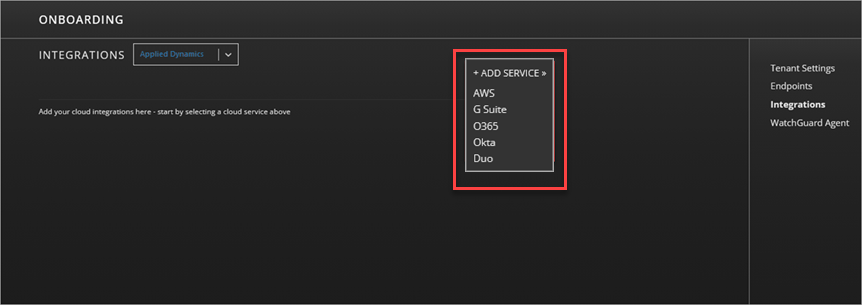
- Click Add Service > Duo.
The Duo tab opens.
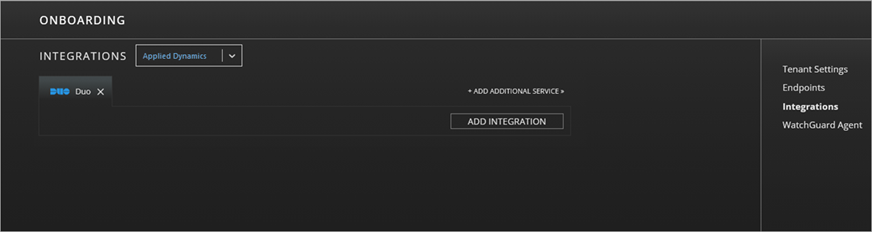
- Click Add Integration.
The Add Duo Integration dialog box opens.

- In the Label text box, type a name for the integration.
- In the Host text box, paste the Duo API Hostname you copied from the Duo Admin API application.
- In the Integration Key and Security Key text boxes, paste the keys you copied from the Duo Admin API application.
- Click Submit.
Test the Integration
To test the Duo integration with WatchGuard Open MDR:
- In WatchGuard Cloud, select Monitor > Managed Services.
The Managed Services portal opens in a new browser tab. - If you are a Service Provider, select your Subscriber account from the drop-down list.
- In the upper, right corner of the Managed Services portal, click
 .
. - From the drop-down list, select Onboarding.
The Integrations page opens. - Select the Duo tab.
- Next to the integration, click Test.