AWS Cloud Security Posture Management (CSPM) with WatchGuard MDR
Deployment Overview
You can use WatchGuard MDR with Amazon Web Services (AWS) Cloud Security Posture Management (CSPM) to combine threat detection and cloud security optimization for your environment.
This document describes the steps to integrate WatchGuard MDR with AWS CSPM.
Contents
Before You Begin
Before you complete the procedures in this document, make sure that:
- You have an AWS administrator account.
- You have a WatchGuard Total or WatchGuard Open MDR license allocated in WatchGuard Cloud.
Run AWS CloudFormation Automation
To integrate WatchGuard MDR with AWS CSPM, you must run AWS CloudFormation automation. CloudFormation automation uses AWS templates to provision a read-only identity and access management (IAM) role that WatchGuard MDR uses to assess AWS services and configurations. After WatchGuard MDR receives the data over a secure HTTPS connection, the data remains encrypted at rest. Follow the steps for your environment:
- Run AWS CloudFormation Automation for a Single AWS Account
- Run AWS CloudFormation Automation for Multiple AWS Accounts
Run AWS CloudFormation Automation for a Single AWS Account
To run AWS CloudFormation automation:
- Go to Use an AWS CloudFormation template to integrate AWS CSPM with WatchGuard MDR in the WatchGuard Knowledge Base and download the cspm-iam-role.yml file.
- Go to the AWS Management Console at https://aws.amazon.com/ and log in with a root user for the account you want to monitor.
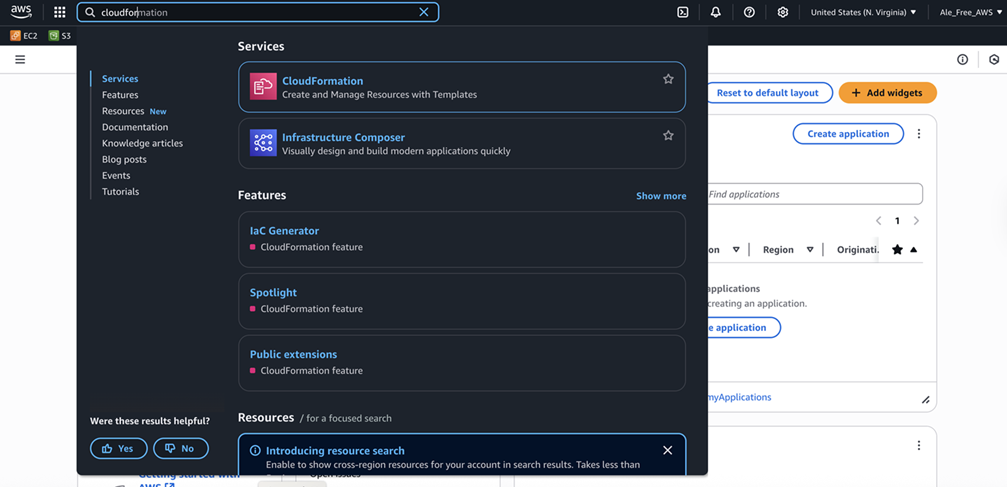
- In the search box, search for and select CloudFormation.
The CloudFormation dashboard opens.
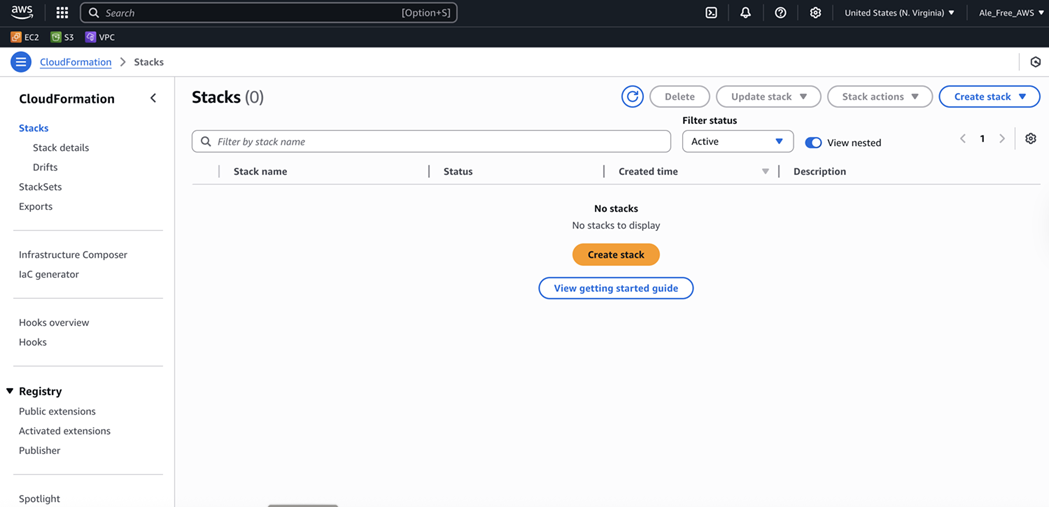
- From the Create Stack drop-down list, select With New Resources (Standard).
The Create Stack page opens.
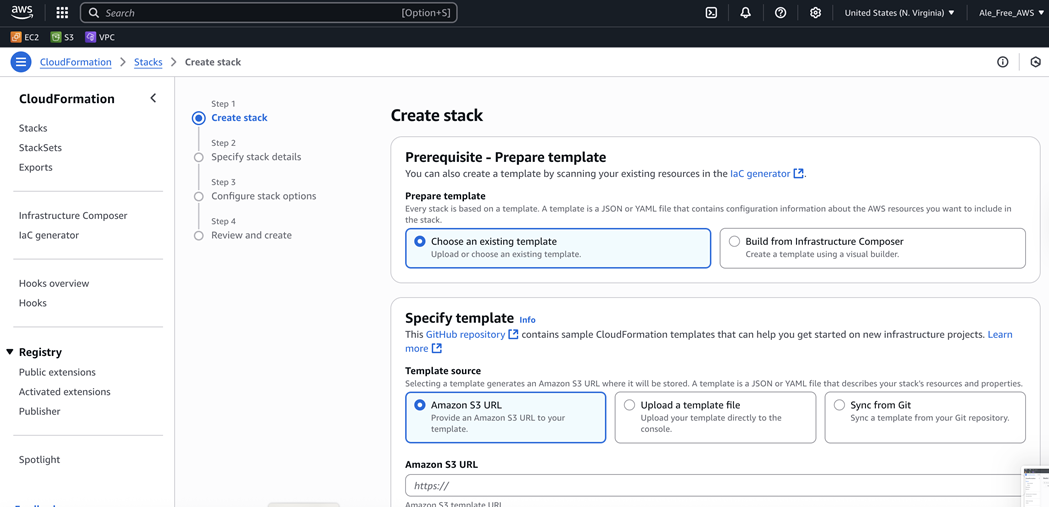
- In the Prerequisite - Prepare Template section, select Choose an Existing Template.
- In the Specify Template section, select Upload a Template File.
- Click Choose File.
- Select the cspm-iam-role.yml file you downloaded in Step 1.
- Click Next.
The Specify Stack Details page opens. - Enter a Stack Name. Click Next.
The Configure Stack Options page opens. - In the Capabilities section, select the I acknowledge that AWS CloudFormation might create IAM resources with custom names check box.
- Keep the default values for all other settings. Click Next.
The Review and Create page opens. - Click Submit.
When the automation is complete, a status message shows.
Run AWS CloudFormation Automation for Multiple AWS Accounts
Before you begin these steps, make sure you can perform CloudFormation stack set operations through self-managed or AWS Organizations permissions in your environment. For more information, go to Prerequisites for Using AWS CloudFormation StackSets in the AWS documentation (external link).
To run AWS CloudFormation automation for multiple AWS accounts:
- Go to Use an AWS CloudFormation template to integrate AWS CSPM with WatchGuard MDR in the WatchGuard Knowledge Base and download the cspm-iam-role.yml file.
- Go to the AWS Management Console at https://aws.amazon.com/ and log in with a root user for the account you want to monitor.
- In the search box, type and select CloudFormation.
The CloudFormation dashboard opens. - From the CloudFormation navigation menu, select StackSets.
- Click Create StackSet.
- In the Permissions section, select one of these options:
- For AWS Organizations, select Service-Managed Permissions.
- For IAM Roles, select Self-Service Permissions.
- In the Prerequisite - Prepare Template section, select Template Is Ready.
- In the Specify Template section, select Upload a Template File.
- Click Choose File.
- Select the cspm-iam-role.yml file you downloaded in Step 1.
- Click Next.
The Specify StackSet Details page opens. - In the StackSet Name text box, type CSPMCustomerAccountRole.
- Keep the default values for all other settings. Click Next.
The Configure StackSet Options page opens. - (Optional) In the Tags section, add tags.
- In the Execution Configuration section, select Active.
- In the Capabilities section, select the I acknowledge that AWS CloudFormation might create IAM resources with custom names check box.
- Click Next.
The Set Deployment Options page opens. - Select Deploy New Stacks.
- In the Accounts section, select one of these options:
- Deploy to Organization
- Deploy to Organizational Units (OUs). If you select this option, add up to 10 OU IDs and, optionally, any account filters.
- For Automatic Deployment, select Activated.
- For Account Removal Behavior, select Delete Stacks.
- From the Specify Regions drop-down list, select the region. To avoid conflicts, select only one region.
- In the Deployment Options section, configure these settings:
- Select the Maximum Concurrent Accounts to deploy to. For larger AWS environments, we recommend you configure this value to deploy to a few accounts at a time.
- Select the Failure Tolerance. This stops the deployment if the number of failed deployments is equal to the failure tolerance.
- For Region Concurrency, leave the default setting.
- Click Next.
The Review page opens. - Click Submit.
When the deployment is complete, the Stack Instances tab on the CSPMCustomerAccountRole StackSet shows a status message.
Encrypt Credentials with Keybase
To securely share your AWS account number and regions to scan with WatchGuard in the CSPM Onboarding Form, encrypt the values with Keybase.
To encrypt the values:
- Go to https://keybase.io/encrypt.
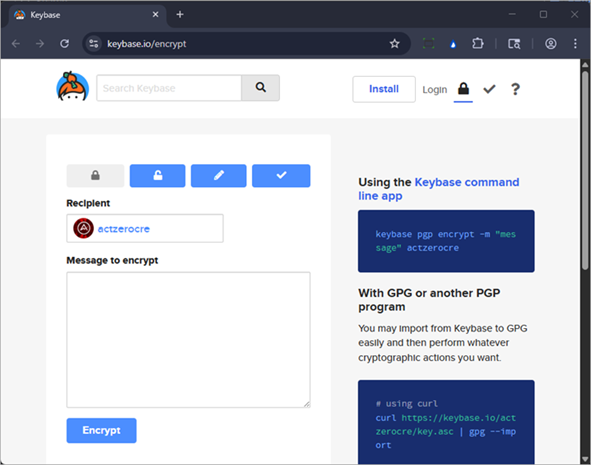
- In the Recipient text box, enter actzerocre.
- In the Message to Encrypt text box, paste the values copied from the previous steps.
- Click Encrypt.
- From the The Secret Message text box, copy the encrypted contents of the message and save them to add to the onboarding form.
Make sure to erase the copies of the sensitive information in your local environment after you add them to the onboarding form.
Complete the Onboarding Form
After you configure your AWS environment, to finish the integration with WatchGuard MDR, complete the CSPM Onboarding Form (external link). To complete the form, you must have this information from your AWS account:
- The AWS Regions where your account deploys infrastructure
- Encrypted AWS account number
You also need this information:
- Customer Company Name — The company name of the customer account for this connector.
- Partner Company Name — The company name of the Partner.
- WatchGuard Partner ID — The Partner ID format is: ACC-XXXXXXX.
- Partner Contact Email Address — The Partner contact email address the deployment team can use if they have questions.
- Customer/Subscriber WatchGuard Account ID — The Account ID format is: ACC-XXXXXXX or WGC-X-XXXXXXXXXXXXXXXXXXXX.