This document describes how to integrate a Cisco Adaptive Security Appliance (ASA) firewall with WatchGuard Open MDR to enable the WatchGuard MDR team to monitor data from your firewall.
Contents
Firewall Syslog Data Flow to WatchGuard MDR
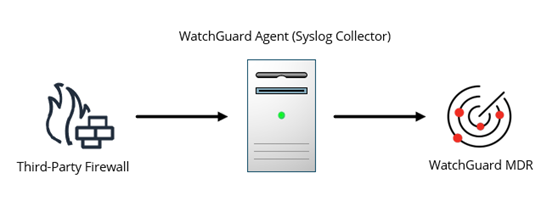
The WatchGuard MDR Syslog Collector sends logs from your third-party firewall to WatchGuard MDR. To install the Syslog Collector on a computer, you must first install the WatchGuard Agent. This diagram shows the data flow of third-party firewall syslogs to WatchGuard MDR.
Before You Begin
Before you begin these procedures, make sure that:
- You have a WatchGuard Open MDR license allocated in WatchGuard Cloud.
- You have the required access and permissions on your Cisco ASA firewall to configure syslog forwarding.
- You have access to a Linux server to install the WatchGuard Agent and the Syslog Collector.
Install the WatchGuard Agent and Syslog Collector
The WatchGuard MDR Syslog Collector collects the syslog data sent from your third-party firewall. You must install the WatchGuard Agent and the Syslog Collector on a supported Linux server to collect the syslogs. To configure your third-party firewall for syslog forwarding, you must have the IP address of your Syslog Collector server.
For steps to install the WatchGuard Agent and Syslog Collector, go to Configure Third-Party Firewall Syslog Collection for WatchGuard Open MDR in Help Center.
Configure a Cisco ASA Firewall to Forward Syslogs
WatchGuard provides interoperability instructions to help our customers configure WatchGuard products to work with third-party products created by other organizations. The steps to configure syslog forwarding on your device might be different, based on the version of your firewall management software. For the latest syslog forwarding instructions, go to your third-party firewall documentation.
To configure a Cisco ASA firewall to forward syslogs to the Syslog Collector:
- Log in to your Cisco ASA firewall UI.
- Select Configuration > Device Management > Logging > Logging Setup and make sure that Enable Logging is selected.
- If the firewall has a secondary failover device, select Enable Logging on the Failover Device.
- Click Add.
The Add Syslog Server dialog box opens. - From the Interface drop-down list, select an interface that can reach your WatchGuard MDR Syslog Collector server.
- In the IP Address text box, enter the IP address of your WatchGuard MDR Syslog Collector server.
- For Protocol, select UDP.
- In the Port text box, enter 514.
- Click OK.
- Select Logging > Syslog Setup.
- Select the Include Timestamp in Syslogs check box and make sure the format is RFC5424.
- Click Save.
For more information about Cisco ASA firewall remote logging options, go to Working with Logging Filters in the Cisco documentation (external link).
Verify the Integration
To verify the integration of WatchGuard Open MDR and the configuration of your third-party firewall, view the Connections > Service Status > Network Device List in the Managed Service portal in WatchGuard Cloud.
It can take up to six hours for incident data to appear in the Managed Services portal after you complete the integration steps.
To verify the integration:
- In WatchGuard Cloud, select Monitor > Managed Services.
The Managed Services portal opens in a new browser tab. - If you are a Service Provider, select your Subscriber account from the drop-down list.
- Select Connections > Service Status.
The Service Status page opens.
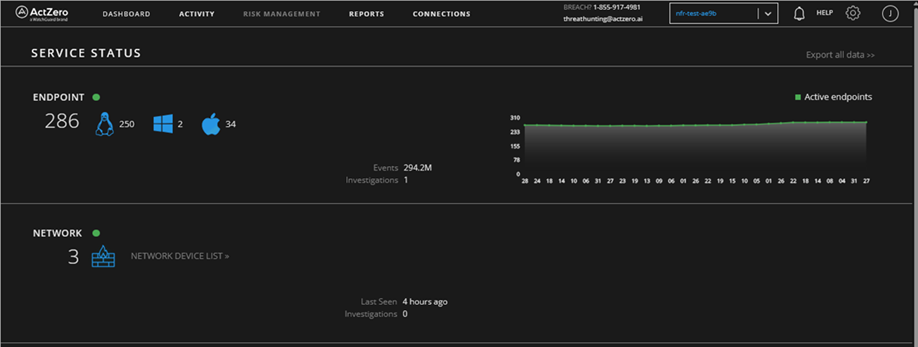
- From the Network tile, click Network Device List.
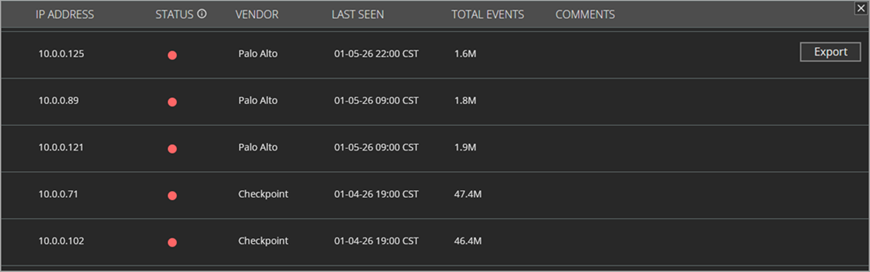
- Confirm that the IP address of your third-party firewall shows in the list.