This guide describes how to configure a route-based Branch Office VPN (BOVPN) with static routing between a WatchGuard Firebox and a pfSense firewall.
Contents
Integration Summary
The hardware and software used in this guide include:
- WatchGuard Firebox with Fireware v12.11.2 (Build 713726)
- pfSense firewall with v2.8.0-BETA (amd64)
Integration Topology
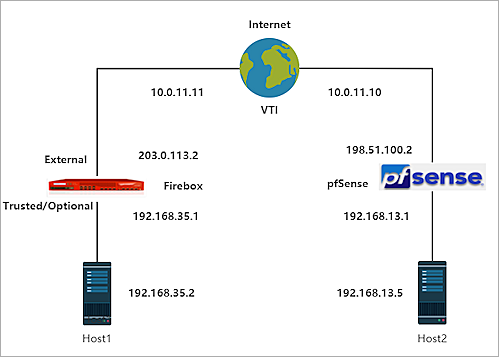
This diagram outlines the topology used in this integration:
Configure the Firebox
You can configure your Firebox for a route-based BOVPN from WatchGuard Cloud for a cloud-managed Firebox or Fireware Web UI for a locally-managed Firebox.

- Log in to WatchGuard Cloud with your WatchGuard Cloud operator account credentials.
If you log in with a Service Provider account, you must select a Subscriber account from the Account Manager. - From the top navigation menu, select Configure > VPNs.
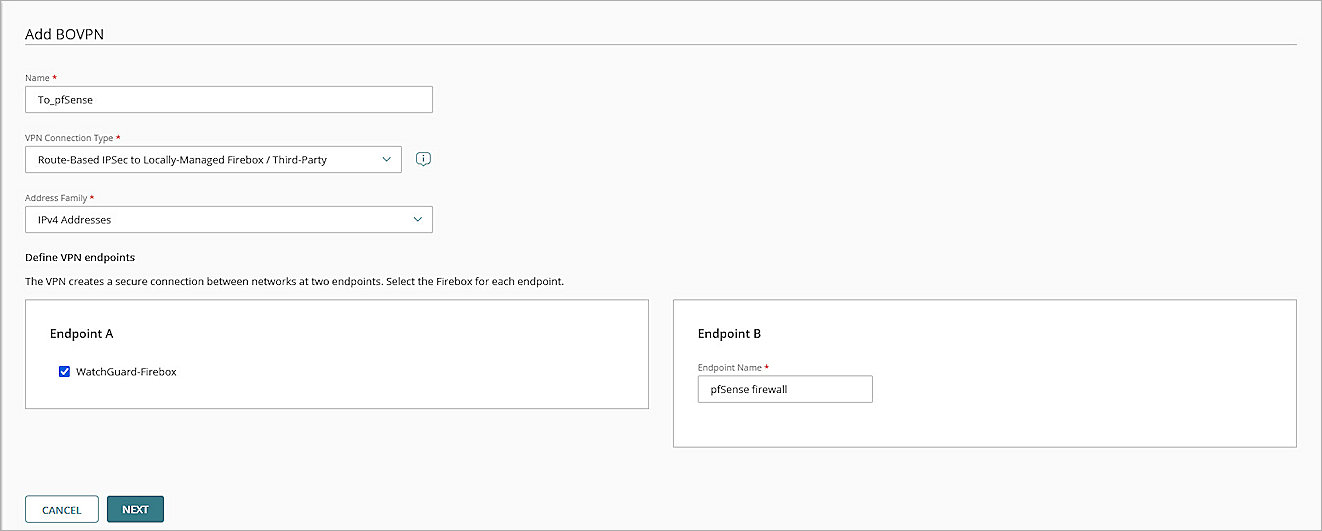
- Click Add BOVPN.
The Add BOVPN page opens. - In the Name text box, type a descriptive name.
- For VPN Connection Type, select Route-Based IPSec to Locally-Managed Firebox / Third-Party.
- From the Address Family drop-down list, select IPv4 Addresses.
- In the Endpoint A section, select your cloud-managed Firebox.
- In the Endpoint B section, in the Endpoint Name text box, type a name to identify the remote VPN endpoint. In our example, we type pfSense firewall.
- Click Next.
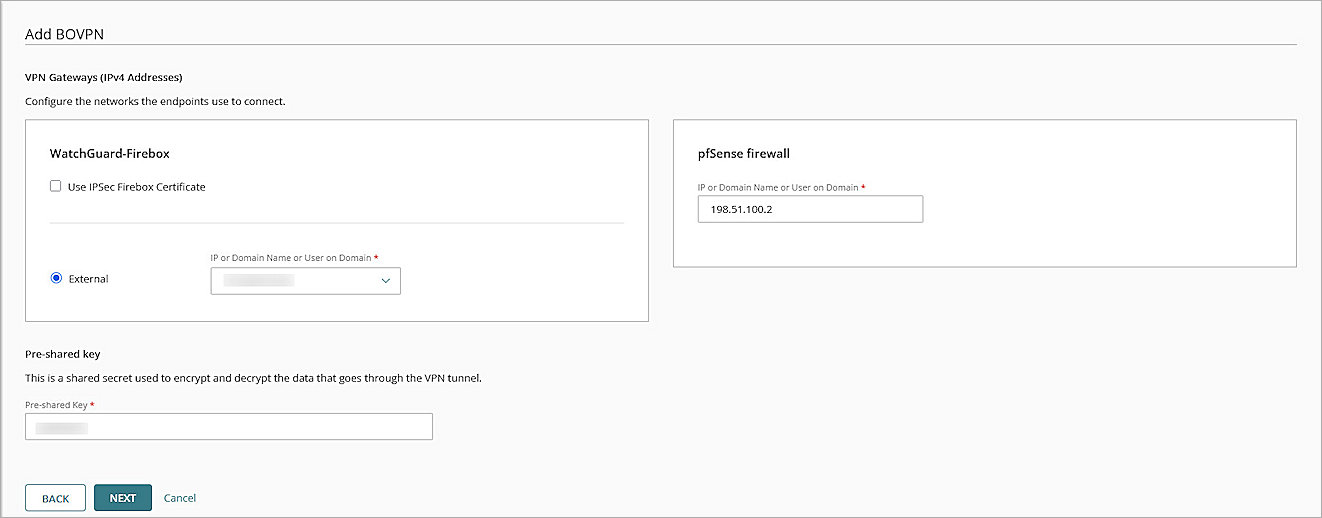
- For your cloud-managed Firebox:
- Select External.
- In the IP or Domain Name or User on Domain text box, select an IP address, domain name, or user on domain that resolves to the Firebox external network IP address.
- For the remote VPN endpoint, in the IP or Domain Name or User on Domain text box, type the IP address of your pfSense firewall WAN connection.
- In the Pre-Shared Key text box, type a pre-shared key. This pre-shared key matches the pre-shared key when you configure the pfSense IPSec VPN Phase 1 settings.
- Click Next.
- In the cloud-managed Firebox section, select the internal networks that you want to be accessible through the VPN tunnel.
- In the pfSense endpoint section, click Add Network Resource.
- In the Network Resource text box, type the private network protected by the pfSense firewall. For our example, we type 192.168.13.0/24.
- Click Add.
- In the cloud-managed Firebox section, in the Virtual IP Address text box, type an IP address. In this example, we type 10.0.11.11/32.
- In the pfSense endpoint section, in the Virtual IP Address text box, type an IP address. In this example, we type 10.0.11.10/32.
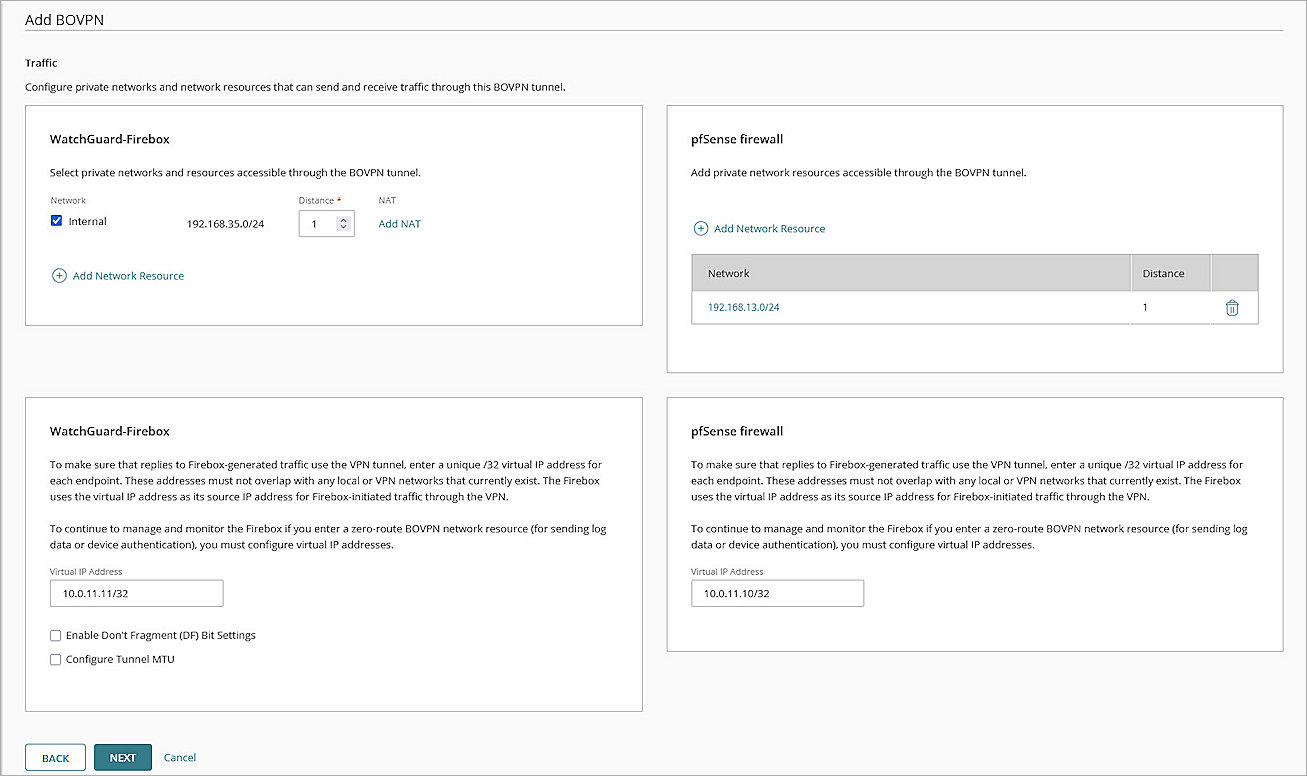
- For all other settings, keep the default values.
- Click Next.
- In the Phase 1 Settings section, from the Authentication drop-down list, select SHA2-256.
- From the Encryption drop-down list, select AES-CBC (256-bit).
- In the SA Life text box, type 24.
- From the Diffie-Hellman Group drop-down list, select Diffie-Hellman Group14.
- In the Phase 2 Settings section, from the Authentication drop-down list, select SHA2-256.
- From the Encryption drop-down list, select AES-CBC (256-bit).
- Select the Use Perfect Forward Secrecy (PFS) check box.
- From the PFS Group drop-down list, select Diffie-Hellman Group14.
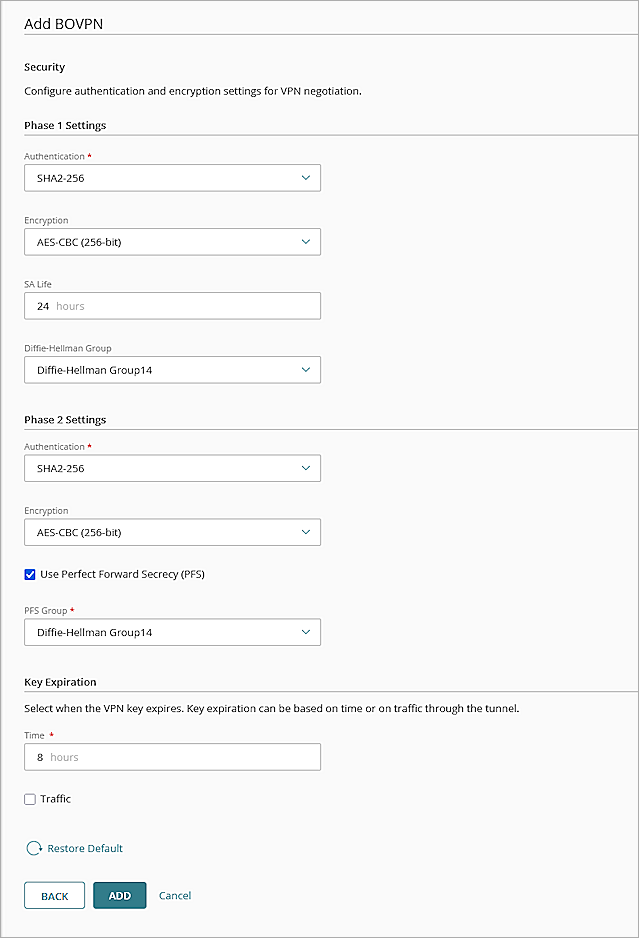
- Keep the default values for all other settings.
- Click Add.
- (Optional) To open the VPN Configuration Summary page for the Firebox, click View Guide to open the VPN Configuration Summary page for the Firebox.
- Click Finish.
WatchGuard Cloud creates and deploys a configuration update for the cloud-managed Firebox.
- Log in to Fireware Web UI at: https://<your Firebox IP address>:8080.
- Select VPN > BOVPN Virtual Interfaces.
The BOVPN Virtual Interfaces configuration page opens. - Click Add.
The Add page opens. - In the Interface Name text box, type a name to identify this BOVPN virtual interface.
- From the Remote Endpoint Type drop-down list, select Cloud VPN or Third-Party Gateway.
- From the Gateway Address Family drop-down list, select IPv4 Addresses.
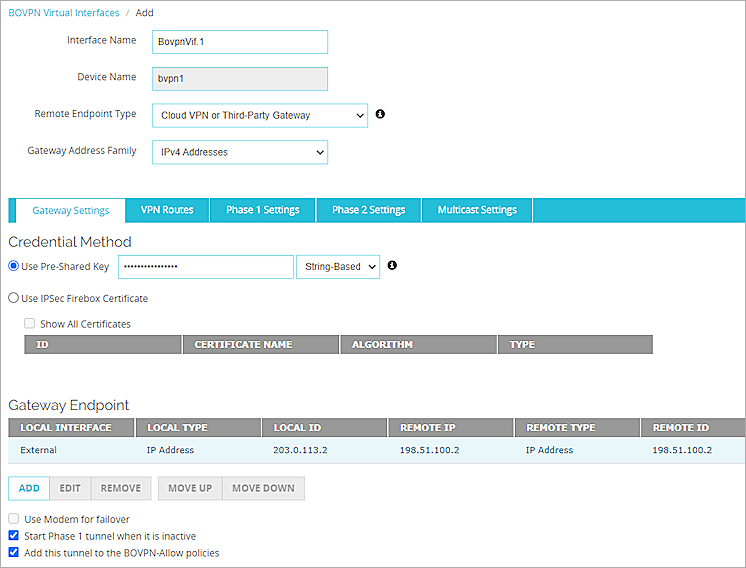
- In the Credential Method section, select Use Pre-Shared Key. In the adjacent text box, type a pre-shared key. This pre-shared key matches the pre-shared key when you configure the pfSense IPSec VPN Phase 1 settings.
- In the Gateway Endpoint section, click Add.
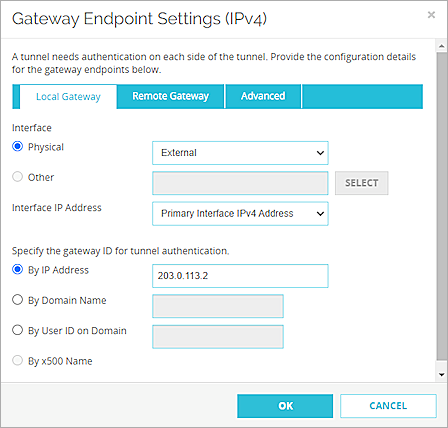
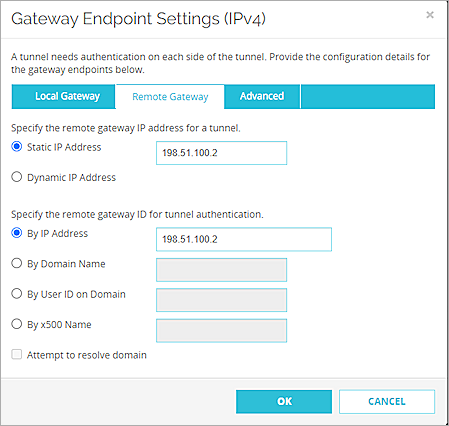
The Gateway Endpoint Settings dialog box opens.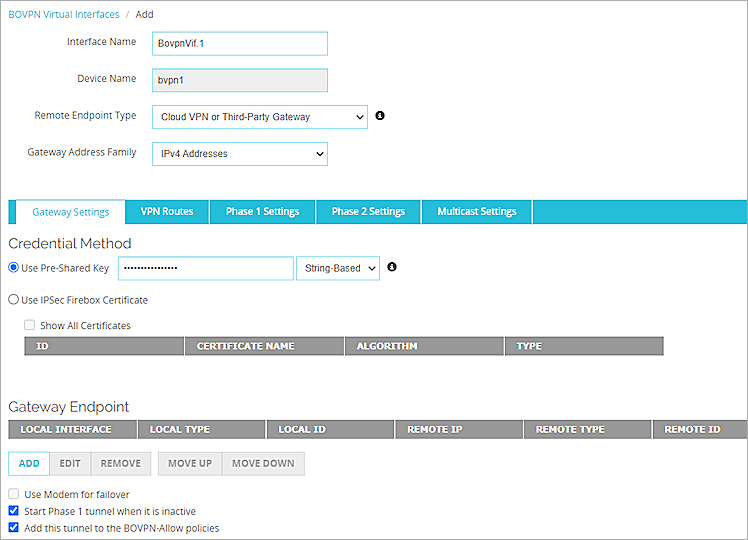
-
For Interface, select Physical, and from the adjacent drop-down list, select the interface that has the external (public) IP address of the Firebox.
- From the Interface IP Address drop-down list, select Primary Interface IPv4 Address.
The Primary Interface IP Address is the primary IP address you configured on the selected external interface. - For Specify the Gateway ID for Tunnel Authentication, select By IP Address, select By IP Address.
- In the adjacent text box, type the primary IP address of the external Firebox interface.
- Select the Remote Gateway tab.
The Remote Gateway page opens. - For Specify the Remote Gateway IP Address for a Tunnel, select Static IP Address.
- In the adjacent text box, type the IP address of the pfSense WAN connection.
- For Specify the Remote Gateway ID for Tunnel Authentication, select By IP Address.
- In the adjacent text box, type the IP address of the pfSense WAN connection.
- Click OK.
The gateway endpoint you added appears in the Gateway Endpoint section. - In the Gateway Endpoint section, select the Start Phase 1 Tunnel When It Is Inactive check box.
- Select the Add This Tunnel to the BOVPN-Allow Policies check box.
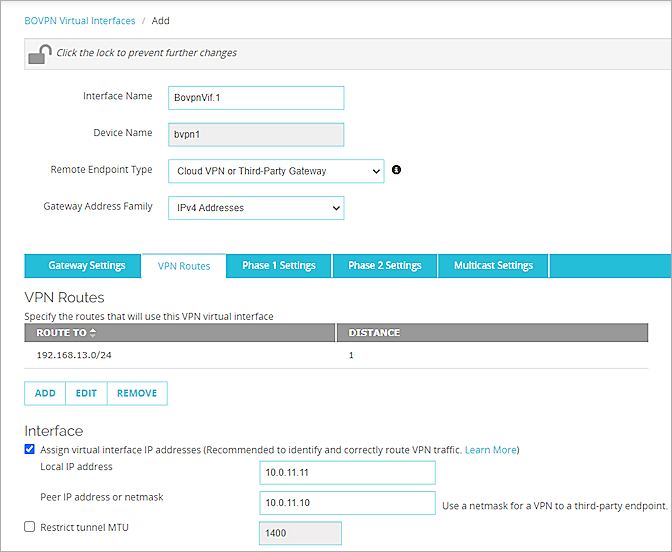
- Select the VPN Routes tab.
The VPN Routes page opens. -
Click Add.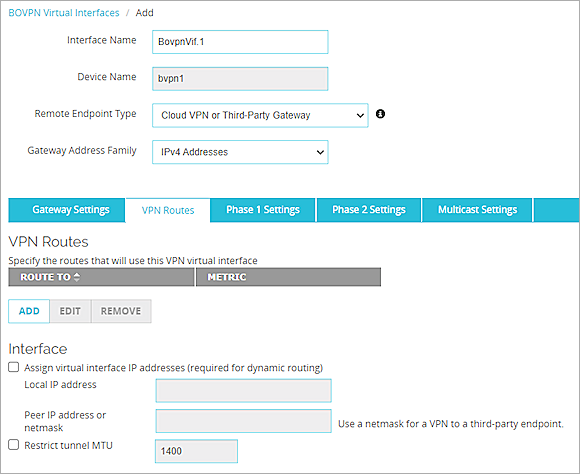
The VPN Route Settings dialog box opens. - From the Choose Type drop-down list, select Network IPv4.
- In the Route To text box, type the network IP address of a route that will use this virtual interface.
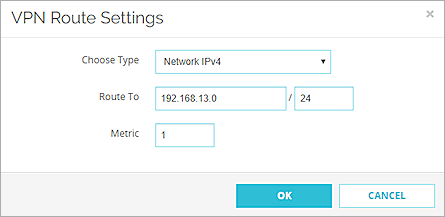
- Click OK.
The VPN route settings are added. - Select the Assign Virtual Interface IP Addresses check box.
- In the Local IP Address and Peer IP Address or Netmask text boxes, type the virtual interface IP addresses.
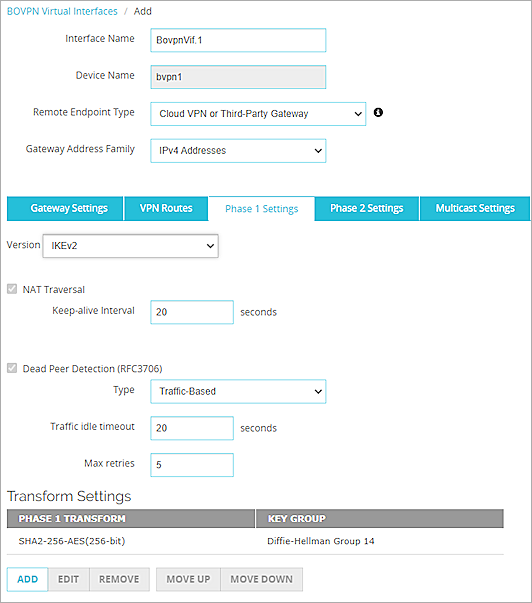
- Select the Phase 1 Settings tab.
The Phase 1 Settings page opens. - From the Version drop-down list, select IKEv2.
- Keep the default values for all other Phase 1 Settings.
- Keep the default values for all Phase 2 settings.
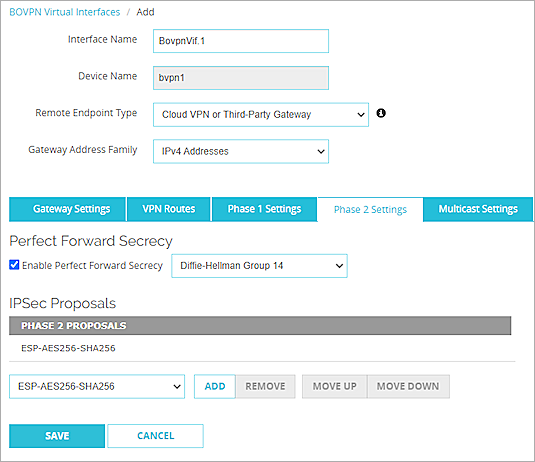
- Click Save.
For more information about BOVPN virtual interface configuration on the Firebox, go to BOVPN Virtual Interfaces in Help Center.
Configure pfSense
This section describes how to configure the pfSense settings.
Configure Basic Settings
- Log in to the pfSense Web UI at: https://<IP address of the pfSense device>
The default IP address of the interface is: https://192.168.1.1. - Configure the pfSense interfaces. For information about how to configure interfaces, go to the pfSense documentation.
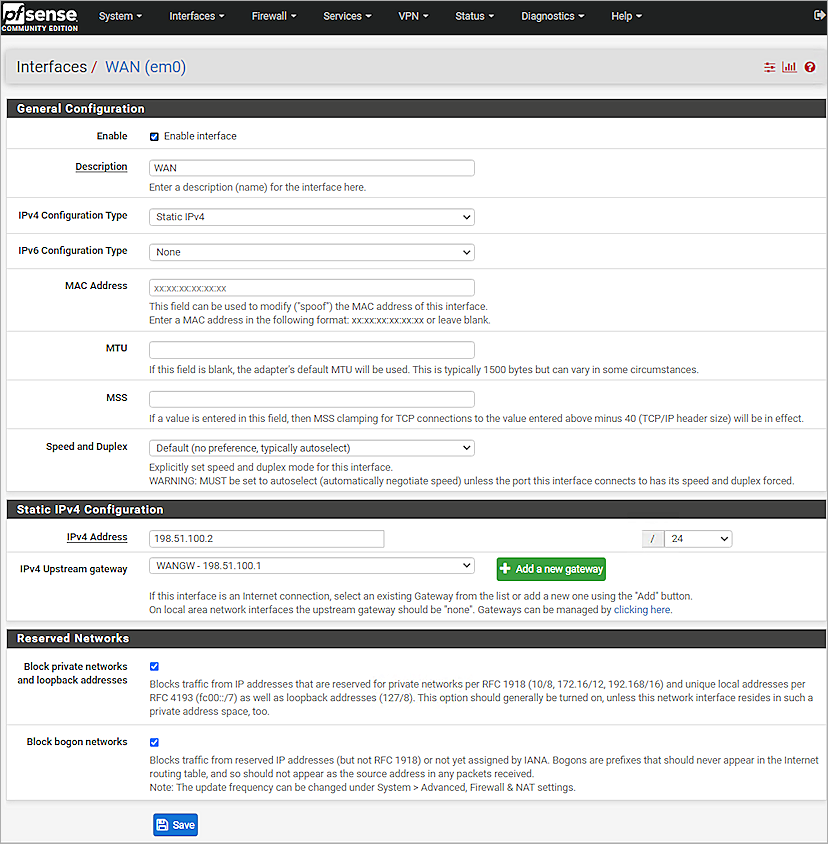
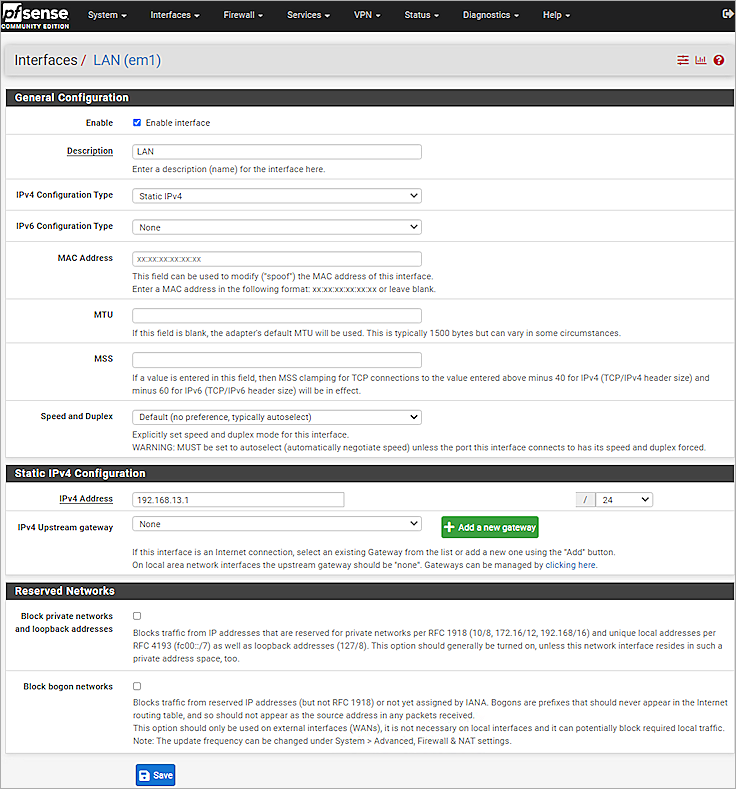
Configure pfSense IPSec VPN Phase 1 and 2 Settings
- Log in to the pfSense Web UI at: https://<IP address of the pfSense device>
- Select VPN > IPsec > Tunnels.
- Click + Add P1.
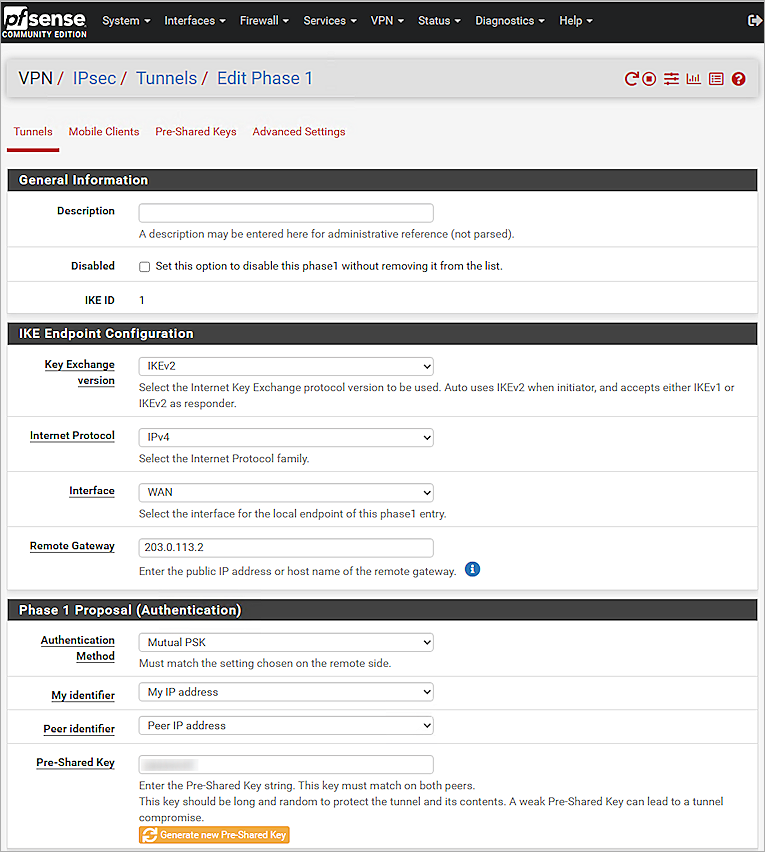
- In the IKE Endpoint Configuration section, from the Key Exchange Version drop-down list, select IKEv2.
- From the Internet Protocol drop-down list, select IPv4.
- From the Interface drop-down list, select WAN.
- In the Remote Gateway text box, type the IP address of the Firebox.
- In the Phase 1 Proposal (Authentication) section, from the Authentication Method drop-down list, select Mutual PSK.
- From the My Identifier drop-down list, select My IP Address.
- From the Peer Identifier drop-down list, select Peer IP Address.
- In the Pre-Shared Key text box, type the pre-shared key.
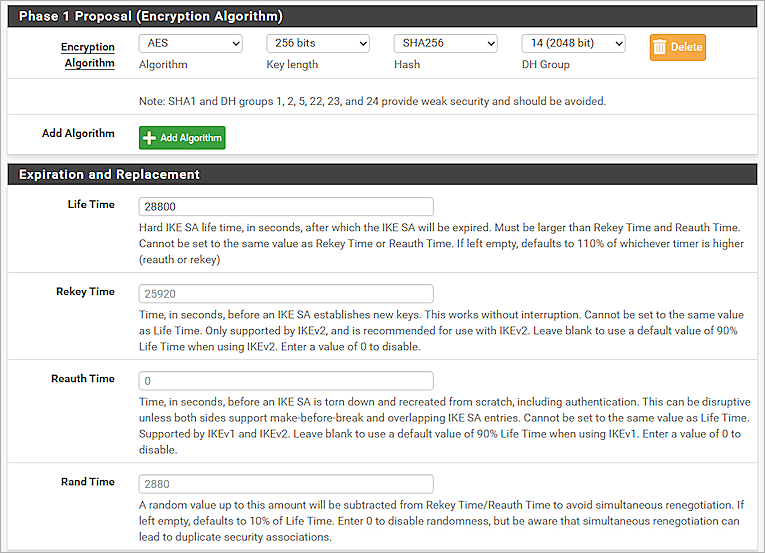
- In the Phase 1 Proposal (Encryption Algorithm) section, from the Algorithm drop-down list, select AES.
- From the Key Length drop-down list, select 256 bits.
- From the Hash drop-down list, select SHA256.
- From the DH Group drop-down list, select 14 (2048 bit).
- In the Life Time text box, type 28800.
- Keep the default values for all other settings.
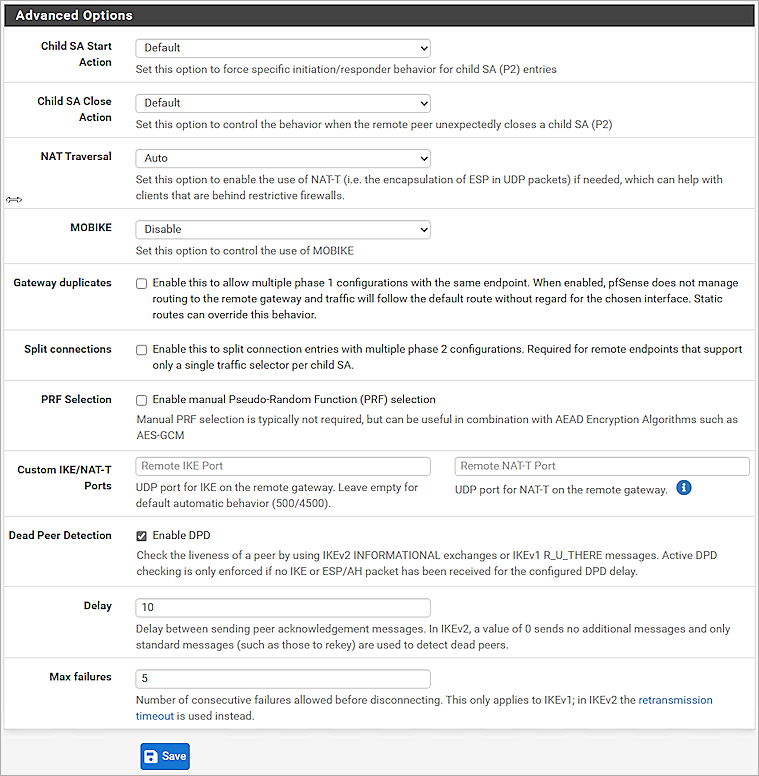
- Click Save.
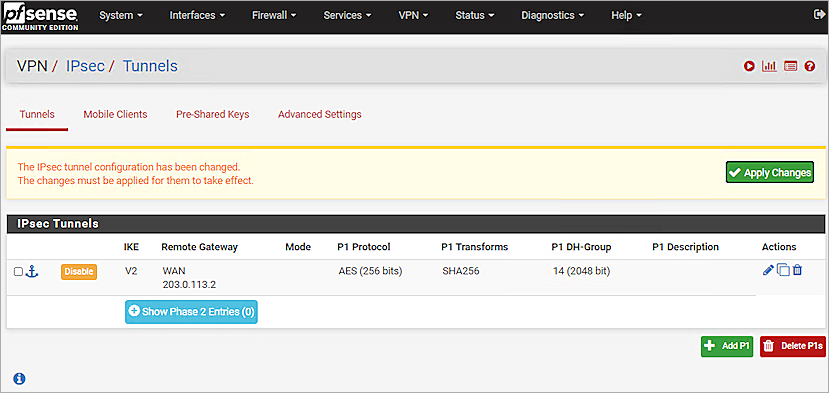
- Click Show Phase 2 Entries.
- Click + Add P2.
- In the General Information section, from the Mode drop-down list, select Routed (VTI).
- For Local Network, from the Type drop-down list, select Address.
- In the Address text box, type the local VTI address. In this example, we type 10.0.11.10.
- From the Remote Network drop-down list, select Address.
- In the Address text box, type the remote VTI address. In this example, we type 10.0.11.11.
- In the Phase 2 Proposal (SA/Key Exchange) section, from the Protocol drop-down list, select ESP.
- For Encryption Algorithms, select the AES check box. In the adjacent drop-down list, select 256 bits. Do not select the AES128-GCM check box.
- For Hash Algorithms, select the SHA256 check box.
- From the PFS Key Group drop-down list, select 14 (2048 bit).
- In the Life Time text box, type 3600.
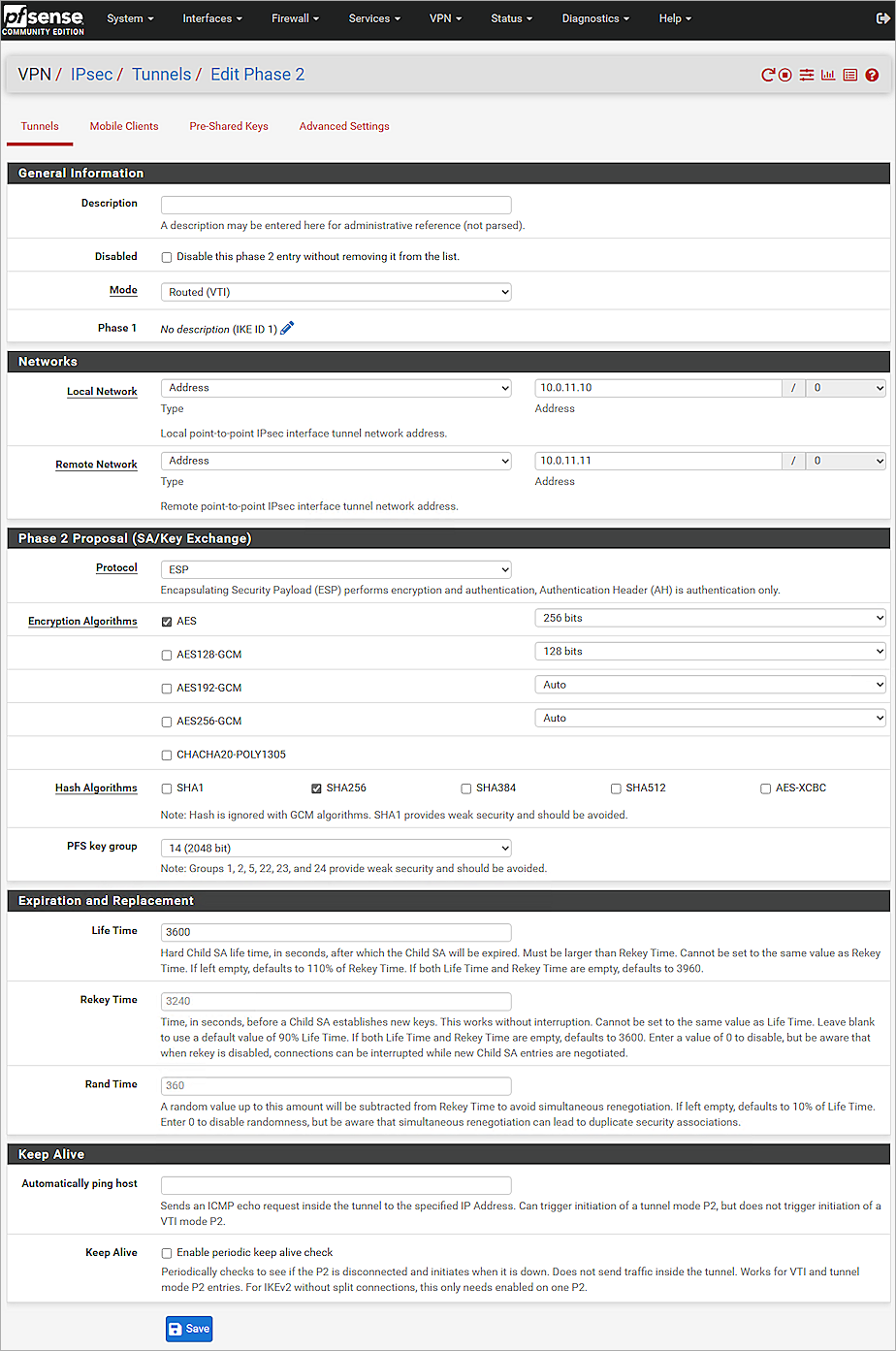
- Click Save.
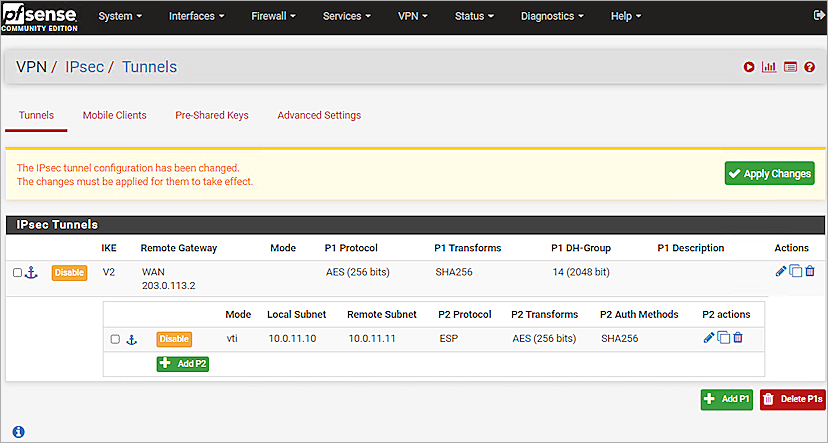
- Click Apply Changes.
Add the VTI Interface
- Log in to the pfSense Web UI at: https://<IP address of the pfSense device>
- Select VPN > IPsec.
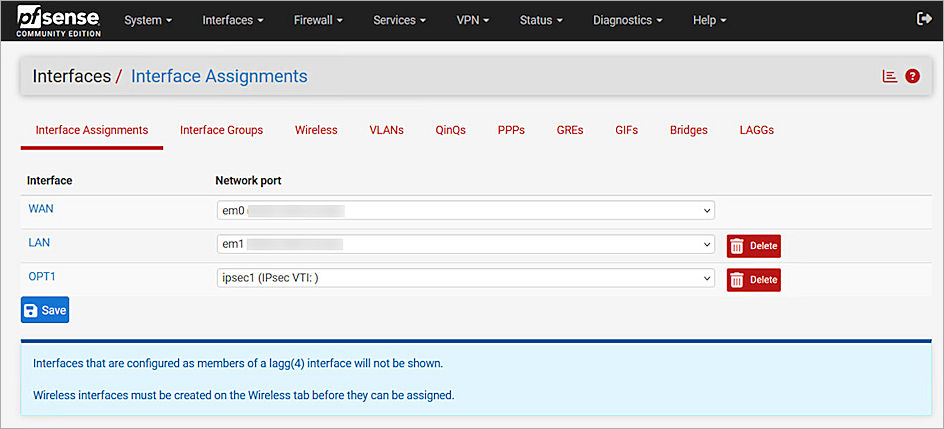
- Select Interfaces > Assignments.
- From the Available Network Ports drop-down list, select ipsec1 (IPsec VTI:).
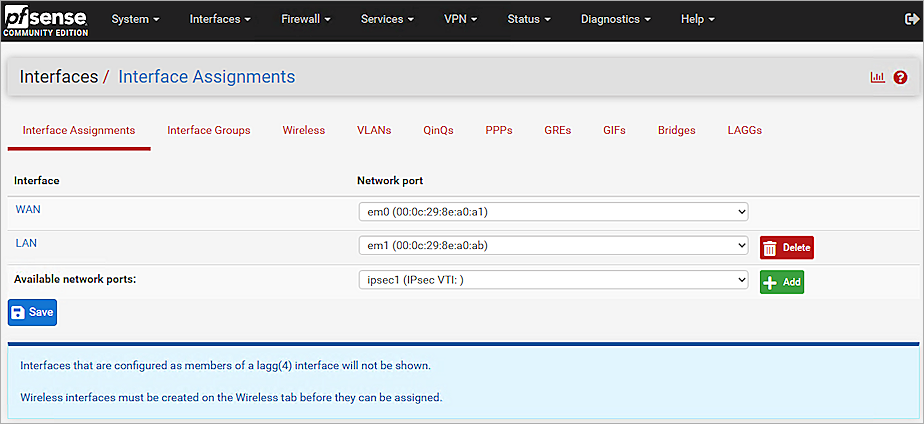
- Click + Add.
- Select the interface you created. In this example, we select OPT1.
- Select the Enable Interface check box.
- In the Description text box, type the interface name. In this example, we type IPsecVTI.
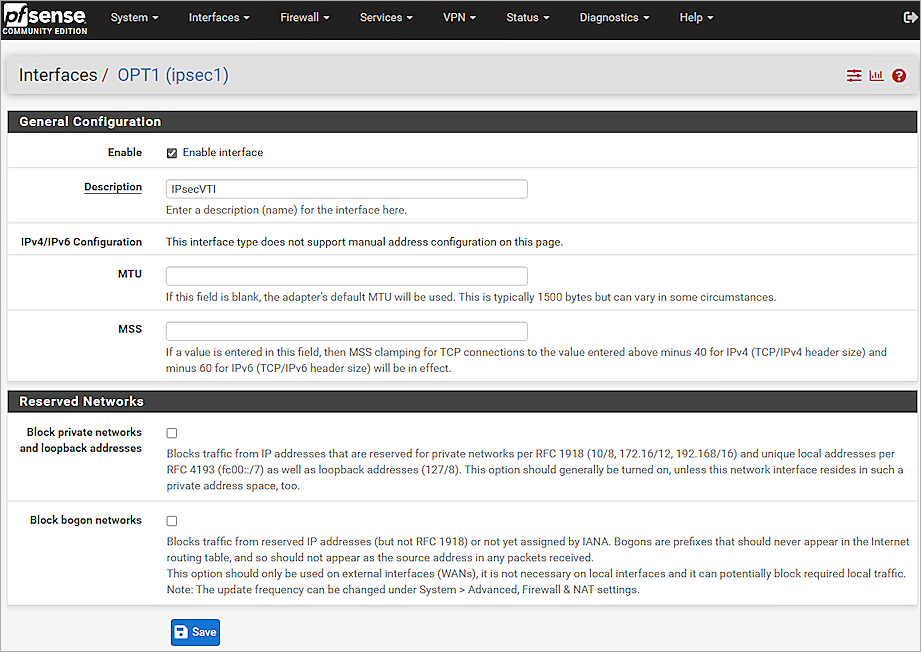
- Click Save.
- Click Apply Changes.
Add the pfSense Static Route
- Select System > Routing > Gateways.
A gateway for the VTI interface is created automatically.
- Click Static Routes.
- Click + Add.
- In the Destination Network text box, type the network you want to route to.
- From the Gateway drop-down list, select the gateway for the VTI interface. In this example, we select IPSECVTI_VTIV4 - 10.0.11.11.
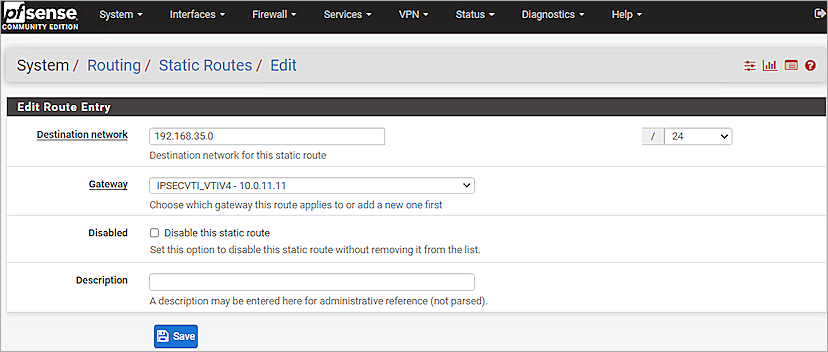
- Click Save.
- Click Apply Changes.
Configure Rule Settings
- Log in to the pfSense Web UI at: https://<IP address of the pfSense device>
- Select Firewall > Rules > IPsec.
- Click Add.
- From the Action drop-down list, select Pass.
- From the Protocol drop-down list, select Any.
- From the Source drop-down list, select Network.
- In the Source Address text box, type the remote network IP address.
- From the Destination drop-down list, select Network.
- In the Destination Address text box, type the local network IP address.
- Keep the default values for all other settings.
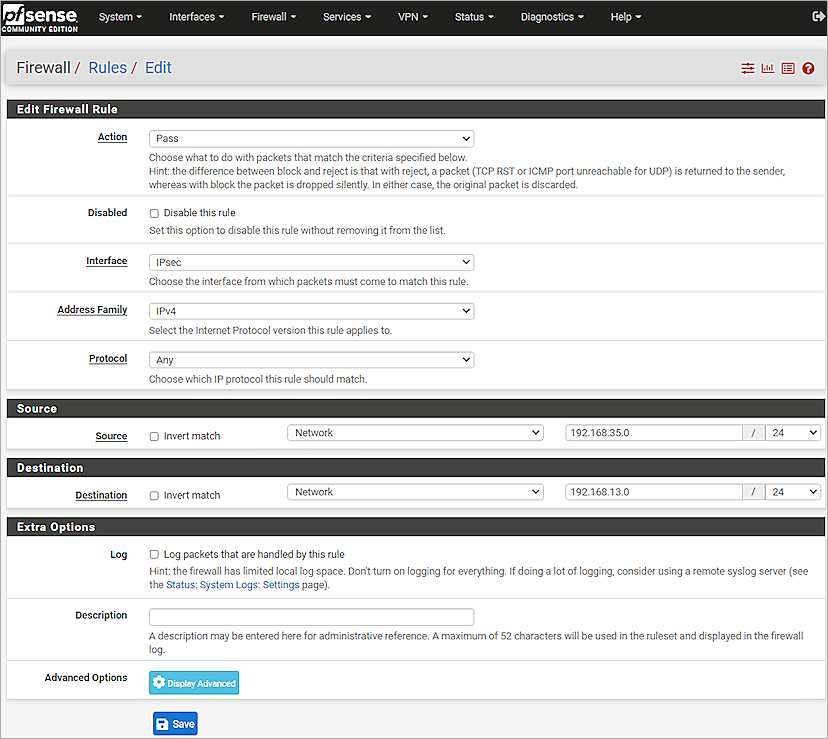
- Click Save.
- Click Apply Changes.
Test the Integration
- Log in to WatchGuard Cloud.
- From the navigation menu, select Monitor > Devices.
If you log in with a Service Provider, you must select a Subscriber account from the Account Manager. - Select the cloud-managed Firebox.
- Select Monitor > Live Status > VPN.
The VPN page opens. - Select the Branch Office VPN tab.
- Click the BOVPN you configured.
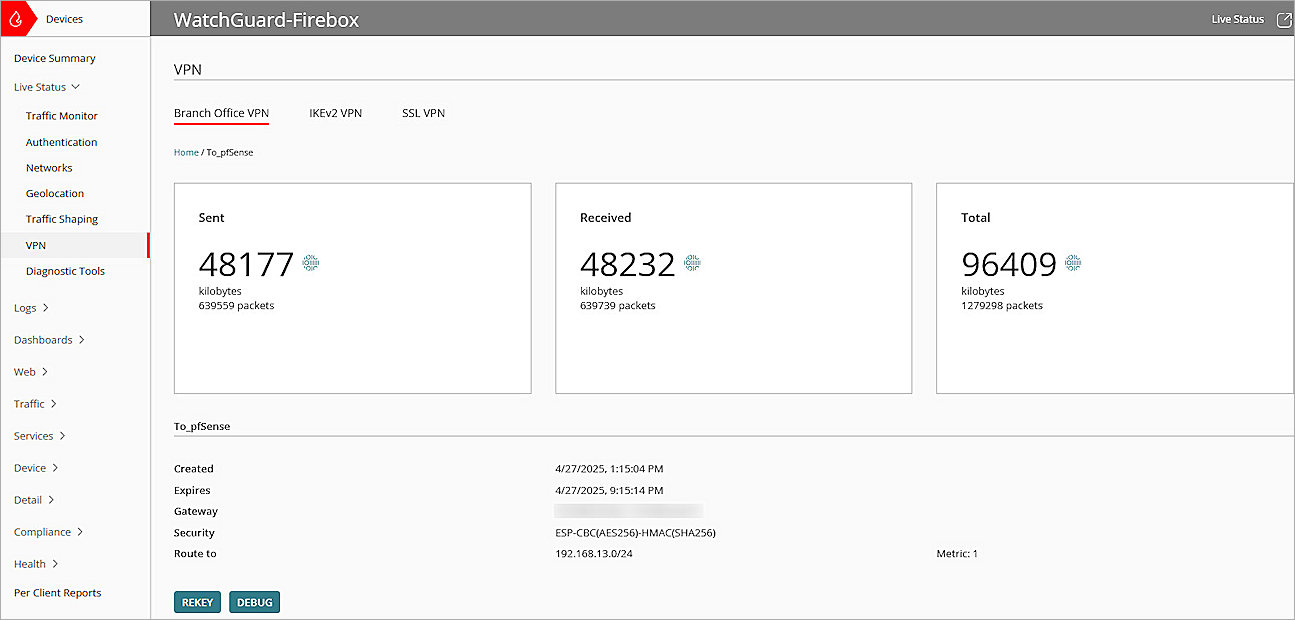
- To make sure that Host 1 (behind the Firebox) and Host 2 (behind the pfSense firewall) can communicate with each other, use the Ping utility.
- Log in to Fireware Web UI at: https://<your Firebox IP address>:8080.
- Select System Status > VPN Statistics.
The VPN Statistics page opens. - Select the Branch Office VPN tab.
The Branch Office VPN page opens. - Verify that the VPN is established.
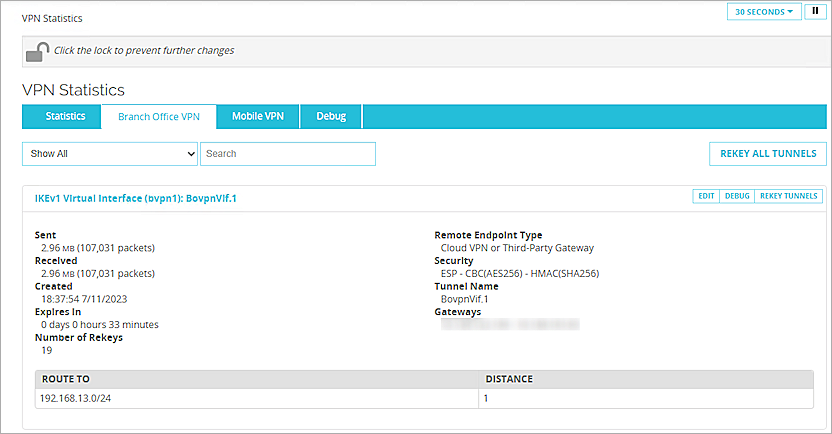
- Verify that Host 1 (behind the Firebox) and Host 2 (behind the pfSense firewall) can ping each other.
- Log in to the pfSense Web UI.
- Select Status > IPSec > Overview.
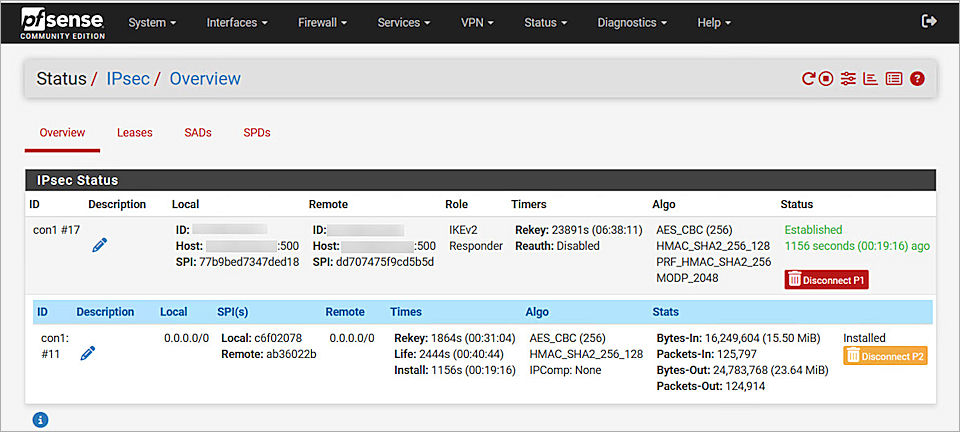
- Verify that the IPSec tunnel is established and the child SA status is connected.