Deployment Overview
WatchGuard provides integration instructions to help our customers configure WatchGuard products to work with products created by other organizations. If you need more information or technical support about how to configure a third-party product, refer to the documentation and support resources for that product.
This guide describes how to configure a Branch Office VPN (BOVPN) virtual interface between a WatchGuard Firebox and a Check Point device.
Integration Summary
The hardware and software used in this guide include:
- WatchGuard Firebox with Fireware v12.11.2(B713726)
- Check Point 770 with vR77.20.87(990173072)
Integration Topology
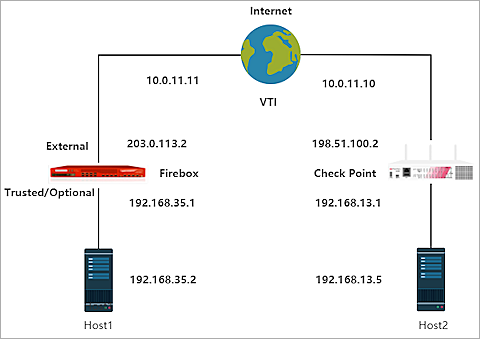
This diagram outlines the topology used in this integration:
Configure the Firebox
This section shows two different configurations for a route-based BOVPN, based on the Firebox management tool you use. For a cloud-managed Firebox, go to Configure a route-based BOVPN for a Cloud-Managed Firebox; for Fireware Web UI, go to Configure BOVPN connection from the Fireware Web UI.

- Log in to WatchGuard Cloud with your WatchGuard Cloud operator account credentials.
If you log in with a Service Provider account, you must select a Subscriber account from the Account Manager. - From the navigation menu, select Configure > VPNs.
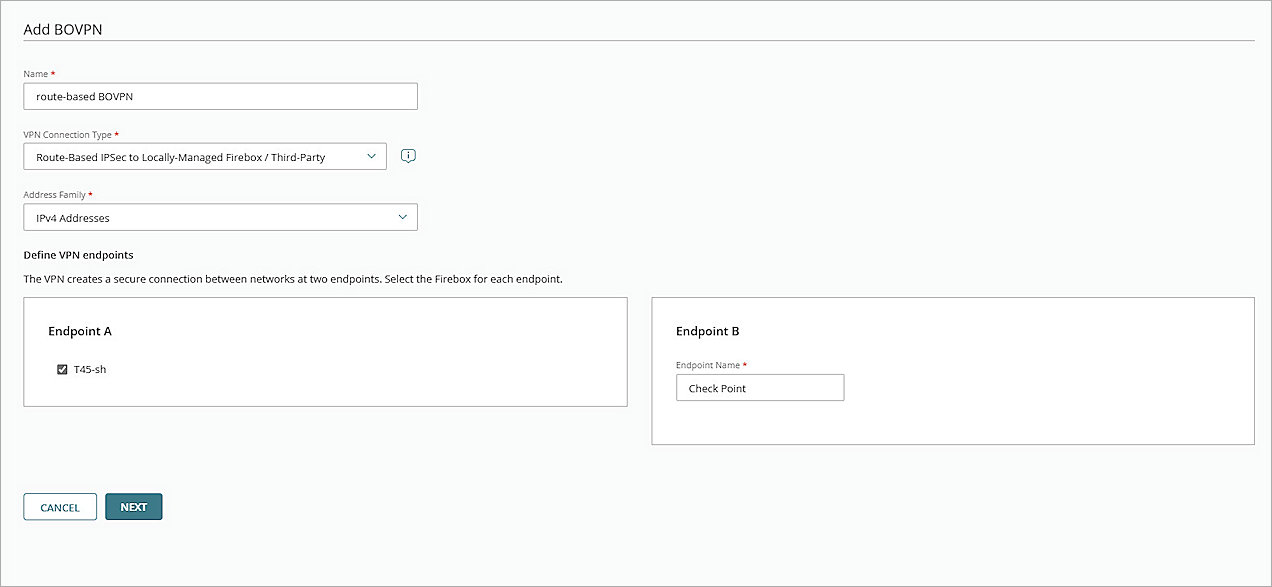
- Click Add BOVPN.
The Add BOVPN page opens. - In the Name text box, type a descriptive name.
- From the VPN Connection Type drop-down list, select Route-Based IPSec to Locally-Managed Firebox / Third-Party.
- From the Address Family drop-down list, select IPv4 Addresses.
- In the Endpoint A section, select your cloud-managed Firebox.
- In the Endpoint B section, in the Endpoint Name text box, type a name to identify the remote VPN endpoint. In our example, we type Check Point.
- Click Next.
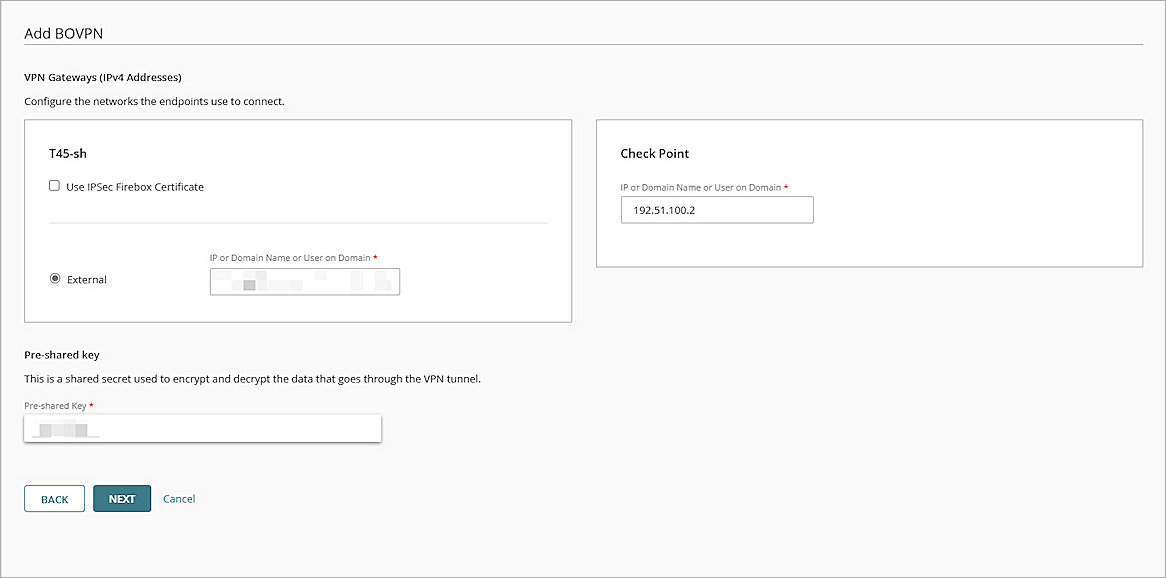
The VPN Gateways settings page opens. - From your cloud-managed Firebox side, select the External network.
- From the IP or Domain Name or User on Domain drop-down list, select an IP address, domain name, or user on domain that resolves to the Firebox external network IP address.
- At the Check Point side, in the IP or Domain Name or User on Domain text box, type the IP address of the Check Point WAN connection.
- In the Pre-shared Key text box, type a pre-shared key. This pre-shared key must be the same as the pre-shared key when you configure the pfSense IPSec VPN Phase 1 settings.
- Click Next.
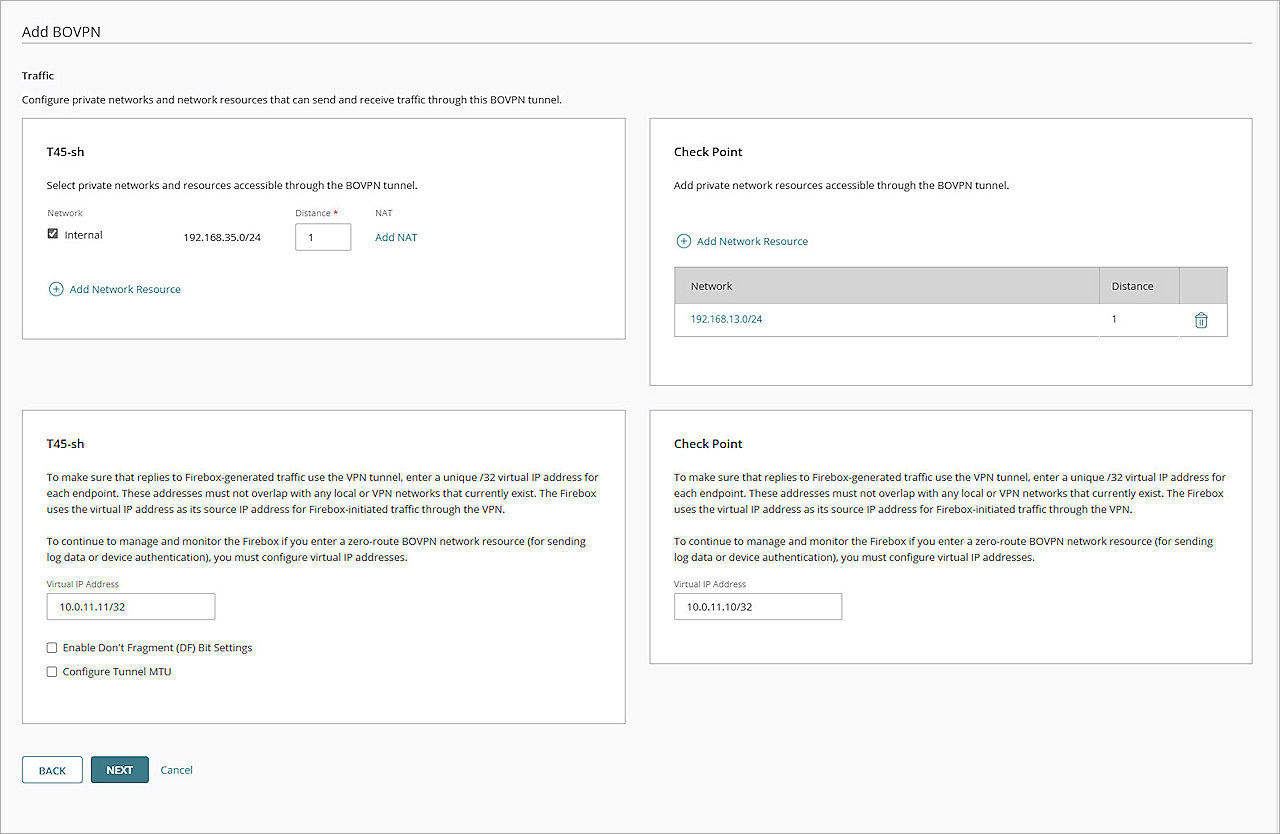
- From your cloud-managed Firebox side, select the Internal network that you want to be accessible through the VPN tunnel.
- From the Check Point side, click Add Network Resource.
The Add Network Resource dialog box opens. - In the Network Resource text box, type the private network protected by the Check Point. For our example, we type 192.168.13.0/24.
- Click Add.
- From the cloud-managed Firebox section, in the Virtual IP Address text box, type an IP address. In this example, we type 10.0.11.11/32.
- From the Check Point section, in the Virtual IP Address text box, type an IP address. In this example, we type 10.0.11.10/32.
- For all other settings, keep the default values.
- Click Next.
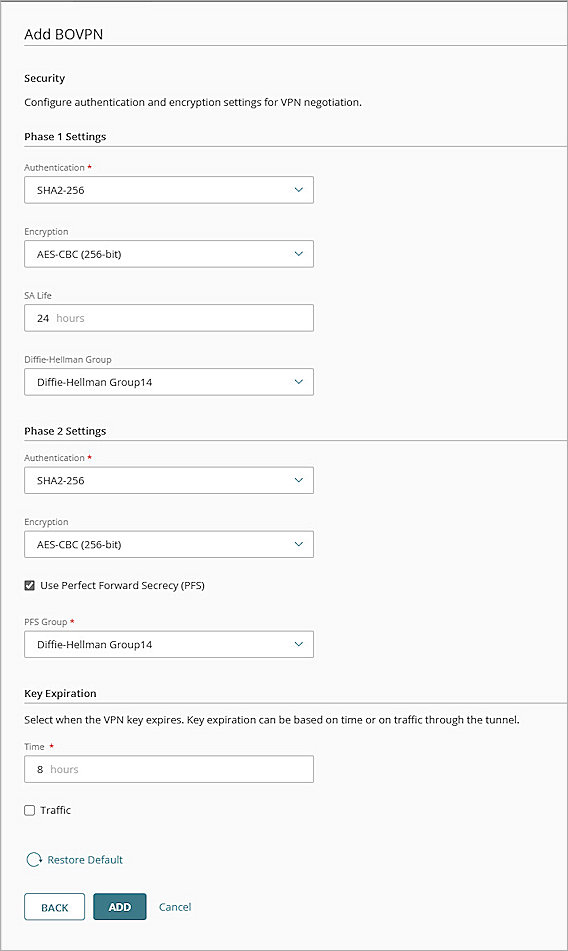
The Tunnel Routes page opens. - In the Phase 1 Settings section, from the Authentication drop-down list, select SHA2-256.
- From the Encryption drop-down list, select AES-CBC (256-bit).
- In the SA Life text box, type 24.
- From the Diffie-Hellman Group drop-down list, select Diffie-Hellman Group14.
- In the Phase 2 Settings section, from the Authentication drop-down list, select SHA2-256.
- From the Encryption drop-down list, select AES-CBC (256-bit).
- Select the Use Perfect Forward Secrecy (PFS) check box.
- From the PFS Group drop-down list, select Diffie-Hellman Group14.
- Keep all other settings at their default settings.
- Click Add.
- (Optional) To open the VPN Configuration Summary page in a new browser tab, click View Guide. To establish the VPN connection, configure the required settings on the Check Point.
- Click Finish.
When you add a BOVPN for a cloud-managed Firebox, WatchGuard Cloud immediately creates and deploys a configuration update for the cloud-managed Firebox.
- Log in to Fireware Web UI.
- Select VPN > BOVPN Virtual Interfaces.
The BOVPN Virtual Interfaces configuration page opens. - Click Add.
- In the Interface Name text box, type a name to identify this BOVPN virtual interface.
- From the Remote Endpoint Type drop-down list, select Cloud VPN or Third-Party Gateway.
- From the Gateway Address Family drop-down list, select IPv4 Addresses.
- In the Credential Method section, select Use Pre-Shared Key. Type the pre-shared key.
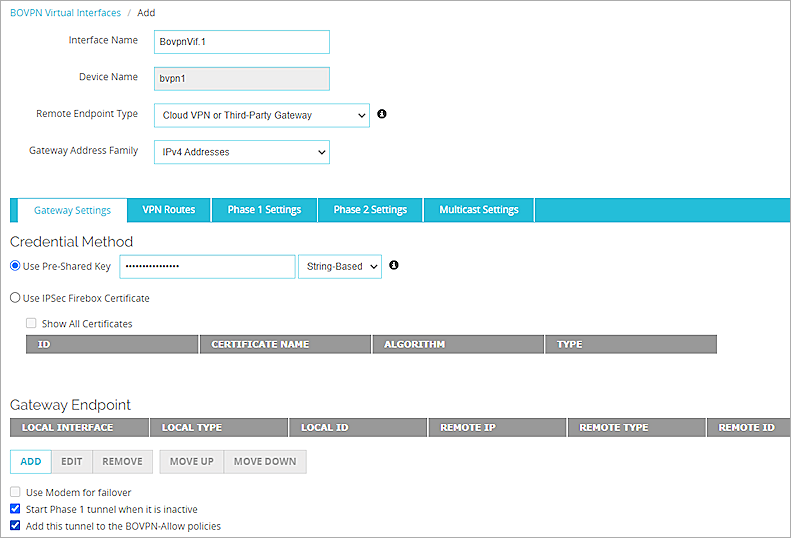
- In the Gateway Endpoint section, click Add.
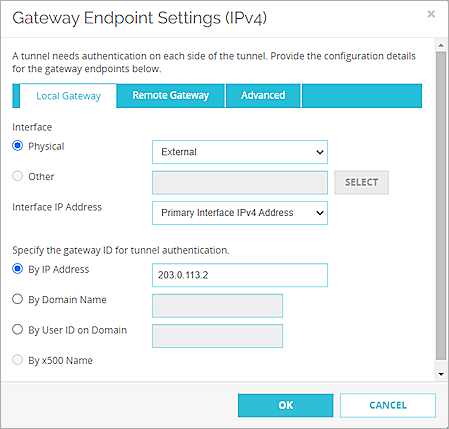
The Gateway Endpoint Settings dialog box opens. - From the Physical drop-down list, select External.
- From the Interface IP Address drop-down list, select Primary Interface IPv4 Address.
The Primary Interface IP Address is the primary IP address you configured on the selected external interface. - Select By IP Address.
- In the By IP Address text box, type the primary IP address of the external Firebox interface.
- Select the Remote Gateway tab.
- Select Static IP Address. Type the IP address of your Check Point WAN connection.
- Select By IP Address. Type the IP address of your Check Point WAN connection.
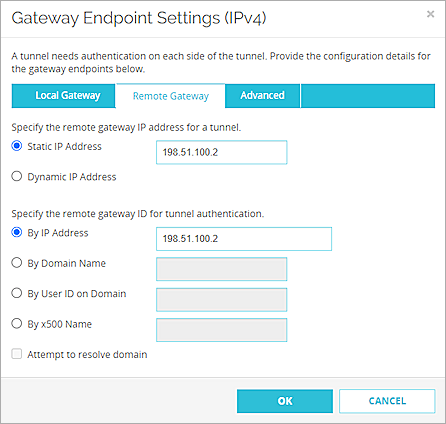
- Click OK.
- In the Gateway Endpoint section, select the Start Phase 1 tunnel when it is inactive check box.
- Select the Add this tunnel to the BOVPN-Allow policies check box.
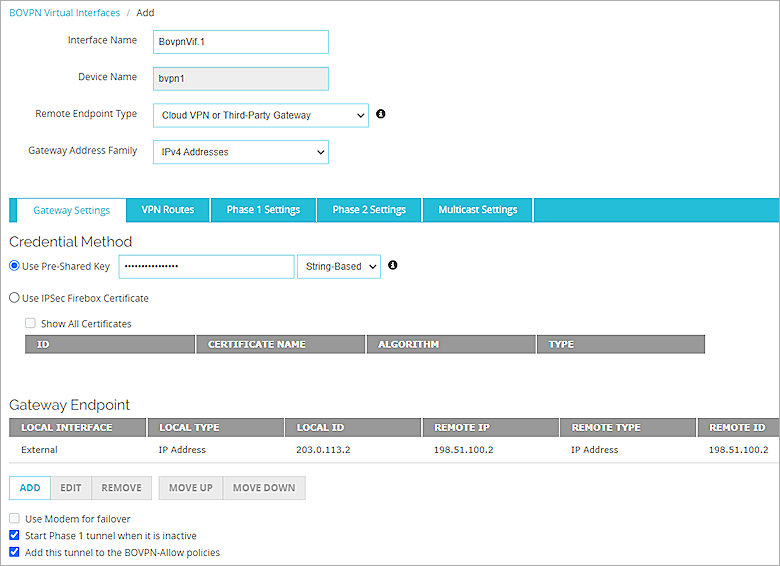
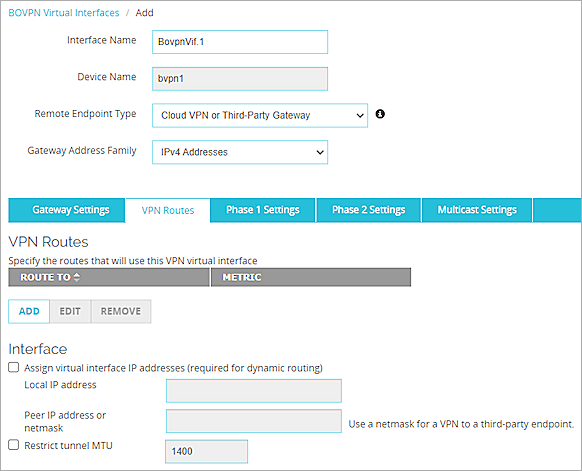
- Select the VPN Routes tab.
- Click Add.
- From the Choose Type drop-down list, select Network IPv4.
- In the Route To text box, type the network IP address of a route that uses this virtual interface.
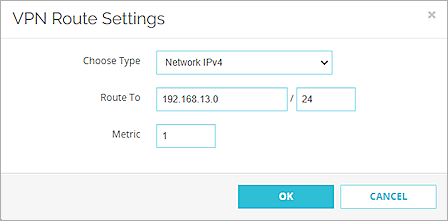
- Click OK.
- Select the Assign virtual interface IP addresses check box.
- In the Local IP address and Peer IP address or netmask text boxes, type the virtual interface IP addresses.
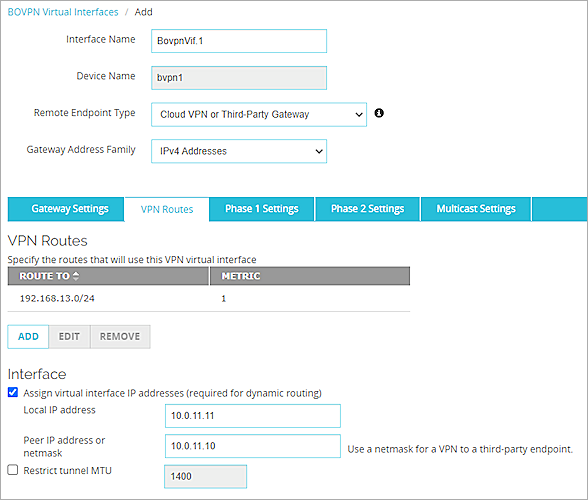
- Select the Phase 1 Settings tab.
- From the Version drop-down list, select IKEv2.
- Keep all other values as default Phase 1 Settings.
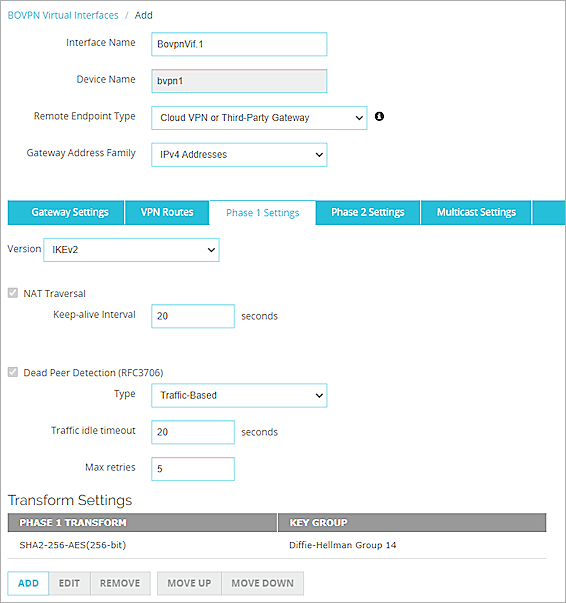
- Keep all Phase 2 Settings as the default values.
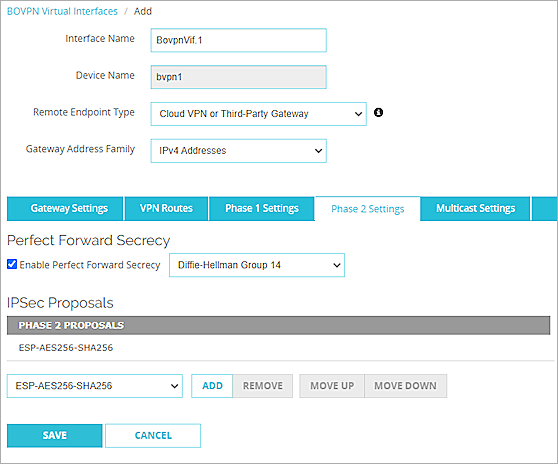
- Click Save.
For more information about BOVPN virtual interface configuration on the Firebox, go to BOVPN Virtual Interfaces.
Configure the Check Point Device
Configure the VPN Site
- Log in to the Check Point 770 Web UI. The default IP address and port is https://192.168.1.1:4434.
- From the navigation menu, select VPN > Site to Site > VPN Sites.
- Click New to add a new VPN site.
The New VPN Site window appears. - On the Remote Site tab, in the Site name text box, type the site name.
- From the Connection type drop-down list, select Host name or IP address.
- Select IP address and type the public IP address of the remote device in the text box.
- In the Authentication section, select Pre-shared secret.
- In the Password and Confirm text boxes, type the password.
- From the Encryption domain drop-down list, select Encrypt according to routing table.
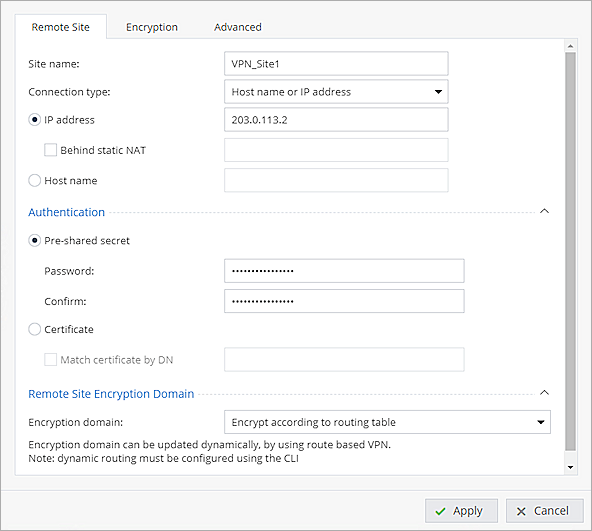
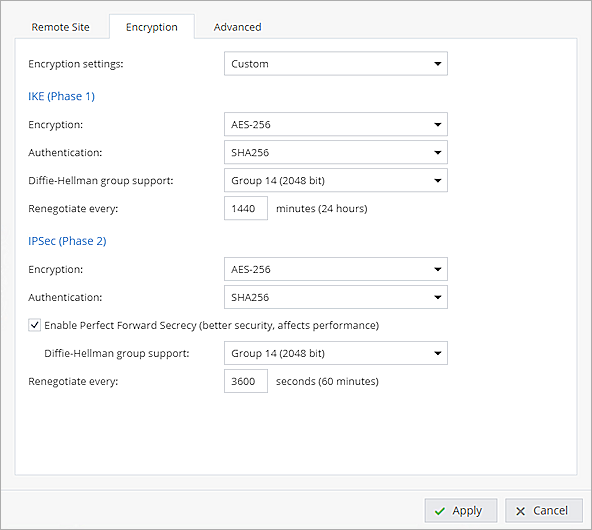
- Select the Encryption tab.
- From the Encryption settings drop-down list, select Custom.
- In the IKE (Phase 1) section, from the Encryption drop-down list, select AES-256.
- From the Authentication drop-down list, select SHA256.
- From the Diffie-Hellman group support drop-down list, select Group 14 (2048 bit).
- In the IPSec (Phase 2)section, from the Encryption drop-down list, select AES-256.
- From the Authentication drop-down list, select SHA256.
- Select the Enable Perfect Forward Secrecy check box.
- From the Diffie-Hellman group support drop-down list, select Group 14 (2048 bit).
- Keep the default settings for all other options.
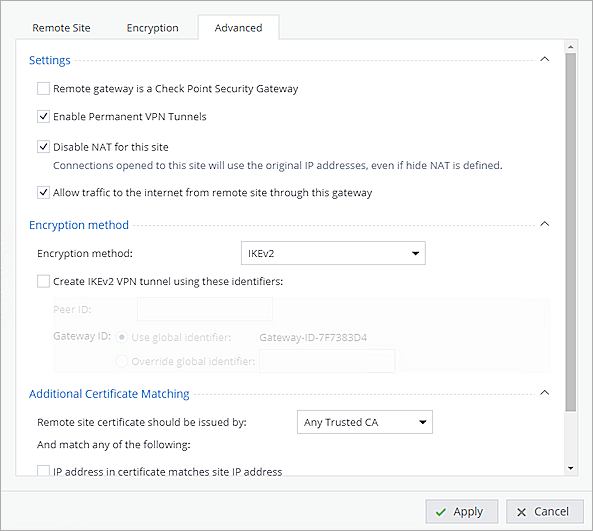
- Select the Advanced tab.
- Clear the Remote gateway is a Check Point Security Gateway check box.
- Select the Enable Permanent VPN Tunnels check box.
- Select the Allow traffic to the internet from remote site through this gateway check box.
- From the Encryption method drop-down list, select IKEv2.
- For all other settings, keep the default values.
- Click Apply.
Configure VPN Tunnel (VTI)
- Select Device > Network > Local Network.
- From the New drop-down list, select VPN Tunnel (VTI).
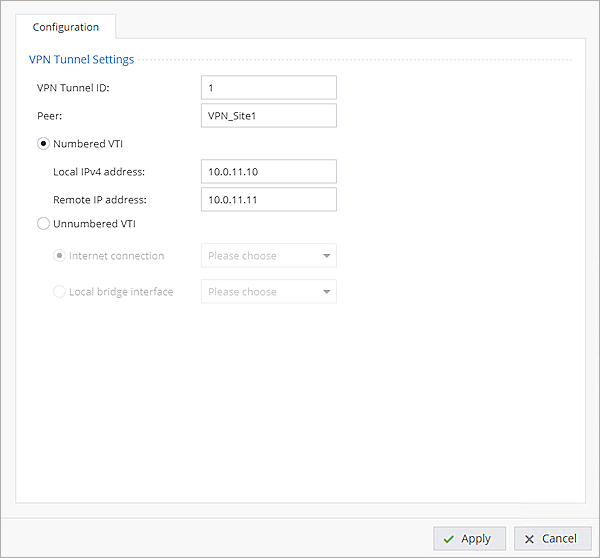
- In the VPN Tunnel ID text box, type a number to identify the VTI.
- In the Peer text box, type the tunnel name, which must be the same as the VPN site name.
- Select Numbered VTI.
- In the Local IPv4 address text box, type the virtual local IP address.
- In the Remote IP address text box, type the virtual remote IP address.
- Click Apply.
Configure a Static Route
- Select Device > Network > Routing.
- Click New.
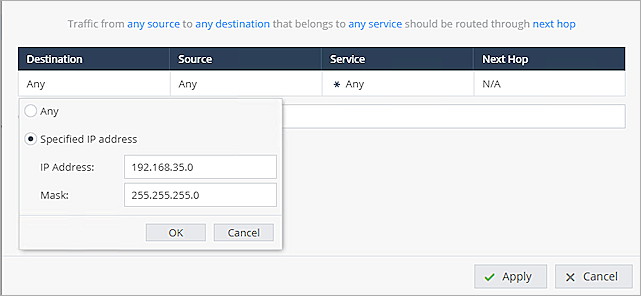
- In the Destination section, click Any to edit the IP address.
- Select Specified IP address.
- In the IP Address text box, type 192.168.35.0, which is the local IP address protected by the Firebox.
- In the Mask text box, type 255.255.255.0.
- Click OK.
- From the Next Hop section, click N/A and select VPN Tunnel (VTI).
- From the drop-down list, select the vpnt1 tunnel that you created.
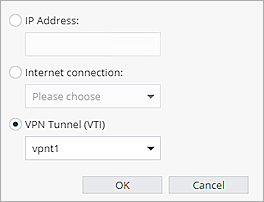
- Click OK.
- In the Metric text box, type a number between 0 and 100.
- Click Apply.
Configure Network Objects
- From the navigation menu, select Users & Objects > Network Resources > Network Objects.
- Click New.
- From the Type drop-down list, select Network.
- In the Network address text box, type the network IP address, which is the internal network IP address protected by Firebox.
- In the Subnet mask text box, type the subnet mask.
- In the Object name text box, type the object name.
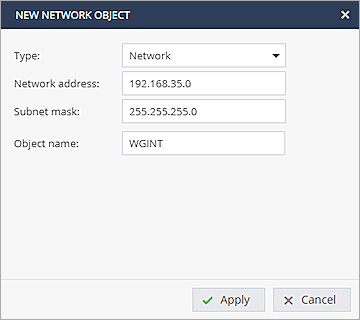
- Click Apply.
- Repeat Steps 2–7 to create another network object, which is the internal network IP address protected by the Check Point device.
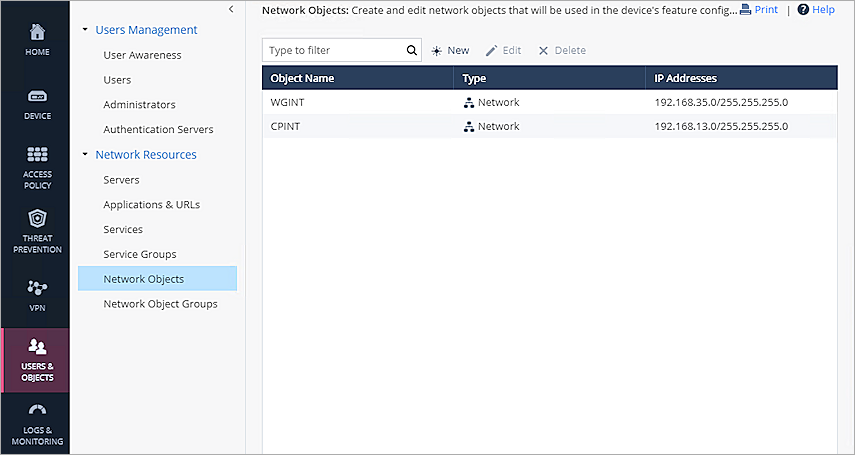
Configure Access Policy
- From the navigation menu, select Access Policy > Firewall > Policy.
- In the Incoming, Internal and VPN traffic section, click New.
- For the Source, select the CPINT object that you created.
- For the Destination, select the WGINT object that you created.
- Keep the default settings for all other options.
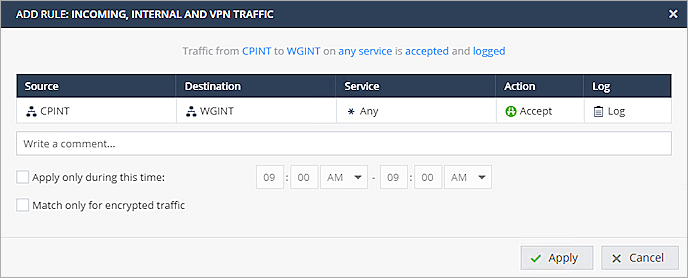
- Click Apply.
- Repeat Steps 2-6 to create another policy.
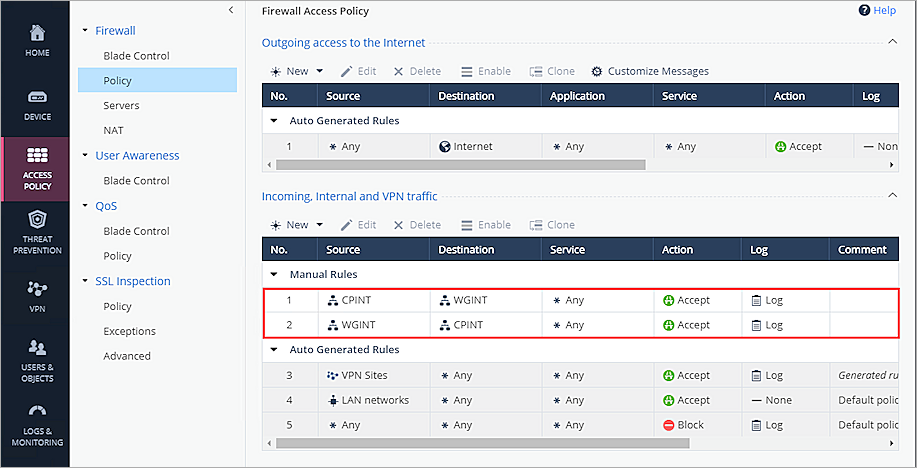
For more information about Check Point VPN configuration and supported IKE ciphers, go to Check Point 700/900 Appliances R77.20.87 Administration Guide.
Test the Integration
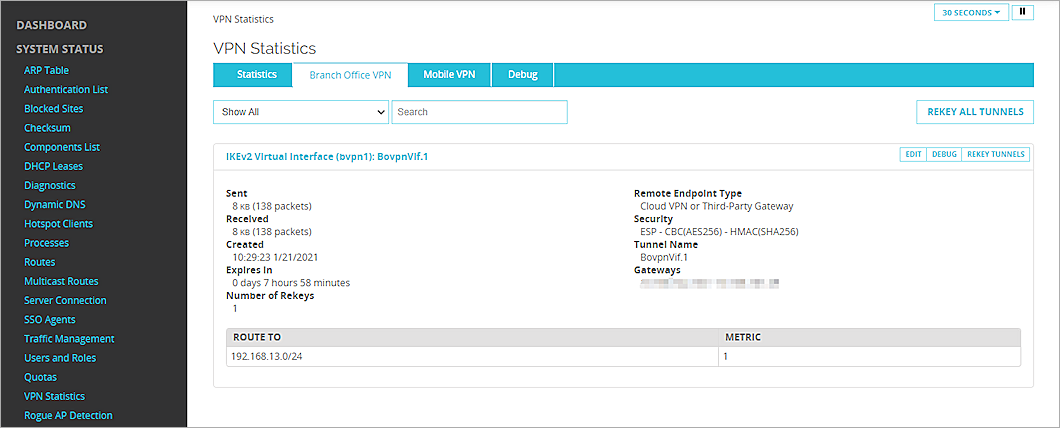
To verify the integration, from Fireware Web UI:
- Select System Status > VPN Statistics.
- Select the Branch Office VPN tab.
- Verify that the VPN is established.
- Verify that Host 1 (behind the Firebox) and Host 2 (behind the Check Point) can ping each other.
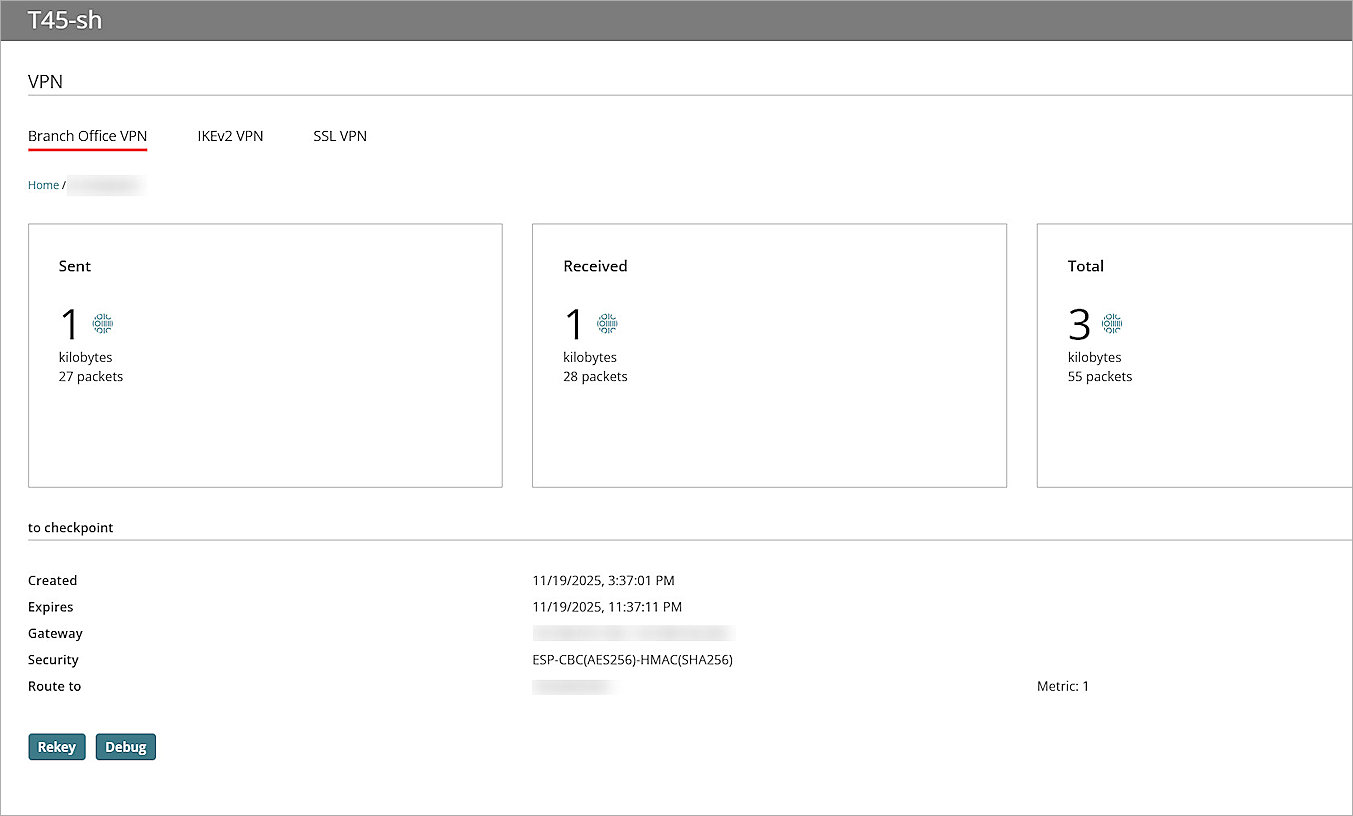
To verify the integration, from WatchGuard Cloud:
- Log in to WatchGuard Cloud.
- From the navigation menu, select Monitor > Devices.
If you log in with a Service Provider, you must select a Subscriber account from the Account Manager. - Select your cloud-managed Firebox, and select Live Status > VPN > Branch Office VPN.
To verify the integration, from the Check Point site:
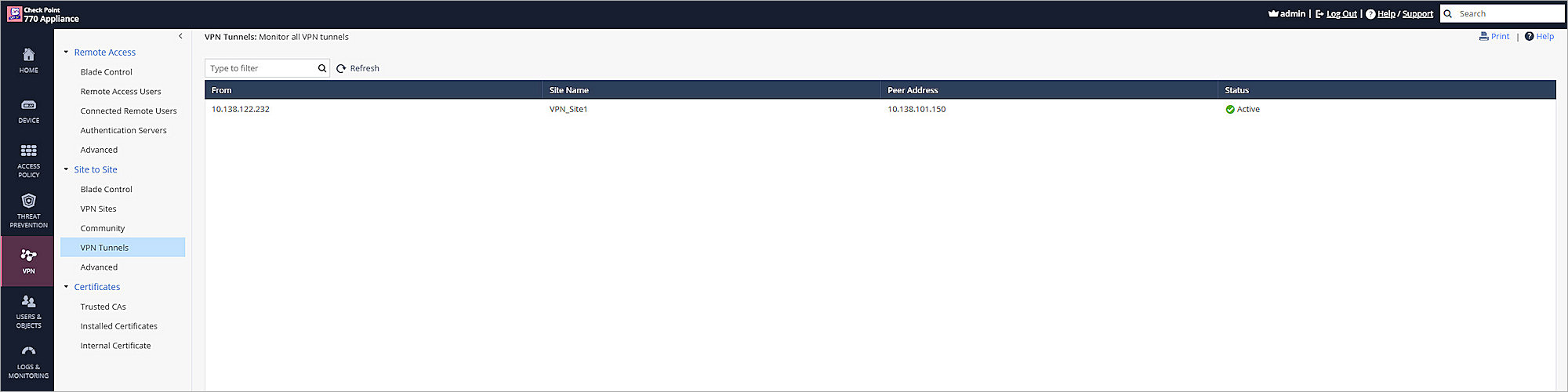
- Select VPN > VPN Tunnels.
- Verify the VPN tunnel is established.