This integration guide describes how to configure a policy-based BOVPN tunnel between a WatchGuard cloud-managed Firebox and Microsoft Azure.
Contents
Integration Summary
The hardware and software used in this guide include:
- WatchGuard Firebox with Fireware v12.7.1 or higher
- Microsoft Azure
Topology
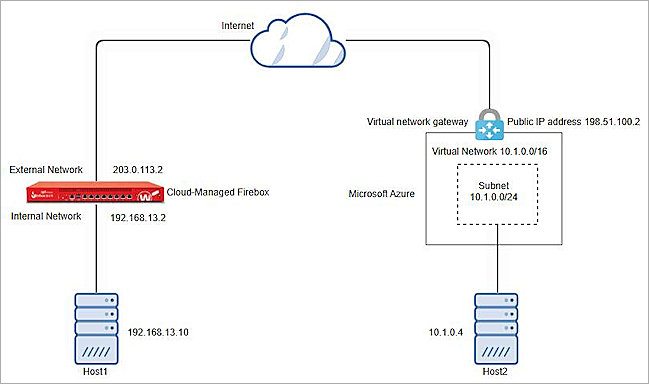
This diagram illustrates a policy-based BOVPN connection between a cloud-managed Firebox and Microsoft Azure.
Before You begin
Before you begin these procedures, make sure that:
- You have a Microsoft Azure administrator account.
- You have a WatchGuard Cloud account.
- You add a Firebox to WatchGuard Cloud as a cloud-managed device.
Configure Microsoft Azure
To configure Microsoft Azure:
- Create a Virtual Network
- Create a Gateway Subnet
- Create a VPN Gateway
- Create a Local Network Gateway
- Create a VPN Connection
Additional charges might apply for the use of Azure.
Create a Virtual Network
To create a virtual network, from the Microsoft Azure portal:
- Log in to the Microsoft Azure portal.
- From the navigation menu, in the Search Resources, Services, and Docs (G+/) text box, type Virtual Network.
- From the Marketplace section of the search results, select Virtual Network.
- Click Create.
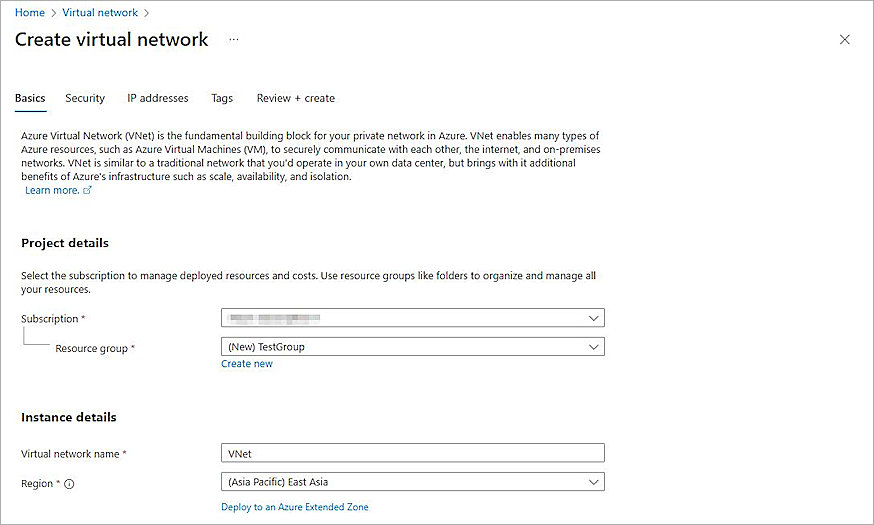
The Create Virtual Network page opens. - Select the Basics tab.
- On the Basics page:
- From the Subscription drop-down list, select your subscription.
- From the Resource Group drop-down list, select a group or, to create a new group, select Create New. In our example, we create a new group TestGroup.
- In the Virtual Network Name text box, type a name for your virtual network. In our example, we type VNet.
- From the Region drop-down list, select a region.
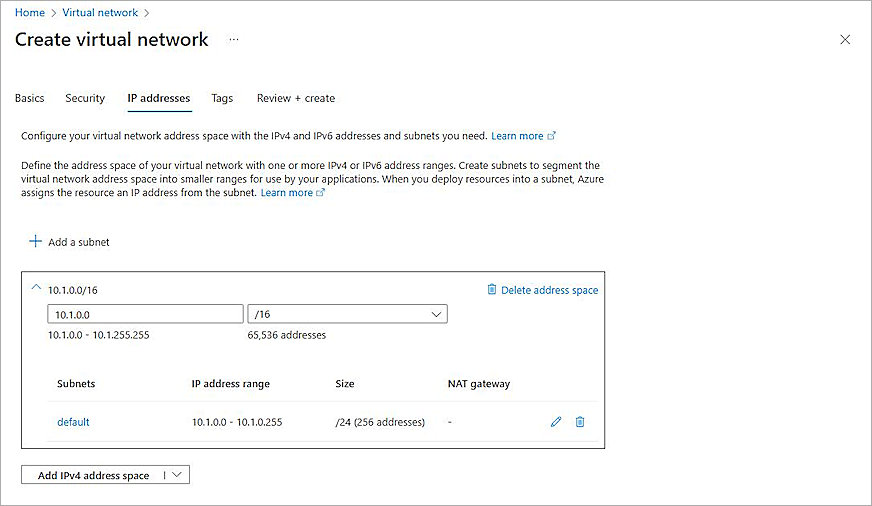
- Click Next until the IP Addresses page opens.
- On the IP Addresses page, to define the address space of your virtual network, type one or more IPv4 and IPv6 address ranges. In our example, we enter 10.1.0.0 as the starting address and /16 as the address space size.
- Keep the default values for all other settings.
- Click Review + Create.
- Click Create.
Azure creates the virtual network.
Create a Gateway Subnet
To create a gateway subnet, from the Microsoft Azure portal:
- On the home page, click Resource Groups, and select the resource group you selected or created in the Create a Virtual Network section.
- Click the virtual network you created in the Create a Virtual Network section.
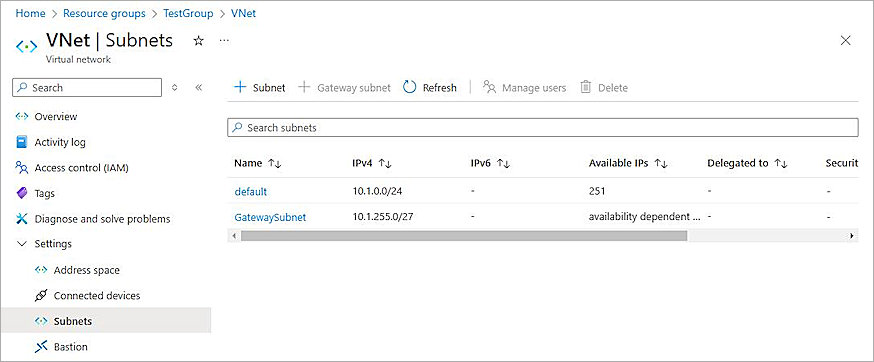
- From the navigation menu, select Settings > Subnets.
- Click + Subnet.
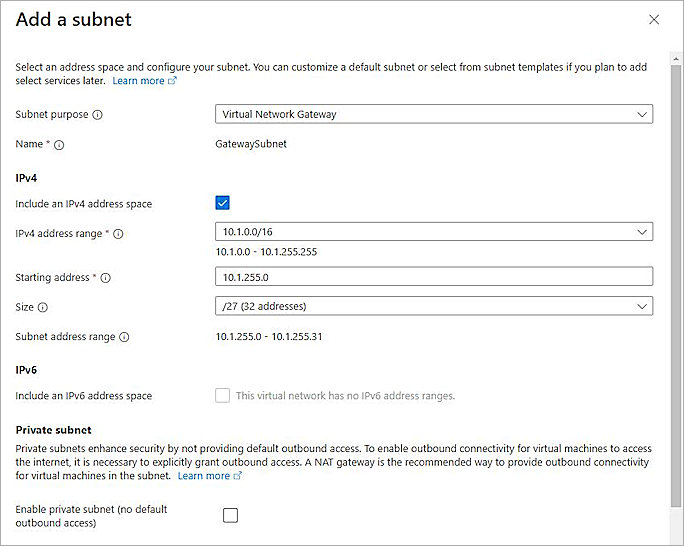
The Add a Subnet page opens. - From the Subnet Purpose drop-down list, select Virtual Network Gateway.
- In the Starting Address text box, type an IP address or keep the default value. In our example, we type 10.1.255.0.
- From the Size drop-down list, select a netmask. In our example, we select /27 (32 addresses).
- Keep the default values for all other settings.
- Click Add.
Azure creates the gateway subnet.
Create a VPN Gateway
To create a VPN gateway, from the Microsoft Azure portal:
- On the home page, in the Search Resources, Services, and Docs (G+/) text box, type Virtual Network Gateway.
- From the Marketplace search results, select Virtual Network Gateway.
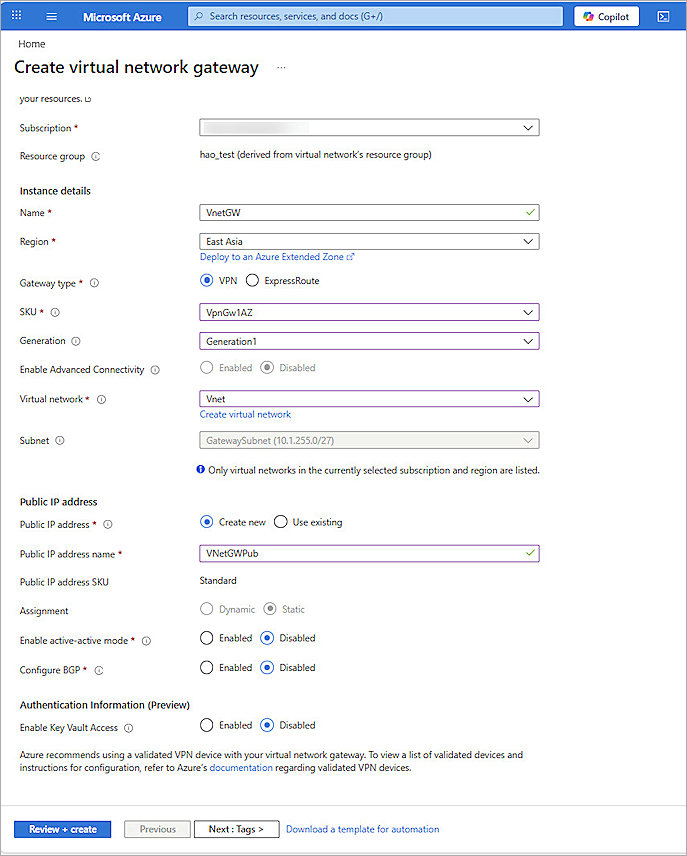
The Create Virtual Network Gateway page opens. - Select the Basics tab.
- In the Project Details section, from the Subscription drop-down list, select your subscription.
- In the Instance Details section:
- In the Name text box, type a name for your VPN gateway.
- From the Region drop-down list, select the same region as your virtual network.
- For Gateway Type, select VPN.
- From the SKU drop-down list, select a gateway SKU. In our example, we select VpnGw1AZ. For more information, go to About Gateway SKUs.
- From the Generation drop-down list, select the generation. In our example, we select Generation1.
- From the Virtual Network drop-down list, select the virtual network you created in the Create a Virtual Network section.
- In the Public IP Address section:
- For Public IP Address, select Create New.
- In the Public IP Address Name text box, type the public IP address name.
- For Enable Active-Active Mode, select Disabled.
- Keep the default values for all other settings.
- Click Review + Create.
- Click Create.
Azure creates the VPN gateway. It might take more than 45 minutes to create and deploy the VPN gateway.
Get the VPN Gateway Public IP Address
To get the public IP address of the VPN gateway, from the Microsoft Azure portal:
- On the home page, click Resource Groups, and select the resource group you selected or created in the Create a Virtual Network section.
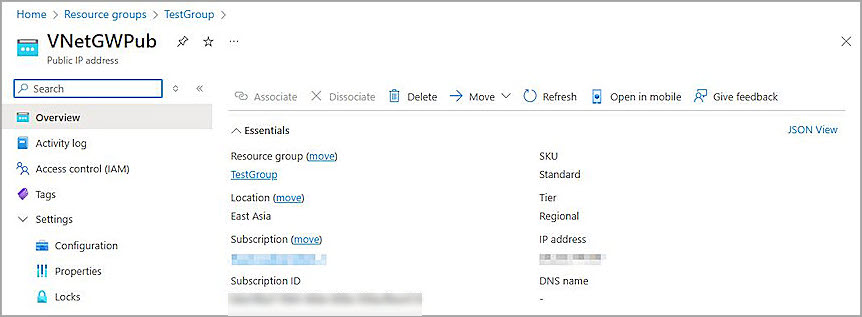
- Click the virtual network gateway Public IP address name you created in the Create a VPN Gateway section.
- From the navigation menu, select Overview.
- Copy the IP Address of the virtual network gateway.
Create a Local Network Gateway
To create a local network gateway, from the Microsoft Azure portal:
- In the Search Resources, Services, and Docs (G+/) text box, type Local Network Gateway.
- From the Marketplace search results, select Local Network Gateway.
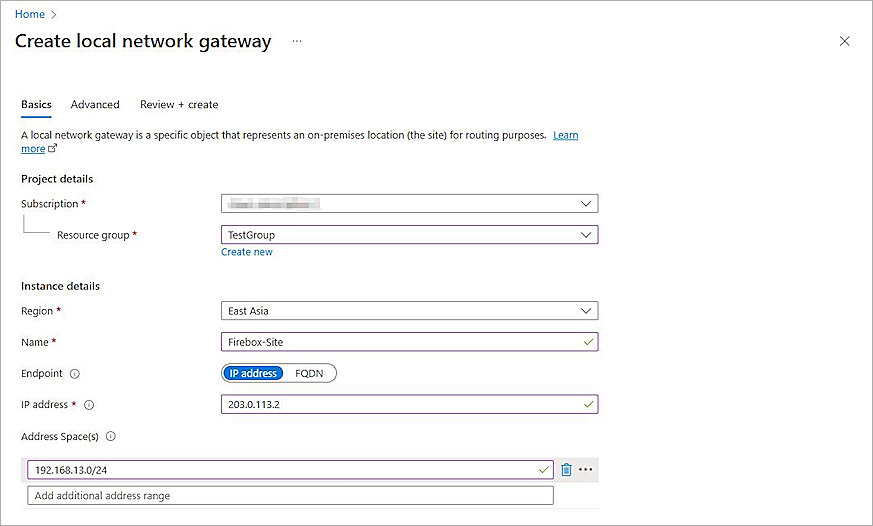
The Create Local Network Gateway page opens. - Select the Basics tab.
- On the Basics page:
- From the Subscription drop-down list, select your subscription.
- From the Resource Group drop-down list, select a group or, to create a new group, select Create New.
- From the Region drop-down list, select the region.
- In the Name text box, type a name.
- For Endpoint, select IP Address or FQDN. In our example, we select IP Address.
- In the IP Address text box, type the IP address of the cloud-managed Firebox external network.
- In the Address Spaces text box, type the addresses of the internal network protected by the cloud-managed Firebox.
- Select the Advanced tab.
- For Configure BGP Settings, select No.
- Click Review + Create.
- Click Create.
Azure creates the local network gateway.
Create a VPN Connection
To create a VPN connection, from the Microsoft Azure portal:
- On the home page, click Resource Groups, and select the resource group you selected or created in the Create a Virtual Network section.
- Click the virtual network gateway you created in the Create a VPN Gateway section.
- From the navigation menu, select Settings > Connections.
The Connections page opens. - Click + Add.
The Create Connection page opens. - Select the Basics tab.
- On the Basics page:
- From the Subscription drop-down list, select your subscription.
- From the Resource Group drop-down list, select the group.
- From the Connection Type drop-down list, select Site-to-Site (IPsec).
- In the Name text box, type a connection name.
- From the Region drop-down list, select the region for this connection.
- Select the Settings tab.
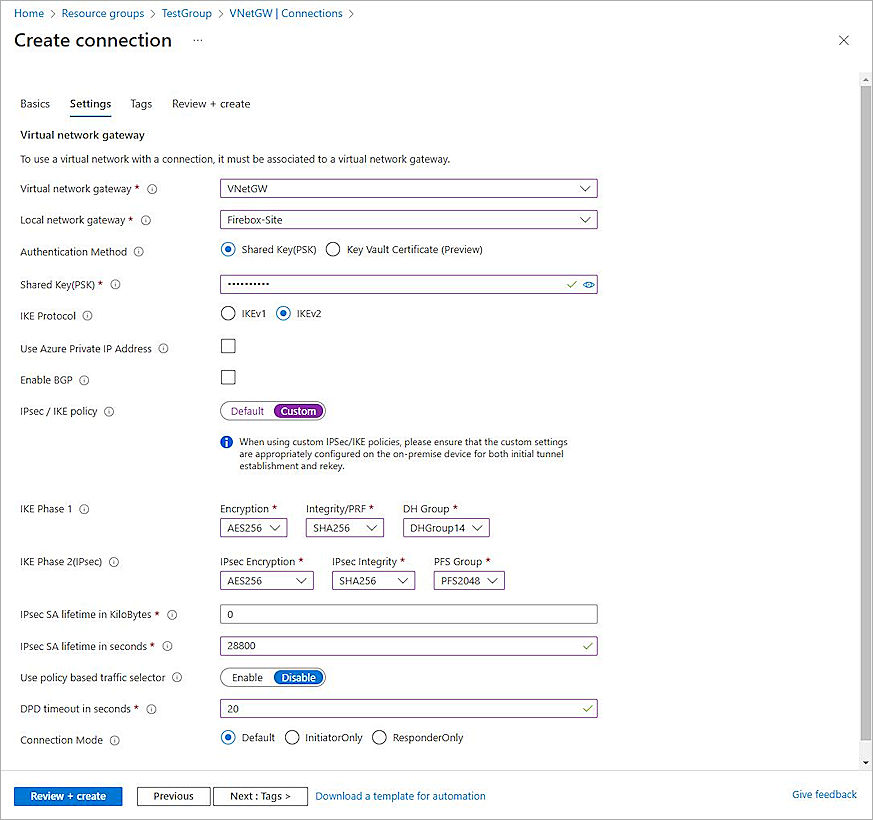
- From the Virtual Network Gateway drop-down list, select the virtual network gateway you created in the Create a VPN Gateway section.
- From the Local Network Gateway drop-down list, select the local network gateway you created in the Create a Local Network Gateway section.
- For the Authentication Method, select Shared Key(PSK).
- In the Shared Key(PSK) text box, type a shared key.
- For IKE Protocol, select IKEv2.
- For IPsec / IKE Policy, select Custom.
- In the IKE Phase 1 section:
- From the Encryption drop-down list, select AES256.
- From the Integrity/PRF drop-down list, select SHA256.
- From the DH Group drop-down list, select DHGroup14.
- In the IKE Phase 2(IPsec) section:
- From the IPsec Encryption drop-down list, select AES256.
- From the IPsec Integrity drop-down list, select SHA256.
- From the PFS Group drop-down list, select PFS2048.
- In the IPsec SA Lifetime in Seconds text box, type 28800.
- In the DPD Timeout in Seconds text box, type 20.
- Keep the default values for all other settings.
- Click Review + Create.
- Click Create.
Azure creates the VPN connection.
Configure a Policy-Based BOVPN for a Cloud-Managed Firebox:
- Log in to WatchGuard Cloud with your WatchGuard Cloud operator account credentials.
If you log in with a Service Provider account, you must select a Subscriber account from the Account Manager. - From the navigation menu, select Configure > VPNs.
- Click Add BOVPN.
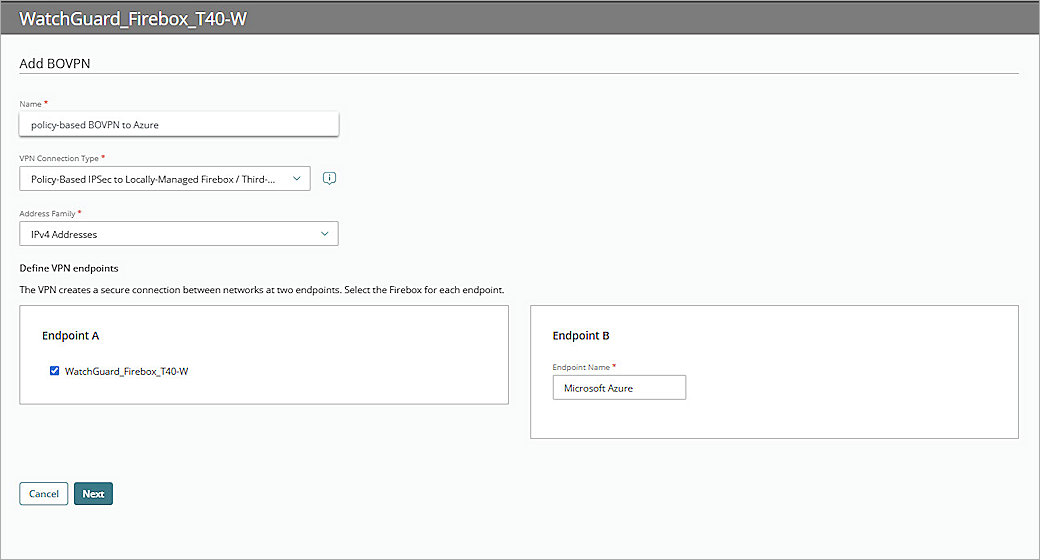
The Add BOVPN page opens. - In the Name text box, type a descriptive name.
- From the VPN Connection Type drop-down list, select Policy-Based IPSec to Locally-Managed Firebox / Third-Party.
- From the Address Family drop-down list, select IPv4 Addresses.
- In the Endpoint A section, select your cloud-managed Firebox.
- In the Endpoint B section, in the Endpoint Name text box, type a name to identify the remote VPN endpoint. In our example, we type Microsoft Azure.
- Click Next.
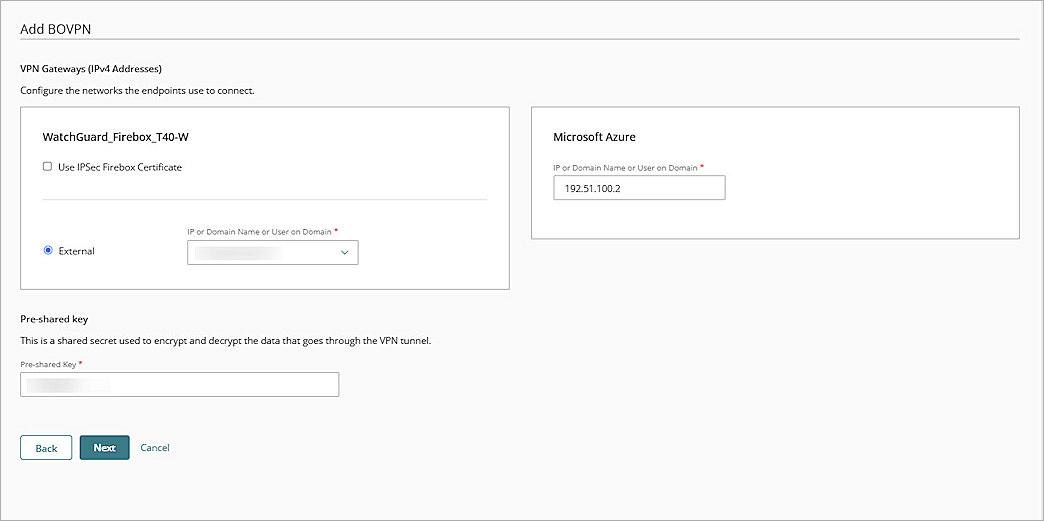
- From the cloud-managed Firebox side, select External network.
- On the Azure side, in the IP or Domain Name or User on Domain text box, type the IP address of your Azure Get the VPN Gateway Public IP Address.
- In the Pre-Shared Key text box, type a pre-shared key. This pre-shared key matches the pre-shared key from when you configured Azure.
- Click Next.
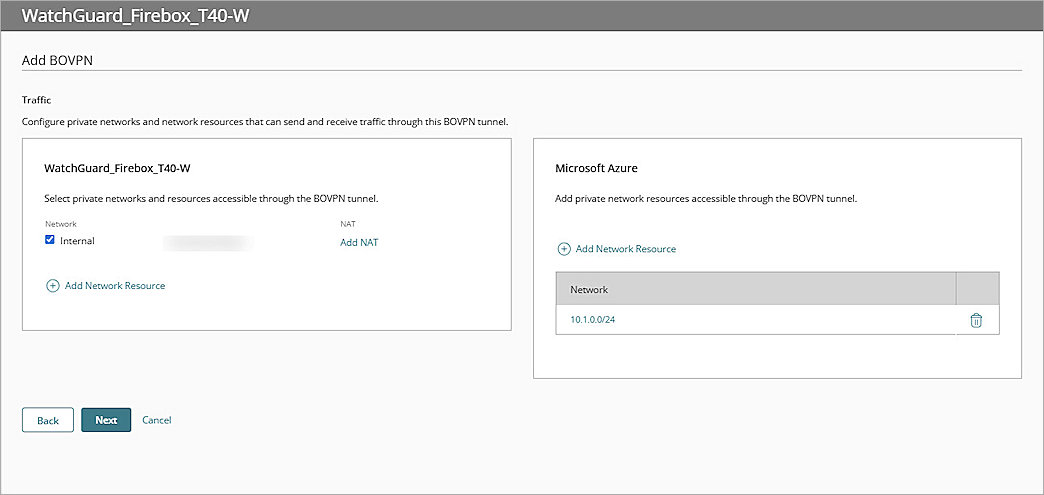
- From the cloud-managed Firebox side, select the Internal network that you want to be accessible through the VPN tunnel.
- From the Azure side, click Add Network Resource.
- In the Network Resource text box, type the private network that Azure protects. In our example, we type 10.1.0.0/24.
- Click Add.
- For all other settings, keep the default values.
- Click Next.
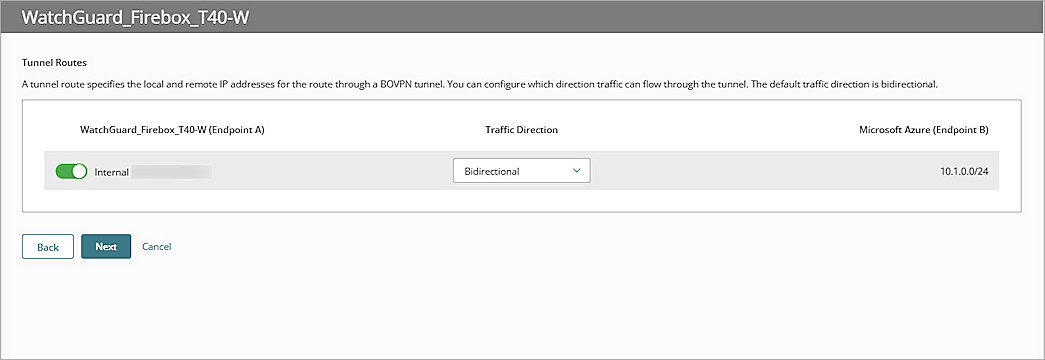
The Tunnel Routes page opens. - Click Next.
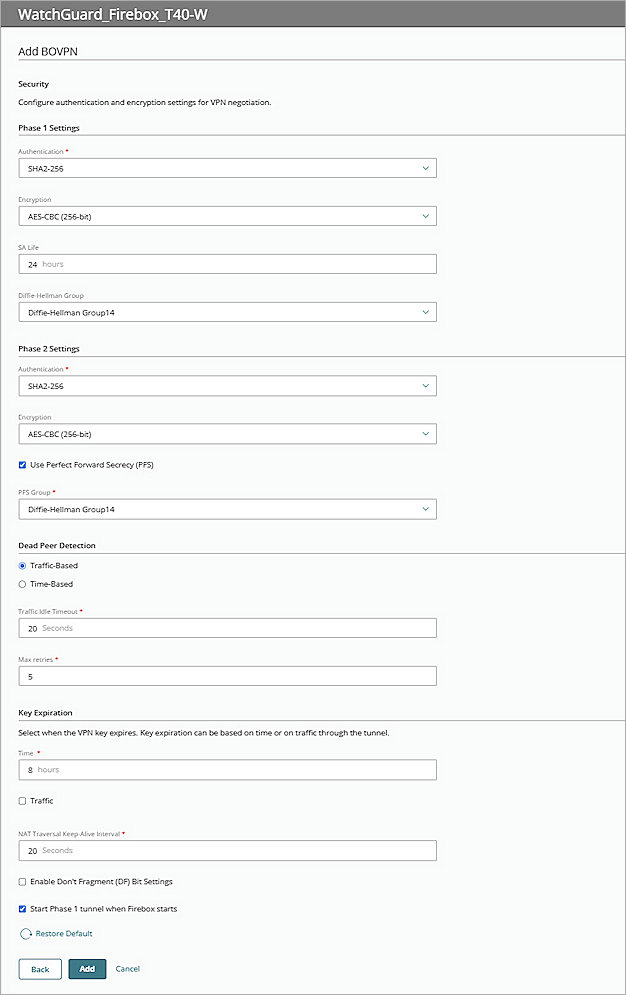
- In the Phase 1 Settings section, from the Authentication drop-down list, select SHA2-256.
- From the Encryption drop-down list, select AES-CBC (256-bit).
- In the SA Life text box, type 8.
- From the Diffie-Hellman Group drop-down list, select Diffie-Hellman Group14.
- In the Phase 2 Settings section, from the Authentication drop-down list, select SHA2-256.
- From the Encryption drop-down list, select AES-CBC (256-bit).
- Select the Use Perfect Forward Secrecy (PFS) check box.
- From the PFS Group drop-down list, select Diffie-Hellman Group14.
- Keep all other values as default settings.
- Click Add.
- (Optional) Click View Guide to open the VPN Configuration Summary page for the Firebox. To establish the VPN connection, use the guide to configure the required settings in Azure.
- Click Finish.
When you add a BOVPN for a cloud-managed Firebox, WatchGuard Cloud immediately creates and deploys a configuration update for the cloud-managed Firebox.
Test the Integration
To test the integration of the policy-based BOVPN tunnel between your cloud-managed Firebox and Microsoft Azure:
- Log in to WatchGuard Cloud.
- From the navigation menu, select Monitor > Devices.
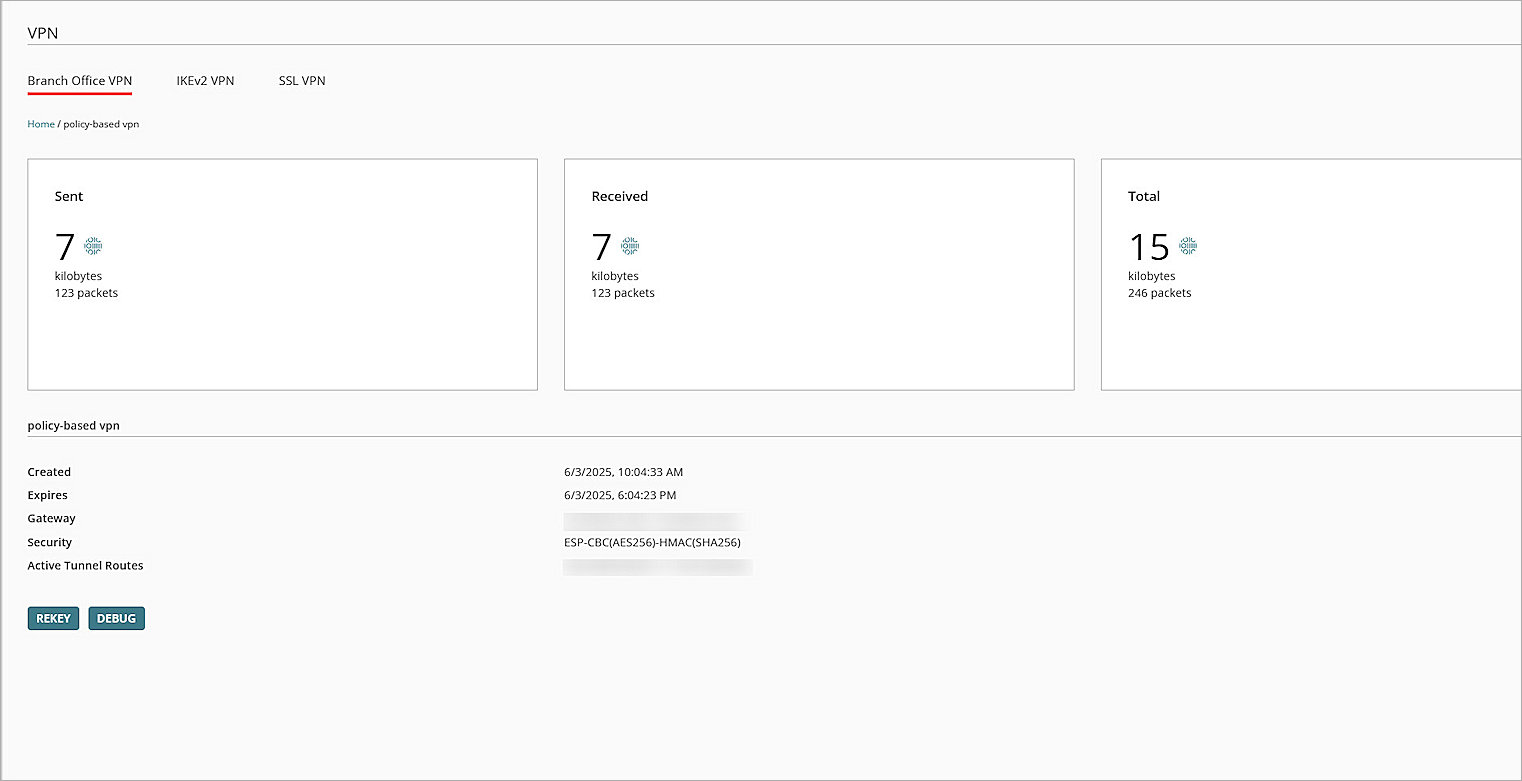
If you log in with a Service Provider account, you must select a Subscriber account from the Account Manager. - Select your cloud-managed Firebox, then select Live Status > VPN > Branch Office VPN.
- Click the name of your BOVPN, and verify that the VPN is established.
- Verify that the host behind the cloud-managed Firebox and Azure can ping each other successfully.