This document describes how to set up multi-factor authentication (MFA) for FireCloud with Okta as an identity provider.
Contents
FireCloud Authentication Data Flow with Okta
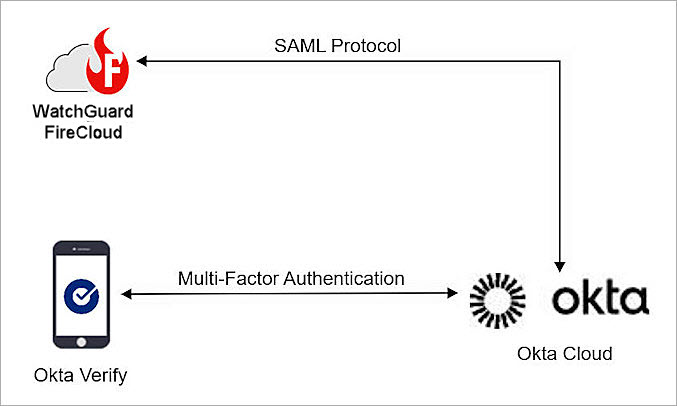
Okta communicates with various cloud-based services and service providers using the SAML protocol. This diagram shows the data flow of an MFA transaction for FireCloud.
Before You Begin
Before you begin these procedures, make sure that:
- You have an Okta administrator account.
- A token is assigned to a user in Okta.
- You have a WatchGuard Cloud account.
Additional charges might apply to use Okta.
Configure Okta
To configure Okta, complete these steps:
Add a Group and User in Okta
If you don't have any user or group for the integration, follow the steps in this section to create a group and user in Okta:
- Log in to the Okta admin console with your Okta administrator account.
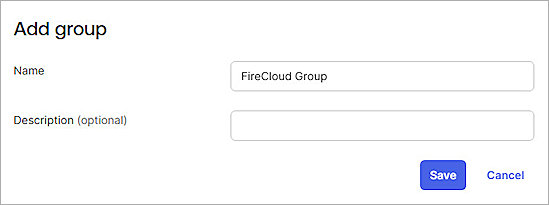
- Select Directory > Groups > Add Group.
The Add Group dialog appears. - In the Name text box, type a group name. For our example, we enter FireCloud Group.
- Click Save.
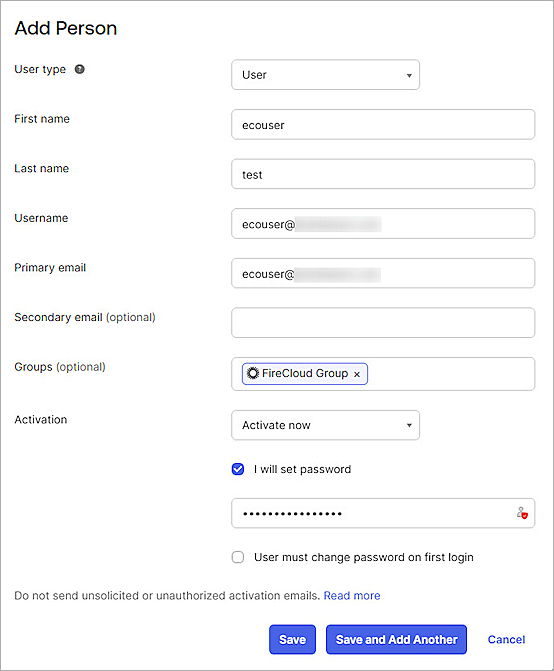
- To add a user in Okta, select Directory > People > Add Person.
The Add Person page appears. - For the Group text box, type the group name of the group you just created. In our example, we type FireCloud Group.
- Click Save.
- After you add a user account, you sign in to Okta in order to activate the Okta token that you use for MFA.
Configure a SAML Application in Okta.
- Log in to the Okta Admin Console.
- Select Applications > Applications.
The Applications page opens. - Click Create App Integration.
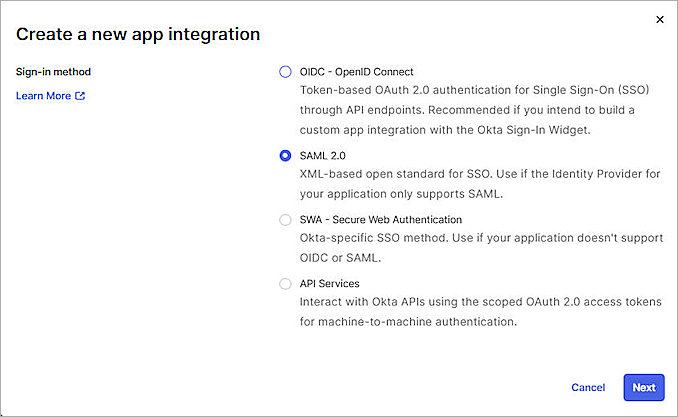
The Create a new app integration dialog appears. - For the Sign-in method, select SAML 2.0.
- Click Next.
The Create SAML Integration page opens. - In the App Name text box, type a descriptive name.
- Click Next.
The page changes to the Configure SAML section. -
In the Single Sign On URL text box, type https://authsvc.firecloud.your WatchGuard Cloud region.cloud.watchguard.com/v1/acs.
To find your account region, log in to WatchGuard Cloud and go to Administration > My Account. Your region is listed under the Data Zone heading. To get the region code, refer to WatchGuard Cloud URLs and Network Access Requirements.
- In the Audience URI (SP Entity ID) text box, enter any value to be your entity ID. You must use this same value when you configure FireCloud in the next section.
- In the Attribute Statements (optional) section, in the Name text box type groups
- In the Value text box, type User groups.
- Leave the default values for all other settings.
- Click Next.
The page changes to the Feedback section. - In the Feedback section, enter the required information.
- Click Finish.
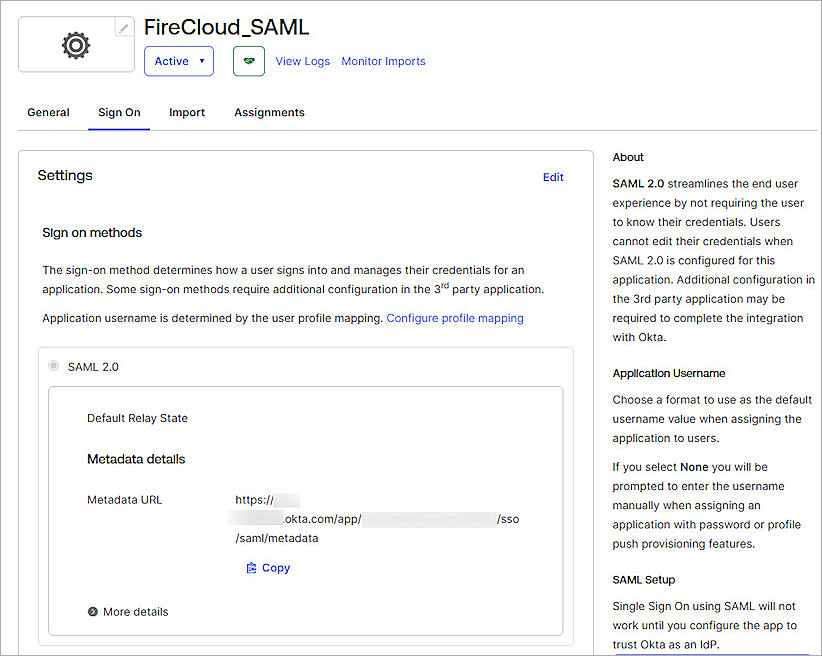
The SAML application you created opens. - Select the Sign On tab.
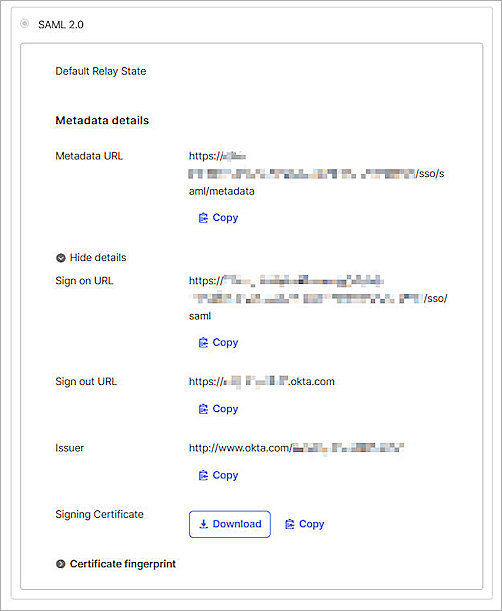
- From the SAML 2.0 section, click More details.
More details about SAML 2.0 are shown. - In the Metadata details section, copy the Sign on URL and Issuer values. You need this information when you configure FireCloud.
- Click Download to download the Signing Certificate. You need this certificate when you configure WatchGuard FireCloud.
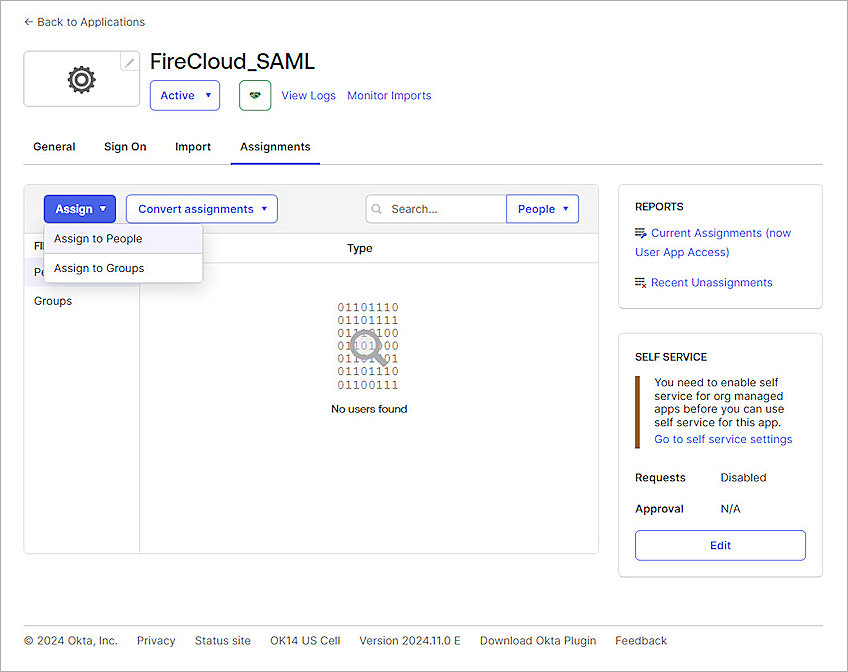
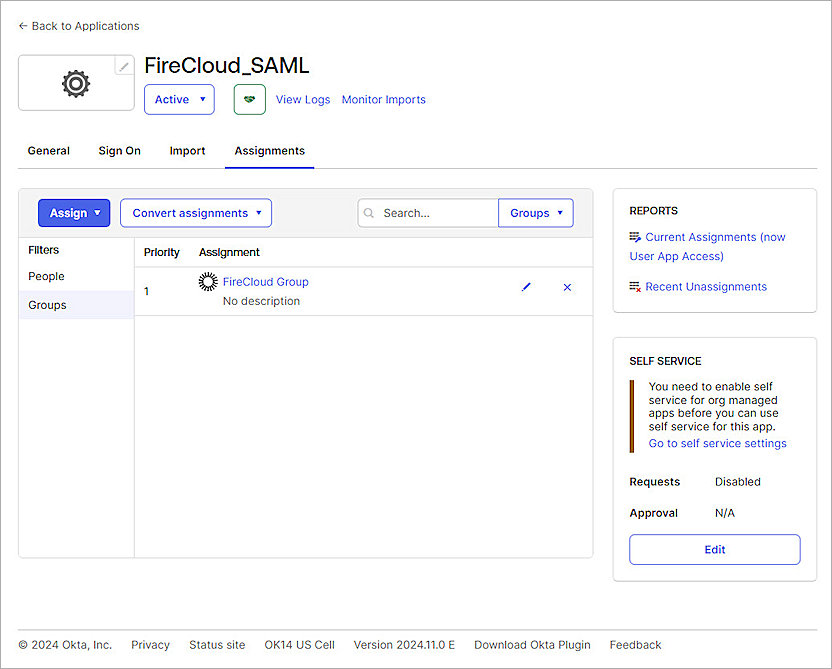
- Select the Assignments tab.
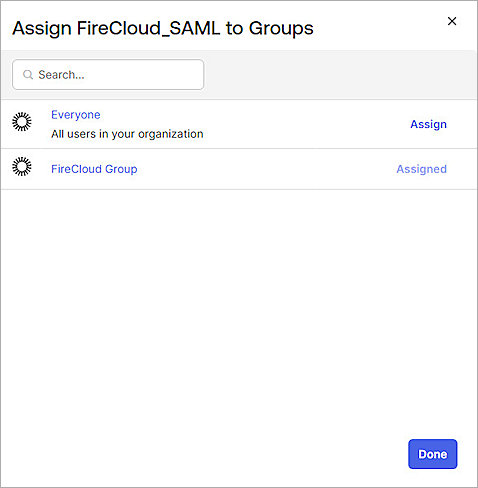
- Select Assign > Assign to Groups. You can assign the application to people or groups. In our example, we assign the application to groups.
- Choose a group, then click Assign.
- Click Done.
.jpg)
.jpg)
.jpg)
Configure SSO for FireCloud
To configure an identity provider for FireCloud:
- Log in to WatchGuard Cloud with your WatchGuard Cloud operator account credentials. If you log in with a Service Provider account, you must select a Subscriber account from the Account Manager.
- From the navigation menu, select Configure > FireCloud.
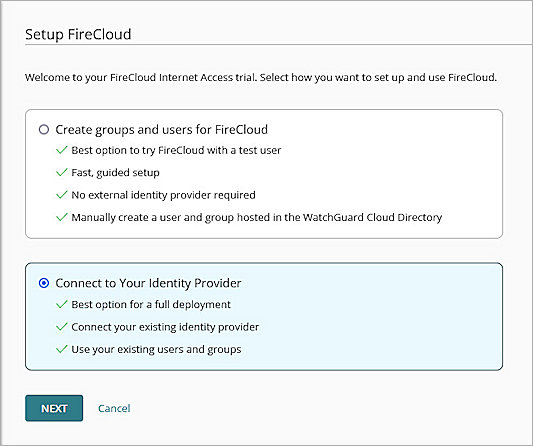
- Click Set Up FireCloud.
- Select Connect to Your Identity Provider.
- Click Next.
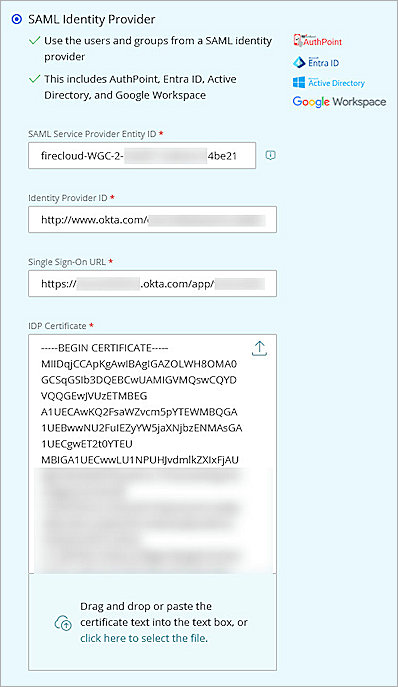
- Select SAML Identity Provider.
- In the SAML Service Provider Entity ID text box, type the Audience URI (SP Entity ID) value that you defined in the previous section.
- In the Identity Provider ID text box, type or paste the Issuer value you copied from the previous section.
- In the Single Sign-On URL text box, type or paste the Sign on URL value you copied from the previous section.
- For the IDP Certificate, click the upload icon
 to upload the Signing Certificate you downloaded in the previous section.
 - Click Save.
- Click Done.
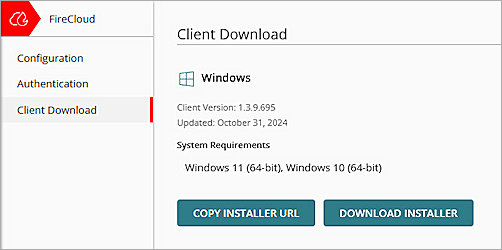
- From the FireCloud navigation pane, select Client Download > Download Installer.
- Run the WatchGuard Agent installer on your Windows computer.
- Click Install. The installation of the WatchGuard Agent can take several minutes.
- When the installation is complete, click Finish.
- After the WatchGuard Agent is installed, the agent automatically downloads and installs the Connection Manager. When this is finished, the Connection Manager opens and you are prompted to enter your credentials to connect to FireCloud.
Caution: You cannot install the WatchGuard Connection Manager on computers that have Panda endpoint security products installed. The WatchGuard Connection Manager is only compatible with WatchGuard Endpoint Security products.
Test the Integration
To test Okta MFA with FireCloud, you can authenticate with a token on your mobile device. You can choose a push notification or one-time password.
In this example, we show the notification push authentication method.
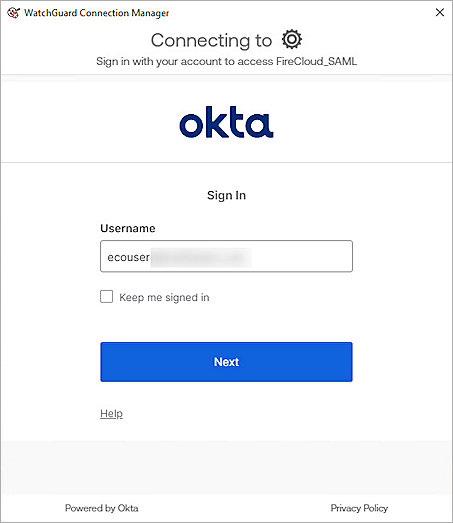
- Open the WatchGuard Connection Manager client. The client should open automatically and prompt you to authenticate after the installation is complete.
- In the Username text box, type your user name.
- Click Next.
- From the Verify it's you with a security method section, select Get a push notification.
- Open your Okta Verify app, then click Yes, It's Me.
- In the Password text box, type the user password.
- Click Verify.
Successfully connected to FireCloud.