This document describes how to set up multi-factor authentication (MFA) for FireCloud with Auth0 as an identity provider.
Contents
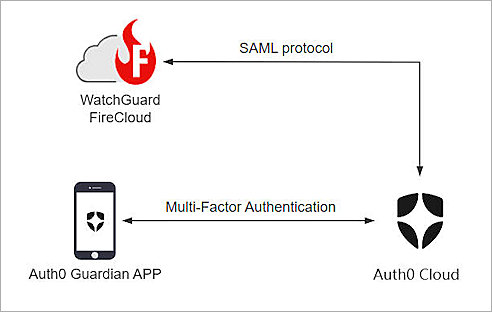
WatchGuard FireCloud Authentication Data Flow with Auth0
Auth0 communicates with various cloud-based services and service providers using the SAML protocol. This diagram shows the data flow of an MFA transaction for WatchGuard FireCloud.
Before You Begin
Before you begin these procedures, make sure that:
- You have an Auth0 administrator account.
- A token is assigned to a user in Auth0.
- You have a WatchGuard Cloud operator account.
Configure Auth0
To configure Auth0, complete these steps:
- Create and Activate Users in Auth0.
- Create and Configure Applications in Auth0.
- Enable Auth0 Multi-factor Authentication.
Create and Activate Users in Auth0
If you don't have any users in Auth0 yet, follow these steps in this section to create and activate users in Auth0:
- Log in to Auth0 with an administrator account.
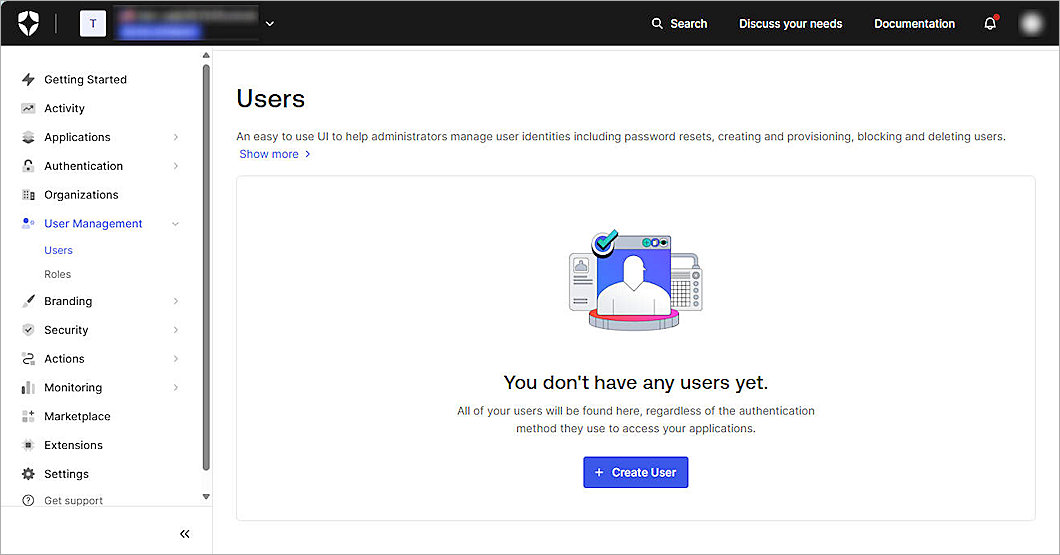
- Select User Management > Users.
- Click + Create User.
The Create User window appears.
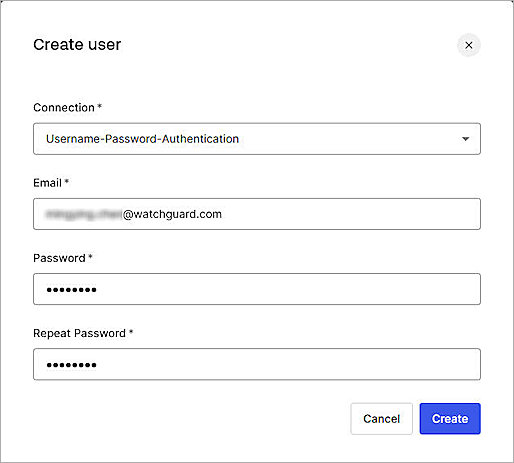
- Leave the default value in the Connection drop-down list.
- In the Email text box, type your email address.
- In the Password text box, type a password.
- In the Repeat Password text box, type your password again.
- Click Create.
When you create a new user with an email address that has not been used before, Auth0 automatically sends an activation email message to verify your account.
The User page opens.
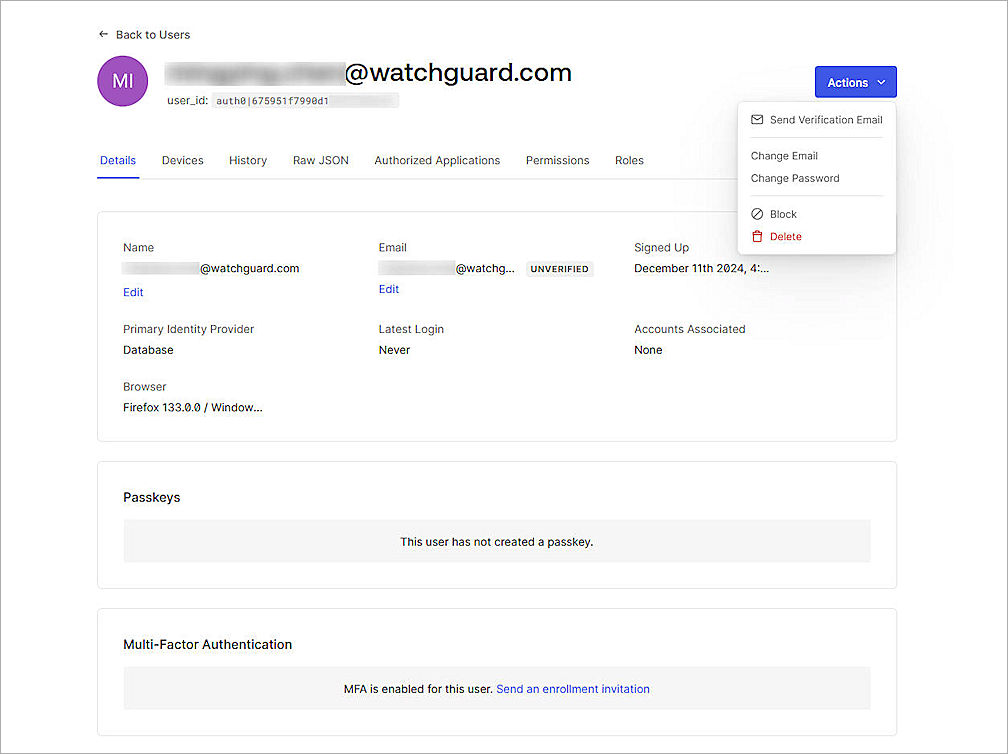
- (Optional) If you couldn't receive the activation email for your account, select Actions > Send Verification Email.
- (Optional) Click Confirm.
An activation email message is sent to verify your email address.
- From the Multi-Factor Authentication section, click Send an enrollment invitation.
An invitation email is sent for user MFA enrollment.
Create and Configure Applications in Auth0
To create and configure an application in Auth0:
- From the left navigation pane, select Applications > Applications.

- Click + Create Application.
The Create Application page opens.

- In the Name text box, type a descriptive name. In our example, we enter WatchGuard FireCloud.
- From the Choose an application type section, select Regular Web Applications.
- Click Create.
The Application you created opens.
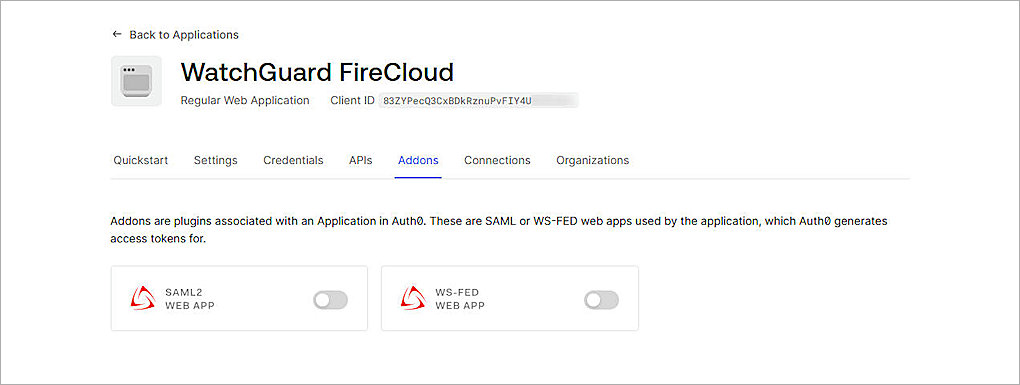
- Select the Addons tab.
- Enable SAML2 Web App.
The Addon: SAML2 Web App window appears.
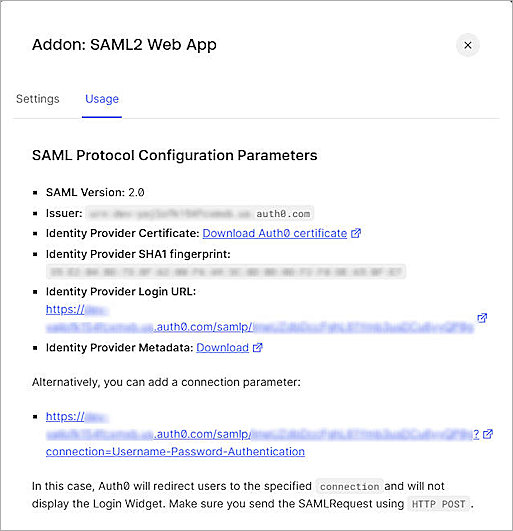
- Select the Usage tab.
- In the SAML Protocol Configuration Parameters section, copy the Issuer and Identity Provider Login URL values. You need this information when you configure FireCloud.
- Click Download Auth0 certificate to download the Identity Provider Certificate. You need this certificate when you configure FireCloud.
- Select the Settings tab.
The Settings page opens.
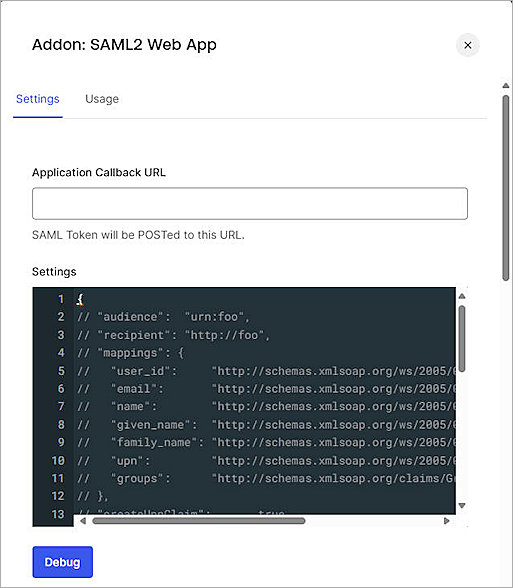
- In the Application Callback URL text box, type https://authsvc.firecloud.your WatchGuard Cloud region.cloud.watchguard.com/v1/acs.
To find your account region, log in to WatchGuard Cloud and go to Administration > My Account. Your region is listed under the Data Zone heading. To get the associated region code, refer to WatchGuard Cloud URLs and Network Access Requirements.
- From the Settings section, delete the // to uncomment the audience line.
- Change the Audience value to any new value. In our example, we enter WatchGuardFireCloud. This is the entityID value. Note this value. You need this value when you configure FireCloud.
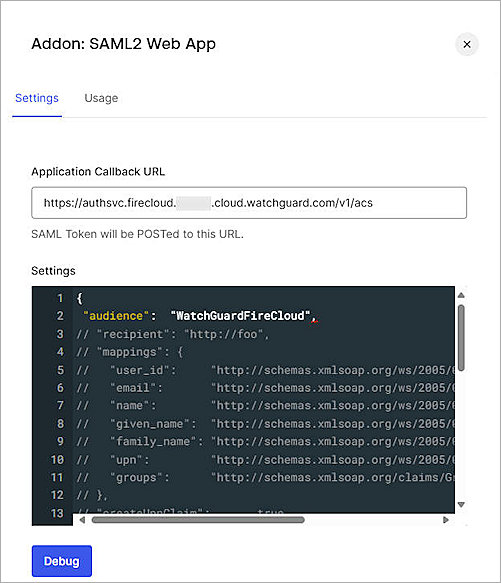
- Uncomment the nameIdentifierFormat and nameIdentifierProbes lines.
- Uncomment the http://schemas.xmlsoap.org/ws/2005/05/identity/claims/emailaddress claims under the nameIdentifierProbes line.
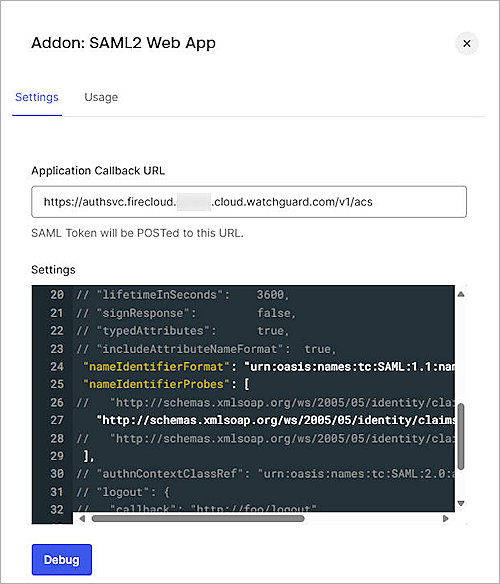
- (Optional) Click Debug.
Auth0 shows a confirmation message when the debug is successful. - To save your changes, scroll down to the bottom of the page, then click Enable.
- To close the page, in the upper right corner, click ×.
Enable Auth0 Multi-factor Authentication
To enable Auth0 multi-factor authentication:
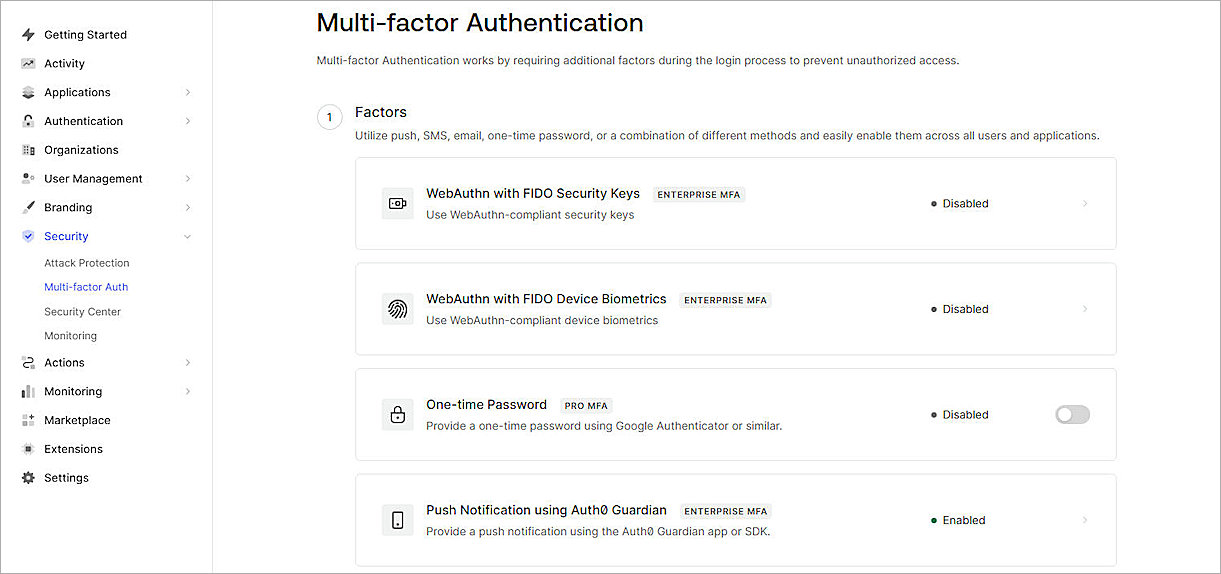
- Select Security > Multi-factor Auth.
The Multi-factor Authentication page opens. - From the Factors section, enable at least one factor. For this example, we select Push Notification Using Auth0 Guardian.
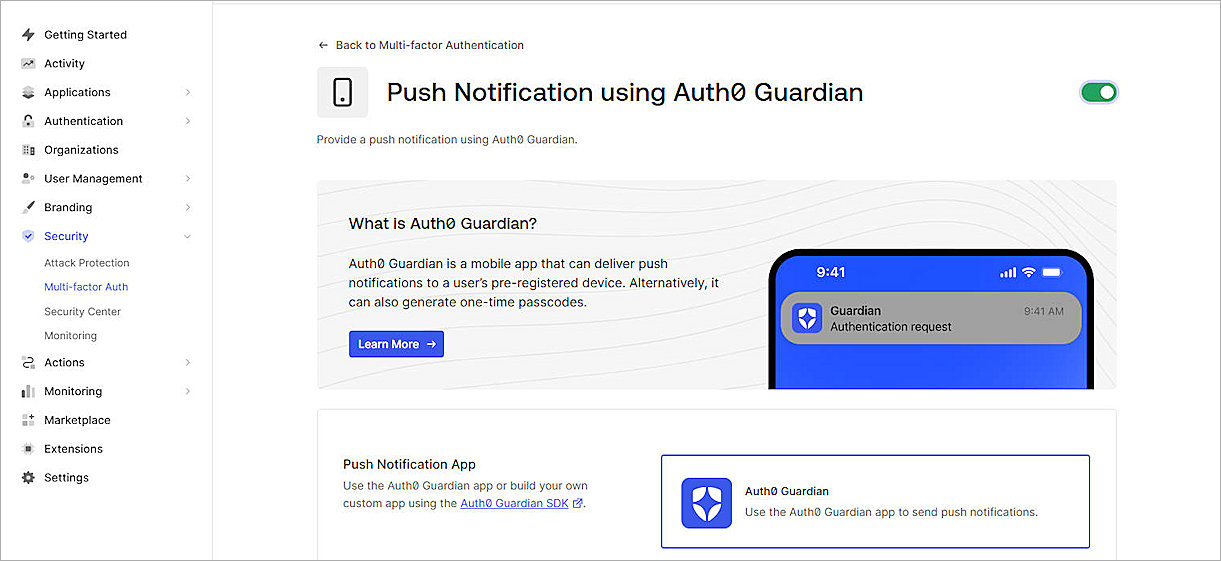
The Push Notification Using Auth0 Guardian page opens.
- Enable Push Notification using Auth0 Guardian.
- Click Back to Multi-factor Authentication.
- Scroll down to the Define policies section. For Require Multi-factor Auth, select Always.
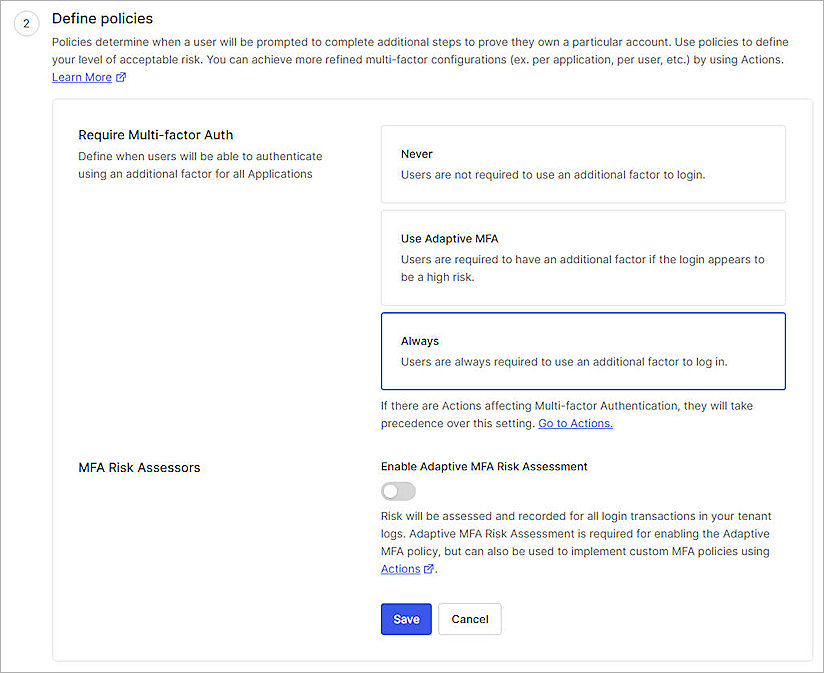
- Click Save.
- Click Continue.
Configure SSO for FireCloud
To configure SSO for FireCloud:
- Log in to WatchGuard Cloud with your WatchGuard Cloud operator account credentials. If you log in with a Service Provider account, you must select a Subscriber account from the Account Manager.
- From the navigation menu, select Configure > FireCloud.
- Click Set Up FireCloud.
- Select Connect to Your Identity Provider.
- Click Next.
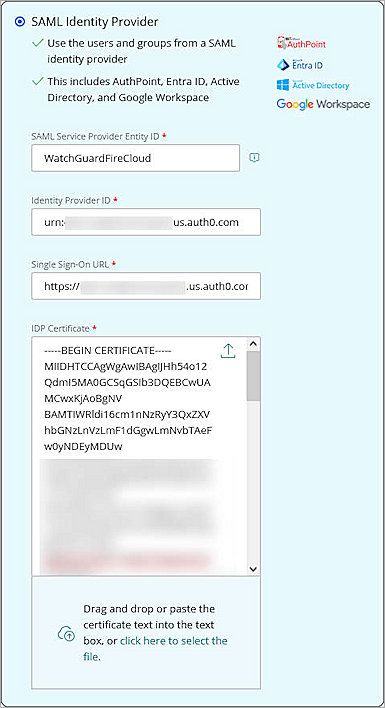
- In the SAML Service Provider Entity ID text box, type the audience value that you configured in the previous section. In our example, we type WatchGuardFireCloud.
- In the Identity Provider ID text box, type or paste the Issuer value you copied from the previous section.
- In the Single Sign-On URL text box, type or paste the Identity Provider Login URL value you copied from the previous section.
- In the IDP Certificate text box, click the upload icon
 and upload the identity provider certificate you downloaded in the previous section.
- Click Save.
- Click Done.
- From the FireCloud navigation menu, select Client Download > Download Installer.
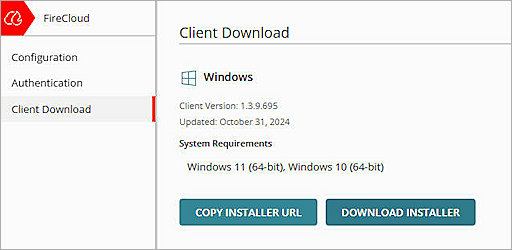
- Run the client installer on your Windows client.
- Click Install. The installation of the WatchGuard Agent can take several minutes.
- When the installation is complete, click Finish.
- After the WatchGuard Agent is installed, the agent automatically downloads and installs the Connection Manager. When this is finished, the Connection Manager opens and you are prompted to enter your credentials to connect to FireCloud. We will test the login process in the next section.
Caution: You cannot install the WatchGuard Connection Manager on computers that have Panda endpoint security products installed. The WatchGuard Connection Manager is only compatible with WatchGuard Endpoint Security products.
Test the Integration
To test Auth0 MFA with FireCloud, you can authenticate with a mobile token on your mobile device. You can choose push notification, one-time password, SMS, or email, and enable them across all users and applications.
In this example, we show the push notification method.
- Open the WatchGuard Connection Manager client.
- In the Email address text box, type your email address.
- In the Password text box, type your password.
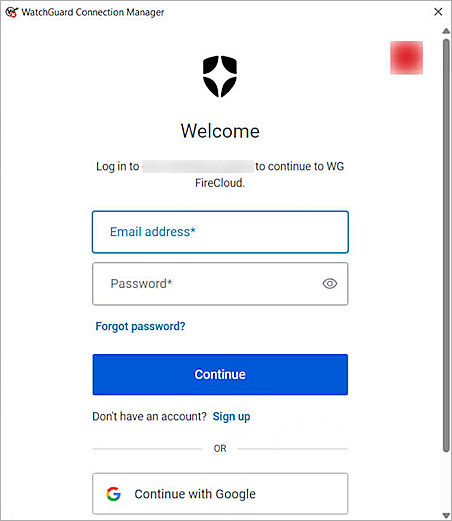
- Click Continue.
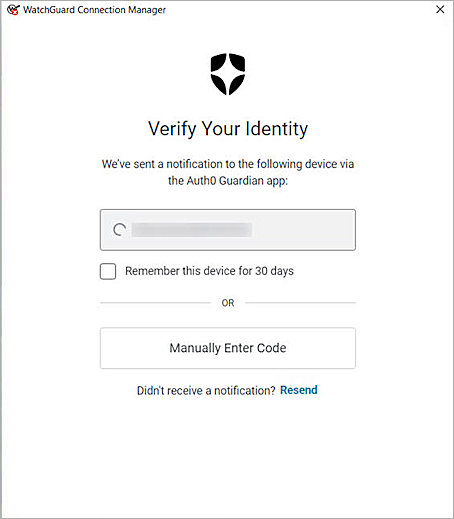
- Approve the authentication request sent to your mobile device.
You are connected to FireCloud.