Kaseya VSA 10 (VSA X) is a next-generation, cloud-native RMM platform that integrates real-time IT asset management, deep MDM, automated workflows, and cross-platform patch management.
This document describes how to configure Kaseya VSA X to make the WatchGuard Mobile Security available to iOS devices in your organization.
Contents
Integration Summary
The hardware and software used in this guide include:
- Kaseya VSA X
- WatchGuard Mobile Security App v2.02.01.0003
- Mobile device with iOS v26.3
Before You Begin
Before you begin these procedures, make sure that you have:
- A global administrator or user management administrator account to log in to Kaseya VSA X.
- A WatchGuard Cloud account with an Endpoint Security license.
This integration guide applies to WatchGuard Endpoint Security Elite, 360, Prime, and Basic. In this guide, we use Endpoint Security 360 as an example.
Copy the Integration URL
- Log in to WatchGuard Cloud with your WatchGuard Cloud operator account credentials.
If you log in with a Service Provider account, you must select a Subscriber account from Account Manager. - Select Monitor > Endpoints.
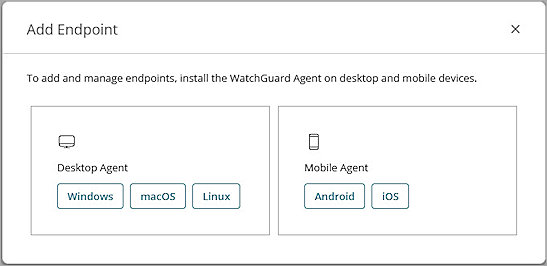
The Endpoints page opens. - Click Add Endpoint.
The Add Endpoint dialog box opens. - In the Mobile Agent section, select iOS.
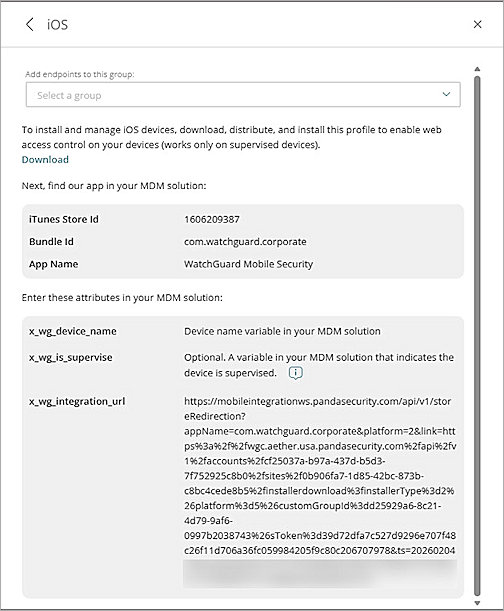
- Click Use Another MDM Solution.
- From the Add Endpoints to this Group drop-down list, select the group to which you want to add the iOS mobile devices to.
- In the third-party MDM solution, import the WatchGuard Mobile Security app directly from the App Store. To do this, use the iTunes Store Id, Bundle Id, or App Name fields, or the search features included in the MDM solution.
- Copy the x_wg_integration_url value for use later in the section, Configure the Kaseya VSA X Platform.
The x_wg_device_name variable is used by the MDM solution to represent the name of the device that will receive the WatchGuard Mobile Security app. For more information, go to Install the WatchGuard Mobile Security iOS App on Supervised Devices (Third-Party MDM Solution) .
Configure the Kaseya VSA X Platform
To configure Kaseya VSA X, you must:
- Enroll the iOS Devices in the Kaseya MDM.
- Configure Deployment of the WatchGuard Mobile Security App.
- Configure a Policy to Push the App to Enrolled Devices.
Make sure that you have a global administrator or user management administrator account to log in to Kaseya VSA X.
Enroll the iOS Devices in the Kaseya MDM
When you enroll iOS devices in the Kaseya MDM, the VSA X agent is automatically installed on the device. For more information on the Kaseya MDM, go to VSA 10 MDM: Enrollment (external link).
To enroll iOS devices in the Kaseya MDM:
- Log in to Kaseya VSA X.
- Select Integrations > Connectors
The Connectors page opens. - Click Create Connector.
- Create an Apple Push Notification Service connector in VSA X. For more information, go to Create an Apple Push Notification Service Connector (external link).
- From the left navigation, select Device > MDM Enrollment.
- In the Context section, from the Organization Name drop-down list, select the organization you want the iOS devices enrolled in.
- Keep the default values for Site Name and Agent Group.
- In the Enroll Path section, from the drop-down list, select QR Code and Link.

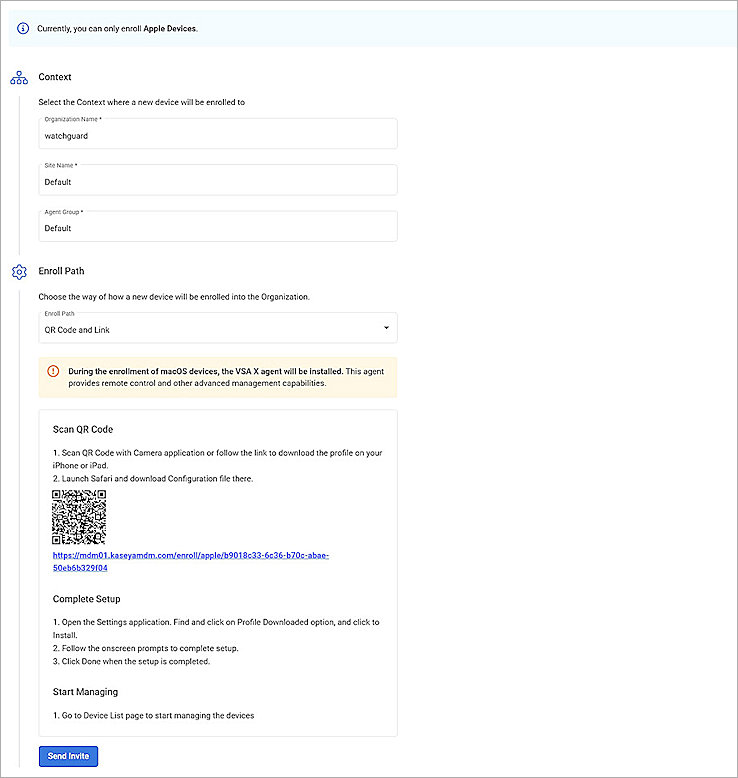
- To invite an iOS device to enroll in the MDM, click Send Invite.
- In the Send Invite page:
- In the Recipients text box, enter an email address for the iOS device.
- Select the Create end user accounts and assign enrolled devices check box.
- (Optional) Enter a message for the email message.
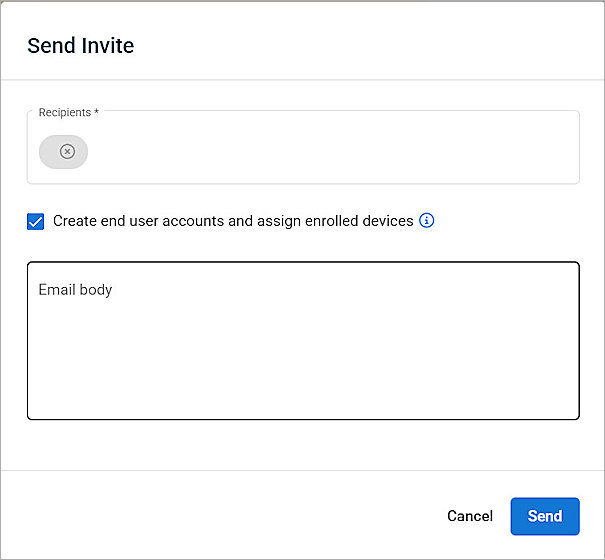
- Click Send.
An email message is sent to the iOS device with the QR code and a link to enroll in the MDM.
Configure Deployment of the WatchGuard Mobile Security App
Configure a profile in the MDM that defines the applications to be deployed and their associated configuration files.
To create a profile for the WatchGuard Mobile Security app in the Kaseya MDM:
- Log in to Kaseya VSA X.
- From the left navigation, select Configuration > Profiles.
- Click New Profile.
The Create New Profile page opens. - In the Name text box, enter a descriptive name for the profile.
- In the Description text box, enter a description of the profile.
- In the Profile Type section, from the Profile Type drop-down list, select Apple MDM Applications (Device Configuration).
- In the Content Tag section, from the Tags drop-down list, select Basic Device Profiles.
- Click Next.
The Apple MDM Applications page opens. - Click Add Application.
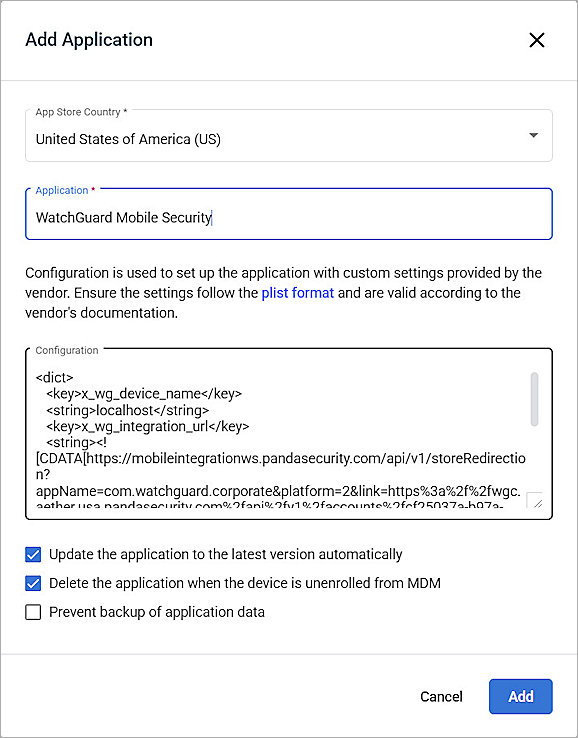
The Add Application page opens. - From the App Store Country drop-down list, select United States of America (US).
- In the Application text box, enter WatchGuard Mobile Security and select it from the application list.
- In the Configuration text box, enter the configuration values from WatchGuard Cloud:
- Enter a DeviceName for the device you enrolled.
- Replace URL_FROM_WATCHGUARD_CLOUD with the value of x_wg_integration_url that you copied in the section, Copy the Integration URL.
- Select the Update the application to the latest version automatically check box.
- Select the Delete the application when the device is unenrolled from MDM check box.
- Click Add.
- Click Create.
The new profile shows in the list.
<dict>
<key>x_wg_device_name</key>
<string>DeviceName</string>
<key>x_wg_integration_url</key>
<string><![CDATA[URL_FROM_WATCHGUARD_CLOUD]]></string>
</dict>

Configure a Policy to Push the App to Enrolled Devices
Configure a new policy to push the WatchGuard Mobile Security app and associated configuration files to specific enrolled iOS devices.
To configure a policy in the Kaseya MDM:
- Log in to Kaseya VSA X.
- From the left navigation, select Administration > Configuration > Policies.
- Click Create New Policies.
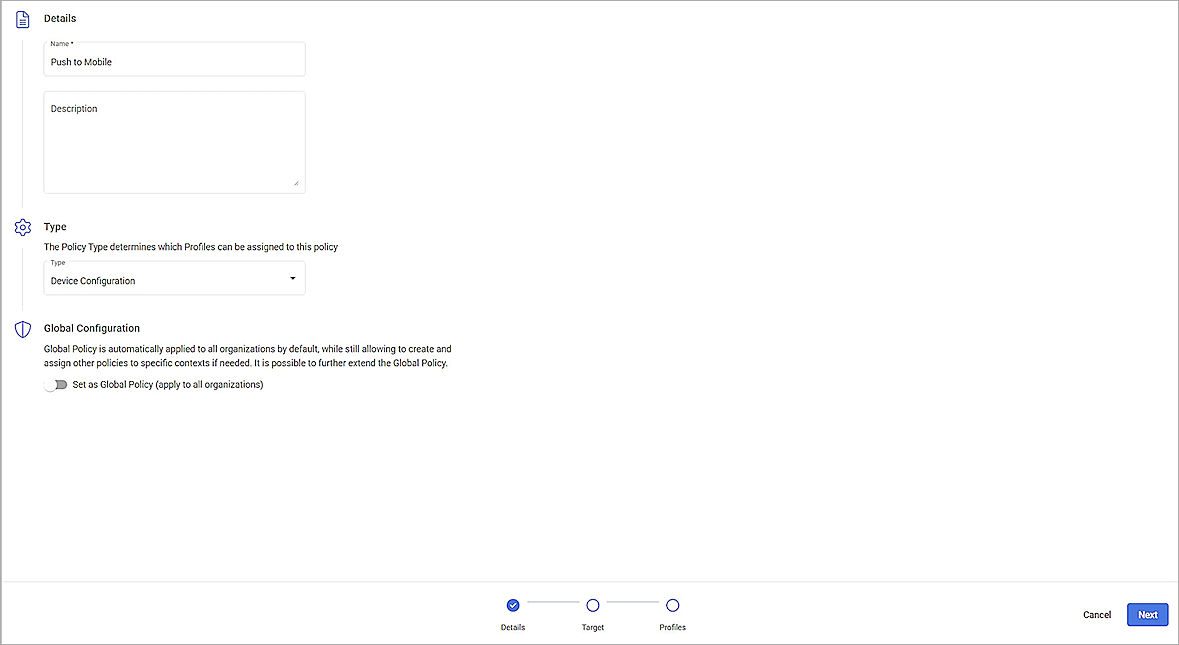
The Policies configuration page opens. - In the Details section, in the Name text box, enter a descriptive name for the policy. For example, we enter Push to Mobile.
- From the Type drop-down list, select Device Configuration.
- Click Next.
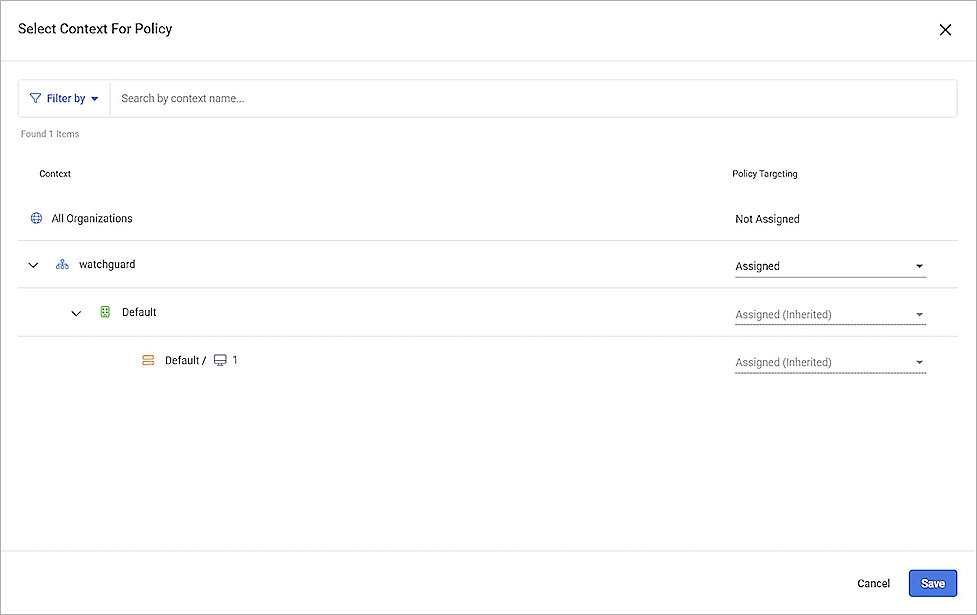
- In the Target page, click Select Context.
- In the Select Context for Policy page, assign the policy to organizations you want it to apply to.
- Click Save.
- Click Next.
- In the Profiles section, click Assign Profiles.
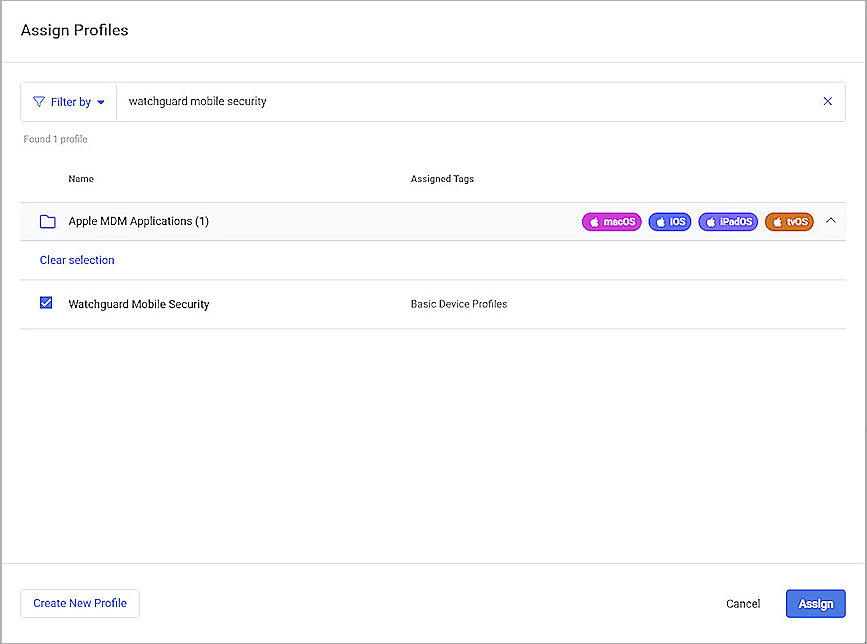
The Assign Profiles configuration page opens. - In the search box, enter the name of the profile you created.
- Select the check box for the profile you created.
- Click Assign.
- Click Create.
- Click Create.
Test Integration of iOS Devices with the Kaseya MDM
To test the integration, from an iOS device:
- Open the email application on your iOS device.
- Click the enrollment link in the email received from Kaseya VSA X.
- Download the MDM profile.
- Select Settings > General > VPN & Device Management.
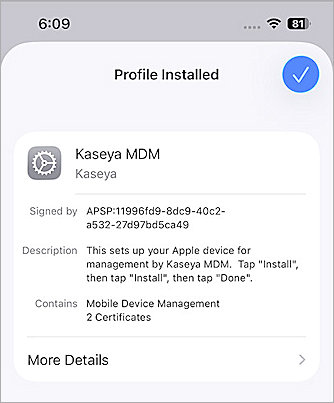
- Install the Kaseya MDM profile.
- Accept the installation push for the WatchGuard Mobile Security app from Kaseya VSA X.
- When installation is complete, open the application and follow the on-screen prompts to finalize deployment.
To test the integration, from the Endpoint Security management UI in WatchGuard Cloud:
- Log in to WatchGuard Cloud with your WatchGuard Cloud operator account credentials.
If you log in with a Service Provider account, you must select a Subscriber account from Account Manager. - Select Monitor > Endpoint Security.
- Select Computers.
- Select the device you configured in the section, Configure the Kaseya VSA X Platform.
You should be able to review the device details.
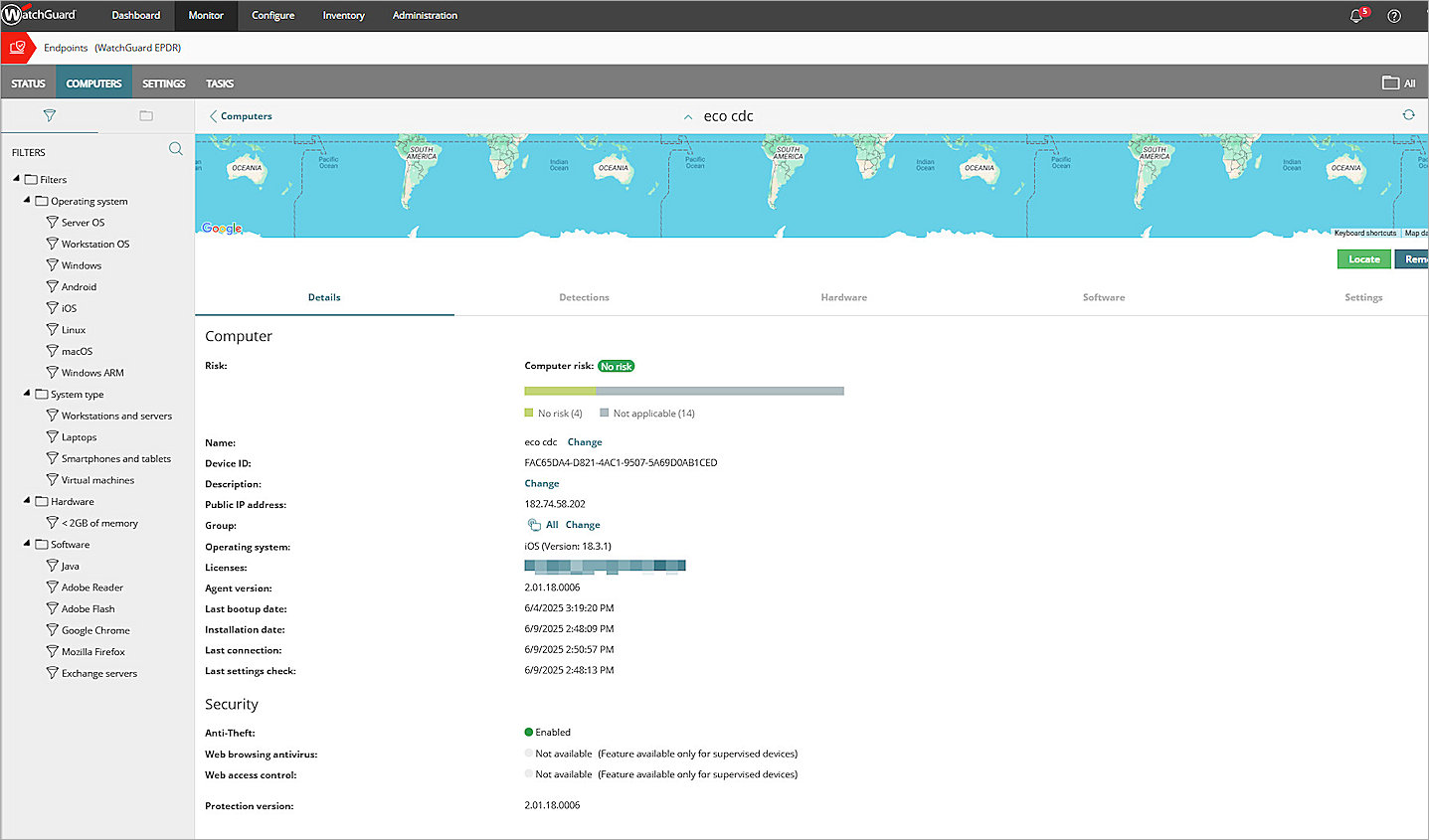
You can also review device details in WatchGuard Cloud for endpoints with the WatchGuard Agent installed. Select Monitor > Endpoints, and then select the iOS device from the list of endpoints.
Related Topics
Install the WatchGuard Mobile Security iOS App on Supervised Devices (Third-Party MDM Solution)
VSA 10 MDM: Enrollment (external link)