Microsoft Intune is a cloud-based endpoint management service that organizations use to manage devices and apps. The Intune Company Portal app enables members of an organization to download and install organization-approved apps.
This document describes how to configure Microsoft Intune to make the WatchGuard Mobile Security app available to iOS devices in your organization through the Company Portal app.
Contents
Integration Summary
The hardware and software used in this guide include:
- Microsoft Intune
- WatchGuard Mobile Security App v2.01.18.0006
- Mobile device with iOS v18.3.1
Before You Begin
Before you begin these procedures, make sure that you:
- Have a global administrator or user management administrator account to log in to Microsoft Intune.
- Have a WatchGuard Cloud account with an Endpoint Security license.
- Enroll your iOS devices in Microsoft Intune. For information, go to Enroll iOS/iPadOS Device. (external link)
This integration guide applies to WatchGuard Endpoint Security Elite, 360, Prime, and Basic. In this guide, we use Endpoint Security 360 as an example.
Additional charges might apply to Microsoft Intune. For more information about Intune, go to Microsoft Intune Overview. (external link)
Copy the Integration URL in Endpoint Security
- Log in to WatchGuard Cloud with your WatchGuard Cloud operator account credentials.
If you log in with a Service Provider account, you must select a Subscriber account from Account Manager. - Select Configure > Endpoint Security.
The Endpoints (WatchGuard EPDR) page opens. - Select Computers.
- Click Add Computer.
The Add computers page opens. - Click iOS.
- Select Installation using another MDM solution.
- Copy the integration x_wg_integration_url for use later in the Configure Microsoft Intune section.
For more information on the other attributes, go to Install the WatchGuard Mobile Security iOS App on Supervised Devices (Third-Party MDM Solution) .


Configure Microsoft Intune
To configure Microsoft Intune, you must:
Add a Group in Microsoft Intune
Create a group to assign the WatchGuard Mobile Security app to.
To add a group in Microsoft Intune:
- Log in to Microsoft Intune as an administrator.
- Select Groups > All Groups > New Group.
The New Group page opens. - In the Group Name text box, type a name for the group. For example, type Group for Endpoint Mobile Security.
- Click No Members Selected and select the users you want to assign the WatchGuard Mobile Security app to. Any user that you select must be enrolled in Microsoft Intune.
- Keep the default values for all other settings.
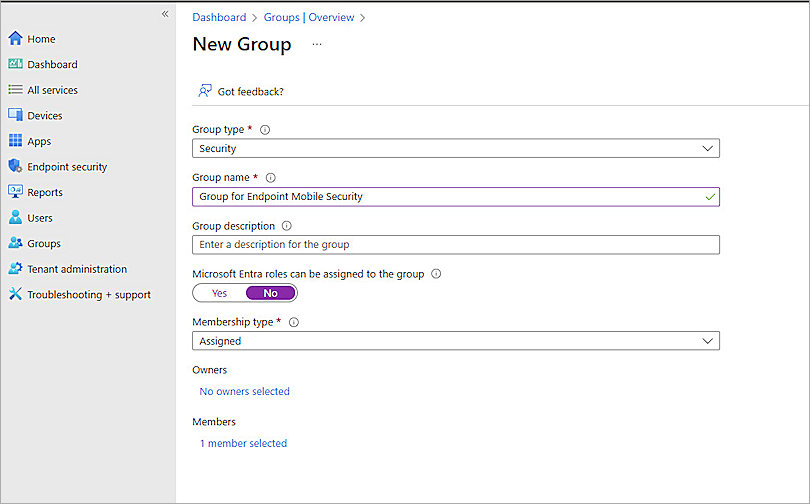
- Click Create.
Add the WatchGuard Mobile Security App in Microsoft Intune
After you add an app to Intune, you define the details shown for the app in Company Portal and configure settings such as device requirements, detection rules, and user assignments.
To add the WatchGuard Mobile Security App in Microsoft Intune:
- Log in to Microsoft Intune as an administrator.
- Select Apps > All Apps > Create.
The Select App Type page opens. - From the App Type drop-down list, select iOS store app.

- Click Select.
- Click Search the App Store.
The App Package File page opens. - In the Search text box, type and search WatchGuard Mobile Security.

- Select WatchGuard Mobile Security.
The Add App page opens. - On the App Information page, keep the default values for all settings.
Do not change the Name of the app as it could cause integration failure.

- Click Next.
The Assignments page opens.
To assign the WatchGuard Mobile Security app to a group:
- In the Required section, click + Add group.
The Select groups page opens. - In the Search text box, type the name of the group created previously (for example, Group for Endpoint Mobile Security).
- Select the group you want to assign the app to.
- Click Select.
- Click Next.
- Click Create.
It can take several seconds to add the app.
To configure device requirements, detection rules, and user assignments:
- From the left navigation, select App > Configuration.
- From the Create drop-down list, select Managed Devices.
- In the Name text box, type a descriptive name for the configuration policy (for example, For WatchGuard Security App).
- From the Platform drop-down list, select iOS/iPadOS.
- Next to Targeted App, click Select App.
- Select the WatchGuard Mobile Security app.
- In the Associated App pane, click OK.
- Click Next.
- From the Configuration Settings Format drop-down list, select Use Configuration Designer.
- In Configuration Key text box, type x_wg_integration_url.
- From the Value Type drop-down list, select String.
- In the Configuration Value text box, paste the x_wg_integration_url value you copied previously.
- Click Next.
- In Included Groups section, click Add Groups.
- On Select Groups to Include page, in the Search text box, type the group created (for example, Group for Endpoint Mobile Security).
- Select the check box for the group.
- Click Select.
It can take several seconds to add the group. - Click Next.
- Click Create.
It can take several seconds to assign the policy successfully.


Test Integration of iOS Devices with Intune
To test the integration, from an iOS device:
- Install the Intune Company Portal from the App Store on your iOS device.
- Open the Company Portal and log in with the Microsoft Entra ID user. Enroll your devices in Microsoft Intune. For information on how to go this, go to Enroll iOS/iPadOS device. (external link)
- Approve app installation on your iOS device.
The WatchGuard Security Mobile app installs successfully. - Open the WatchGuard Security Mobile app and follow the prompts to complete the configuration.
Before you start the app for the first time, check the settings to make sure that network services are turned on.

To test the integration, from the Endpoint Security management UI in WatchGuard Cloud:
- Log in to WatchGuard Cloud with your WatchGuard Cloud operator account credentials.
If you log in with a Service Provider account, you must select a Subscriber account from Account Manager. - Select Monitor > Endpoint Security.
- Select Computers.
- Select the device you configured previously in the Configure Microsoft Intune section.
You should be able to see the device details.

You can also review some device details in WatchGuard Cloud for endpoints with the WatchGuard Agent installed. Select Monitor > Endpoints, and then select the iOS device from the list of endpoints.
Related Topics
Install the WatchGuard Mobile Security iOS App on Supervised Devices (Third-Party MDM Solution)
Microsoft Intune (external link)