Microsoft Intune is a cloud-based endpoint management service that organizations use to manage devices and apps. The Intune Company Portal app enables members of an organization to download and install organization-approved apps.
This document describes how to configure Intune to make the WatchGuard Mobile Security app available to Android devices in your organization through the Company Portal app.
Contents
Integration Summary
The hardware and software used in this guide include:
- Microsoft Intune
- WatchGuard Mobile Security App v3.13.0
- Mobile device with Android 16
Before You Begin
Before you begin these procedures, make sure that you:
- Have a global administrator or user management administrator account to log in to Microsoft Intune.
- Have a WatchGuard Cloud account with an Endpoint Security license.
- Enroll your Android devices in Microsoft Intune. For information, go to Enroll Android Device. (external link)
This integration guide applies to WatchGuard Endpoint Security Elite, 360, Prime, and Basic. In this guide, we use Endpoint Security 360 as an example.
Additional charges might apply to Microsoft Intune. For more information about Intune, go to Microsoft Intune Overview. (external link)
Copy the Integration URL in Endpoint Security
- Log in to WatchGuard Cloud with your WatchGuard Cloud operator account credentials.
If you log in with a Service Provider account, you must select a Subscriber account from Account Manager. - Select Configure > Endpoint Security.
- Select Computers.
- Click Add Computer.
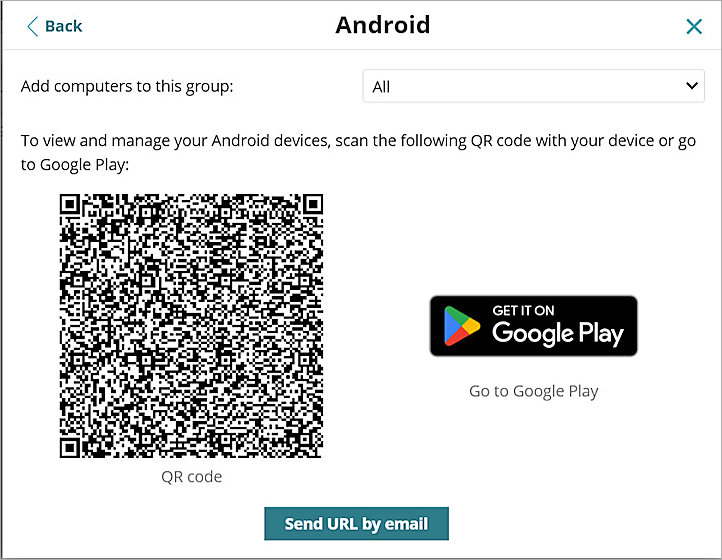
The Add computers dialog box opens. - Click Android.
- Click Send URL by email.
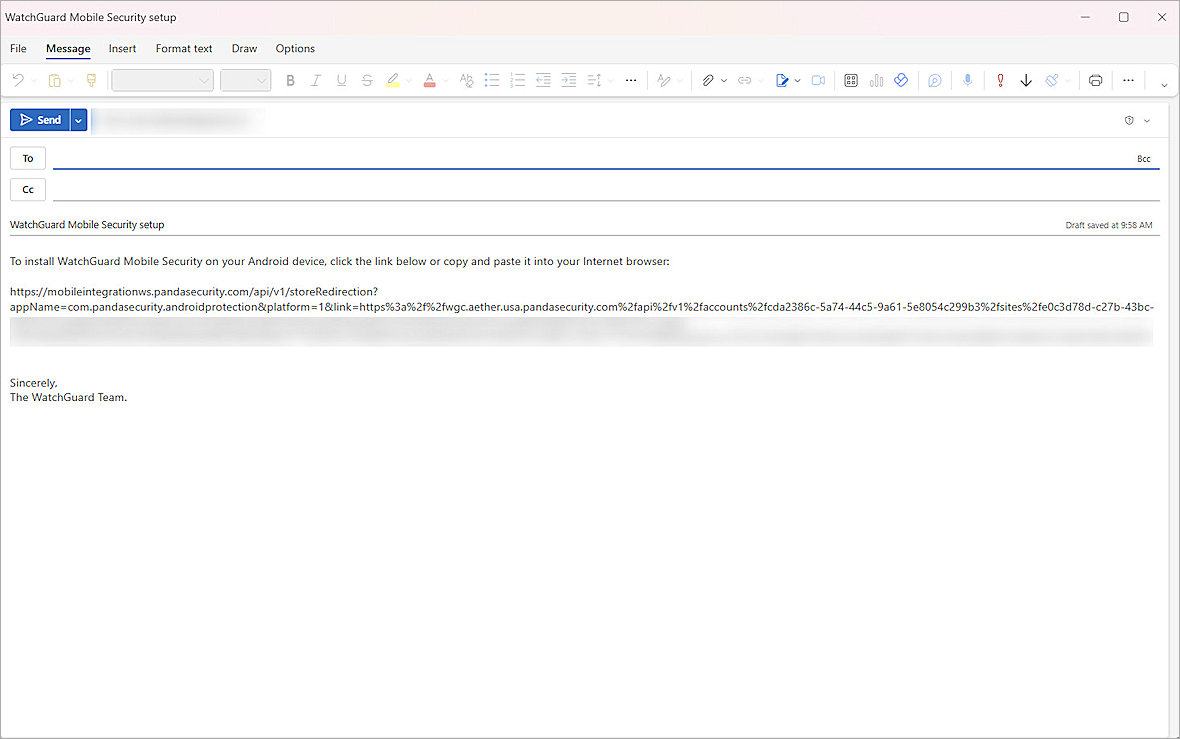
- Copy the integration URL for use later in the Configure Microsoft Intune procedure.

The operating system opens an email dialog box that includes required information for the integration.
Configure Microsoft Intune
To configure Microsoft Intune, you must:
Create an Assignment Filter Rule
Create a device filter assignment rule to determine which Android devices the WatchGuard Mobile Security app is pushed to.
To create a device assignment filter rule, in Microsoft Intune:
- Log in to Microsoft Intune as an administrator.
- From the left navigation pane, select Tenant administration.
The Tenant admin page opens. - In the search box, type Assignment filters, and select Assignment filters from the list that appears.
The Assignment filters page opens. - From the Create drop-down list, select Managed devices.
- On the Basic page, in the Filter name text box, type a filter name. For example, type Filter rule for Android.
- From the Platform drop-down list, select the device platform. For example, select Android Enterprise.
- Click Next.
- From the Property drop-down list, select a property you want to filter for the devices. For example, select deviceName (Device name).
- From the Operator drop-down list, select a filter operation. For example, select Contains.
- From the Value text box, type the property value you want to filter for. For example, type Android Enterprise.
- Click Next.
- Click Create.


Add the Mobile Security App
After you create a filter, add the app to Intune. You can then define the details shown for the app in Company Portal, and configure settings such as device requirements, detection rules, and user assignments.
To add the WatchGuard Mobile Security app, in Microsoft Intune:
- Log in to Microsoft Intune as an administrator.
- Select Apps > All Apps > Create.
The Select app type page opens. - From the App type drop-down list, select Managed Google Play app.
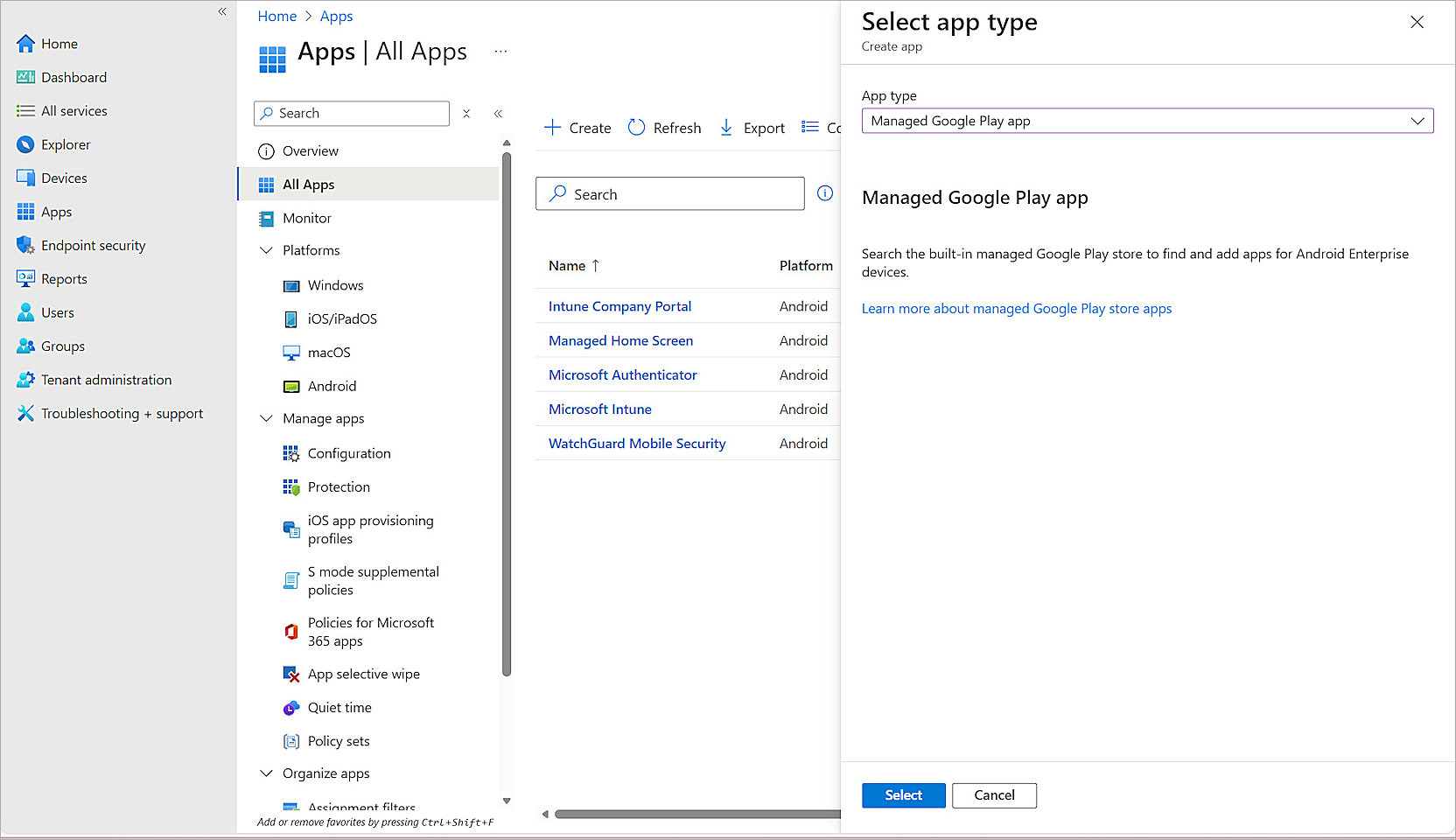
- Click Select.
The Managed Google Play page opens. - In the Search text box, type WatchGuard Mobile Security, and press Enter.
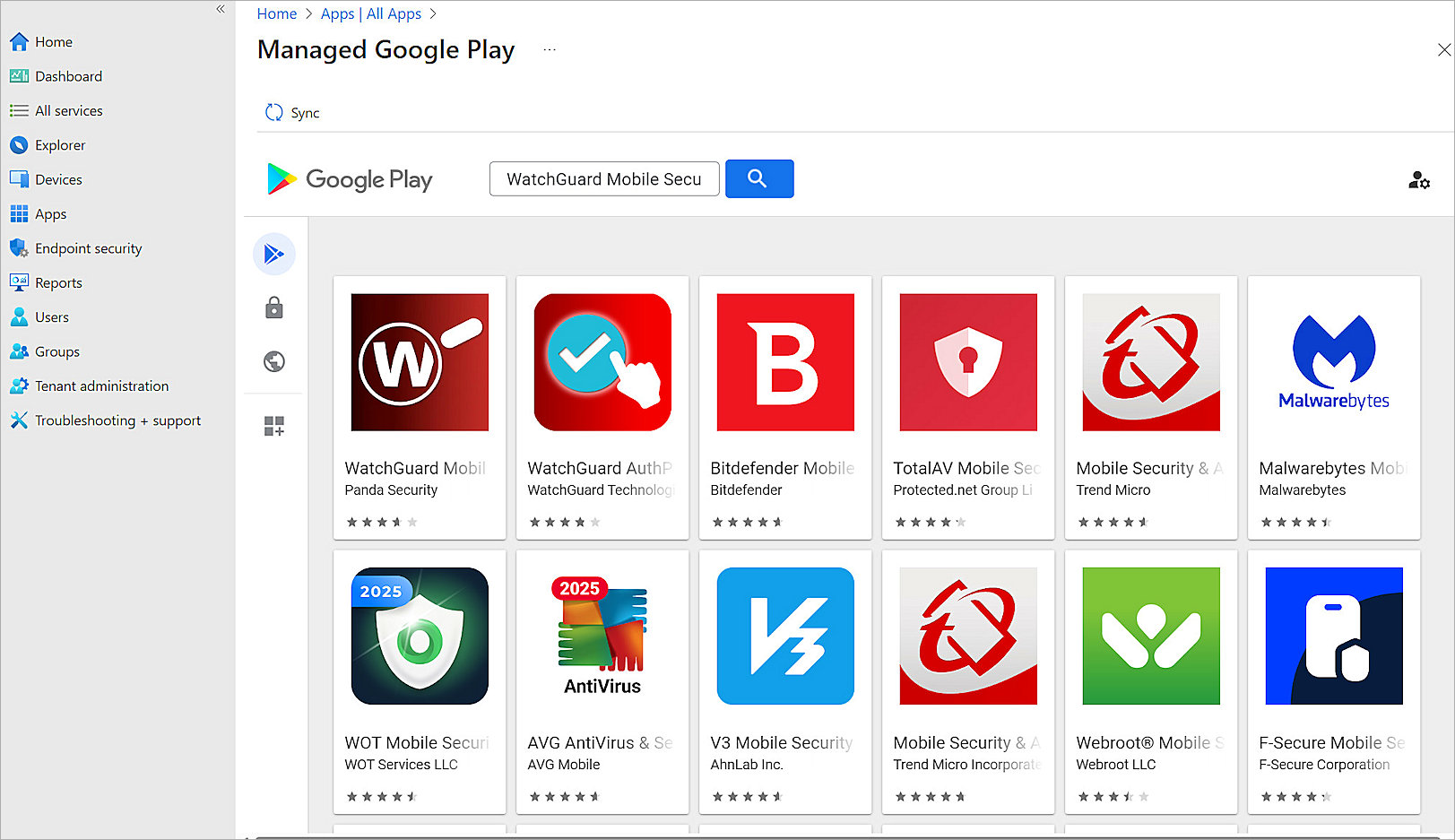
- Select the WatchGuard Mobile Security app.
- In the upper-left corner, click Sync.
The All Apps page opens.

- Wait for 1 to 2 minutes, and then click Refresh.
The WatchGuard Mobile Security app shows on the page.
To assign the WatchGuard Mobile Security app to select Android devices:
- In the All Apps page, select the WatchGuard Mobile Security to push to registered devices.
The WatchGuard Mobile Security settings page opens. - Click Properties.
- In the Assignment section, click Edit.
The Edit application page opens. - In the Required section, select Add all devices.
- In the Filter column, click None for the Included (All devices) assignment.
The Assignment filters page opens. - Select Include filtered devices in assignment.
- Select the filter rule you created.
- Click Select.
- Click Review + save.
- Click Save.
To assign the integration configuration of WatchGuard Mobile Security app to devices:
- Select Apps > Configuration.
- From the Create drop-down list, select Managed devices.
The Create app configuration policy page opens. - On the Basics page:
- In the Name text box, type a description name for the policy. For example, type For Android Devices.
- From the Platform drop-down list, select Android Enterprise.
- From the Profile Type drop-down list, select a profile type. For example, select All Profile Types.
- Click Select app.
The Associated app list shows on the right. Select the app you want to push. - Click OK.
- Click Next.
- On the Settings page:
- From the Configuration settings format drop-down list, select Use configuration designer.
- Under Use the JSON editor to configure the disabled configuration keys, click Add.
The Configuration key list shows on the right. Select Integration URL and Use automatic name. - Click OK.
- In the Configuration value text box of the Integration URL section, paste the integration URL you copied from the email.
- Click Next.
- On the Assignments page:
- In the Included groups section, click Add all devices.
- Click Edit filter.
The Assignment filters page shows on the right. Select Include filtered devices in assignment, and click the filter rule you created.
- Click Select.
- Click Next.
- Click Create.
It can take several seconds to add the configuration.

Test Integration of Android Devices with Intune
To test the integration, you reset the device and complete the configuration in Intune. You can then view the integrated device in the Endpoint Security management UI.
To test the integration with an Android device, from Microsoft Intune:
- Log in to Microsoft Intune.
- Select Devices > Android > Enrollment.
- In the Enrollment Profiles section, select the profile you created. For example, select Corporate-owned dedicated devices.
The Corporate-owned dedicated devices page opens. - Click Create Policy.
The Create profile page opens. - In the Basics section:
- In the Name text box, type a description name for the profile. For example, type Enrollment profile.
- From the Token type drop-down list, select Corporate-owned dedicated device (default).
- In the Token expiration date schedule table, select the expiration date.
- Click Next.
- In the Device group section, keep all the default settings. Click Next.
- Click Create.
- Select the policy you created.
The Policy page opens. - Select Token > Show token.
The token and QR code show. - Factory-reset the Android device.
- Connect the device to a network that can access Google. On the Google Sign-In Screen, type afw#setup.
- Scan the QR code with your device.
Wait for several minutes. The device registers with Intune. When enrollment is complete, the device has three apps installed: Intune, Company Portal, and the WatchGuard Mobile Security app. - Open the WatchGuard Security Mobile app on the device. Follow the prompts to complete the configuration.


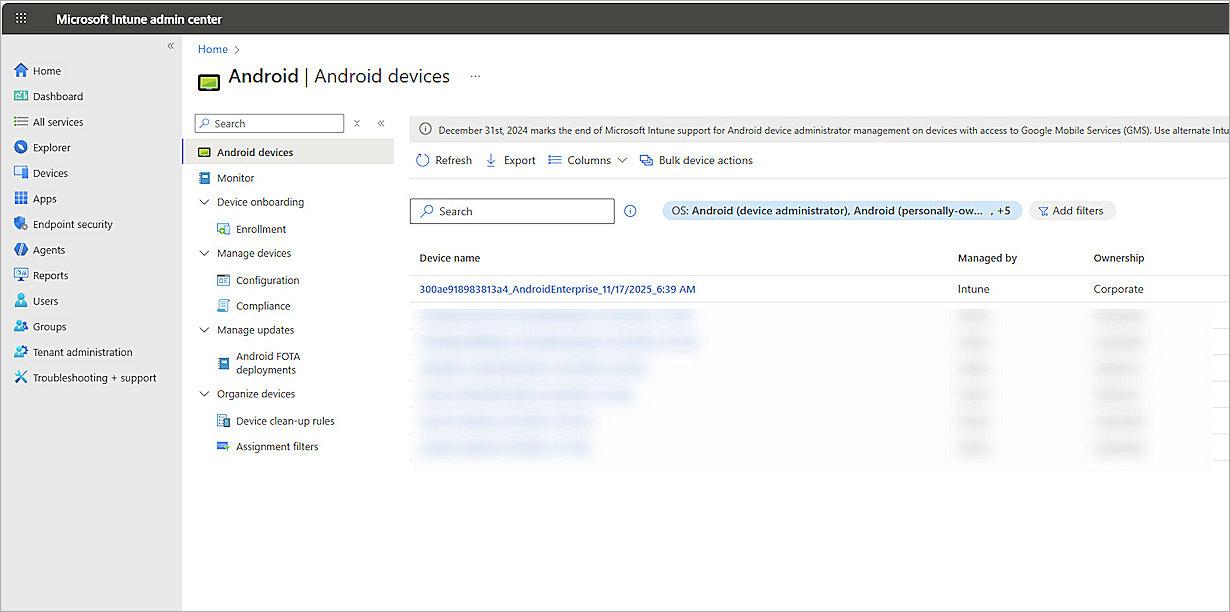
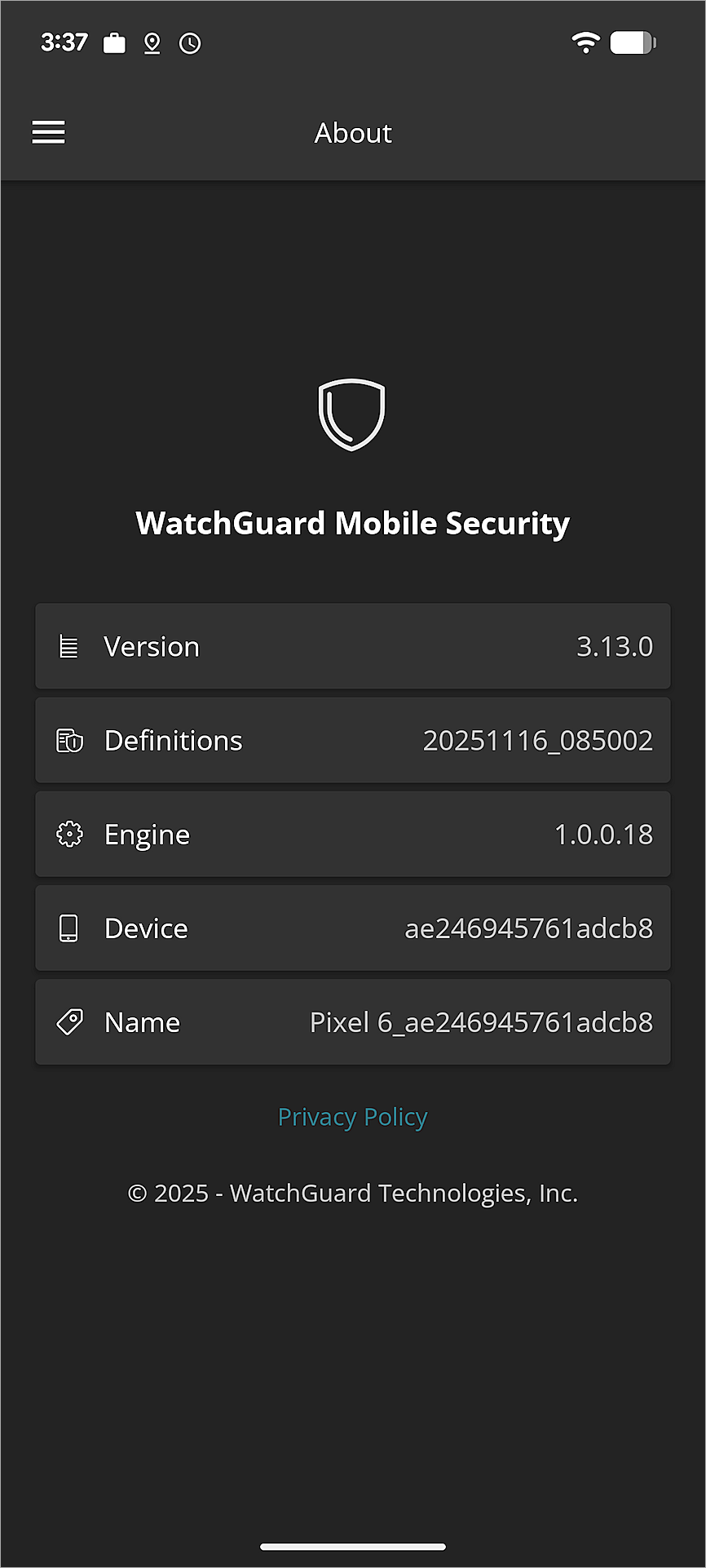
To test the integration, from the Endpoint Security management UI:
- Log in to WatchGuard Cloud with your WatchGuard Cloud operator account credentials.
If you log in with a Service Provider account, you must select a Subscriber account from Account Manager. - Select Monitor > Endpoint Security.
- Select the device you configured in the Configure Microsoft Intune section.
You should be able to view the device details of the Android device.

You can also review some device details in WatchGuard Cloud for endpoints with the WatchGuard Agent installed. Select Monitor > Endpoints, and then select the Android device from the list of endpoints.
Related Topics
Microsoft Intune (external link)