This document describes how to set up multi-factor authentication (MFA) for your Access Portal with Duo and Active Directory.
Duo Single Sign-On does not officially support single logout (SLO).
Contents
Integration Summary
The hardware and software used in this guide include:
- Duo
- Duo Security Authentication Proxy
- Firebox with Fireware v12.11 or higher
- Active Directory
Topology
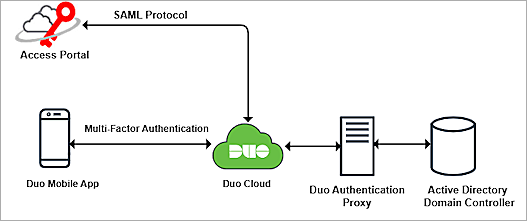
Duo communicates with various cloud-based services and service providers using the SAML protocol. This diagram shows the data flow of an MFA transaction for the Firebox Access Portal.
Before You Begin
Before you begin these procedures, make sure that:
- You have a Duo administrator account.
- A token is assigned to a user in Duo mobile.
- You have configured a server to host the Duo Authentication Proxy.
- You have service account credentials for Active Directory.
- You have a domain that can be managed by your DNS hosting provider to verify the authentication user email domain with a TXT record
- The WatchGuard Firebox has Fireware v12.11 or higher installed.
- You have a feature key with an Access Portal license.
- You have a fully qualified domain name (FQDN) that can be resolved to the external IP address of the Firebox.
Additional charges might apply to use Duo.
Configure the Firebox Access Portal
To configure the Access Portal, follow these steps:
- Enable Access Portal
- Enable the Firebox SAML Authentication Server
- Add Users or Groups for the SAML Authentication Server
- Access Portal User Connection Settings
Enable Access Portal
To enable Access Portal on the Firebox:
- Log in to Fireware Web UI at: https://<your Firebox IP address>:8080
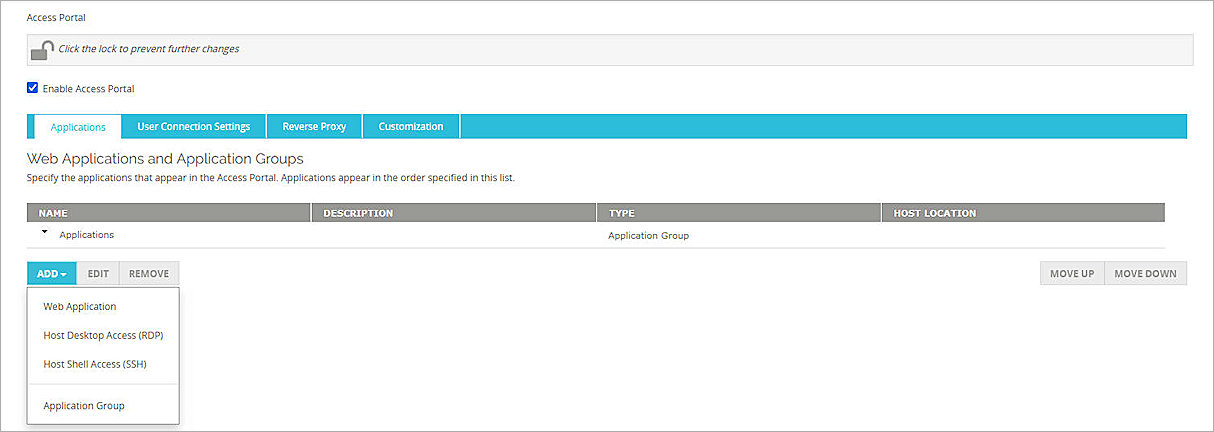
- Select Subscription Services > Access Portal.
The Access Portal page opens. - Select the Enable Access Portal check box.
- To create an application, select Add > Web Application.
The Add Web Application page opens. - In the Name text box, type a name for the web application.
- In the URL text box, type the URL for the web application. This URL must be publicly resolvable.
- Keep the default values for all other settings.
- Click OK.
- (Optional) To create additional web applications, repeat Steps 4–8.
- Click Save.

For more information on how to add web applications and application groups to the Access Portal, go to Configure the Access Portal in Help Center.
Enable the Firebox SAML Authentication Server
To enable the Firebox SAML authentication server, from Fireware Web UI:
- From the navigation menu, select Authentication > Servers.
The Authentication Servers page opens. - Click SAML.
The SAML settings page opens. - Select the Enable SAML check box.
- In the IdP Name text box, type a name for the identity provider. In our example, we type Duo_SAML.
- In the Host Name text box, type the fully qualified domain name that resolves to the Firebox external interface.
- Keep the IdP Metadata URL text box blank for now. You specify this when you complete the Firebox Access Portal setup).
- Keep the default value for Group Attribute Name.
- Click Save.
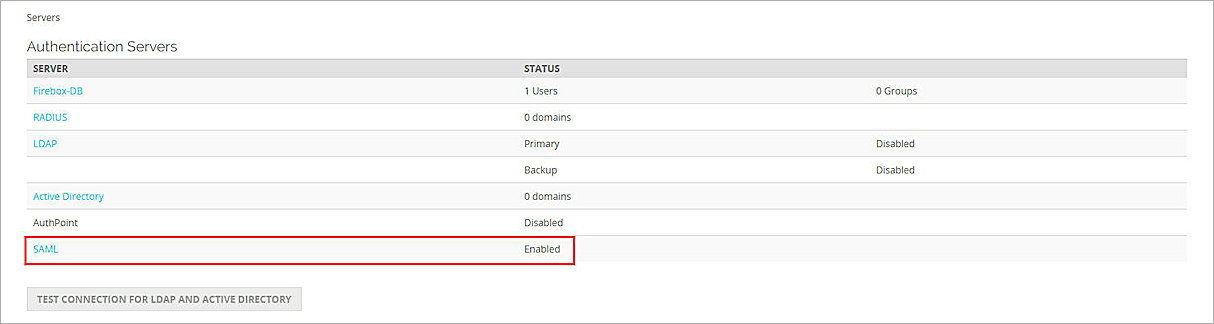
The SAML authentication server you added appears in the list of authentication servers.

Add Users or Groups for SAML Authentication Server
To configure users and groups for the SAML authentication server, from Fireware Web UI:
- From the navigation menu, select Authentication > Users and Groups.
- Click Add.
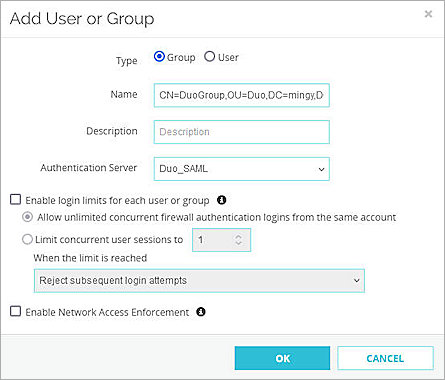
The Add User or Group page opens. - For Type, select Group.
To manage users, you can add a group that matches an Active Directory user group, or you can add a user with a name that matches an Active Directory user name. In our example, we add a group, but you can add a user instead.
- In the Name text box, type your group name. This group name must exactly match your Active Directory group name. This is case–sensitive.
- From the Authentication Server drop-down list, select the SAML authentication server you created. In this example, we select Duo_SAML.
- Click OK.
- Click Save.
Configure Access Portal User Connection Settings
To configure the Access Portal user connection settings, from Fireware Web UI:
- Select Subscription Services > Access Portal.
The Access Portal page opens. - Select the User Connection Settings tab.
The User Connection Settings page opens. - In the Authentication Servers section, from the Authentication Server drop-down list, select the SAML authentication server you created. In this example, we select Duo_SAML.
- Next to the SAML authentication server you created, click Add.
- In the User Access section:
- To specify which users and groups can access which applications, select the Specify the Applications Available to Each User and Group check box.
- To give all users and groups permission to connect to all applications, keep the default option. All Applications Are Available to All Users and Groups Authenticated with the Access Portal selected.
- To specify the applications available to each user and group, click Add.
The Add User or Group page opens. - From the Authentication Server drop-down list, select the SAML authentication server you created. In this example, we select Duo_SAML.
- From the Type drop-down list, select Group.
- In the Name text box, type the group name you created in the Add Users or Groups for SAML Authentication Server section.
- Select the applications you want to be available to this group.
- Click OK.
- Click Save.
- Copy the SP Metadata URL, then click Done.
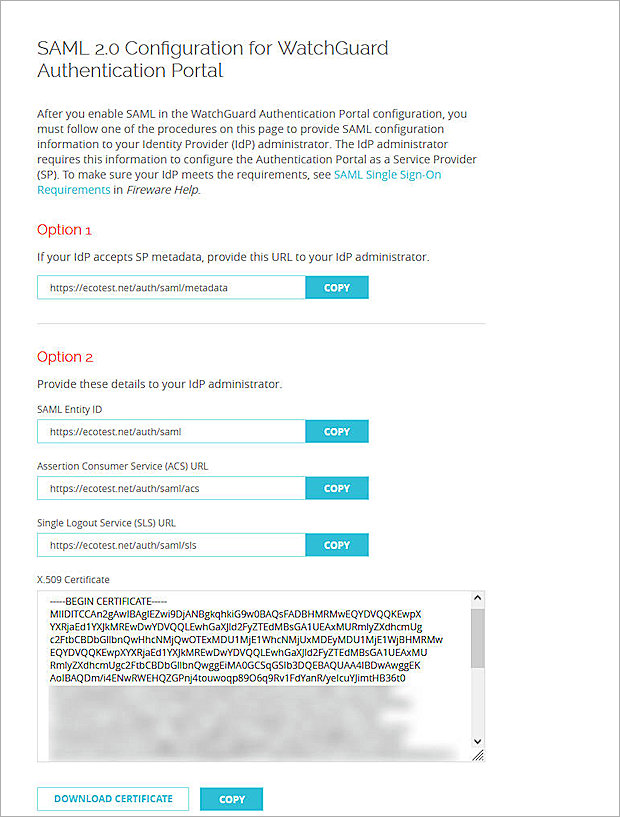
- Open a web browser and go to the SP Metadata URL: https://<Host name or Firebox IP address>/auth/saml. If you configure an Access Portal port other than 443, you must navigate to https://<Firebox interface IP address or Host name>:custom port number/auth/saml.
- From the Option 2 section, copy the values of these parameters to use when you configure the Firebox Access Portal as a service provider in Duo:
- SAML Entity ID
https://host name/auth/saml - Assertion Consumer Service (ACS) URL
https://host name/auth/saml/acs - Single Logout Service (SLS) URL
https://host name/auth/saml/sls - To download the X.509 Certificate, click Download Certificate.


You can select a specific user or a specific group. In our example, we select a group, but you can select a user instead.
Several Firebox features use SSL/TLS for secure communication. For more information, go to Shared Settings and Policy in Help Center.
Configure Duo
To configure Duo, complete these steps:
- Configure Active Directory for Duo SSO
- Synchronize Users and Groups from Active Directory to Duo
- Configure the Firebox Access Portal as a Service Provider in Duo
Configure Active Directory for Duo SSO
The Duo Authentication Proxy receives authentication requests and performs primary authentication against Active Directory, then performs secondary authentication with Duo.
To configure Active Directory for Duo SSO:
- Log in to the Duo Admin Panel.
- From the navigation menu, select Applications > SSO Settings.
- In the Configured Authentication Sources section, click Add Source.
The Add Authentication Source page opens. - Click Add Active Directory.
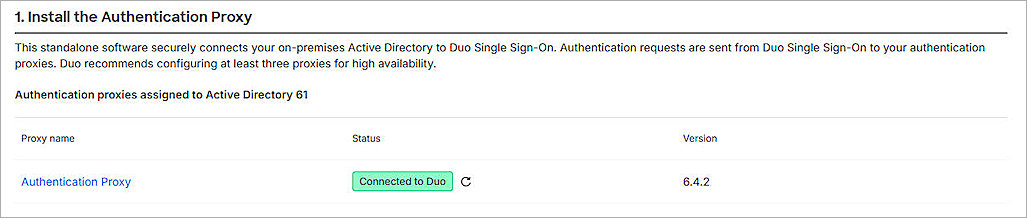
The Active Directory Configuration page opens. - Install and configure Duo Authentication Proxy on your local network.
- Make sure the Authentication Proxy is connected to your directory domain.
- Make sure that at least one Authentication Proxy has connected to Duo.
- Configure Active Directory to authenticate with Duo Single Sign-On. For more information, go to the Duo Single Sign-On documentation.
- To make sure your users log in to the correct sign-on account, add one or more Permitted Email Domains.
Each Permitted Email Domain requires ownership verification. - To test your Active Directory configuration and connection to the Authentication Proxies, before you save the configuration, click Run Tests.
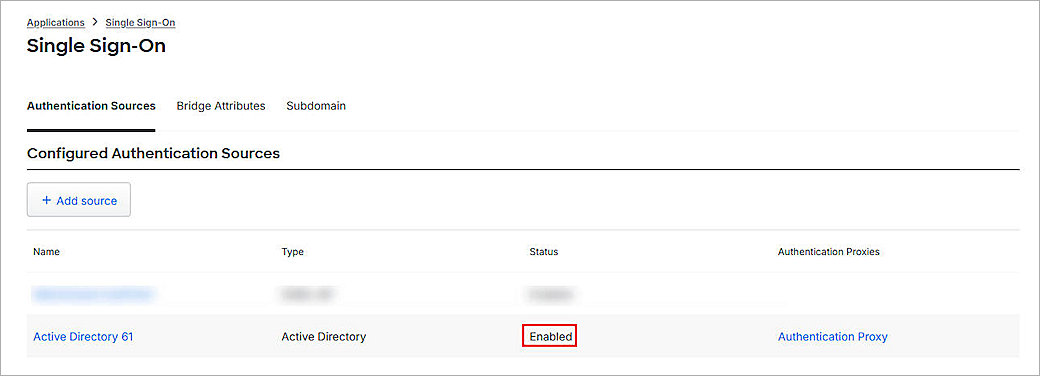
- After you configure Active Directory for Duo SSO, the status of the Active Directory authentication resource in Duo is Enabled.
- From the navigation menu, select Applications > Routing Rules.
The Routing Rules page opens. - From the Use This Authentication Source drop-down list, select the source you just added. In this example, we select Active Directory 61.
- Click Save.

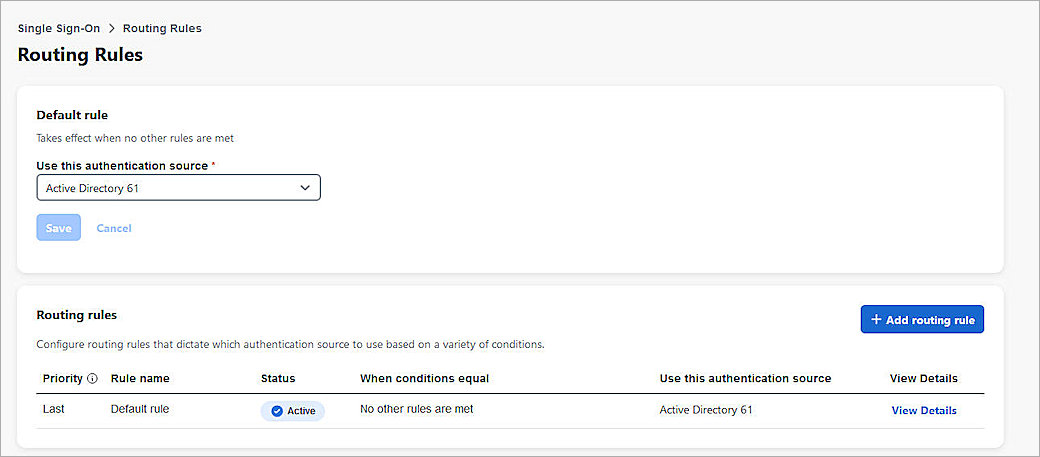
By default, your primary authentication source is configured as an authentication source for your routing rule. For additional authentication sources, make sure to set the default rule to the SAML authentication source you need. Alternatively, you can add a routing rule. For more information, go to How to use Duo Single Sign-On in the Duo documentation.
Synchronize Users and Groups from Active Directory to Duo
If you want to restrict access to the Access to only certain Duo users, you can synchronize the groups and users from Active Directory to Duo.
Before you synchronize users from Active Directory to Duo, make sure that:
- You install and configure Duo Authentication Proxy on your local network.
- You configure the Active Directory in Duo.
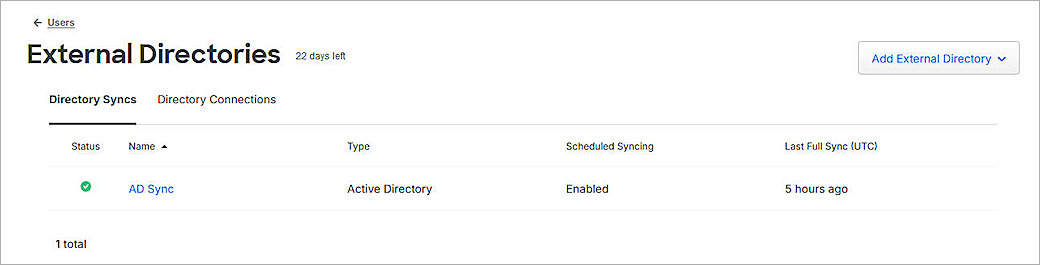
- The status on the AD Sync is Connected.
You can sync the complete Active Directory, or the individual users, from Active Directory to Duo. To view the synchronized users or groups in Duo, go to the Users or Groups page.
The users you sync to Duo must have an email address with Permitted Email Domains verified in the Duo SSO configuration.
For more information about how to sync users from Active Directory to Duo, go to Active Directory Sync for Duo Users and Admins.
For more information about how to enroll users and activate Duo Mobile, go to Enroll Users.

Configure the Firebox Access Portal as a Service Provider in Duo
Before you configure the service provider application, make sure you Configure Active Directory for Duo SSO and Synchronize Users from Active Directory to Duo.
To add a SAML application and configure the Firebox Access Portal as a service provider in Duo:
- Log in to the Duo Admin Panel.
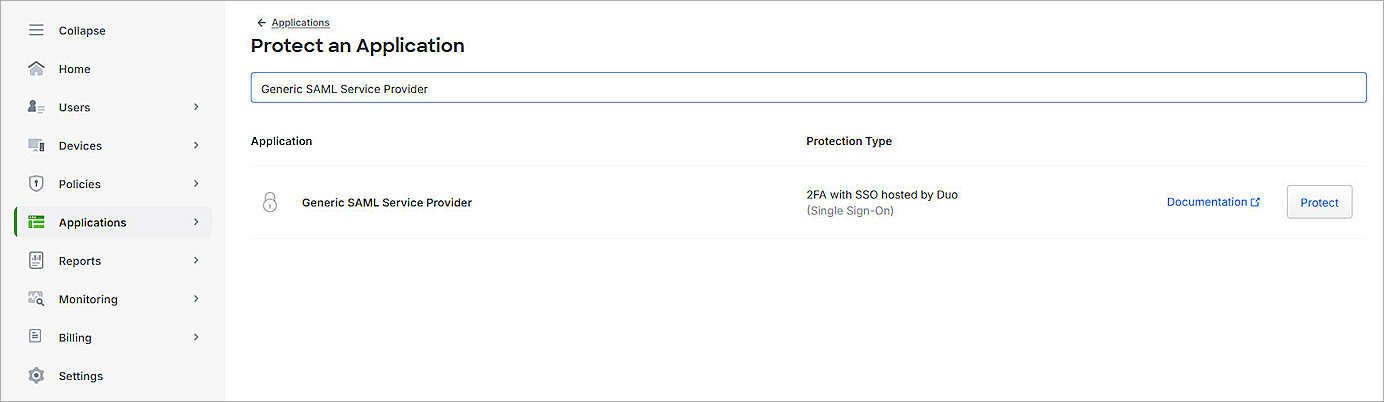
- From the navigation menu, select Applications > Protect an Application.
The Protect an Application page opens. - From the application list, for the Generic SAML Service Provider application, click Protect.
The Generic SAML Service Provider - Single Sign-On page opens. - (Optional) In the Application Name text box, type a name for this SAML application.
- For User Access:
- To provide access to specific groups, select Enable Only For Permitted Groups, and select the group you synced from your Active Directory in the Synchronize Users and Groups from Active Directory to Duo section. In this example, we select DuoGroup.
- To provide access to all users, select Enable For All Users.
By default, no users are assigned to the application. This setting applies to only users who exist in Duo with the Active status.
- From the Metadata section, copy the value of the Metadata URL parameter. You need this value to Complete Firebox Access Portal Setup.
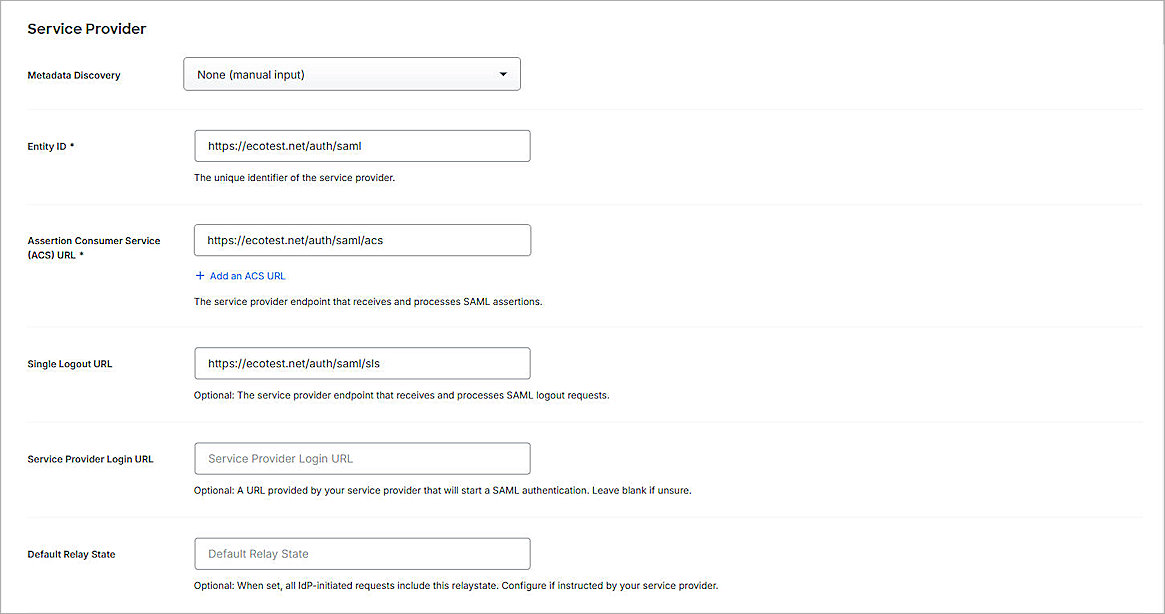
- In the Service Provider section, from the Metadata Discovery drop-down list, select None (Manual Input).
- Type or paste the Entity ID, Assertion Consumer Service (ACS) URL, and Single Logout URL values you copied in the Configure Access Portal User Connection Settings section.
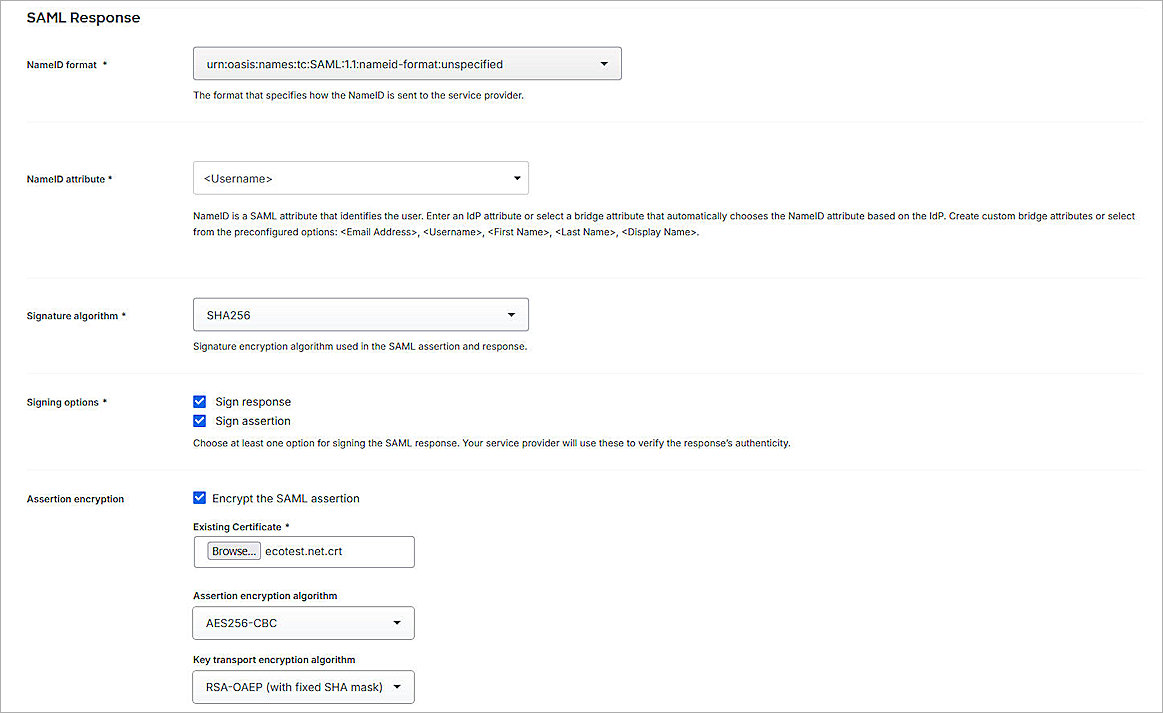
- In the SAML Response section, from the NameID Format drop-down list, select urn:oasis:names:tc:SAML:1.1:nameid-format:unspecified.
- From the NameID attribute drop-down list, select <Username>.
- In the Assertion Encryption section:
- Select the Encrypt the SAML Assertion check box.
- For Existing Certificate, click Browse and upload the Access Portal certificate you downloaded in the Configure Access Portal User Connection Settings section.
- From the Assertion Encryption Algorithm drop-down list, select AES256-CBC.
- (Optional) If you want to use user authentication, skip to Step 15.
- For Map Attributes:
- From the IdP Attribute drop-down list, select Enter Custom Value, then type an attribute name. In our example, we type memberOf.
- In the SAML Response Attribute text box, type memberOf.
- Keep the default values for all other settings.
- Click Save.
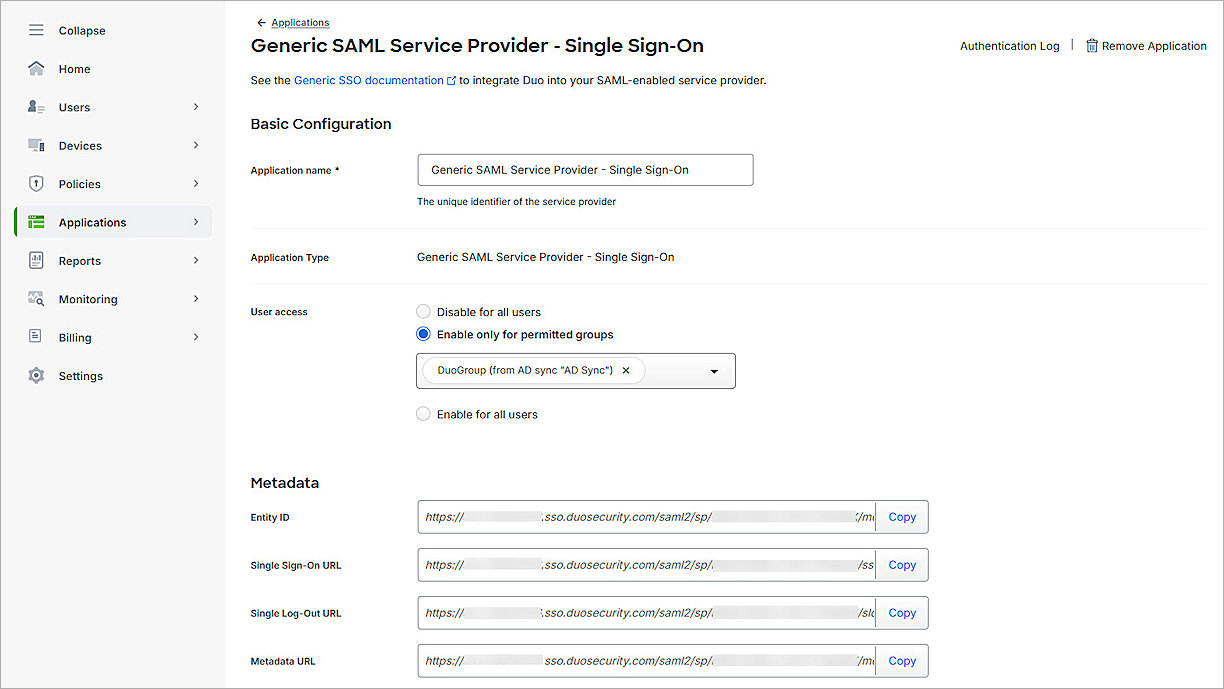

For SAML Response Attribute, memberOf is the default Group Attribute Name in the IdP settings when you enable SAML on the Firebox. You can edit it as you want.
Complete Firebox Access Portal Setup
To complete Firebox Access Portal setup:
- Log in to Fireware Web UI at: https://<your Firebox IP address>:8080.
- From the navigation menu, select Authentication > Servers.
- Select the SAML tab.
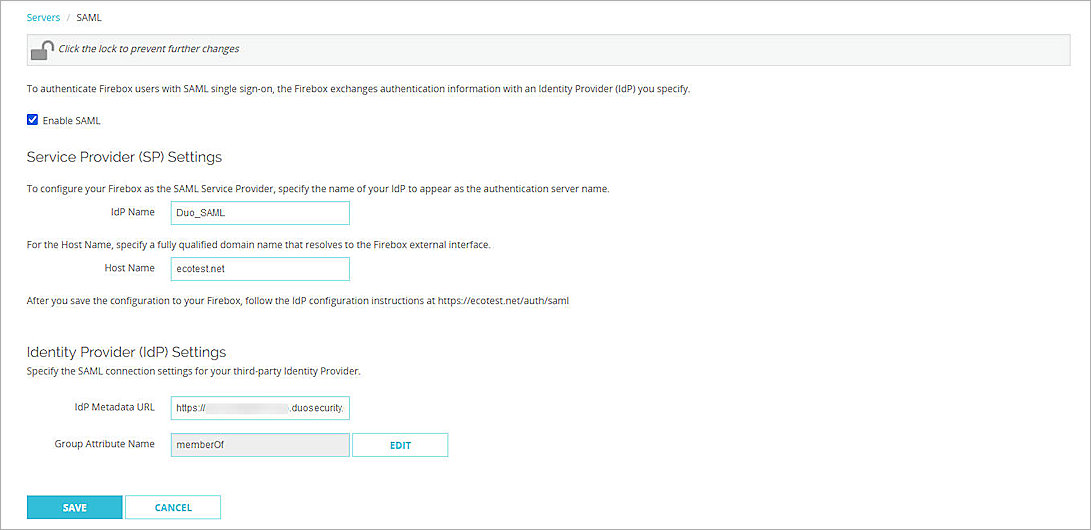
The SAML settings page opens. - In the IdP Metadata URL text box, paste the value of the Metadata URL parameter you copied in the Configure the Firebox Access Portal as a Service Provider in Duo section.
- Click Save.
Test the Integration
To test your Firebox Access Portal authentication integration with Duo and Active Directory, you can authenticate with three methods: push, passkey, or phone call. In this example, we use the push authentication method. For more information about Duo Two-Factor Authentication, go to Two-Factor Authentication Guidelines in the Duo documentation.
To test multi-factor authentication for your Access Portal with Duo and Active Directory:
- In a web browser, go to the Access Portal URL: https://<Host Name of Firebox SAML Authentication Server>
The login page opens with a button for the SAML authentication server you configured. - To log in, click the button for the SAML authentication server you created. In this example, we select Duo_SAML.
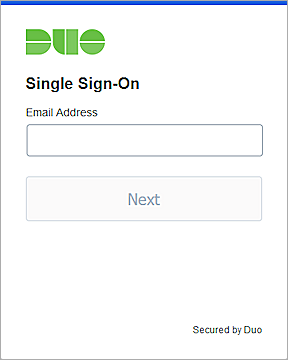
The Duo Single Sign-On page opens. - In the Email Address text box, type the email address associated with your Active Directory user account.
- Click Next.
- In the Password text box, type your password.
- Click Log in.
Duo SSO prompts you to complete two-factor authentication. - Approve the authentication request you receive on your mobile device.
- Tap Yes, This is My Device.
You are logged in to the Access Portal.