Applies To: Cloud-managed Fireboxes, Locally-managed Fireboxes, WatchGuard Cloud-managed Access Points
As a tier-1 Service Provider, if you enable PSA integration in WatchGuard Cloud, you can configure
For access points, you can use notification rules to send data to the PSA tool but you must manually close the ticket in the PSA tool.
Your operator role determines what you can see and do in WatchGuard Cloud. You must be a tier-1 Service Provider and your role must have the Manage Integrations and Manage Tenants permissions to configure this feature. To configure notification rules, your role must also have the Devices permission. For more information, go to Manage WatchGuard Cloud Operators and Roles.
For PSA closed-loop ticketing with Firebox notification rules, your Firebox must run Fireware v12.11.3 or higher.
There are three categories of device event notifications:
Device
For access point and Firebox events, you can configure these notifications:
Device Deleted
Generates an alert when a Firebox or access point is removed from your account.
Device Registered
Generates an alert when a Firebox or access point is added to your account.
Device Clock Drift Detected
Generates an alert when clock drift is detected beyond the threshold of +/- 8 hours on a Firebox.
Firebox Certificate Expiring
Generates an alert if any system certificates will expire in 10 or 30 days. This notification type is available with Fireware v12.11.3 and higher.
New Fireware Version Available
Generates an alert when a new version of Fireware is available. This notification type is available with Fireware v12.11.3 and higher.
Data Retention Changed
Generates an alert when the data retention license for a Firebox changes.
Firebox Performance Metrics
For Firebox performance events, you can configure these notifications:
Firebox CPU Usage Exceeded
Generates an alert when the Firebox CPU usage exceeds 50% of your system limit for over 1 minute. This notification type is available with Fireware v12.11.3 and higher.
Firebox Memory Usage Exceeded
Generates an alert when the Firebox memory usage exceeds 70% of your system limit for over 1 minute. This notification type is available with Fireware v12.11.3 and higher.
Firebox Total Connections Exceeded
Generates an alert when the Firebox total connection usage exceeds 50% of your system limit for over 1 minute. This notification type is available with Fireware v12.11.3 and higher.
Firebox Mobile VPN with SSL Connections Exceeded
Generates an alert when Mobile VPN with SSL connection usage exceeds 50% of your system limit for over 1 minute. This notification type is available with Fireware v12.11.3 and higher.
Firebox Mobile VPN with IKEv2 Connections Exceeded
Generates an alert when Mobile VPN with IKEv2 connection usage exceeds 50% of your system limit for over 1 minute. This notification type is available with Fireware v12.11.3 and higher.
Firebox BOVPN Connections Exceeded
Generates an alert when BOVPN connection usage exceeds 50% of your system limit for over 1 minute. This notification type is available with Fireware v12.11.3 and higher.
Firebox Connectivity
For Firebox connectivity events, you can configure these notifications:
FireCluster Failover Event
Generates an alert when a FireCluster failover occurs. This notification type is available with Fireware v12.11.3 and higher.
Firebox WAN Failure Event
Generates an alert when a WAN failover occurs. This notification type is available with Fireware v12.11.3 and higher.
Firebox Interface Down Event
Generates an alert when any network interface is down for over 1 minute. This notification type is available with Fireware v12.11.3 and higher.
Firebox Not Connected
Generates an alert when a Firebox is disconnected from WatchGuard Cloud. This notification type is available with Fireware v12.11.3 and higher.
Configure Device PSA Ticketing Notification Settings
You can configure PSA ticketing notification rules for selected accounts, groups of accounts, or all accounts.
You can enable or disable a category of rules and you can select which rules you want to apply to your selected accounts.
For each rule you enable, you select the ticketing properties. Ticketing properties allow you to specify the priority, service board or queue, category, new status, and closed status for the ticket created in the connected PSA tool.
ThreatSync, Endpoint Security, Firebox, License alerts, and WatchGuard Cloud notification rules support closed-loop ticketing. For AuthPoint, access points, FireCloud, WatchGuard NDR, and WatchGuard SaaS DR, you must manually close a ticket in the PSA tool.
For more information about closed-loop ticketing, go to About Closed-Loop Ticketing with PSA Integration.
To configure notification rules for PSA ticketing, from WatchGuard Cloud:
- Select Administration > PSA Ticketing.
The PSA Ticketing page opens.
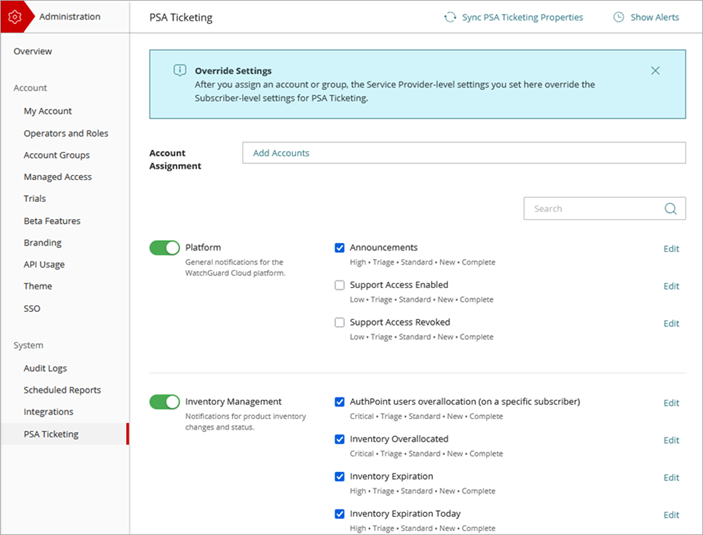
- To get the latest static ticket data from the PSA tool, click Sync PSA Ticket Properties.
WatchGuard retrieves the most recent static ticket data, such as changes in ticket status or priority, from the PSA tool. - In the Account Assignment text box, click Add Accounts.
The Add Accounts and Account Groups dialog box opens.
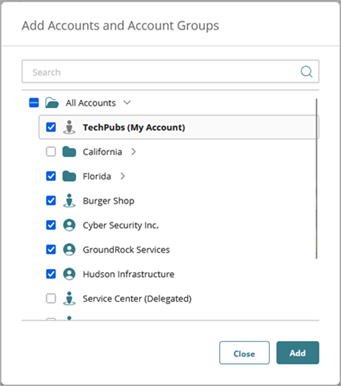
- From the list of accounts, select each account and account group you want to configure the notification rules for. Click Add.
The accounts show in the Account Assignment text box.
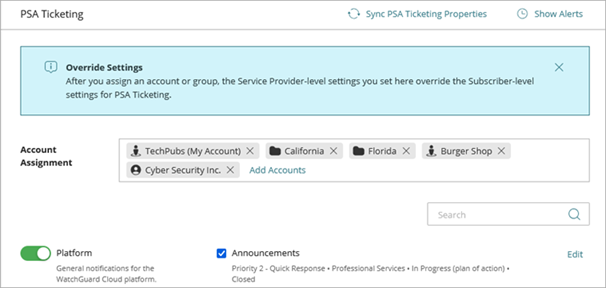
If you select a Service Provider account or group that includes a Service Provider account, the PSA ticketing notifications apply to all of the accounts managed by the Service Provider.
To remove an account assignment, click the X next to the account or account group name.
- Enable the
- Next to each rule you want to enable, select the check box.
The PSA ticketing properties show for each rule.
If the ticketing properties for a rule do not match the properties in the connected PSA tool, a warning icon shows next to the rule. To update the ticketing properties, edit the rule.

If you enable a toggle but do not select any rules for the category, no alerts are generated for the category.
- To change the ticketing properties or alert details for the rule, click Edit.
The Edit Rule or Edit Ticketing Properties page opens.- For ConnectWise ticketing properties, select the Priority, Service Board, and New Status for the ticket sent to the PSA tool. Select the PSA tool Close Status. This is the status that indicates the ticket is closed in the PSA tool and acknowledges the PSA alert notification in WatchGuard Cloud.
- For Autotask ticketing properties, select the Priority, Queue, Ticket Category, and New Status for the ticket sent to the PSA tool. Select the PSA tool Close Status. This is the status that indicates the ticket is closed in the PSA tool and acknowledges the PSA alert notification in WatchGuard Cloud.
- For HaloPSA ticketing properties, select the SLA, Priority, Ticket Type, Ticket Category, and New Status for the ticket sent to the PSA tool. Select the PSA tool Close Status. This is the status that indicates the ticket is closed in the PSA tool and acknowledges the PSA alert notification in WatchGuard Cloud.
To allow WatchGuard Cloud to create the ticket, in Autotask you must edit the Ticket Category and set the default value for Due Date > # of Days From Application to 1 and set the default value for Due Time > # Hours From Application to 0.
- Click Save.
The PSA Ticketing page opens.