Applies To: WatchGuard Cloud
PSA alerts are notifications about PSA ticket activity for your account. For example, you can receive an alert when you close a ticket in your PSA tool. The purpose of alerts is to make sure that you are aware of any significant changes that affect your account or your devices.
Your operator role determines what you can see and do in WatchGuard Cloud. You must be a tier-1 Service Provider and your role must have the Manage Integrations and Manage Tenants permissions to configure this feature. For more information, go to Manage WatchGuard Cloud Operators and Roles.
View PSA Alerts
You can view PSA alerts from the PSA Ticketing page.
To view PSA alerts, from WatchGuard Cloud:
- Select Administration > PSA Ticketing.
The PSA Ticketing page opens.
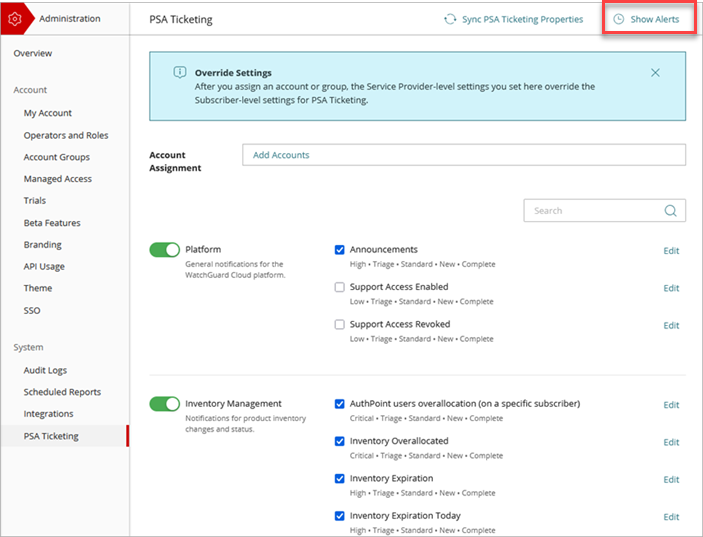
- In the upper-right corner, click Show Alerts.
The PSA Alerts page opens.
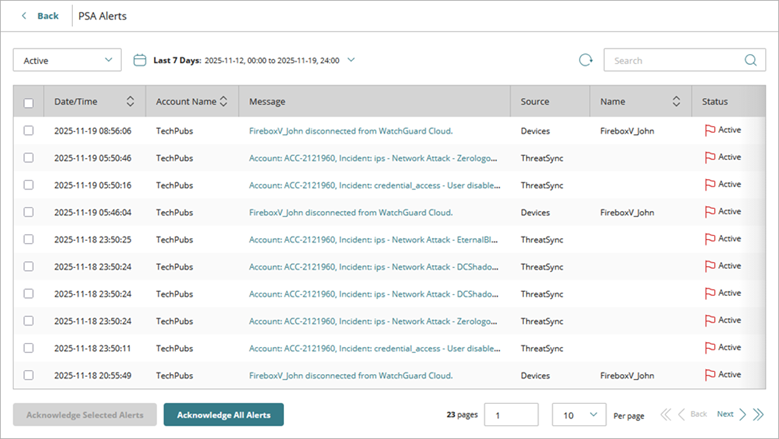
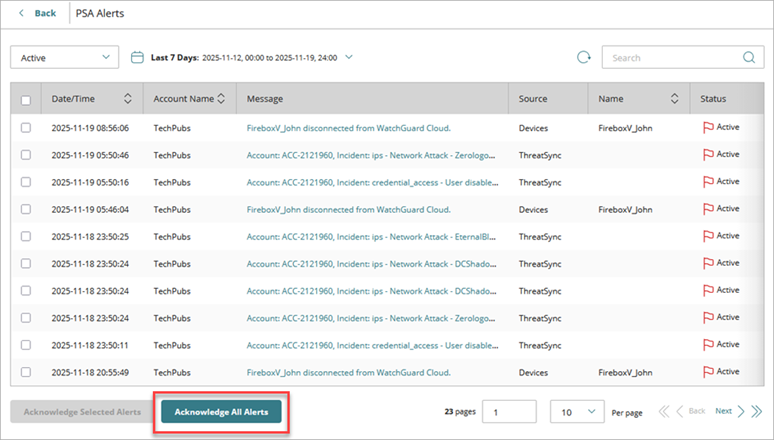
The PSA Alerts page shows a full list of the PSA ticketing alerts for your account. Here you can get more information about each alert and acknowledge active alerts so that they no longer appear in the list of active alerts.
By default, only active alerts appear in the list. From the drop-down list, you can select whether you want to display active alerts, acknowledged alerts, or all alerts. You can also click  and select a date range to see alerts from that specific period of time.
Click an alert to open the Alert Details dialog box and see the specific details for that alert.
Acknowledge Alerts
When a PSA ticketing notification rule generates an alert, the alert shows on the PSA Alerts page as an active alert until you acknowledge it. Active alerts are alerts that have not yet been acknowledged.
When you acknowledge an alert, this indicates that you are aware of the alert and no longer want to see it or that you have resolved the issue and the alert is no longer necessary. The status changes from Active to Acknowledged and the alert no longer shows in the list.
When you close a ticket in the connected PSA tool, the alert is automatically acknowledged in the PSA alerts page.
To acknowledge an individual alert, click an alert to open the Alert Details dialog box and click Acknowledge Alert.
To acknowledge one or more alerts:
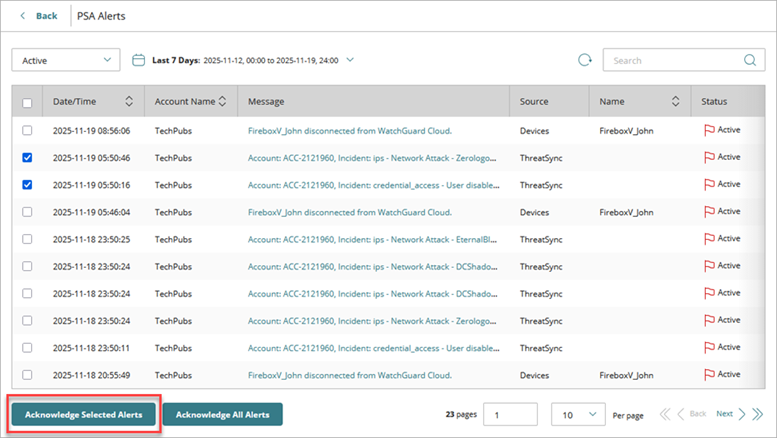
- From the list on the PSA Alerts page, select the check boxes for the alerts you want to acknowledge.
- Click Acknowledge Selected Alerts.
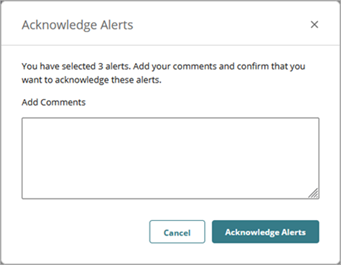
- (Optional) In the Acknowledge Alerts dialog box, type a comment to explain why you acknowledged the alert or alerts.
This can be useful to keep a record of how and why certain issues have been resolved. If you selected multiple alerts, the same comment is applied to each alert. - Click Acknowledge Alerts to acknowledge the alerts you selected.
To acknowledge all alerts:
- On the Alerts page, click Acknowledge All Alerts.
- (Optional) In the Acknowledge All Alerts dialog box, type a comment to explain why you acknowledged all alerts. The same comment is applied to each alert.
- Click Acknowledge All Alerts to acknowledge all alerts.