Applies To: WatchGuard Agent
The WatchGuard Agent is an application you install on endpoints in your network so that WatchGuard Cloud can communicate with them and deploy software.
To view a list of endpoints with the WatchGuard Agent installed, on the Agent Deployment page, in the upper-right corner of the table, click Manage Endpoints. For more information, go to Manage Endpoints in WatchGuard Cloud.
On the Agent Deployment page in WatchGuard Cloud, you can configure whether the agent automatically installs WatchGuard software such as Endpoint Security or the WatchGuard Connection Manager for FireCloud. The Agent Deployment page also shows the endpoints with the WatchGuard Agent installed and the current deployment behavior for product software.
Your operator role determines what you can see and do in WatchGuard Cloud. Your role must have the Manage Endpoints permission to view or configure this feature. You must also have the Endpoint Security permissions enabled (Add, Discover, and Delete Computers and Restart and Repair Computers). For more information, go to Manage WatchGuard Cloud Operators and Roles.
For Service Providers, the Agent Deployment page is useful to centrally configure deployment behavior on endpoints when the account has more than one WatchGuard product license. The Account Name column is fixed in the list.
This topic includes the steps to Edit Deployment Behavior, as well as examples of common Deployment Scenarios.
To see the deployment configuration for all accounts, select Overview > Configure > Agent Deployment.
This image shows the Agent Deployment page for a Service Provider account.
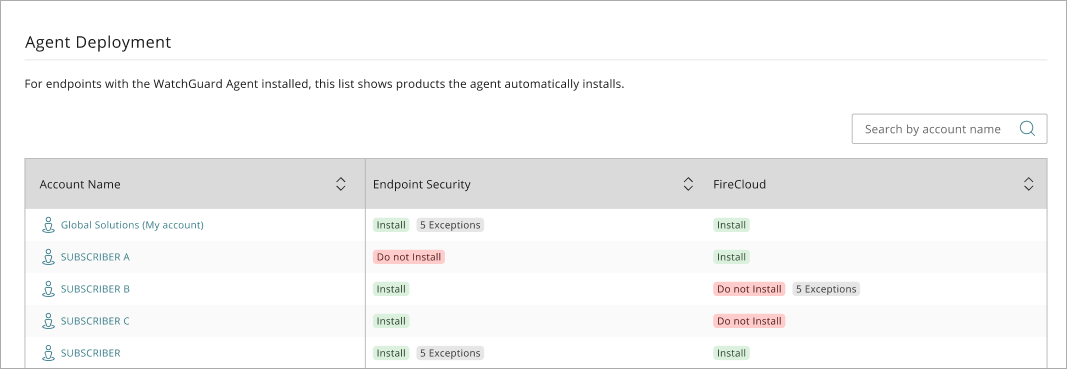
To search for an account in the list, enter the account name in the Search box. Press Enter.
To filter the list by the deployment status (Install, Do Not Install) or the installed product, click  . Select the filters you want to apply.
Deployment Behaviors for the WatchGuard Agent
For Endpoint Security and FireCloud, you can set the deployment behavior at the group, sub-group, or endpoint level. When you set the behavior for a group, groups and endpoints below the group inherit the set behavior, unless you add an exception at the sub-group or endpoint level.
You can set the deployment behavior at each level to one of these options:
Install
The WatchGuard Agent will install the software on the endpoints of the selected endpoint group and all of its endpoints, until you assign a different deployment setting directly to a managed group or endpoint.
Do Not Install
The WatchGuard Agent will not install the software on the endpoints of the selected group and all of its managed groups and endpoints, unless you assign a different deployment setting directly to a managed group or endpoint.
For FireCloud, if the setting is Install and you change the setting to Do Not Install, the WatchGuard Agent uninstalls the WatchGuard Connection Manager installed on the FireCloud client.
For endpoints with the WatchGuard MDR Syslog Collector installed, if the setting is Install and you change the setting to Do Not Install, the WatchGuard Agent uninstalls the WatchGuard MDR Syslog Collector installed on the endpoint.
No Exception
Indicates that no setting is assigned directly to the group or endpoint. The group or endpoint inherits the deployment behavior for the software from a higher group.
An Exception occurs when a managed endpoint or group does not follow the inherited deployment setting. When you assign a deployment setting directly to a managed group or endpoint for a product, an exception shows in the row.
For example, if the default deployment setting for the account is Install, the number of exceptions is the number of groups and endpoints that have the setting Do Not Install. If you want an endpoint or group with the exception (Do Not Install) to inherit the behavior from the higher group, then select No Exception.
By default, when an account has only one product installed by the WatchGuard Agent, the deployment behavior is set to Install. When you have more than one product, when you allocate users or endpoints to the account from an additional product license, the default behavior is Do Not Install for all accounts. On the Agent Deployment page, you can set the deployment behavior for each endpoint or endpoint group in the account.
You cannot install the WatchGuard Agent on Linux, Android, or iOS endpoints for FireCloud. For information on supported operating systems for FireCloud, go to Operating System Compatibility for FireCloud Components.
Edit Deployment Behavior
To edit the deployment behavior for an account:
- From Account Manager, select the account you want to change the deployment behavior for.
- Select Configure > Agent Deployment.
The Agent Deployment page opens.
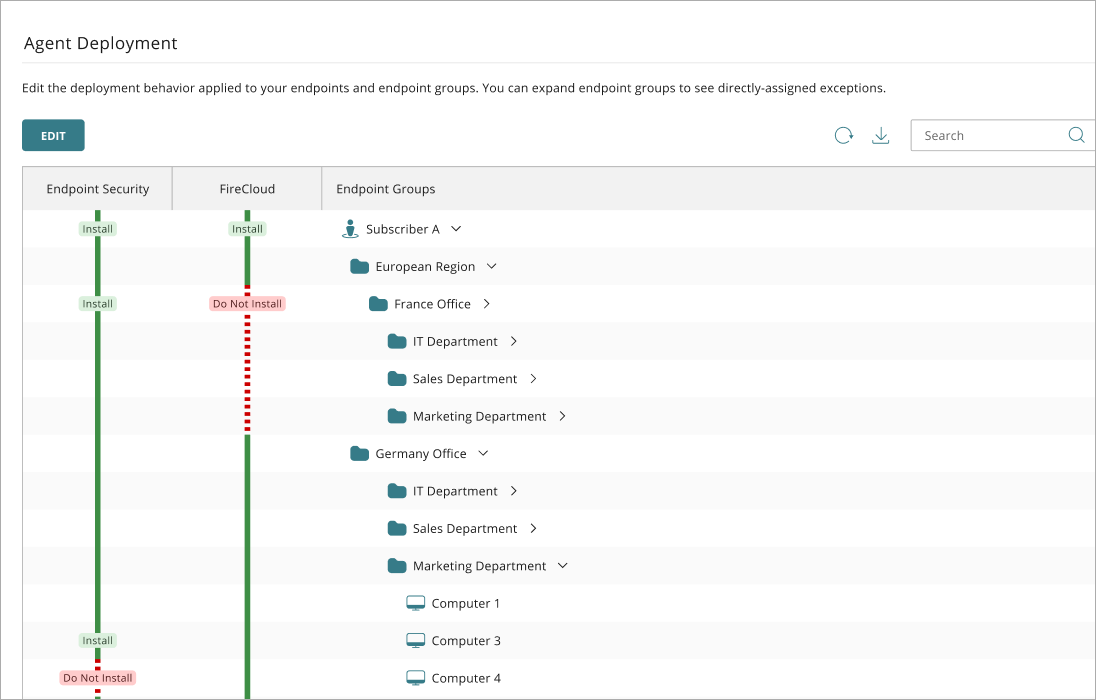
- Click Edit Deployment.
You can now edit the deployment behavior for your products. - Click the colored vertical line for a product in the row for the endpoint or group you want to configure. To search for an endpoint, endpoint group, or the last session user, enter all or part of the name in the Search text box and press Enter.
- From the drop-down list that opens in the row, select a deployment behavior (Install, Do Not Install, No Exception) for the endpoint or group. For more information, go to Deployment Behaviors for the WatchGuard Agent.
- Click Save.
It can take a few minutes to apply the new deployment setting to the selected endpoints. It can take several hours for the WatchGuard Agent to install or uninstall a product on an endpoint computer.
Deployment Scenarios
The information in this section describes common deployment scenarios for products installed by the WatchGuard Agent.

In this scenario, you use the already installed WatchGuard Agent to deploy Endpoint Security software.
- Activate your Endpoint Security license.
- (Service Providers) Allocate endpoints to the account where you have FireCloud users allocated.
- On the Configure > Agent Deployment page, update the Endpoint Security deployment behavior for the endpoints to Install.
On the Configure > Agent Deployment page, for each endpoint where you do not want to install Endpoint Security, update the Endpoint Security deployment behavior to Do Not Install.
In this scenario, you use the already installed WatchGuard Agent to deploy Endpoint Security software.
- Activate your Endpoint Security license.
- (Service Providers) Allocate endpoints to the account where you have WatchGuard NDR users allocated.
- On the Configure > Agent Deployment page, update the Endpoint Security deployment behavior for the endpoint group to Install.
Download and install the WatchGuard Agent from the NDR Integrations UI. For more information, go to Get Started with WatchGuard NDR.
When you run the installer, the WatchGuard Agent installs the WatchGuard NDR Collection Agent on the computer.
After the installation is complete, the computer shows on the Configure > Agent Deployment page. Configure deployment behavior for the Endpoint Security product to Do Not Install.
About the WatchGuard Connection Manager
Download and Install the WatchGuard Agent from WatchGuard Cloud