Applies To: Cloud-managed Fireboxes
Overview
If you want to manage your Firebox locally, you can remove it from cloud management. After you remove your Firebox from cloud management, you can still monitor your Firebox from WatchGuard Cloud.
When you remove a Firebox from cloud management:
- The Firebox becomes locally-managed.
- The Firebox continues to use the last deployed configuration.
- The Firebox continues to send log messages to WatchGuard Cloud.
- Stored log data and reports remain visible in WatchGuard Cloud.
- The admin and status accounts use the device passwords configured in WatchGuard Cloud.
After you remove the Firebox from cloud management, you must use Fireware Web UI or Policy Manager to manage the configuration.
Before you remove a Firebox from cloud management, make sure you know the device passwords. You must use the device passwords to connect to the Firebox for local management. For information about how to update the passwords, go to Update Cloud-Managed Device Passwords.
If you remove from cloud-managment a Firebox configured with a branch office VPN (BOVPN) to another cloud-managed Firebox, the BOVPN remains in WatchGuard Cloud, but is invalid because it has only one endpoint. You can view and delete the BOVPN, but you cannot edit it. Before you delete the BOVPN, remove references to the BOVPN in the configuration of the other cloud-managed Firebox. For more information, go to Manage BOVPNs for Cloud-Managed Fireboxes
If you remove a Firebox from cloud-management, WatchGuard continues to store device configuration data for one year, or until you deallocate the device from the account, whichever comes first. If you later add the Firebox back to the same account as a cloud-managed device, the Deployment History shows previous configurations deployed to that device.
Your operator role determines what you can see and do in WatchGuard Cloud. Your role must have the Devices permission to view or configure this feature. For more information, go to Manage WatchGuard Cloud Operators and Roles.
Remove a Firebox from Cloud Management
To remove a Firebox from cloud managementbut keep the ability to monitor it from WatchGuard Cloud:
- Log in to WatchGuard Cloud.
- Select Configure > Devices.
- Select the cloud-managed Firebox.
The device settings page opens for the cloud-managed Firebox you selected.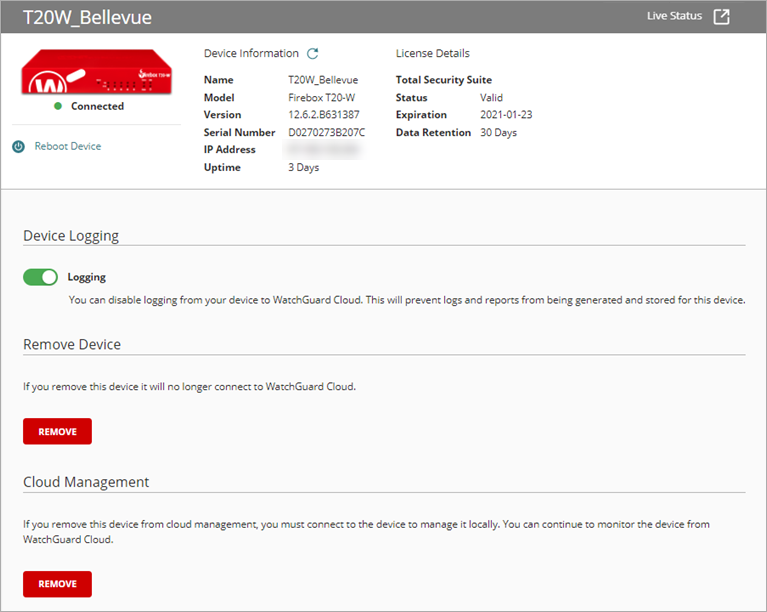
- In the Cloud Management section, click Remove.
The Remove From Cloud Management dialog box opens.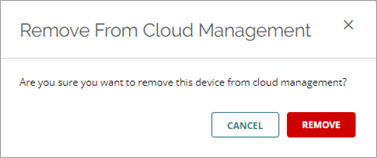
- Click Remove.
The device becomes locally-managed.
Add a WG-Firebox-Mgmt Firewall Policy to a Locally-Managed Firebox
To manage the Firebox with WatchGuard System Manager after you remove it from cloud management, you must add a WG-Firebox-Mgmt firewall policy to the Firebox from Fireware Web UI.
To add a WG-Firebox-Mgmt firewall policy to the Firebox, from Fireware Web UI:
- Select Firewall > Firewall Policies.
The Policies page opens. - Click Add Policy.
The Add Firewall Policy page opens.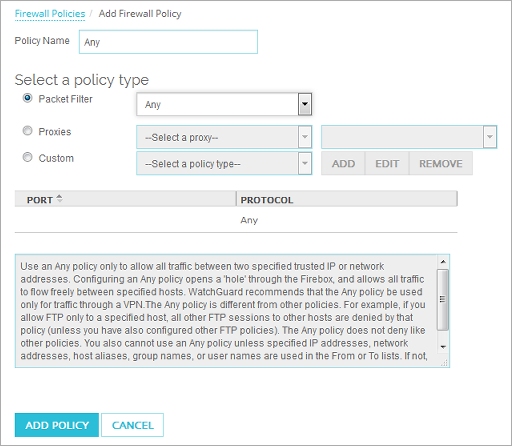
- For the policy type, select Packet Filter.
- From the Packet Filter drop-down list, select WG-Firebox-Mgmt.
- Click Add Policy.
The firewall policy settings page opens.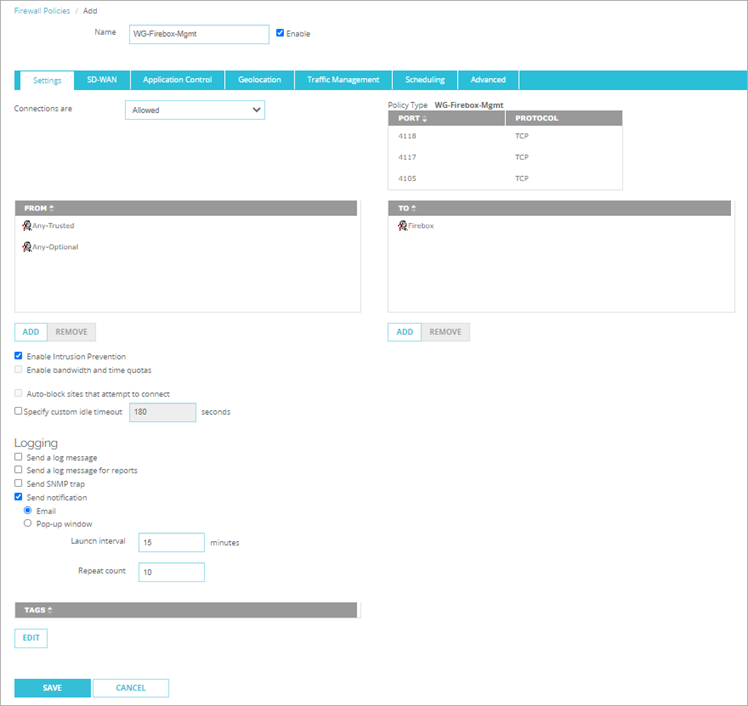
- On the Settings page:
- In the From section, select the Any-Trusted and Any-Optional options.
- In the To section, select Firebox.
- Click Save.
You can now manage the Firebox with WatchGuard System Manager.
For more information about firewall policy configuration, go to Add Policies to Your Configuration.