Applies To: WatchGuard Cloud
A Service Provider account is the top level account that a Managed Service Provider (MSP) or Managed Security Service Provider (MSSP) uses to manage many customers or tenants (called Subscribers in WatchGuard Cloud).
The WatchGuard Cloud platform is specifically designed to meet the needs of Service Providers. Centralized and streamlined security administration with WatchGuard Cloud provides security policy management, threat remediation, visibility, and reports from a single user interface.
As a Service Provider, WatchGuard Cloud is where you create and manage your own account and Subscriber accounts for your customers. You also use WatchGuard Cloud to configure WatchGuard products for the accounts you manage.
For general best practices for Service Providers in WatchGuard Cloud, including information on Subscriber account management and Firebox device management, go to Best Practices for Service Providers in WatchGuard Cloud.
We recommend that Service Providers follow these best practices in WatchGuard Cloud when you manage Subscriber accounts with WatchGuard access points:

In Account Manager, you can group your access points in folders.
- Folders help you to view the status and summarized data for groups of devices.
- When you select a folder, the right side of the window shows information about the devices in the folder.
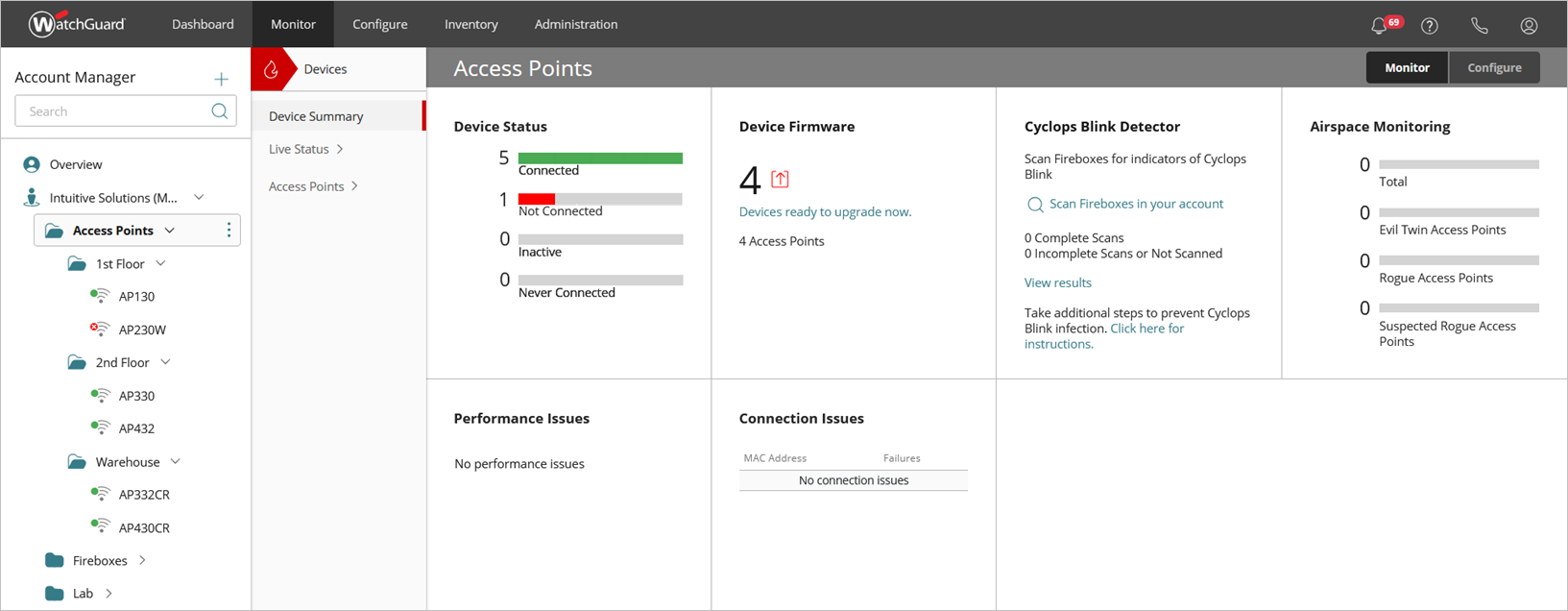
This enables you to open a folder and view only the devices in that folder and view summary status and aggregated reports for those devices. For example, you can view the status and reports for a folder with several access points.
- Each folder can contain devices such as Fireboxes and access points or other folders. You can create up to ten levels of folders to organize your devices.
|
Service Provider Account — Folder Structure in Account Manager |
Subscriber Account — Folder Structure in Device Manager |
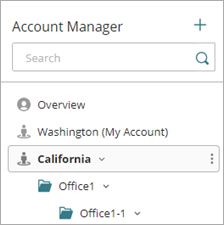

You can use device folders in several ways. For example:
- Organize devices at different office locations into separate folders, such as by geographic location (Seattle, Los Angeles, Toronto), by building (Headquarters, 5th Street Warehouse), or by floors within a building (5th Floor, 9th Floor, Basement)

- Organize devices by operational departments, such as IT, Sales, Marketing, Development, and so on.

For more information, go to Device Folders.
As a Service Provider, you can add multiple access points to a Subscriber account at the same time and use a shared Access Point Site configuration for faster initial configuration and setup before you install the devices.

Before you begin, make sure that:
- The access points you want to add are activated.
- The access points are allocated to the Subscriber account.
For more information, go to Add an Access Point to WatchGuard Cloud.
As a Service Provider, you can upgrade the firmware for devices in any Subscriber account you manage. WatchGuard Cloud helps you keep the cloud-managed devices of your Subscribers up to date with the latest firmware release.
- Keep your device firmware current to make sure that you always have the latest security and product updates for the device. This includes updates to resolve emerging security vulnerabilities and to fix known product issues.
- You can view which devices have firmware upgrades available from the Device Firmware widget on your Dashboard.
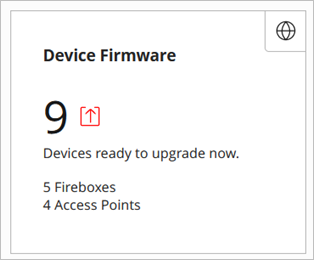
- Click the widget to go to the Firmware Upgrades overview page where you can immediately upgrade one or more devices, or schedule firmware upgrades.

Use firmware update schedules to update your Subscriber devices. This enables you to automate the process for each Subscriber account and customize a schedule with appropriate times for each Subscriber to avoid network disruption. For more information on how to configure and schedule firmware upgrades, go to Manage Firmware Versions for Devices in WatchGuard Cloud.
- Make sure you subscribe to the WatchGuard Product and Support News blog for product updates, new firmware announcements, and support alerts.
- Read the Release Notes to review the new features and resolved issues in a product release.
- To view the Release Notes for access points managed in WatchGuard Cloud, go to Wi-Fi in WatchGuard Cloud Release Notes.
- For information on access point firmware releases, go to Access Point Firmware Releases.
- To view help documentation for Wi-Fi in WatchGuard Cloud, go to Cloud-managed Access Points Help.
Access point sites enable Subscriber accounts to manage and deploy shared wireless settings for multiple access points you manage in WatchGuard Cloud.
You can use an access point site to configure wireless SSIDs and radio settings, and then apply that configuration to the access points in the accounts that subscribe to the access point site.

- Each access point can subscribe to only a single site.
- Each access point site can have multiple subscribed devices. All devices that subscribe to a site share the same site configuration settings.
- When you update an access point site configuration and deploy the site, the site configuration settings immediately deploy to all subscribed devices.
For more information, go to About Access Point Sites.
You can enable Airspace Monitoring on your access points to monitor your network for these types of malicious access points:
- Rogue Access Points — A Rogue access point is an unauthorized access point that is physically connected to your wired network and broadcasts wireless SSIDs that clients might connect to instead of your legitimate access point SSIDs.
- Evil Twin Access Point — An Evil Twin is a nearby access point operating in your airspace that broadcasts the same SSID name as your managed access points to appear as a legitimate access point on your network.
For more information about Airspace Monitoring, go to Access Point Airspace Monitoring
You can also integrate access point Airspace Monitoring with ThreatSync. ThreatSync is a WatchGuard Cloud service that provides eXtended Detection and Response (XDR) technology for WatchGuard devices and products. You can receive incident alerts in ThreatSync when Airspace Monitoring detects malicious access points such as Rogue and Evil Twin access points. You can also perform response actions to block wireless client connections to Rogue and Evil Twin access points. For more information, go to About ThreatSync.
We recommend you enable ThreatSync on all your devices, and make sure you automatically enable ThreatSync on new devices you add to your account. For more information, go to Configure Device Settings in ThreatSync.
As a Service Provider, you can view threat information for all the accounts you manage from Monitor > Threats. For more information, go to Monitor with ThreatSync.
The Summary page provides a snapshot of incident activity for your Subscriber accounts. This page includes graphs and incident data and provides a snapshot of incident activity over a specified period of time.
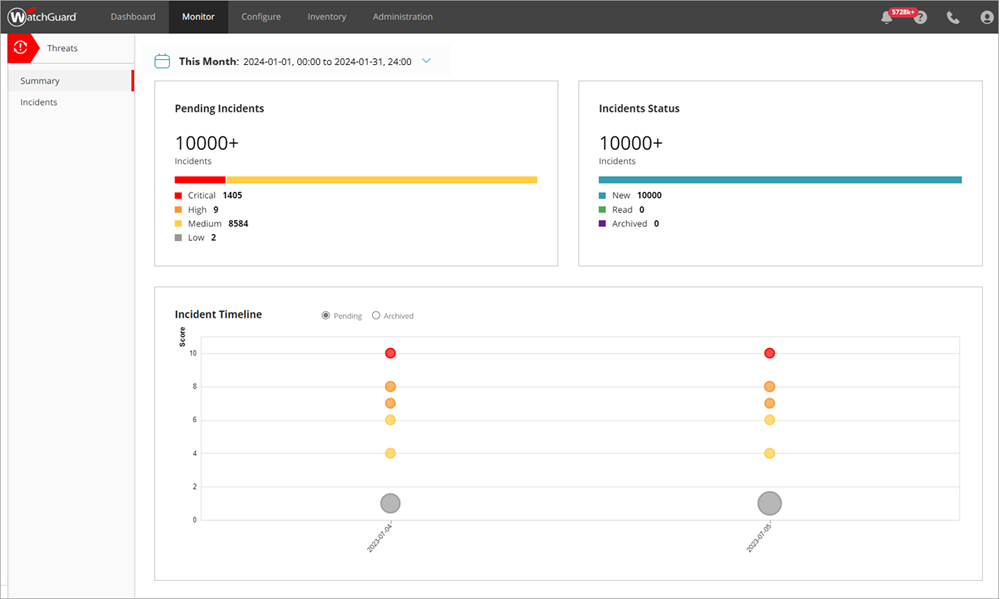
The Incidents page shows a list of incidents, such as malicious access points (Rogue and Evil Twin access points) for a specified time period and enables you to perform remediation actions.

Select a specific incident to view the incident details. Click Block Connections to block wireless client connections to the malicious access points.

You can also create ThreatSync automation policy templates that include multiple automation policies and assign the template to the accounts or account groups you manage. Automation policy templates enable you to apply ThreatSync automation policies consistently across managed accounts, and save time when you set up ThreatSync for new accounts or account groups.
For example, you could create a policy that automatically blocks client connections to access points detected by ThreatSync as a Rogue or Evil Twin access point. This automates the process of detection and remediation to block wireless client connections to a malicious access point.
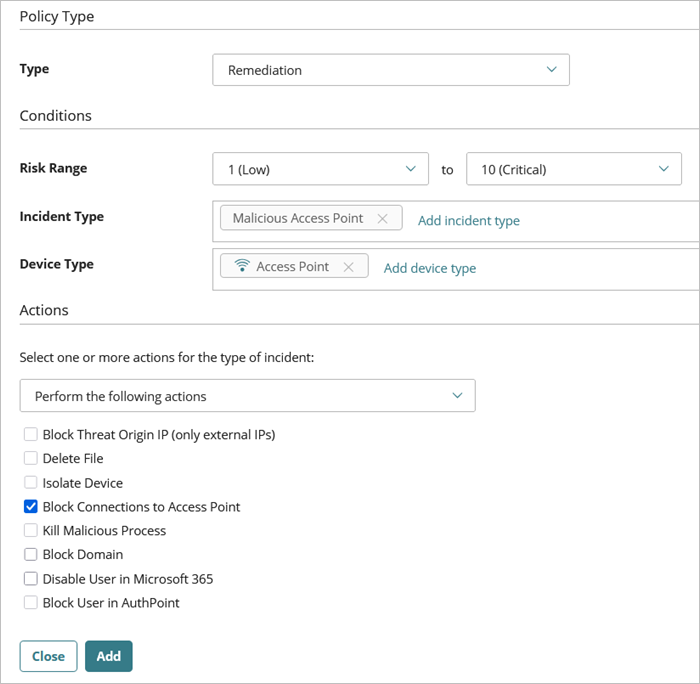
For more information, go to Manage ThreatSync Automation Policy Templates (Service Providers).
WatchGuard provides useful summary reports for access points that provide an overview of wireless network usage, network performance and connection issues, and airspace security.
- Performance Issues — Shows the client performance issues that occurred on your wireless network due to low RSSI and low data rate.
- Top Clients — Shows the most active clients associated to WatchGuard access points on your wireless network.
- Connection Issues — Shows clients that experienced connection issues on your wireless network.
- Connection Events — Shows connection success and failure events for clients that attempt to connect to an access point on your wireless network.
- Airspace Monitoring — Shows detected security issues on your wireless network such as Rogue, Suspected Rogue, and Evil Twin access points.
- Guest Analytics — Shows details about the guest users that connect to a guest Wi-Fi network, including any web form data from a captive portal. This report requires a USP Wi-Fi Management license.
For more detailed information about reports, go to View WatchGuard Cloud Device Reports.
As a Service Provider, you can schedule WatchGuard Cloud to run these reports automatically and send the reports to your customers by email. For more information, go to Scheduled Reports.
Report Customization
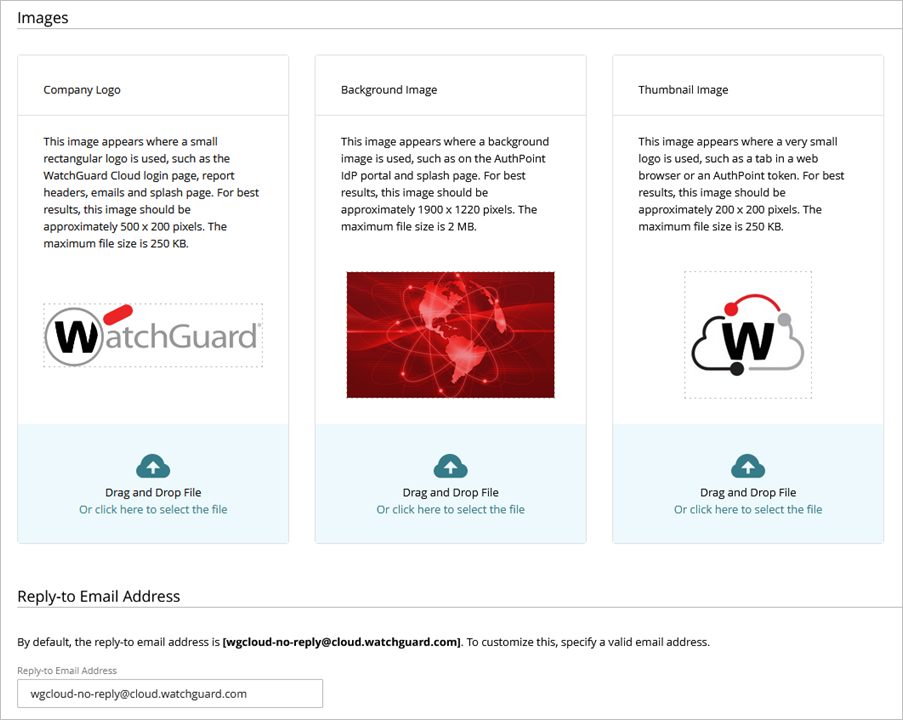
You can change the logo and Reply-to Email Address displayed on the report from the default WatchGuard logo and email address. With custom branding, the logo and email address seen by the customer shows that it was sent from the your account.
Any custom branding for your account is inherited by the Subscriber accounts you manage, and you can customize each Subscriber as required. For more information, go to Add Custom Branding.
Alerts are notifications about your managed accounts and devices, or specific events that occur in WatchGuard Cloud. Alerts make sure that you are aware of any significant changes that affect your managed accounts and devices. For example, you can receive an alert for events such as when an access point loses its connection to WatchGuard Cloud.
You can view notifications from Administration > Notifications in WatchGuard Cloud. For more information, go to Manage WatchGuard Cloud Alerts for Subscribers.
In this example, we filter the results for "AP" to see all access point notifications.

In the Rules section, you can review several default rules. You can also add customized rules for events specific to the accounts you manage, and enable email delivery for specific alarm notifications.
A helpful rule you can add is the Device Alarms rule that generates alert notifications when an access point or Firebox generates an alarm. For example, you can configure an access point to generate an alarm when it detects a wireless threat. Note that if you also enable Email notifications, this increases the potential volume of email alert messages.

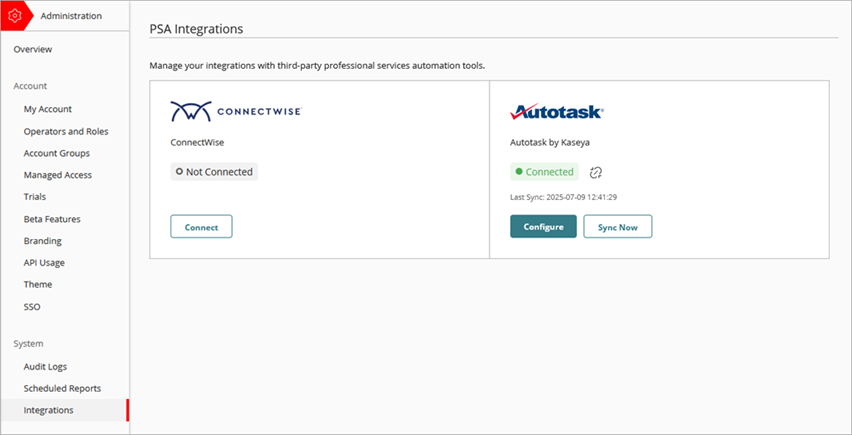
You can integrate WatchGuard Cloud with your existing professional service automation (PSA) tools, such as ConnectWise and Autotask. PSA tools help MSPs manage account data, tickets, billing, contracts, and reporting. When you integrate WatchGuard Cloud with your PSA tool, you can send product license usage data and device information to your PSA tool. You can also use notification rules to automate ticket updates in your PSA tool when events occur in WatchGuard Cloud (closed-loop ticketing).
With PSA integration, you can send this data to the PSA tool:
- Firebox and access point device information, including model, license type, serial number, firmware version, license expiration, and other metadata
- User allocation and license usage data for any WatchGuard Cloud-based product, including AuthPoint, Endpoint Security products, FireCloud, NDR products, and Managed Services
- Closed-loop ticketing for ThreatSync, Endpoint Security, Firebox, License alerts, and WatchGuard Cloud notification rules
To get started with WatchGuard Cloud PSA integration, go to Quick Start — Integrate WatchGuard Cloud with a PSA Tool.
You can use SNMP (Simple Network Management Protocol) to monitor WatchGuard devices on your network. Your devices can accept polls from an SNMP management system and send SNMP trap messages for device events to an SNMP trap destination server.
SNMP access point monitoring requires a WatchGuard USP Wi-Fi Management license.
For more information on how to configure SNMP for your access points, go to:
For detailed information on WatchGuard access point integrations with these popular RMM solutions, go to:
WatchGuard offers sales training and certification for our partner community, and technical training and certification for all partners and customers. When you keep current on training and certification, you demonstrate to your customers that you sell and support products with which your employees have a high level of technical competence.
You can find all WatchGuard sales and technical training in the WatchGuard Learning Center.
Secure Wi-Fi Training Course
- Secure Wi-Fi Essentials with WatchGuard Cloud
Secure Wi-Fi Booster Courses
- ThreatSync
- Captive Portals
- Advanced Authentication
- Wireless Planning and Deployment
If you are a WatchGuard partner, you can view the current status of your technical and sales certifications from the Partner Portal. For more information about certification, go to Partner Specializations and Certification on the WatchGuard web site.