Applies To: WatchGuard Cloud-managed Access Points (AP130, AP230W, AP330, AP332CR, AP430CR, AP432)
Overview
You can enable Airspace Monitoring on your access points to monitor your network for these types of malicious access points:
Rogue Access Point
A Rogue access point is an unauthorized access point that is physically connected to your wired network and broadcasts wireless SSIDs your clients might connect to instead of your legitimate access point SSIDs.
- The rogue access point might have been connected by an unauthorized user. Your wireless clients might connect to these rogue access points instead of your authorized managed access points and communicate vulnerable data.
- The rogue access point might be a device connected to the network by someone inside your organization without consent, or it could be a device set up for a test environment. These access points are security risks to your network if they are misconfigured or do not have the required security features enabled.
- The device might be a legitimate access point on your network that is not configured in your Trusted Access Point list.
- When you integrate with ThreatSync, you can perform response actions to block wireless client connections to Rogue access points. For more information, go to About ThreatSync.
Suspected Rogue Access Point
A Suspected Rogue access point might be an unauthorized access point physically connected to your wired network, or it also might be a legitimate access point.
- A Suspected Rogue access point might be an unauthorized access point connected to your wired network that broadcasts SSIDs your clients might connect to instead of your legitimate access point SSIDs.
- A Suspected Rogue access point might be a wireless Firebox not managed by WatchGuard Cloud, a WatchGuard Wi-Fi 5 access point, or a legitimate third-party access point in your deployment. You can trust these devices to prevent future alert notifications.
- When you integrate with ThreatSync, you can perform response actions to block wireless client connections to Suspected Rogue access points. For more information, go to About ThreatSync.
Evil Twin Access Point
An Evil Twin is a nearby access point operating in your airspace that broadcasts the same SSID name as your managed access points to appear as a legitimate access point on your network.
- The Evil Twin might be set up near your network by an unauthorized user. Wireless clients might connect to the Evil Twin access point instead of your legitimate managed access points and communicate vulnerable data.
- The device might be a legitimate access point operating in your airspace such as a guest hotspot or private network from a nearby business with the same SSID.
- This might be a wireless Firebox not managed by WatchGuard Cloud, a WatchGuard Wi-Fi 5 access point, or a legitimate third-party access point in your deployment. You can trust these devices to prevent future alert notifications.
- When you integrate with ThreatSync, you can perform response actions to block wireless client connections to Evil Twin access points. For more information, go to About ThreatSync.
The ability to scan for Evil Twin access points and perform response actions in ThreatSync requires an AP230W, AP330, or AP430CR that has a dedicated scanning radio.
Airspace Monitoring Reports and Alerts
You can view a summary of detected malicious access point threats in the Airspace Monitoring report. For more information, go to Access Point Airspace Monitoring Report.
When WatchGuard Cloud detects a malicious access point, you can generate an alert notification so that you can take action to investigate, identify, and remove the threat. For more information on how to create an alert notification for Airspace Monitoring events, go to Airspace Monitoring Alerts.
Airspace Monitoring and ThreatSync
You can integrate access point Airspace Monitoring with ThreatSync. ThreatSync is a WatchGuard Cloud service that provides eXtended Detection and Response (XDR) technology for WatchGuard devices and products. You can receive incident alerts in ThreatSync when Airspace Monitoring detects malicious access points such as Rogue and Evil Twin access points.
With ThreatSync integration, you can also perform response actions to these threat incidents in ThreatSync to block wireless client connections to malicious access points or trust known access points in your deployment. For more information, go to About ThreatSync.
Before you Begin
We recommend you enable Airspace Monitoring on all access points in your deployment. To simplify management and ensure consistent settings across your devices, configure Airspace Monitoring in an Access Point Site and apply the site configuration to all subscribed access points. For more information, go to About Access Point Sites.
Airspace Monitoring requires:
- A WatchGuard USP Wi-Fi Management license
- Access point firmware v2.2.23 or higher on all access points
- Access point firmware v2.7.9 or higher when integrated with ThreatSync to perform response actions and block wireless client connections to Rogue and Evil Twin access points.
- An AP230W, AP330, or AP430CR with a dedicated scanning radio for over-the-air Evil Twin detection and ThreatSync response actions to block wireless client connections to malicious access points.
- All other Wi-Fi in WatchGuard Cloud access point models can detect Rogue and Suspected Rogue access points physically connected to the network, but cannot detect Evil Twin access points or perform ThreatSync response actions.
- In larger deployments, we recommend you deploy one access point with a dedicated scanning radio for every 3-5 access points in your deployment.
Wireless scanning and response actions can potentially affect the performance of access points during detection and response to a malicious access point.
- NTP (Network Time Protocol) server configured for your access points. NTP is required for accurate scanning and detection. The default servers configured for access points are: 0.pool.ntp.org, 1.pool.ntp.org, 2.pool.ntp.org. We recommend you specify an internal NTP server if available on your network, or a reliable, regional NTP server.
How Airspace Monitoring Works
Airspace Monitoring uses WatchGuard's patented identification technology to scan your wired network and your wireless airspace for malicious access points such as Rogue, Suspected Rogue, and Evil Twin access points.
WatchGuard access points can only detect malicious access points on the same network to which they are connected. They cannot detect malicious access points on other networks/VLANs.
Rogue Access Point Detection
A Rogue access point is an unauthorized access point that is physically connected to your wired network and broadcasts wireless SSIDs your clients might connect to instead of your legitimate access point SSIDs.
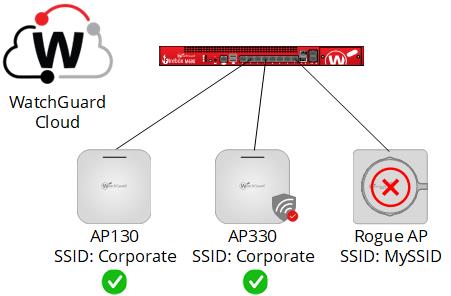
All WatchGuard access point models managed by WatchGuard Cloud can detect Rogue and Suspected Rogue access points on your network.
- WatchGuard access points scan the wired network for access points physically connected to the network, and also scan your wireless airspace for the SSIDs broadcast by these access points.
- WatchGuard Cloud can correlate the MAC addresses of the detected wired and wireless interfaces to determine if the access point is a Rogue access point.
- If the correlation between the MAC addresses is uncertain, then the access point is classified as a Suspected Rogue access point which means it might be an unauthorized device that you must investigate. The access might also be a legitimate device that you have not added to your Trusted Access Points list.
Evil Twin Access Point Detection
An Evil Twin is a nearby access point operating in your airspace (not connected to your wired network) that broadcasts the same SSID name as your managed access points to appear as a legitimate access point on your network.
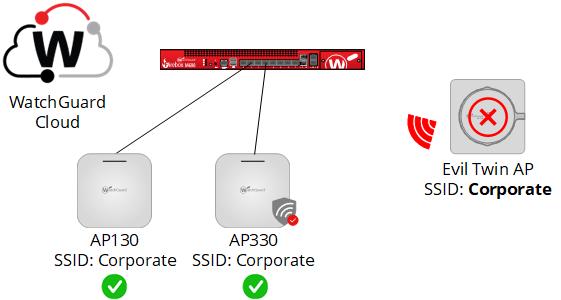
- Only WatchGuard access points with a wireless scanning radio (AP230W, AP330, and AP430CR) are able to detect Evil Twin access points that operate in your wireless airspace.
- WatchGuard Cloud uses patented signature-based identification to determine whether an access point is an Evil Twin and not a known WatchGuard managed access point or trusted access point.
- The device might be a legitimate access point on your network that is not configured in your Trusted Access Point list.
- This device might also be a legitimate access point operating in your airspace such as a guest hotspot or private wireless network from a nearby business with the same SSID.
ThreatSync Response Actions to Block Connections to Malicious Access Points
With ThreatSync integration, you can also perform response actions to Wi-Fi threat incidents in ThreatSync to block wireless client connections to detected malicious access points.

- The WatchGuard access point that detects the malicious device must have a dedicated scanning radio and run firmware v2.7.9 or higher to perform over-the-air response actions and block wireless client connections to the malicious access point.
- Wireless clients already connected to the malicious access point are disconnected from the device. Further connection attempts are blocked.
- You cannot perform over-the-air response actions against malicious access points that use WPA3 security, WPA2 security with Protect Management Frames enabled (802.11w), or OWA security.
- The access point that performs response actions can only scan and block connections on a specific channel at a time. It might take several seconds or longer to disconnect clients from a malicious access point when attempting to block connections on multiple channels.
- You cannot perform over-the-air response actions against malicious access points that broadcast on a channel not in the current country of operation of the detecting access point.
Before you block wireless client connections to a detected malicious access point, make sure that this is not a known access point in your deployment.
- This might be a wireless Firebox not managed by WatchGuard Cloud, a WatchGuard Wi-Fi 5 access point, or a legitimate third-party access point in your deployment. You can trust these devices to prevent future alert notifications.
- For Evil Twin access points, this device might also be a legitimate access point operating in your airspace such as a guest hotspot or private wireless network from a nearby business with the same SSID.
Caution: Make sure you adhere to local regulations for the use of over-the-air response actions to disconnect wireless clients from an access point.
Trusted Access Points
WatchGuard's patented identification technology makes sure that WatchGuard Cloud does not generate security alerts for trusted wireless devices.
These WatchGuard devices are automatically identified as trusted access points:
- WatchGuard access points managed by WatchGuard Cloud
- Wireless Fireboxes managed by WatchGuard Cloud
Managed access points and wireless Fireboxes must be in the same WatchGuard Cloud account.
You can add the MAC addresses of additional devices on your network that you consider as managed, trusted devices to the Trusted Access Points list.
For example, you can add the MAC addresses of known devices such as other WatchGuard products and third-party access points as trusted access points. For more information, go to Configure Trusted Access Points.
You can also trust access points when you review a ThreatSync incident for a malicious access point detection. For more information, go to Configure Trusted Access Points in ThreatSync. Access points you trust in ThreatSync do not appear in the Trusted Access Points list in the Airspace Monitoring configuration.
Configure Airspace Monitoring
To configure Airspace Monitoring for an access point:
- Select Configure > Devices.
- Select a cloud-managed access point.
- Select Device Configuration.
- In the Settings tile, select Advanced Settings.
- Enable Airspace Monitoring.
- Save the configuration.
- Deploy the configuration to your access point.
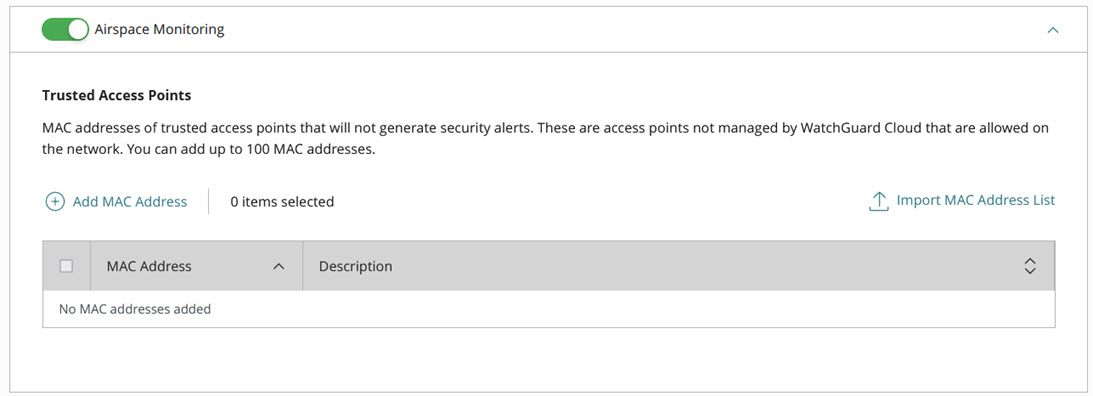
We recommend you configure Airspace Monitoring in an Access Point Site and apply the configuration to multiple access points. For more information, go to About Access Point Sites.
Configure Trusted Access Points
By default, all WatchGuard access points and wireless Fireboxes you manage from WatchGuard Cloud are considered trusted access points. WatchGuard's patented identification technology makes sure that WatchGuard Cloud does not generate security alerts for devices you manage in your WatchGuard Cloud account.
You can add the MAC addresses of additional access points connected to your network that you want to classify as trusted access points, such as:
- Wi-Fi 5 access points managed by WatchGuard Wi-Fi Cloud
- Wi-Fi 5 access points managed by a Gateway Wireless Controller on a Firebox
- Wireless Fireboxes not managed by WatchGuard Cloud
- Third-party access points
Make sure you add both the wired Ethernet MAC address of the access point and any BSSID MAC addresses of wireless networks broadcast by the access point to prevent Rogue and Evil Twin access point alerts.
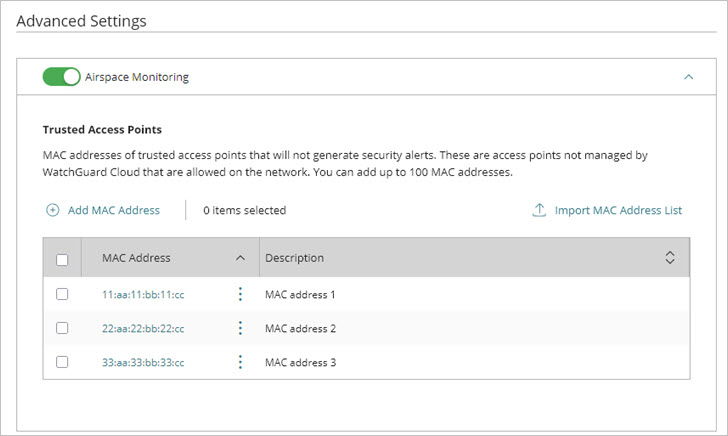
To add MAC addresses of trusted access points, click Add MAC Address. When you have finished, click Add to save the list of trusted access points.
To upload a list of multiple MAC addresses, click Import MAC Address List.
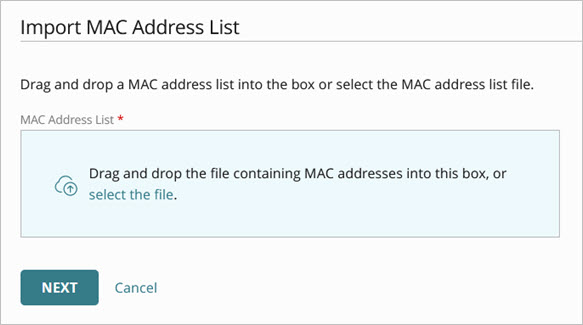
You can drag and drop a MAC address list into the box or select the MAC address list file.
The MAC address list file must be in comma-separated value format (CSV), with a MAC address and an optional description.
For example, to import addresses with a description:
11:aa:11:bb:11:cc,Description
22:aa:22:bb:22:cc,Description
To import addresses with no description:
11:aa:11:bb:11:cc
22:aa:22:bb:22:cc
To import addresses with and without descriptions:
11:aa:11:bb:11:cc,Description
22:aa:22:bb:22:cc
33:aa:33:bb:33:cc,Description
44:aa:44:bb:44:cc
When the imported file is analyzed, you can select the MAC addresses to import. Click Save to import the MAC addresses.
Troubleshoot Airspace Monitoring
If you enable Airspace Monitoring, and you encounter false positive alerts for known access points that are detected as Rogue, Suspected Rogue, or an Evil Twin access point, examine the following:
- Make sure all your access points are upgraded to firmware v2.2.23 or higher. To perform response actions against threat access points when integrated with ThreatSync, access points with a dedicated scanning radio must run firmware v2.7.9 or higher.
- Make sure you enable Airspace Monitoring on all access points. We recommend you use Access Point Sites to apply the configuration to multiple access points.
- Make sure that the configuration is correctly deployed to the access point. For more information, go to Access Point Deployment History.
- Make sure all access points are configured to poll the same NTP server. The default is pool.ntp.org. Make sure that the connection to the NTP server is working. We recommend you use an internal NTP server if available on your network, or a reliable, regional NTP server.
- Make sure trusted wireless devices on your network that you do not manage in WatchGuard Cloud are configured in your Trusted Access Point list.
Access Point Airspace Monitoring Report
Configure Access Point Advanced Device Settings