Applies To: DNSWatch in WatchGuard Cloud
References to DNSWatch in this topic relate to DNSWatch in WatchGuard Cloud. To learn about the legacy DNSWatch UI, go to About WatchGuard DNSWatch in Fireware Help.
If you currently manage DNSWatch in the legacy UI, management of DNSWatch in WatchGuard Cloud is a two-step process:
- Migrate from the legacy DNSWatch UI to WatchGuard Cloud.
- Configure DNSWatch in WatchGuard Cloud.
Before you can manage and configure DNSWatch in WatchGuard Cloud, you must first complete a one-time migration procedure to migrate your Fireboxes and DNSWatch configuration data from the legacy DNSWatch UI to WatchGuard Cloud.
The DNSWatch Migration tool migrates all eligible Fireboxes from the legacy DNSWatch UI to DNSWatch in WatchGuard Cloud. The migration process is not reversible. After migration completes, you must manage DNSWatch for your Fireboxes in WatchGuard Cloud and can no longer manage DNSWatch in the legacy DNSWatch UI.
Eligible Fireboxes are Fireboxes that are added to WatchGuard Cloud and allocated to a Subscriber account. For more information, go to the Before You Migrate section in this topic.
DNSWatch data that is migrated:
- Content Filtering Policies
- Domain Lists
- Domain Allowlist
- Domain Filterlist
- Domain Blocklist
DNSWatch data that is not migrated:
- DNSWatchGO
- DNSWatchGO for Chrome OS
- Block page configurations
DNSWatchGO and DNSWatchGO for Chrome OS can only be managed in the legacy DNSWatch UI.
After migration, you must configure the Block pages as part of the configuration process in WatchGuard Cloud. For more information, go to Add a DNSWatch Configuration in WatchGuard Cloud.
Before You Migrate
These accounts can perform DNSWatch migration:
- Tier-1 Service Providers
- Tier-1 Subscribers
Service Providers must have an Owner role, or a Helpdesk role with access to all of their Subscriber accounts.
Before you begin the DNSWatch migration process to WatchGuard Cloud, make sure that:
- Fireboxes listed in the legacy DNSWatch UI are added to WatchGuard Cloud and allocated to a Subscriber account.
Fireboxes do not have to be cloud-managed, but they must be added to WatchGuard Cloud for visibility. For more information, go to Get Started — Add a Device to WatchGuard Cloud.
- You review your DNSWatch content filter policies and domain list configurations in the legacy UI before you migrate to WatchGuard Cloud.
If your legacy DNSWatch configuration contains domain list entries with wildcards (*) or URL path suffixes (*.example.org/*), you will not be able to add or modify domains in that policy after migration to DNSWatch in WatchGuard Cloud.
To avoid this issue, remove any wildcards or path suffixes from your domain list entries before you migrate. Only valid domain names are supported (for example, example.org). To include subdomains, select the Include Subdomains check box in the DNSWatch Configuration wizard. For more information, go to Add a DNSWatch Configuration in WatchGuard Cloud.
Migrate DNSWatch to WatchGuard Cloud
To migrate DNSWatch from the legacy UI to WatchGuard Cloud:
- Log in to WatchGuard Cloud as a tier-1 Service Provider or tier-1 Subscriber.
- Select Configure > DNSWatch.
The DNSWatch Migration tool opens.
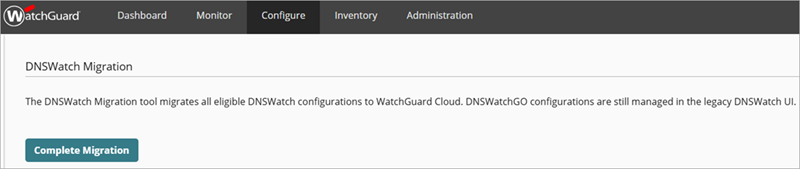
- Click Complete Migration.
The DNSWatch Migration begins. - If a Firebox cannot be migrated, an error message shows with a link to correct the issue. Error messages include:
- Device not added to WatchGuard Cloud — Click Add Device to go to the Add Device page to add a new device to WatchGuard Cloud. For more information, go to Get Started — Add a Device to WatchGuard Cloud.
AA new tab in your browser opens. - Device not allocated to an account — Click Allocate Device to go to the Inventory > Firebox > Unallocated page to allocate the device. For more information, go to Allocate Fireboxes.
A new tab in your browser opens.

- After you correct the issue, return to the DNSWatch Migration page. Click
 to refresh the Firebox list. The Fireboxes you added to WatchGuard Cloud or allocated to an account no longer show in the list.
The DNSWatch Migration is now in progress and can take up to one hour to complete. You can navigate away from this page and return to review the status.
- (Optional) Click Migrate Without These Devices if you want to skip the migration of the Fireboxes with errors in the list.
If you select Migrate Without These Devices and want to add the Fireboxes after migration is complete, you must manually add or allocate the Fireboxes. For more information, go to Post Migration Steps.
- Device not added to WatchGuard Cloud — Click Add Device to go to the Add Device page to add a new device to WatchGuard Cloud. For more information, go to Get Started — Add a Device to WatchGuard Cloud.
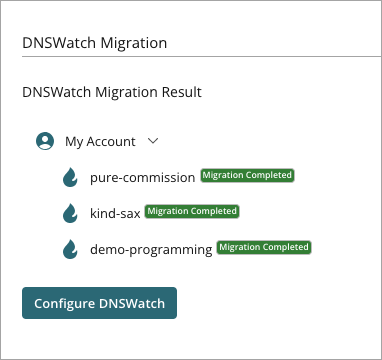
The DNSWatch Migration Result page opens with a list of all Fireboxes you selected for migration and their migration status. Migration statuses include Migration Completed and Migration in Progress.
If a Firebox has not yet completed migration, the Migration in Progress status shows. The DNSWatch Support team is notified and updates the status to Migration Completed. Confirm the status again later. If the issue persists, contact WatchGuard Support.
- After all Fireboxes successfully migrate, click Configure DNSWatch to configure DNSWatch in WatchGuard Cloud.
It can take up to 30 minutes for the Firebox to update DNSWatch IP addresses and connect to DNSWatch servers after migration is complete.
Changes made in the legacy DNSWatch UI after migration do not sync to DNSWatch in WatchGuard Cloud.
For more information about DNSWatch configurations in WatchGuard Cloud, go to Add a DNSWatch Configuration in WatchGuard Cloud.
Post Migration Steps
If you selected Migrate Without These Devices in Step 6 and want to add the Fireboxes after migration is complete, you must manually add the Firebox to WatchGuard Cloud or allocate the Firebox.
If you could not migrate a Firebox because it was not added to WatchGuard Cloud, go to Get Started — Add a Device to WatchGuard Cloud to add your Firebox.
After you add your Firebox to WatchGuard Cloud, you must re-enable DNSWatch. For more information, go to Enable DNSWatch on Your Firebox.
If you could not migrate a Firebox because it was not yet allocated, complete the allocation. For more information, go to Allocate Fireboxes.
If you have an existing DNSWatch configuration in WatchGuard Cloud, you must edit the configuration and select the newly added Firebox to apply the DNSWatch configuration to. For more information, go to Add a DNSWatch Configuration in WatchGuard Cloud.