Applies To: DNSWatch in WatchGuard Cloud
References to DNSWatch in this topic relate to DNSWatch in WatchGuard Cloud. To learn about the legacy DNSWatch UI, go to About WatchGuard DNSWatch in Fireware Help.
DNSWatch in WatchGuard Cloud uses DNSWatch configurations to monitor DNS requests and prevent connections to malicious and filtered domains. DNSWatch configurations define the settings and filters that DNSWatch uses to determine whether to block a site.
When you create a DNSWatch configuration, you select which accounts and Fireboxes you want to apply the configuration to. When you apply the configuration to a Firebox, that Firebox is subscribed to the configuration.
DNSWatch configurations appear as widgets on the DNSWatch page in WatchGuard Cloud.
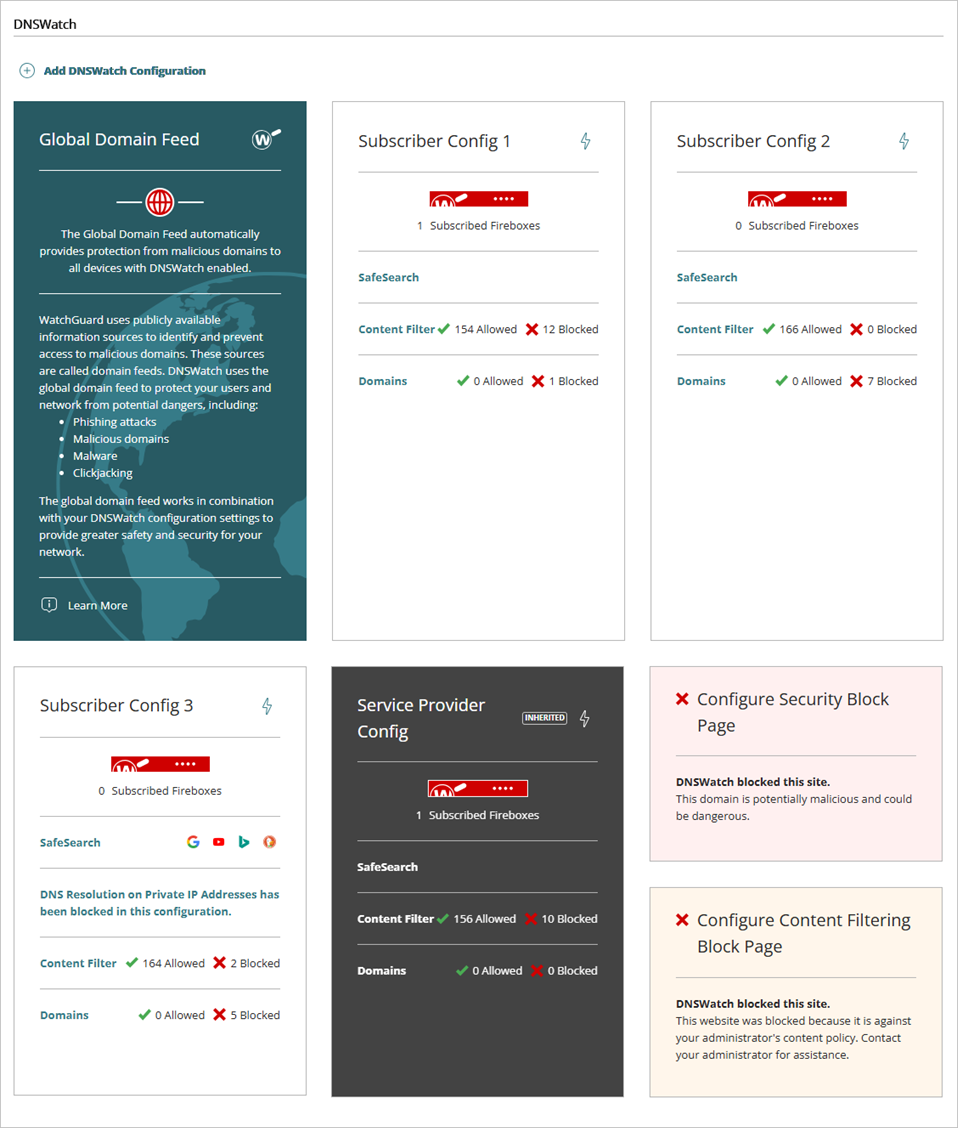
You can add and manage DNSWatch configurations at the Service Provider and Subscriber account levels.
Your operator role determines what you can view and do in WatchGuard Cloud. Your role must have the DNSWatch permission to view or add DNSWatch configurations. For more information, go to Manage WatchGuard Cloud Operators and Roles.
DNSWatch configurations appear in the DNSWatch UI as either a widget with a light background or a widget with a dark background and an Inherited label.
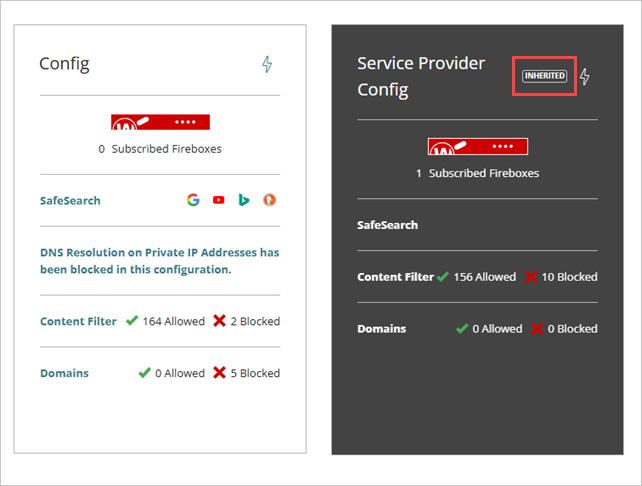
The light background on a configuration widget indicates that you have permission to view, edit, copy, and delete the configuration.
- To view or edit a DNSWatch configuration, click the configuration widget.
- To copy or delete a DNSWatch configuration, click the
 icon on the configuration widget.
Inherited Configurations
When a configuration is created at the Service Provider level, it appears in Subscriber level accounts as a widget with a dark background and an Inherited label. The dark background and label indicate that the configuration is locked, and that you only have permission to view or copy it.
- To view an inherited DNSWatch configuration, click the configuration widget.
- To copy an inherited DNSWatch configuration, click the icon on the configuration widget.
Configuration Overview
Each widget for a DNSWatch configuration shows this information:
- Name — Name of the configuration.
- Description — Description of the configuration, if specified in the configuration.
- Subscribed Fireboxes — Number of Fireboxes that subscribe to the configuration.
- SafeSearch — Icons of the web search engines with SafeSearch enabled in the configuration. For more information, go to About SafeSearch in DNSWatch in WatchGuard Cloud.
- DNS Resolution on Private IP Addresses — Indicates that DNSWatch blocks responses for domain names that resolve to IP addresses in the three private IP ranges reserved by the Internet Engineering Task Force (IETF), which can help protect your network from DNS rebinding attacks.
If a configuration does not block DNS resolution to private IP addresses, this information does not appear on the widget.
- Content Filter — Number of content filter categories that are allowed and blocked in the configuration. For more information, go to About Content Filter Categories in DNSWatch in WatchGuard Cloud.
- Domains — Number of domains that are allowed and blocked in the configuration.
To view more details or to edit a configuration, click a configuration widget. For more information on how to create a new configuration, go to Add a DNSWatch Configuration in WatchGuard Cloud.
Add a DNSWatch Configuration in WatchGuard Cloud
About Content Filter Categories in DNSWatch in WatchGuard Cloud