Applies To: Endpoint Security Elite, Endpoint Security 360, Endpoint Security Prime, WatchGuard EDR, WatchGuard EDR Core, Endpoint Security Basic
To open the multi-tenant management UI for endpoint security, your Service Provider account must have an active Endpoint Security product license in its inventory.
Settings vary for Endpoint Security Elite, 360, Prime, Basic, WatchGuard EDR, and EDR Core. Throughout this documentation, Endpoint Security refers generally to all products. If a setting is not visible in the Endpoint Security management UI, it is not supported by your product.
On the Settings page, Service Providers can create, import, or edit security settings profiles, and then assign them to managed Subscriber and Service Provider accounts, or a group of accounts. Similar to templates, settings profiles can help reduce administration time and settings inheritance enables quicker assignment of settings to account groups and sub-groups and the computer and devices in these groups.
You can manage the endpoint security of delegated accounts in the multi-tenant management UI.

For information on how to centrally assign a security settings profile, go to Multi-Tenant Management — Assign Endpoint Security Settings to Managed Accounts.
To open a multi-tenant endpoint security settings profile from WatchGuard Cloud:
- From Account Manager, select a Service Provider account.
To select your own Service Provider account, select Overview. Or, select a tier-n Service Provider account.
 - Select Configure > Endpoint Security.
- On the Settings page, select the type of settings you want to view.
For more information on how to create, copy, edit, and delete security settings profiles, go to Manage Settings Profiles.
Multi-tenant settings profiles that you create can include these settings:
Per-Computer Settings
Use these settings to configure features of the endpoint security product installed on user computers, such as agent visibility, software updates, anti-tamper protection, two-factor authentication (2FA), and shadow copies. For information on the available settings, go to Configure Per-Computer Settings.
Remote Control (Endpoint Security Elite only)
Use these settings to configure remote access to user computers. For more information on the available settings, go to Configure Remote Control Settings.
Maintenance Windows
Use these settings to configure time slots for maintenance. For more information on the available settings, go to Configure Maintenance Windows in Endpoint Security.
Workstations and Servers
Use these settings to specify how the endpoint security product reacts to threats, including Zero-Trust Application Service features such as Audit mode, decoy files, AMSI scanning, Advanced Security Policies (Endpoint Security Elite only), anti-exploit protection, vulnerable driver detection, and network attack protection. You can also set administrator rules for access to network resources to minimize the attack surface. For information on the available settings, go to Configure Workstations and Servers Security Settings.
Indicators of Attack
Use these settings to enable or disable the Indicators of Attack you want to detect. For more information on the available settings, go to Configure Indicators of Attack Settings.
Script Blocking
Use these settings to specify which scripts to block when they try to run. For information on the available settings, go to Configure Script Blocking (Windows Computers).
Program Blocking
Use these settings to specify which programs to block when they try to run. For information on the available settings, go to Configure Program Blocking Security Settings (Windows Computers).
Authorized Software
Use these settings to specify programs that you do not want WatchGuard Endpoint Security to block during classification. For information on the available settings, go to Configure Authorized Software Settings (Windows Computers).
Mobile Devices
Use these settings to specify how the endpoint security product reacts to threats on iOS and Android phones and tablets. For information on the available settings, go to Configure Mobile Device Security Settings.
Patch Management
Use these settings to specify how the Patch Management module discovers new security patches published by vendors for the Windows operating systems and third-party software installed across the network. For information on the available settings, go to Configure Patch Management Settings. You can export a list of patch installation options by computer for all of your managed accounts.
Endpoint Access Enforcement
Use these settings to specify the conditions for inbound connections from a computer at risk. By default, Endpoint Access Enforcement monitors inbound connections for SMB and RDP traffic. You can specify the protocols you want to monitor for inbound connections. For endpoints with Endpoint Security Elite, you can also block connections from computers at risk. For information on the settings available, go to Configure Endpoint Access Enforcement Settings (Windows Computers).
Data Control
Use these settings to specify how the Data Control module monitors personal data on your network. For information on the available settings, go to Data Control Settings.
Encryption
Use these settings to specify how the Full Encryption module monitors the encryption status of network computers and centrally manages the corresponding recovery keys. You can disable AutoPlay and AutoRun for devices in your client accounts. For information on the available settings, go to Encryption Settings.
Import Settings
You can import security settings in a .JSON file, and then assign them to managed Subscriber and Service Provider accounts, or a group of accounts.
To import settings:
- From Account Manager, select a Service Provider account.
To select your own Service Provider account, select Overview. Or, select a tier-n Service Provider account. - Select Configure > Endpoint Security.
- Select Settings.
- From the left pane, select the type of security settings profile you want to import settings for. The file you want to import must includes settings from the same configuration area (for example, workstations and servers).
- In the upper-right corner, click
 .
. - In the Import dialog box, select the file you want to import.
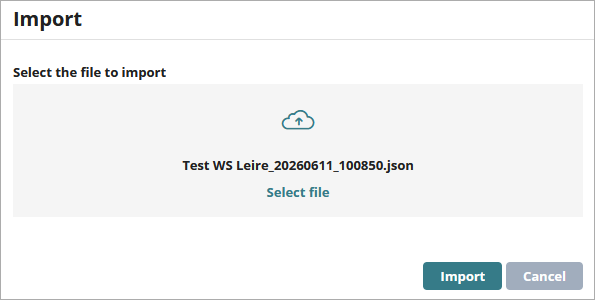
- Click Import.
To export settings, in the upper-right corner of the Settings page, click  .
.
Multi-Tenant Management — Assign Endpoint Security Settings to Managed Accounts
Multi-Tenant Management — Settings Inheritance for Subscriber Accounts
Multi-Tenant Management — Settings Inheritance for Service Provider Accounts