Applies To: Endpoint Security Elite
On the Script Blocking page, you configure rules to allow or block scripts on your endpoints.
Create a script blocking settings profile that you assign to the computers on your network. The settings profile contains a list of rules, and each rule includes a series of attributes that describe a script and an action (block or allow).
Each time a user tries to run a script on the endpoint, Endpoint Security Elite goes through the rules in the specified order and compares the script with the attributes defined in each rule. When it finds a rule that matches the script, it applies the corresponding action and ends the process. No other rules are considered.
Your operator role determines what you can see and do in WatchGuard Cloud. Your role must have the Configure Script Blocking permission to view or configure this feature. For more information, go to Manage WatchGuard Cloud Operators and Roles.
To configure rules to allow or block scripts:
- In WatchGuard Cloud, select Configure > Endpoint Security.
- Select Settings.
- From the left pane, select Script Blocking.
The list of existing Script Blocking profiles opens.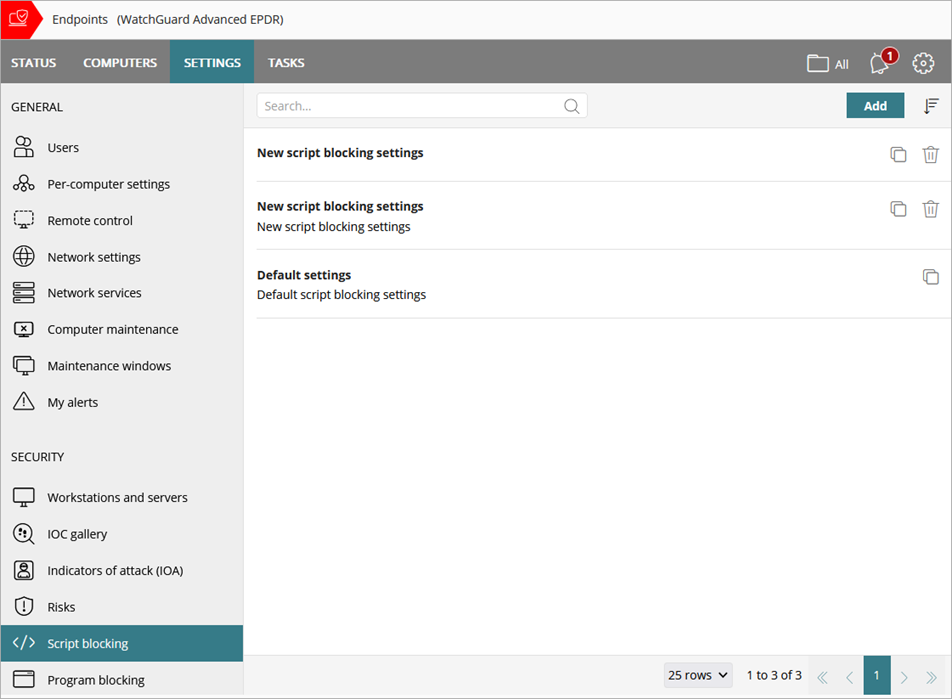
- Select an existing script blocking profile to edit, copy an existing profile, or in the upper-right corner of the page, click Add to create a new profile.
The Add Settings or Edit Settings page opens.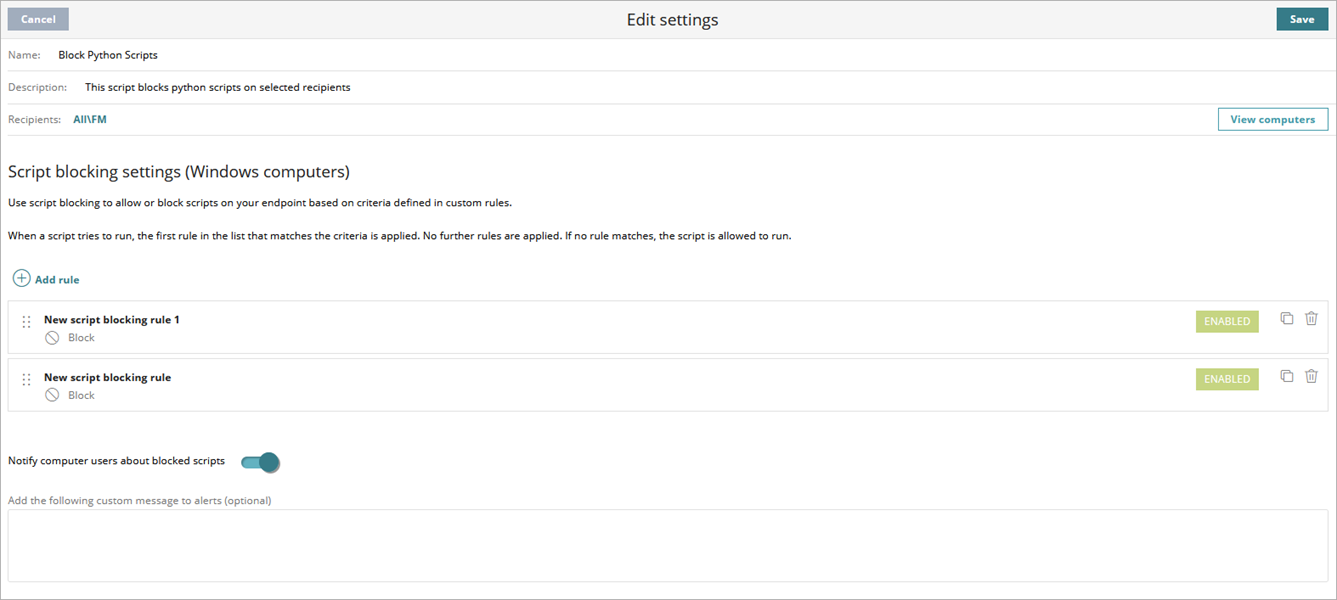
- Type a Name and Description for the profile, if required.
- To add a new rule, click Add Rule.
The Add Rule page opens.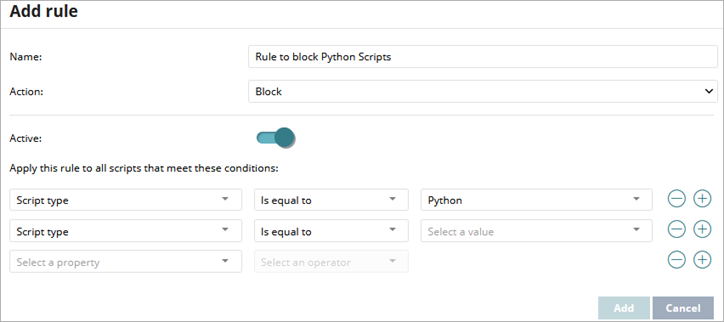
- In the Name text box, type a name for the rule.
- From the Action drop-down list, select Allow or Block.
- To make the rule active, enable the Active toggle.
- To configure the conditions for the rule:
- From the Select a Property drop-down list, select a property.
- From the Select an Operator drop-down list, select an operator.
- From the Select a Value drop-down list, select a value.
For more information, go to Operators and Values for Each Property.
- To add conditions to this rule, click
 and repeat Step 10.
 - To remove a condition from this rule, click
 .
. - Click Save.
The rule you added shows at the end of the list of rules..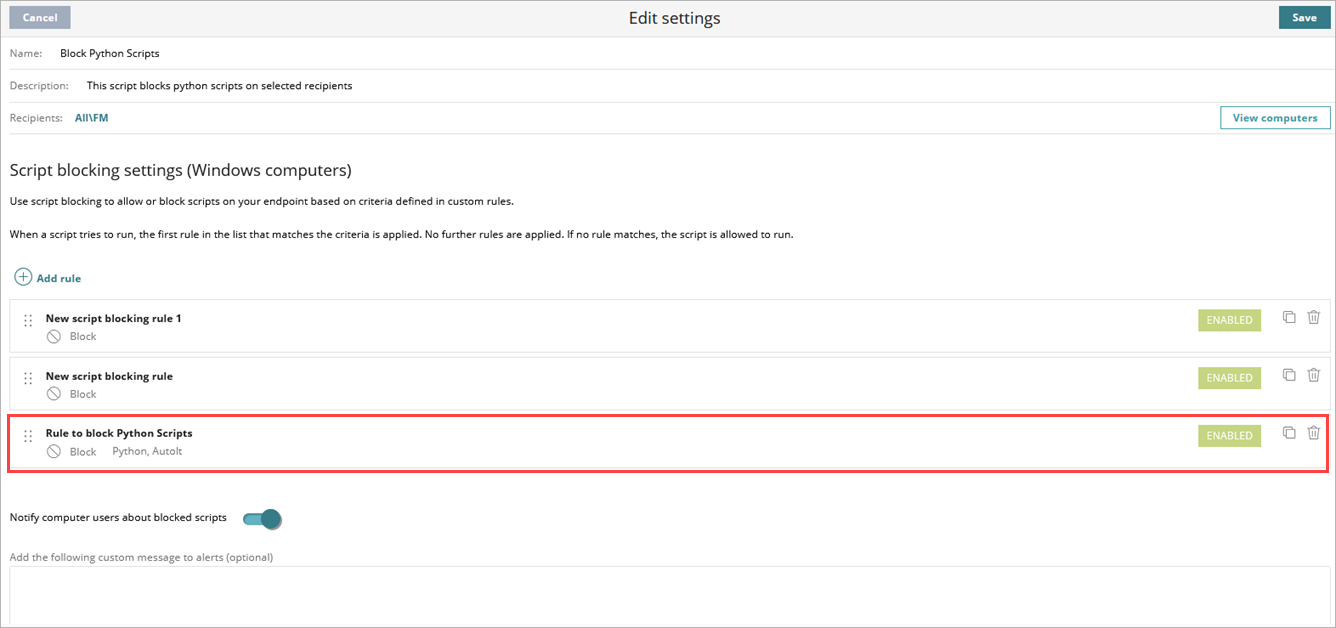
- To add more rules to the settings profile, repeat Steps 6 - 13.
- To change rule order, drag a rule to a new position in the list.
The script blocking action applies to the first rule in the list that matches the attributes of the script. If no rule matches, the script is allowed to run. - To notify computer users about scripts blocked by any of the rules, enable the Notify Computer Users About Blocked Scripts toggle.
- (Optional) To add a custom message to the alerts that show on the endpoint, type a message in the Add the Following Custom Message to Alerts text box.
- Click Save.
- Select the profile and assign recipients, if required.
For more information, go to Assign a Settings Profile.
To delete a rule from the profile, click  .
.
Operators and Values for Each Property
In a Script Blocking rule, you must select a property, operator, and value for each condition that you configure. This table shows the operator and possible values for each property.
| Property | Description | Operators | Values |
|---|---|---|---|
|
Command line |
Command line used to run the script. |
Is equal to Contains Starts with Ends with |
text |
|
Execution |
Script execution type (local or remote). |
Is equal to |
Local Remote |
|
Execution user |
User account that ran the script. |
Is equal to In Starts with Ends with |
text |
|
Interactive execution |
Script requires an interactive shell. |
Is equal to |
Yes No |
|
Loader file name |
Name of the file that interprets the script. |
Is equal to In Contains Starts with Ends with |
text |
|
Loader MD5 |
MD5 of the file that interprets the script. |
In Is equal to |
text |
|
Loader path |
Path of the file that interprets the script. |
Is equal to Contains Starts with Ends with |
text |
|
Loader SHA-256 |
SHA-256 of the file that interprets the script. |
In Is equal to |
text |
|
Owner |
Owner of the file that contains the script.
|
Is equal to In Starts with Ends with |
text |
|
Script file name |
Name of the file that contains the script. |
Is equal to In Contains Starts with Ends with |
text |
|
Script MD5 |
MD5 of the file that contains the script. |
In Is equal to |
text |
|
Script path |
Path of the file that contains the script. |
Is equal to Contains Starts with Ends with |
text |
|
Script SHA-256 |
SHA-256 of the file that contains the script. |
In Is equal to |
text |
|
Script type |
Programming language used to write the script, according to the file extension:
|
In Is equal to |
PowerShell BAAT/CMD/LNK AutoIt VBS/JS Python PHP MSHTA |