Applies To: Endpoint Security Elite, Endpoint Security 360, Endpoint Security Prime, WatchGuard EDR, WatchGuard EDR Core, Endpoint Security Basic
Software updates on Windows operating systems often require a computer restart. On the Maintenance Windows page, you can configure time slots during which Endpoint Security can upgrade its protection software and restart the endpoint computer. You can create a patch installation task to restart the computer (if necessary) during a maintenance window.
When you configure a maintenance window, the settings override the restart settings defined in patch installation tasks and per-computer settings profiles. Make sure that the maintenance windows settings profile assigned to your computers is correct.
Maintenance windows have a start and end time during which the update starts and must finish. Computer restart can be delayed when the task that applies the changes does not finish within the maintenance window. For example, if the task and notification time end when the maintenance window is already closed, the notification and the computer restart are postponed until the next scheduled time slot.
Your operator role determines what you can see and do in WatchGuard Cloud. Your role must have the Configure Maintenance Windows permission to view or configure this feature. For more information, go to Manage WatchGuard Cloud Operators and Roles.
To configure maintenance windows:
- In WatchGuard Cloud, select Configure > Endpoint Security.
- Select Settings.
- Select Maintenance Windows.
- Select an existing security settings profile to edit, copy an existing profile, or in the upper-right corner of the page, click Add to create a new profile.
The Add Settings or Edit Settings page opens.

- Enter a Name and Description for the profile, if required.
- Select the Frequency of the maintenance window from the drop-down menu.
- In the Time Slot section, specify the Start Time and End Time of the time slot. This is when Endpoint Security will open and close the maintenance window.
- To add another time slot, click Add Time Slot. You can configure up to four time slots for the specified frequency.
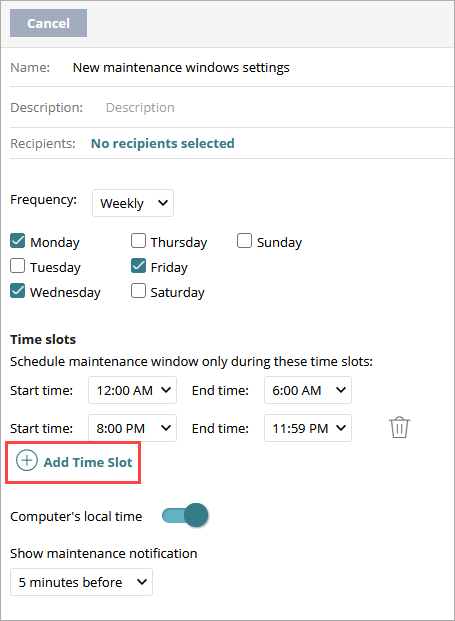
- To define the time slot based on the time zone where the endpoint is located, enable the Computer's Local Time toggle. When the toggle is disabled, the time zone is the same as the time zone of the WatchGuard server.
- From the Show Maintenance Notification drop-down list, select when you want to show a notification on the endpoint computer.
- Click Save.
- Select the profile and assign recipients, if required.
For more information, go to Assign a Settings Profile.
After you define maintenance windows, you can use them in patch installation tasks to schedule when an endpoint restarts after the patching process completes (if a restart is required). For more information, go to Configure Patch Management Settings.
Example Maintenance Window Scenarios
This section provides examples to illustrate how a maintenance window works with computer restart configuration.
Example 1: Configured notification occurs after the maintenance window ends
These parameters are specified in the maintenance window settings:
- Download task start: 15:00
- Maintenance window start: 16:00
- Maintenance window end: 17:00
- Notification time: 15 minutes
- Download and installation task duration: 1 hour and 50 minutes
In this example, the full process finishes after the end time of the maintenance window: download task start (15:00) + download and installation task (1 hour and 50 minutes) + notification time (15 minutes) = 17:05, which is after the maintenance window end time (17:00). The notification occurs at 16:00 during the next maintenance window, and the restart occurs at 16:15.
Example 2: Update download and installation occurs after the maintenance window ends
These parameters are specified in the maintenance window settings:
- Download task start: 16:30
- Maintenance window start: 16:00
- Maintenance window end: 17:00
- Notification time: 15 minutes
- Download and installation task duration: 35 minutes
In this example, the full process finishes after the end time of the maintenance window: download task start (16:30) + download and installation task (35 minutes) + notification time (15 minutes) = 17:20, which is after the maintenance window end time (17:00). The notification occurs at 16:00 during the next maintenance window, and the restart occurs at 16:15.
Example 3: Update download and installation occurs before the maintenance window ends and no notification is configured
These parameters are specified in the maintenance window settings:
- Download task start: 16:30
- Maintenance window start: 16:00
- Maintenance window end: 17:00
- Notification time: Do not notify
- Download and installation task duration: 25 minutes
In this example, the full process finishes before the end time of the maintenance window: download task start (16:30) + download and installation task (25 minutes) = 16:55, which is before the maintenance window end time (17:00). The restart occurs at 16:55 during the current maintenance window.
Configure Per-Computer Settings