Applies To: Endpoint Security Elite, Endpoint Security 360, Endpoint Security Prime, WatchGuard EDR, Endpoint Security Basic
Each WatchGuard Endpoint Security product includes software installed on endpoints and the Endpoint Security management UI to manage security for the devices and your IT network. To get started with Endpoint Security, complete these high-level steps:
- Step 1: Activate an Endpoint Security License
- Step 2: Allocate Endpoints (Service Providers Only)
- Step 3: Complete Pre-Deployment Activities
- Step 4: Deploy the WatchGuard Agent
This information is also described in the Get Started with Endpoint Security video tutorial (external link) in the Learning Center.
For information on how to get started with WatchGuard EDR Core (Total Security Suite), go to Quick Start — Set Up WatchGuard EDR Core.
Step 1: Activate an Endpoint Security License
- If you do not have a WatchGuard account, create one at https://accountmanager.cloud.watchguard.com/create-account.
- Activate your WatchGuard Endpoint Security product license in the WatchGuard website. For more information, go to Activate an Endpoint Security License.
Trial licenses are also available in WatchGuard Cloud. On the Administration > Trials page, you can start a trial of an endpoint product or module. Trial product licenses include up to 250 endpoint licenses for WatchGuard EDR, Endpoint Security Basic, Endpoint Security Prime, Endpoint Security 360, or Endpoint Security Elite. For more information, go to Start a Trial – Service Providers.
Step 2: Allocate Endpoints (Service Providers Only)
- Log in to your WatchGuard Cloud account.
-
Allocate endpoint licenses to your managed accounts.
For more information, go to Allocate Endpoints.
Step 3: Complete Pre-Deployment Activities
The Endpoint Security installation process consists of a series of steps that depend on the status of the network at the time of deployment and the number of computers and devices you want to protect. Before you deploy the WatchGuard Agent, we recommend that you complete these steps to plan the installation of Endpoint Security:
- Identify Unprotected Devices
- Verify Minimum Requirements for Target Devices
- Determine Computer Default Settings
Identify Unprotected Devices
Identify the physical and virtual Mac, Android, iOS, Windows, or Linux computers and devices you want to protect with Endpoint Security.
Verify that you have purchased enough licenses for the unprotected devices. Endpoint Security allows you to install the WatchGuard Agent even when you do not have enough licenses for all the computers you want to protect. Computers without a license still show information such as installed software and hardware on the computer details page, but are not protected.
For more information, go to Unmanaged Computers Discovered List .
Verify Minimum Requirements for Target Devices
Make sure that the computers and devices you want to protect meet the minimum installation requirements. For information on requirements, go to Installation Requirements in the Release Notes.
For modules requirements, go to the appropriate topic:
- WatchGuard Full Encryption Requirements
- Patch Management Requirements
- Advanced Visualization Tool Requirements
- Data Control Requirements
- SIEMFeeder Requirements
WatchGuard endpoint security products require access to multiple Internet-hosted resources. Make sure these URLs and ports are open to allow communication with the WatchGuard servers.
For more information on URLs and port access, go to WatchGuard Cloud URLs and Network Access Requirements.
Determine Computer Default Settings
When the client software is installed on the computer or device, Endpoint Security applies the group security settings to the computer or device. During installation, you select a target group for the computer with the required network settings. If the network settings for the selected group differ from the settings specified during installation, the installation settings apply.
For more information, go to Best Practices — Installation Tips for Endpoint Groups and Settings.
Configure the group organization and define settings before you deploy the WatchGuard Agent.
For more information about the different types of groups, and specific instructions, go to Manage Computers and Devices in Groups in Endpoint Security.
To add a group:
- In WatchGuard Cloud, select Configure > Endpoint Security.
- Select Computers.
- From the left pane, select
 My Organization.
 - Next to the group in which you want to add a group, click
 .
.
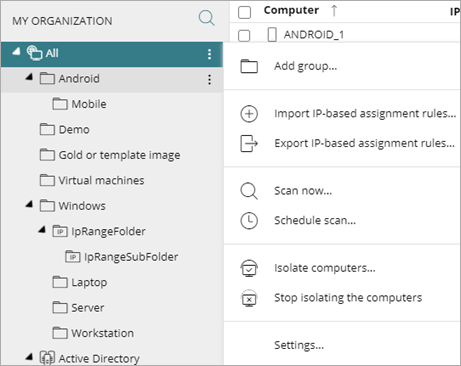
- Select Add Group.
The Add Group dialog box opens.
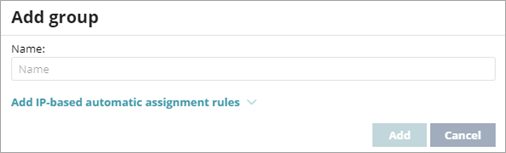
- Type a Name for the group.
- Click Add.
Endpoint groups can be used to configure deployment behavior for products installed by the WatchGuard Agent in the WatchGuard Cloud user interface. For more information, go to Configure WatchGuard Agent Deployment in WatchGuard Cloud.
To configure Endpoint Security settings for the endpoints where you want to install the WatchGuard Agent, you next create settings profiles. For information on available settings, go to:
In the next section, we provide recommendations for these settings profiles:
Configure Recommended Settings
You can create as many settings profiles as necessary to manage network security for different types of computers and devices. General settings enable you to review user activity, configure computer and network settings, configure computer maintenance, and schedule email alerts.
To create a settings profile:
- In WatchGuard Cloud, select Configure > Endpoint Security.
- Select Settings.
- From the left pane, select the type of security settings you want to create a profile for.
- In the upper-right corner, click Add.
The Add Settings page opens.
The Add Settings page shows different options for Endpoint Security Elite, 360, Prime, Basic, WatchGuard EDR and EDR Core.
- In the Name text box, type a new name for the settings profile.
- In the Description text box, type a description of the profile.
For example, you might describe the security needs addressed in the settings. - Expand each section and configure the settings.
Settings vary for Endpoint Security Elite, 360, Prime, Basic, WatchGuard EDR, and EDR Core. Throughout this documentation, Endpoint Security refers generally to all products. If a setting is not visible in the Endpoint Security management UI, it is not supported by your product.
- When you have configured all the settings, click Save.
For more information, go to Best Practices — Installation Tips for Endpoint Groups and Settings.
After you create a settings profile, you assign it to one or more computers or computer groups. You can assign settings profiles manually (directly) or automatically through inheritance from a group to subgroups, computers, and devices. When you assign a settings profile to a group, Endpoint Security applies the security settings immediately to all of the computers and devices in the group. For more information, go to Assign a Settings Profile.
You might also want to switch to Service Provider settings where you can define settings as templates and assign them across multiple accounts. These settings can be standardized and easily applied across all your clients. For information on how to centrally manage settings for multiple accounts, go to Multi-Tenant Management of Settings Profiles.
Workstations and Servers Settings
Configure security settings profiles to define how Endpoint Security protects the workstations and servers on your network against threats, malware, and network attacks.
Alerts
In the General settings of a workstations and servers settings profile, you can configure local alerts to show on Windows, Mac, and Linux computers when Endpoint Security denies content. For example, it could be useful to add contact information for users to follow up. For more information, go to About Alerts and Configure Email Alerts.
Zero-Trust Application Service
In the Zero-Trust Application Service settings of a workstations and servers settings profile, you can configure Endpoint Security to detect and block malicious programs. There are three available operating modes: Learning, Hardening, and Lock.
Initially, you can configure the Zero-Trust Application Service in Hardening mode to start the learning and classification process. After two weeks, you can change the mode to Lock mode. In Lock mode, Endpoint Security does not allow software to start if it is in the process of classification or is already classified as malware. For more information, go to Configure the Zero-Trust Application Service.
Firewall, Device Control, and Web Access Control settings are disabled by default. Review these settings to determine if they are required in your environment.
Per-Computer Settings
On the Per-Computer Settings page, you create settings profiles that specify how often to install protection software updates on workstations and servers. You can also define settings to prevent tampering and unauthorized uninstallation of the protection software.
Automatic Updates
By default, automatic updates for Endpoint Security software is enabled. You can schedule these updates to occur when they will not interfere with other updates or backups. For more information, go to Configure Updates.
Avoid Endpoint Security updates at the same time as Windows updates. Windows updates will take precedence and could cause the Endpoint Security update to fail.
Anti-Tamper Password
Configure security against tampering to make sure that only authorized users can disable or uninstall Endpoint Security with a password. For information on how to set the anti-tamper password, go to Configure Security Against Tampering (Windows and Linux computers).
Shadow Copies
Shadow copies is a technology included in Windows computers that can create a snapshot of computer files, even when they are in use. This is useful to recover previous versions of files, and it can potentially protect Windows computers from ransomware attacks. For more information, go to Configure Shadow Copies.
When enabled in Endpoint Security, Windows creates a shadow copy every 24 hours. Endpoint Security retains up to 7 copies at a given time. You cannot delete a shadow copy created. To restore a backup, you must use the Windows Shadow Copies app on your computer. This feature requires extra disk space. You might want to disable the feature to save disk space.
Endpoint Access Enforcement Settings
Endpoint Access Enforcement monitors connections to computers on your network to reduce threats from unprotected devices (Windows, Mac, and Linux). In an Endpoint Access Enforcement settings profile, you configure settings to specify the conditions that identify a computer at risk and an action to take for inbound connections from computers at risk. By default, Endpoint Access Enforcement monitors inbound connections for SMB and RDP traffic. You can specify additional protocols to monitor for inbound connections.
For information on how to configure Endpoint Access Enforcement settings, go to Configure Endpoint Access Enforcement Settings (Windows Computers).
With Endpoint Security Elite, 360, and WatchGuard EDR, you monitor and block inbound connections from computers at risk. You can review this information on the Endpoint Access Enforcement Dashboard to take action on the at-risk devices.
Step 4: Deploy the WatchGuard Agent
After you create groups and assign settings to each group, you deploy the WatchGuard Agent to install Endpoint Security with these settings on the endpoints.
For accounts with more than one WatchGuard product license (for example, an Endpoint Security product license and a FireCloud license), the Configure > Agent Deployment page in WatchGuard Cloud is useful to centrally configure product deployment behavior for endpoint groups and endpoints. For more information, go to Configure WatchGuard Agent Deployment in WatchGuard Cloud.
The deployment strategy depends on the number of devices to protect, the devices with a WatchGuard Agent already installed, and the company network architecture, including whether there is a mobile device management solution in use.
For information specific to your installation scenario and platform, go to the appropriate installation topic:
- Download the WatchGuard Agent Installer for Endpoint Security Products
- Install the Endpoint Software Locally
- Install the Endpoint Security Software on Windows Computers and Servers
- Install the Endpoint Security Software on Mac Computers
- Install the Endpoint Security Software on Linux Computers
- Install the WatchGuard Mobile Security App on Android Devices
- Install the WatchGuard Mobile Security App on iOS Devices
- Install the Endpoint Software Remotely (Windows Computers)
- Deploy the Endpoint Software with Centralized Tools (Windows Computers)
- Install the Endpoint Software on Virtual Environments with a Template or Gold Image (Windows Computers)
Endpoint Security Installation Requirements (external link)
Endpoint Security Installation Plan
Microsoft Intune Integration with the WatchGuard Agent
Unmanaged Computers Discovered List
Troubleshoot WatchGuard Endpoint Security