Contents
Deployment Overview
This document describes how to set up multi-factor authentication (MFA) for VMware Horizon 8 with AuthPoint as an identity provider. VMware Horizon 8 must already be configured and deployed before you set up MFA with AuthPoint.
VMware Horizon 8 can be configured to support MFA in several modes. For this integration, we set up RADIUS with AuthPoint.
Integration Summary
The hardware and software used in this guide include:
- VMware Horizon 8
- VMware Horizon Connection Server 8.8.0
- VMware vCenter Server 7.0.0
- VMware Horizon Agent 8.8.0
- VMware Horizon Client 8.8.1
- AD DS, AD CS, and DNS on Windows Server 2019
- WatchGuard Cloud
- AuthPoint Gateway v7.1.2.600 or higher
VMware Horizon 8 Configuration for RADIUS Authentication
AuthPoint communicates with various cloud-based services and service providers with the RADIUS protocol. This diagram shows an overview of the configuration required for RADIUS authentication.

Before You Begin
Before you begin these procedures, make sure that:
- Horizon Connection Server is connected to vCenter Server
- vCenter Server manages a Virtual Machine that has Horizon Agent installed
- Horizon Connection Server has published one or more apps that exist on the Virtual Machine with Horizon Agent installed
- You can use Horizon Client to log in to Connection Server and invoke published app(s) with a user that exists in the Active Directory domain
- A token is assigned to a user in AuthPoint
- You have installed and configured the AuthPoint Gateway (see About Gateways)
Configure VMware Horizon 8
- Log in to the Horizon Console as an administrator.
- From the navigation menu, select Settings > Servers > Connection Servers.
- Select the existing connection server.

- Click Edit.
- Select the Authentication tab.
- In the Advanced Authentication section, from the 2-factor authentication drop-down list, select RADIUS.
- Select the Enforce 2-factor and Windows user name matching check box.
- Select the Use the same user name and password for RADIUS and Windows authentication check box.
If you don't select this check box, users will be prompted to type the password twice. - From the Authenticator drop-down list, select Create New Authenticator.

- In the Authenticator Name text box, type a name for the authenticator. In our example, we name the authenticator AuthPoint.

- Click Next.
- In the Hostname/Address text box, type the IP address or host FQDN of the server where the AuthPoint Gateway is installed.
- In the Authentication Port text box, type 1812.
- In the Accounting Port text box, type 0.
- From the Authentication Type drop-down list, select PAP.
- In the Shared Secret text box, type a shared secret that VMware will use to communicate with the AuthPoint Gateway. You must specify this same shared secret when you configure a RADIUS client resource in AuthPoint.
- In the Server Timeout text box, type 60.
- In the Max Attempts text box, type 5.
- Leave the default settings for the other options.

- Click Next.
- Click Finish.

- Click OK.
Configure AuthPoint
Before AuthPoint can receive authentication requests from Horizon Connection Server, you must specify the Horizon Connection Server client as a RADIUS client resource in AuthPoint. You must also create a Zero Trust authentication policy for the Horizon Connection Server RADIUS resource and you must bind the Horizon Connection Server RADIUS resource to the AuthPoint Gateway.
Add a RADIUS Client Resource in AuthPoint
From the AuthPoint management UI:
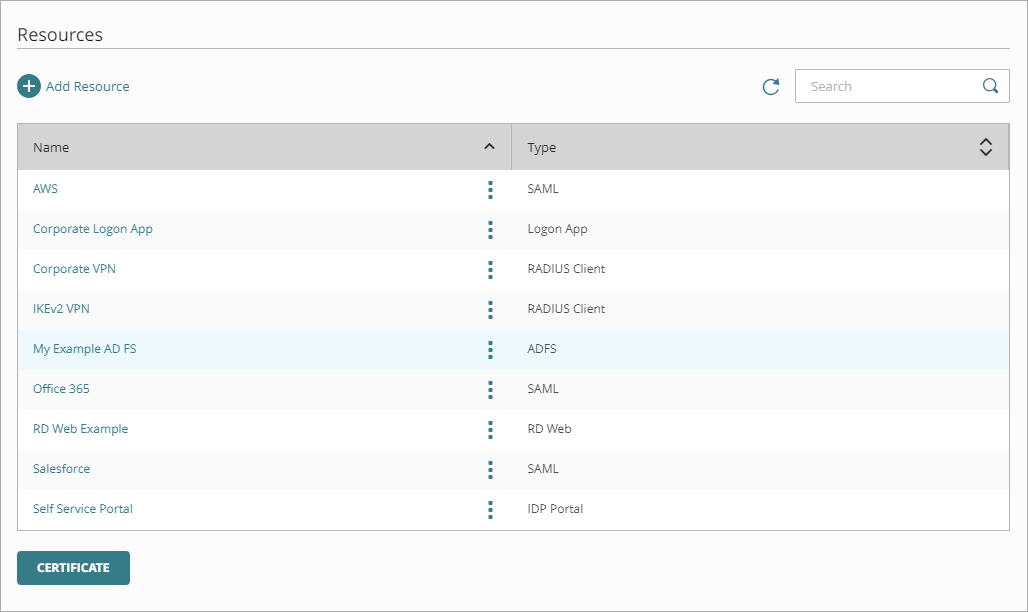
- From the navigation menu, select Resources.
Click Add Resource.
The Add Resource page opens.
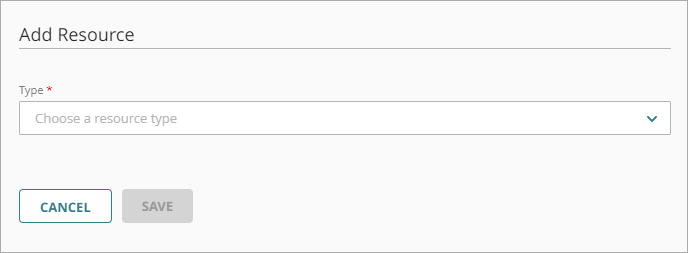
- From the Type drop-down list, select RADIUS Client.
Additional fields appear.
- On the RADIUS page, in the Name text box, type a name for this resource. In our example, we name this resource Horizon Connection Server.
- In the RADIUS client trusted IP or FQDN text box, type the IP address that your RADIUS client uses to send RADIUS packets to the AuthPoint Gateway. This must be a private IP address.
- From the Value sent for RADIUS attribute 11 (Filter-Id) drop-down list, select User's AuthPoint group.
- In the Shared Secret text box, type the shared secret that you configured for Horizon Connection Server in the previous section. This is the password that the RADIUS server (AuthPoint Gateway) and the RADIUS client (Horizon Connection Server) use to communicate.
- Click Save.

Add a Group in AuthPoint
You must have at least one user group in AuthPoint to configure MFA. If you already have a group, you do not have to add another group.
To add a WatchGuard Cloud-hosted group to the WatchGuard Cloud Directory:
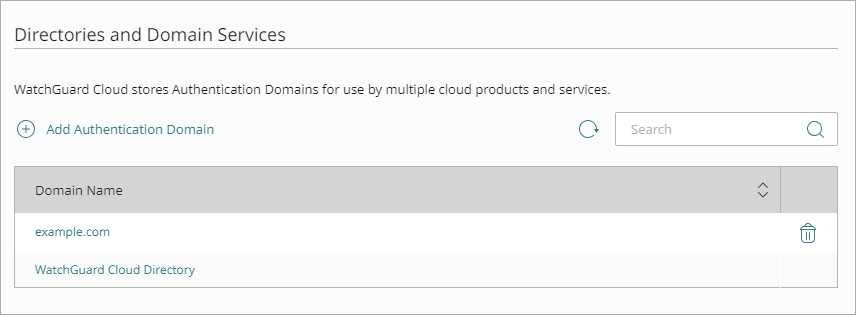
- Go to Configure > Directories and Domain Services.
- Click the WatchGuard Cloud Directory domain name. If you have not yet added the WatchGuard Cloud Directory, click Add Authentication Domain and select the WatchGuard Cloud Directory.
The New Group page appears.
- In the Groups tab, click Add Group.
- In the Group Name text box, type a descriptive name for the group.
- (Optional) In the Description text box, type a description of the group.

- Click Save.
Your group is added to the WatchGuard Cloud Directory and to AuthPoint.
Add a Zero Trust Authentication Policy
Zero Trust policies specify which resources users can authenticate to and which authentication methods they can use.
You must have at least one Zero Trust authentication policy that includes the VMware Horizon 8 resource. If you already have Zero Trust authentication policies, you do not have to create a new authentication policy. You can add this resource to your existing authentication policies.
Users that do not have an authentication policy for a specific resource cannot authenticate to log in to that resource.
To configure a Zero Trust authentication policy:
- Go to Configure > Zero Trust. If you have a Service Provider account, you must select an account from Account Manager.
- Click Add Policy.
- Type a name for this policy.
- In the Target section, from the Content drop-down list, select which groups this policy applies to. You can make multiple selections to add multiple groups.
- In the Resources section, select the AuthPoint resources this policy applies to.
- In the Conditions section, select the conditions that apply to this policy. When you add a condition to an authentication policy, the policy applies only to user authentications that match the policy and the policy conditions. For example, if you add a time schedule to a policy, the policy only applies to user authentications that occur within that time schedule. Users who only have a policy that includes a time schedule do not get access to the resource when they authenticate outside of the allowed times (because they do not have a policy that applies, not because authentication is denied). For more information, go to About Zero Trust Conditions
For RADIUS authentication, policies that have a Network Location do not apply because AuthPoint does not have the IP address of the user.
- (Optional) To create a new condition, click Add New Condition. After you create a new condition, you must still add the condition to the policy.
- From the Type drop-down list, select the type of condition to add to the policy.
- From the Name drop-down list, select which condition of the chosen type to add to the policy.
- To add more conditions, repeat Step 6.
If you add conditions to a policy, we recommend that you create a second policy for the same groups and resources without the conditions. Assign a higher priority to the policy with the policy objects. For more information about priority, go to About Zero Trust Policy Precedence.
- In the Action section, select an option to specify whether to allow or deny authentications for the resources in this policy. In our example, we want to allow authentications.
- Allow — Allow user groups in this policy access to the resources associated with this policy.
- Deny — Deny authentications when users in the groups associated with this policy try to authenticate to the resources associated with this policy.
- If you allow access with this policy, select the check box for each authentication option users can select when they authenticate to resources in this policy with MFA.
If you enable the push and OTP authentication methods for a policy, RADIUS client resources associated with that policy use push notifications to authenticate users.
QR code authentication is not supported for RADIUS client resources.
For RADIUS authentication, you append your OTP to the end of your password. Do not add a space. For example, password112233.
- Click Save.
Your policy is created and added to the end of the policy list. - Review the order of your policies and adjust as necessary. For more information about priority, go to About Zero Trust Policy Precedence.
Bind the RADIUS Resource to a Gateway
To use RADIUS authentication with AuthPoint, you must have the AuthPoint Gateway installed on your corporate network and you must assign your RADIUS resources to the Gateway in the AuthPoint management UI. The Gateway functions as a RADIUS server.
If you have not already configured and installed the AuthPoint Gateway, see About Gateways.
To assign your RADIUS resources to the Gateway:
- From the navigation menu, select Gateway.
- Select the Name of the Gateway.
-
From the RADIUS section, in the Port text box, type the port number used to communicate with the Gateway. The default ports are 1812 and 1645.
If you already have a RADIUS server installed that uses port 1812 or 1645, you must use a different port for the AuthPoint Gateway.
- From the Select a RADIUS Resource drop-down list, select your RADIUS client resource.
- Click Save.
Sync Users to AuthPoint from Active Directory
You must create AuthPoint user accounts for your users. To sync users from Active Directory, you must add an LDAP external identity and create one or more queries.
In AuthPoint, LDAP external identities represent external user databases. They connect to user databases to get user account information and validate passwords. The queries you add to an external identity specify which users to sync from your Active Directory or LDAP database. They pull user information and create AuthPoint user accounts for the users that are found.
For detailed instructions to sync users from Active Directory, see Sync Users from Active Directory or LDAP.
Test the Integration
To test the integration of AuthPoint and the configuration of VMware Horizon 8, you can authenticate with a mobile token on your mobile device. For RADIUS resources, you can choose one-time password (OTP) or push.
In this example, we show the push authentication method (users receive a push notification in the mobile app that they must approve to authenticate).
- Open VMware Horizon Client.
- Connect to Horizon Connection Server external FQDN.
- Type your AuthPoint user name and password.
- Click Login.
- Approve the authentication request that is sent to your mobile device.
You are logged in to VMware Connection Server, then you can invoke the published app.