Follow these steps to add and deploy a WatchGuard AP130, AP230W, AP330, AP332CR, AP430CR, or AP432 access point in WatchGuard Cloud:
To view these instructions in other languages, go to Additional Language Support
To learn more about how to add an access point to WatchGuard Cloud, go to the Get Started with Wi-Fi in WatchGuard Cloud video tutorial (5 minutes).

To activate an access point for WatchGuard Cloud, you must have:
- Serial Number — The hardware serial number located on the device.
- License Key — The license key for the type of Wi-Fi access point license you purchased. For more information, see Wi-Fi in WatchGuard Cloud アクセス ポイント ライセンスについて。
Wi-Fi in WatchGuard Cloud アクセス ポイントの場合、シリアル番号はAP130、AP230W、AP330、AP332CR、AP430CR、または AP432 のものでなければなりません。ライセンス キーは、WatchGuard Standard Wi-Fi ライセンスまたは WatchGuard USP Wi-Fi ライセンスのものでなければなりません。
To activate your access point:
- Go to https://myproducts.watchguard.com/activate.
- Log in to your WatchGuard account, or create a new account if you do not have a WatchGuard account.
If you create a new WatchGuard account, after you finish the account creation process, go to https://myproducts.watchguard.com/activate, or select My WatchGuard > Activate Products.

- Type the Serial Number for your access point. Click Continue.
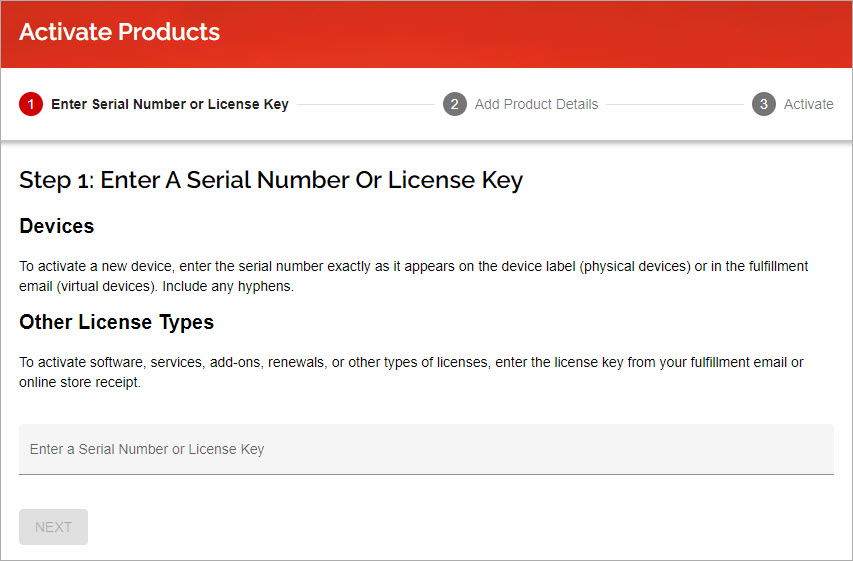
- Type the License Key for your access point. Click Next.
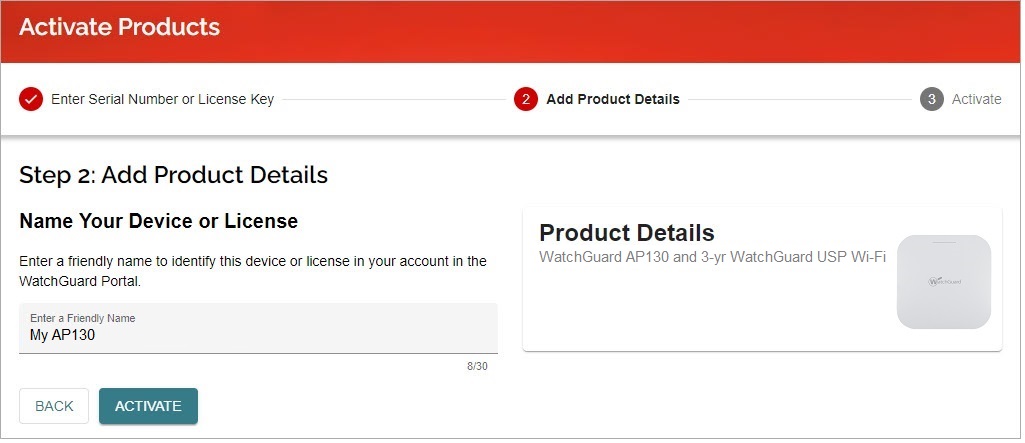
- Specify a friendly name for the access point in your WatchGuard account.
- Click Activate.
After you activate an access point, WatchGuard automatically generates a device feature key for your access point and it is applied to the device. You can view the details of the device feature key in your WatchGuard account.
If you are a Service Provider, in WatchGuard Cloud, select Inventory > Access Point, and allocate the access point to a Subscriber account.
For more information, see アクセス ポイントの割り当て。
アクセス ポイントを WatchGuard Cloud に追加するには、以下の手順を実行します。
- WatchGuard Cloud の Subscriber アカウントにログインします。
- 構成 > デバイス の順に選択します。
- デバイス マネージャーで、デバイスを追加する をクリックします。
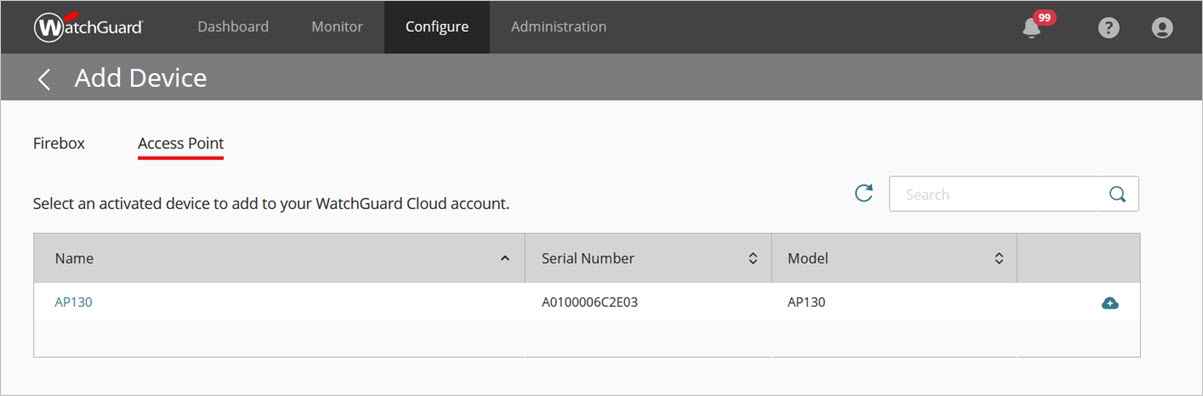
アクティブ化されたデバイスのリストが開きます。 - アクセス ポイント タブを選択します。
アクティブ化されたアクセス ポイントのリストが開きます。
WatchGuard Cloud に追加する代替 (RMA) アクセス ポイントがある場合は、代替 ラベルによってデバイスが識別されます。新規のデバイスと同時に代替デバイスを WatchGuard Cloud に追加することはできません。
- 追加するアクセス ポイントの 名前 をクリックする、または
 をクリックします。ヒント!
確認ダイアログ ボックスが開きます。

- デバイスを追加する をクリックします。
WatchGuard Cloud にデバイスを追加する ページが表示されます。 - アクセス ポイントの デバイス名 とオプションの 説明 を入力します。
既定の名前は、デバイスの登録名となります。

- アクセス ポイントを配置する場所の タイム ゾーン を選択します。次へ をクリックします。
- デバイスを追加するフォルダを選択します。デバイス フォルダ により、デバイスのグループのステータスと概要データを容易に確認することができます。
ルート フォルダが 1 つしかない場合は、フォルダ リストは表示されません。 - IP アドレス構成 ドロップダウン リストから 以下のいずれかのオプションを選択して構成してから、次へ をクリックします。

DHCP IP アドレス
IP アドレスを要求するのに DHCP を使用するには、このオプションを選択してアクセス ポイントを構成します。
静的 IP アドレス
静的 IP アドレスを使用するには、このオプションを選択してアクセス ポイントを構成します。
ネットワーク IP アドレス と ネットマスク、同じサブネットの Gateway、および DNS サーバー を構成します。
管理 VLAN を有効化する
このアクセス ポイントへの管理通信にタグ付き VLAN を使用する場合は、管理 VLAN を有効化する チェックボックスを選択します。1 ~ 4094 の中から VLAN ID を選択します。
- アクセス ポイントに適用する Access Point Site 設定を選択します。
Access Point Site を使用すると、複数のクラウド管理アクセス ポイントの共有ワイヤレス設定を管理および配備することができます。詳細については、次を参照してください:Access Point Site について。
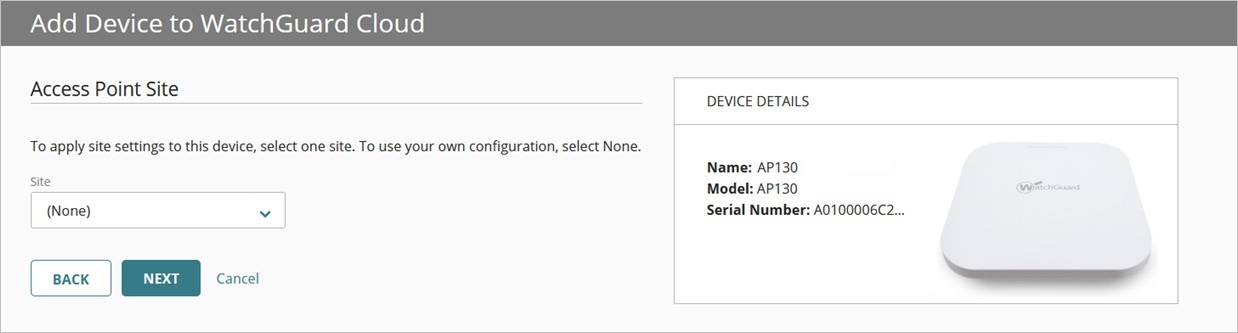
サイト ドロップダウン リストから、既存のサイトを選択する、または なし を選択してデバイスに独自の設定を使用します。
配備ウィザードは、アクセス ポイントのファームウェア バージョンが、選択したサイト構成で有効化されている機能をサポートしているかどうかを確認します。
サイト構成配備の機能がアクセス ポイントの現在のファームウェア バージョンでサポートされていない場合、新規のデバイスは、Access Point Site 構成の要件を満たすため、利用可能な最新のファームウェア バージョンに自動的にアップグレードされます。
次へ をクリックします。
- アクセス ポイントの 管理者のパスワード を入力します。
これは、デバイスのトラブルシューティングの際に使用するローカル アクセスのアクセス ポイント Web UI および Command Line Interface (CLI) の管理者パスワードです。このパスワードは、WatchGuard Cloud のデバイス構成で後から変更することができます。詳細については、次を参照してください:アクセス ポイント デバイス パスワード。

- 完了 をクリックします。
これにより、WatchGuard Cloud のデバイスのリストにアクセス ポイントが表示されます。
Connect your access point to the network and power on the device. If you specified DHCP when you added the device, make sure that DHCP is enabled on the network where you connect the access point.
The access points use TCP port 443 to connect to WatchGuard Cloud.
Access points must also be able to connect to these destinations:
- *.watchguard.io for product activation and feature key updates
- featurekeyapi.watchguard.io
- *.watchguard.com for WatchGuard Cloud registration and connections, and firmware updates
- accesspoint.agent.watchguard.com
- accesspoint.<region>.agent.watchguard.com
- accesspoint.iot.<region>.cloud.watchguard.com
- cdn.watchguard.com
- Access points must be able to resolve DNS queries with the DNS server the device receives from DHCP.
- Access points must initially be able to connect to *.pool.ntp.org on NTP port 123 (TCP/UDP) for the default access point time synchronization servers, and for any custom NTP servers set for the device.
- Connect an Ethernet cable to the appropriate interface on the device:
- AP130 — LAN (PoE) interface
- AP230W — PoE In LAN/Uplink interface
- AP330 — LAN (PoE+) interface
- AP332CR — LAN (PoE) interface
- AP430CR — LAN1 (PoE+) interface
- AP432 — LAN (PoE+) interface
If your network does not support Power over Ethernet (PoE), connect the optional power adapter or PoE injector (sold separately). Make sure to connect access points that require PoE+ power to a PoE+ compatible power source.
- Connect the other end of the Ethernet cable to your network.
After you power on the access point, wait several minutes for the device to initialize, then verify that the LED indicators are lit. When the access point is successfully connected to WatchGuard Cloud, the LED will be solid blue.
If the LED indicators are not solid blue and you cannot see the device in WatchGuard Cloud, see Troubleshoot Access Point Connectivity。
You can also view the LED indicator status descriptions in the Hardware Guide for your device.
If you did not select an Access Point Site when you added the access point to WatchGuard Cloud, you can configure access point SSIDs, device settings, and radio settings.
For more information, see:
When complete, deploy your changes to WatchGuard Cloud to update the device.
To view your access point status in WatchGuard Cloud:
- Select Monitor > Devices.
- In Device Manager, select the access point to view the device summary.
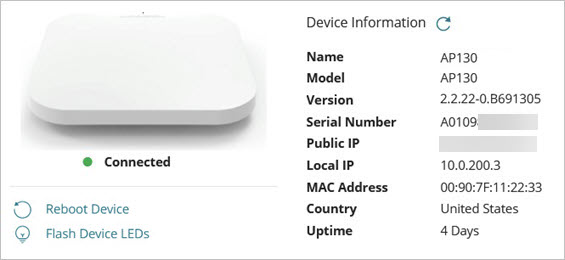
When the device is successfully connected to WatchGuard Cloud, the device status is Connected.
It may take several minutes for the access point to connect to WatchGuard Cloud. Check the Troubleshoot Access Point Connectivity section if the access point does not connect to WatchGuard Cloud.
- To test connectivity, use a wireless client to connect to the SSID broadcast by the access point.
- Select Live Status > Clients.
Refresh the page until you see your client connected to the access point.

Troubleshoot Access Point Connectivity
It may take several minutes for the access point to connect to WatchGuard Cloud. If you do not see your access point in WatchGuard Cloud, check the following:
- Make sure you have activated your access point with a valid device serial number and license key in your WatchGuard account. The license key must be for a WatchGuard Standard or USP Wi-Fi license for Wi-Fi in WatchGuard Cloud.
- If you are a service provider, make sure you have allocated the activated access point to a subscriber account in WatchGuard Cloud.
- Make sure you have added the access point to your WatchGuard Cloud subscriber account.
- If you have configured DHCP, make sure your access point has received an IP address from DHCP and can connect to the network.
- Access points must be able to resolve DNS queries with the DNS server the device receives from DHCP.
- Access points must initially be able to connect to *.pool.ntp.org on NTP port 123 (TCP/UDP) for the default access point time synchronization servers, and for any custom NTP servers set for the device.
- Access points use TCP port 443 to connect to WatchGuard Cloud. Access points must also be able to connect to these destinations:
- *.watchguard.io for product activation and feature key updates
- *.watchguard.com for WatchGuard Cloud registration and connections
- If you set up an access point behind a firewall that performs inspection on HTTPS traffic, you must add *.watchguard.io to the content inspection exception / bypass list to enable the access point to receive a feature key from WatchGuard servers. On the WatchGuard Firebox, this is enabled by default for cloud-managed Fireboxes in WatchGuard Cloud.
Access Point LED Indicators
Wi-Fi in WatchGuard Cloud アクセス ポイントには、WatchGuard Cloud デバイスが起動中、アクティベーション中、機能キーのダウンロード中、WatchGuard Cloud デバイスの登録中、および WatchGuard Cloud への接続中にさまざまなステータスを表示することができる LED インジケータがあります。
デバイスが WatchGuard Cloud に接続され、青色一色の LED インジケータが点灯するまでに、アクセス ポイントは各ステージを短時間経過します。アクセス ポイントのステータスが青色の LED インジケータを示さずに一定時間同じ状態のままになっている場合は、ネットワークの問題、アクティベーションや機能キーの問題あるいはWatchGuard Cloud アカウントの問題が発生している可能性があります。
LED インジケータのステータスおよび問題のトラブルシューティング方法については、以下の表を参照してください。
| LED の色 | ステータス | トラブルシューティング |
|---|---|---|
| 赤またはオレンジ色に点灯 | デバイスが起動中 |
アクセス ポイントがこの状態のままになっている場合は、アクセス ポイントのプロセスが開始されていないか、アクセス ポイントのファームウェアに問題がある可能性があります。
|
|
オレンジまたは赤色で点滅 |
アクセス ポイントのアクティベーションを検証し、機能キーをダウンロードする |
アクセス ポイントが以下の状態のままの場合:
|
| オレンジまたは赤色で点滅 (中: 500 ミリ秒) |
WatchGuard Cloud デバイス登録 |
アクセス ポイントが以下の状態のままの場合:
|
| オレンジまたは赤色で点滅 (遅い:2 秒) |
WatchGuard Cloud サーバーへの接続 |
アクセス ポイントが以下の状態のままの場合:
|
| 青色 | WatchGuard Cloud に正常に接続済み | デバイスはオンラインで WatchGuard Cloud に接続されています。 |
| 青色で点滅 | WatchGuard Cloud からの点滅 LED アクション | LED が識別のため 60 秒間青色で点滅します。 |
| 青色と赤色で点滅 | アクセス ポイントがシステム整合性チェックに失敗 | デバイスの LED が 1 秒ごとに青色と赤色で交互に点滅している場合は、デバイスがシステム整合性チェックに失敗し、フェイルセーフ モードで再起動したことを示しています。WatchGuard サポートに連絡して、デバイスを交換する必要があります。 |
Troubleshoot Access Point Issues from the Web UI or Command Line Interface (CLI)
In some cases, you may need to connect directly to your device to troubleshoot issues if you cannot view or manage the access point from WatchGuard Cloud.
- For more information on how to connect to the access point Web UI, go to アクセス ポイント Web UI。
- For more information on how to connect to the access point CLI, go to アクセス ポイントの Command Line Interface。
From the Web UI or Command Line Interface (CLI) of the device, you can perform these functions:
- View current device statistics
- View system and process logs
- Check feature key status and import a new feature key
- Update the firmware
- Reboot the device
- Change the IP address and VLAN settings
- Perform troubleshooting diagnostics tasks (ping, traceroute, telnet, and more)
- Reset the access point to factory default settings
Additional Language Support
Prise en main du Wi-Fi dans WatchGuard Cloud
Suivez ces étapes pour déployer un access point WatchGuard AP130, AP230W, AP330, AP332CR, AP430CR ou AP432 dans WatchGuard Cloud :
1. Activer votre Access Point
Pour activer un access point pour WatchGuard Cloud, vous devez détenir :
- Numéro de Série — Le numéro de série de l'équipement, inscrit sur le périphérique.
- Clé de Licence — La clé de licence correspondant à la licence d'access point Wi-Fi que vous avez achetée.Pour plus d'informations, consultez Wi-Fi in WatchGuard Cloud アクセス ポイント ライセンスについて。
Pour activer votre access point :
- Rendez-vous sur https://myproducts.watchguard.com/activate.
- Connectez-vous à votre compte WatchGuard ou créez un nouveau compte si vous n'en disposez pas.
Si vous créez un nouveau compte WatchGuard, une fois le processus de création de compte terminé, accédez à https://myproducts.watchguard.com/activate ou sélectionnez Mon WatchGuard > Activer des Produits.
- Saississez le Numéro de Série de votre access point. Cliquez sur Continuer.
- Saisissez la Clé de Licence de votre access point. Cliquez sur Suivant.
- Indiquez un nom convivial pour l'access point dans votre compte WatchGuard.
- Acceptez le Contrat de Licence Utilisateur Final.
- Une fois l'activation terminée, cliquez sur Terminer.
Après l'activation d'un access point, WatchGuard génère automatiquement une clé de fonctionnalité d'access point qui est appliquée au périphérique. Vous pouvez consulter les détails de la clé de fonctionnalité du périphérique dans votre compte WatchGuard.
2. Assigner un Access Point à un Compte Subscriber (Service Providers Uniquement)
Si vous êtes Service Provider, dans WatchGuard Cloud, sélectionnez Inventaire > Access Point et assignez l'access point à un compte Subscriber.
Pour de plus amples informations, consultez アクセス ポイントの割り当て。
3. Ajouter l'Access Point à WatchGuard Cloud
Pour ajouter un access point à WatchGuard Cloud :
- Connectez-vous à votre compte Subscriber WatchGuard Cloud.
- Sélectionnez Configurer > Périphériques.
- Dans le Gestionnaire de Périphériques, cliquez sur Ajouter un Périphérique.
Une liste des périphériques activés s'affiche. - Sélectionnez l'onglet Access Point.
- Cliquez sur le Nom de l'access point que vous souhiatez ajouter ou cliquez sur.
Une boîte de dialogue de confirmation s'ouvre. - Cliquez sur Ajouter un Périphérique.
La page Ajouter un Périphérique à WatchGuard Cloud s'ouvre. - Saisissez un Nom de Périphérique pour l'access point.
Le nom par défaut est le nom enregistré du périphérique. - Sélectionnez le Fuseau Horaire de l'emplacement de l'access point. Cliquez sur Suivant.
- Dans la liste déroulante Configuration d'Adresse IP, sélectionnez et configurez l'une de ces options, puis cliquez sur Suivant.
Adresse IP DHCP
Choisissez cette option configurer l'access point afin qu'il obtienne son adresse IP par DHCP.
Adresse IP Statique
Choisissez cette option pour configurer l'access point afin qu'il utilise une adresse IP statique.
Configurez l'Adresse IP du Réseau et le Masque réseau, une Gateway du même sous-réseau et un Serveur DNS.
Activer le VLAN de Gestion
Cochez la case Activer le VLAN de Gestion si vous souhaitez utiliser un VLAN balisé pour les communications de gestion de l'access point. Choisissez un ID de VLAN entre 1 et 4094.
- Choisissez les paramètres Access Point Site que vous souhaitez appliquer à l'access point.
Access Point Sites vous permet de gérer et déployer des paramètres sans fil partagés pour plusieurs access points gérés sur le cloud. Pour plus d'informations, consultez Access Point Site について。
Dans la liste déroulante Site, choisissez un site existant ou choisissez Aucun pour utiliser votre propre configuration pour le périphérique.
Cliquez sur Suivant.
- Saisissez un Mot de Passe Admin pour l'access point.
Il s'agit du mot de passe administrateur pour accéder à l'interface en ligne de commande (CLI) du périphérique. Pour plus d'informations, consultez アクセス ポイントの Command Line Interface。
- Cliquez sur Terminé.
L'access point apparait dans la liste des périphériques dans WatchGuard Cloud.
4. Brancher et Démarrer l'Access Point
Branchez votre access point au réseau puis démarrez le périphérique. Si vous avez choisi DHCP lors de l'ajout du périphérique, assurez-vous que le DHCP est activé sur le réseau auquel vous raccordez l'access point. L'access point se connecte à WatchGuard Cloud.
Les points d'accès utilisent le port TCP 443 pour se connecter à WatchGuard Cloud.
Les points d'accès doivent également pouvoir se connecter à ces destinations :
- *.watchguard.io pour l'activation du produit et les mises à jour des clés de fonctionnalité
- featurekeyapi.watchguard.io
- *.watchguard.com pour l'enregistrement et les connexions WatchGuard Cloud
- accesspoint.agent.watchguard.com
- accesspoint.<region>.agent.watchguard.com
- accesspoint.iot.<region>.cloud.watchguard.com
- cdn.watchguard.com
- Branchez un câble Ethernet à l'interface appropriée du périphérique :
- AP130 — Interface LAN (PoE)
- AP230W — Interface PoE In LAN/Uplink
- AP330 — Interface LAN (PoE+)
- AP332CR — Interface LAN (PoE)
- AP430CR — Interface LAN1 (PoE+)
- AP432 — Interface LAN (PoE+)
Si votre réseau ne prend pas en charge la norme Power over Ethernet (PoE), branchez l'adaptateur secteur ou l'injecteur PoE optionnels (vendus séparément). Assurez-vous de brancher les access points nécessitant une alimentation PoE+ à une source d'alimentation compatible PoE+.
- Branchez l'autre extrémité du câble Ethernet à votre réseau.
Après avoir démarré l'access point, attendez quelques minutes pour l'initialisation du périphérique, puis vérifiez si le voyant LED est allumé. Lorsque l'access point est connecté à WatchGuard Cloud, le voyant LED reste allumé en bleu.
Vous pouvez afficher les descriptions d'état des voyants LED dans le Guide matériel de votre appareil.
5. Configurer l'Access Point
Si vous n'avez pas choisi d'Access Point Site quand vous avez ajouté l'access point à Watchguard Cloud, vous pouvez configurer les SSID, les paramètres de périphérique et les paramètres radio de l'access point.
Pour de plus amples informations, consultez :
6. Vérifier l'État d'un Access Point
Pour afficher votre access point dans WatchGuard Cloud :
- Sélectionnez Surveiller > Périphériques.
- Dans le Gestionnaire de Périphériques, sélectionnez l'access point pour afficher l'état du périphérique.
Lorsque l'appareil est correctement connecté à WatchGuard Cloud, l'état de l'appareil est Connecté.
- Pour tester sa connectivité, utilisez un client sans fil pour vous connecter au SSID diffusé par l'access point.
- Sélectionnez État en Direct > Clients.
Actualisez la page jusqu'à voir votre client connecté à l'access point.
Erste Schritte mit Wi-Fi in WatchGuard Cloud
Befolgen Sie diese Schritte, um in WatchGuard Cloud einen WatchGuard AP130, AP330, AP230W, AP332CR, AP430CR oder AP432 Access Point bereitzustellen:
1. Aktivieren Ihres Access Point
Um einen Access Point für WatchGuard Cloud zu aktivieren, benötigen Sie:
- Seriennummer — Die auf dem Gerät angegebene Seriennummer der Hardware.
- Lizenzschlüssel — Der Lizenzschlüssel für die von Ihnen gekaufte Wi-Fi Access Point-Lizenz.Weitere Informationen finden Sie unter Wi-Fi in WatchGuard Cloud アクセス ポイント ライセンスについて。
So aktivieren Sie Ihren Access Point:
- Gehen Sie zu https://myproducts.watchguard.com/activate.
- Melden Sie sich bei Ihrem WatchGuard-Konto an oder erstellen Sie ein neues Konto, falls Sie kein WatchGuard-Konto haben.
Wenn Sie ein neues WatchGuard-Konto erstellen, wechseln Sie nach dem Erstellen des Kontos zu https://myproducts.watchguard.com/activate oder wählen Sie My WatchGuard > Produkte aktivieren. - Geben Sie die Seriennummer für Ihren Access Point ein. Klicken Sie auf Weiter.
- Geben Sie den Lizenzschlüssel für Ihren Access Point ein. Klicken Sie auf Weiter.
- Geben Sie einen Anzeigenamen für den Access Point in Ihrem WatchGuard-Konto an.
- Nehmen Sie die Endnutzer-Lizenzvereinbarung an.
- Wenn die Aktivierung abgeschlossen ist, klicken Sie auf Fertigstellen.
Wenn Sie einen Access Point aktiviert haben, generiert WatchGuard automatisch einen Geräte-Feature Key für Ihren Access Point, und dieser wird auf das Gerät angewendet. Sie können die Details des Geräte-Feature Key in Ihrem WatchGuard-Konto anzeigen.
2. Zuweisen des Access Point an ein Abonnentenkonto (Nur Service-Provider)
Als Service-Provider wählen Sie in WatchGuard Cloud Inventar > Access Point und weisen den Access Point einem Abonnentenkonto zu.
Weitere Informationen erhalten Sie unter アクセス ポイントの割り当て。
3. Den Access Point zu WatchGuard Cloud hinzufügen
So fügeen Sie einen Access Point zu WatchGuard Cloud hinzu:
- Melden Sie sich bei Ihrem WatchGuard Cloud Abonnentenkonto an.
- Wählen Sie Konfigurieren > Geräte.
- Klicken Sie im Device Manager auf Gerät hinzufügen.
Es wird eine Liste aktivierter Geräte geöffnet. - Wählen Sie die Registerkarte Access Point.
- Klicken Sie auf den Namen des Access Point, den Sie hinzufügen möchten, oder klicken Sie auf.
Ein Dialogfeld zur Bestätigung wird geöffnet. - Klicken Sie auf Gerät hinzufügen.
Die Seite Gerät zu WatchGuard Cloud hinzufügen wird geöffnet. - Geben Sie einen Gerätenamen für den Access Point ein.
As Standardname dient der registrierte Name des Geräts. - Wählen Sie die Zeitzone des Standorts, an dem der Access Point installiert ist. Klicken Sie auf Weiter.
- Wählen Sie in der Dropdown-Liste Konfiguration der IP-Adresse eine der folgenden Optionen aus, konfigurieren Sie eine davon und klicken Sie dann auf Weiter.
DHCP IP-Adresse
Wählen Sie diese Option, um den Access Point so zu konfigurieren, dass er DHCP nutzt, um eine IP-Adresse zu beziehen.
Statische IP-Adresse
Wählen Sie diese Option, um den Access Point so zu konfigurieren, dass er eine statische IP-Adresse nutzt.
Konfigurieren Sie die Netzwerk-IP-Adresse und Netzmaske, ein Gateway auf demselben Subnetz und einen DNS-Server.
Management VLAN aktivieren
Aktivieren Sie das Kontrollkästchen Management VLAN aktivieren, wenn Sie ein tagged VLAN für Managementkommunikation zu diesem Access Point nutzen möchten. Wählen Sie eine VLAN-ID zwischen 1 und 4094.
- Wählen Sie die Access Point Site-Einstellungen, die Sie auf den Access Point anwenden möchten.
Access Point Sites ermöglichen es Ihnen, Wireless-Einstellungen für mehrere Cloud-verwaltete Access Points zu verwalten und bereitzustellen.Weitere Informationen erhalten Sie unter Access Point Site について。
Wählen Sie aus der Dropdown-Liste Site eine bestehende Site aus oder wählen Sie Ohne, um Ihre eigene Konfiguration für das Gerät zu nutzen.
Klicken Sie auf Weiter.
- Geben Sie ein Admin-Passwort für den Access Point ein.
Dies ist das Administrator-Passwort für den Zugriff auf das Gerät über die Befehlszeilenschnittstelle (CLI). Weitere Informationen erhalten Sie unter アクセス ポイントの Command Line Interface。
- Klicken Sie auf Fertig.
Der Access Point erscheint in WatchGuard Cloud in der Liste der Geräte.
4. Verbinden und Einschalten des Access Point
Verbinden Sie Ihren Access Point mit dem Netzwerk und schalten Sie das Gerät an. Wenn Sie beim Hinzufügen des Geräts DHCP angegeben haben, müssen Sie sicherstellen, dass auf dem Netzwerk, mit dem Sie den Access Point verbinden, DHCP aktiviert ist. Der Access Point stellt eine Verbindung zu WatchGuard Cloud her.
Die Access Points verwenden den TCP-Port 443, um eine Verbindung zur WatchGuard Cloud herzustellen.
Access Points müssen sich auch mit diesen Zielen verbinden können:
- *.watchguard.io für Produktaktivierung und Funktionsschlüssel-Updates
- featurekeyapi.watchguard.io
- *.watchguard.com für WatchGuard Cloud-Registrierung und -Verbindungen
- accesspoint.agent.watchguard.com
- accesspoint.<region>.agent.watchguard.com
- accesspoint.iot.<region>.cloud.watchguard.com
- cdn.watchguard.com
- Verbinden Sie ein Ethernet-Kabel mit der entsprechenden Schnittstelle auf dem Gerät:
- AP130 — LAN (PoE)-Schnittstelle
- AP230W — PoE In LAN/Uplink-Schnittstelle
- AP330 — LAN (PoE+)-Schnittstelle
- AP332CR — LAN (PoE)-Schnittstelle
- AP430CR — LAN1 (PoE+)-Schnittstelle
- AP432 — LAN (PoE+)-Schnittstelle
Falls Ihr Netzwerk Power over Ethernet (PoE) nicht unterstützt, schließen Sie das optionale Netzteil oder PoE-Injektor an (separat erhältlich). Achten Sie darauf, Access Points, die PoE+-Strom benötigen, mit einer PoE+ kompatiblen Stromquelle zu verbinden.
- Verbinden Sie das andere Ende des Ethernet-Kabels mit Ihrem Netzwerk.
Warten Sie nach dem Einschalten des Access Points einige Minuten, bis das Gerät hochgefahren ist. Prüfen Sie dann, ob die LED-Anzeige leuchtet. Die LED leuchtet ununterbrochen blau, wenn der Access Point mit WatchGuard Cloud verbunden ist.
Sie können die Statusbeschreibungen der LED-Anzeigen im Hardwarehandbuch für Ihr Gerät anzeigen.
5. Konfigurieren des Access Point
Wenn Sie beim Hinzufügen des Access Point zu WatchGuard Cloud keinen Access Point Site ausgewählt haben, können Sie die SSID, die Geräteeinstellungen und Sendereinstellungen für den Access Point konfigurieren.
Weitere Informationen finden Sie unter:
6. Überprüfung des Access Point-Status
So zeigen Sie Ihren Access Point in WatchGuard Cloud an:
- Wählen Sie Überwachen > Geräte.
- Wählen Sie den Access Point im Device Manager, um den Gerätestatus anzuzeigen.
Wenn das Gerät erfolgreich mit WatchGuard Cloud verbunden ist, lautet der Gerätestatus Verbunden.
- Verwenden Sie einen Wireless-Client, um zum Testen der Konnektivität eine Verbindung zum SSID-Broadcast am Access Point herzustellen.
- Wählen Sie Live-Status > Clients.
Aktualisieren Sie die Seite, bis Sie sehen, dass Ihr Client mit dem Access Point verbunden ist.
Iniziare a utilizzare il Wi-Fi in WatchGuard Cloud
Seguire questi passi per implementare un access point WatchGuard AP130, AP330, AP230W, AP332CR, AP430CR o AP432 in WatchGuard Cloud:
1. Come attivare l'Access Point
Per attivare un access point per WatchGuard Cloud, servono:
- Numero di serie — Il numero di serie dell'hardware riportato sul dispositivo.
- Codice di attivazione — Il codice di attivazione per il tipo di access point Wi-Fi acquistato.Per maggiori informazioni, consultare Wi-Fi in WatchGuard Cloud アクセス ポイント ライセンスについて。
Per attivare l'access point:
- Accedere a https://myproducts.watchguard.com/activate.
- Accedere al proprio account WatchGuard, o creare un nuovo account se ancora non si dispone di un account WatchGuard.
Se si crea un nuovo account WatchGuard, completata la procedura di creazione, accedere a https://myproducts.watchguard.com/activate, o selezionare My WatchGuard > Activate Products.
- Digitare il Numero di serie dell'access point. Fare clic su Continue.
- Digitare il Codice di attivazione dell'access point. Fare clic su Next.
- Indicare nell'account WatchGuard un nome semplice per l'access point.
- Accettare l'Accordo di licenza per gli utenti finali.
- Al termine dell'attivazione, fare clic su Finish.
Dopo avere attivato un access point, WatchGuard genera automaticamente un codice per le funzionalità del dispositivo access point e la applica al dispositivo stesso. I dettagli del codice per le funzionalità sono consultabili dall'account WatchGuard.
2. Come assegnare l'Access Point ad un account Subscriber (solo Service Provider)
Se si è un Service Provider, selezionare in WatchGuard Cloud Inventory > Access Point, e assegnare l'access point a un account Subscriber.
Per maggiori informazioni consultare アクセス ポイントの割り当て。
3. Come aggiungere l'Access Point a WatchGuard Cloud
Per aggiungere un access point a WatchGuard Cloud:
- Accedere al proprio account Subscriber WatchGuard Cloud.
- Selezionare Configure > Devices.
- In Device Manager, fare clic su Add Device.
Si aprirà un elenco dei dispositivi attivati. - Selezionare la scheda Access Point.
- Fare clic sul Nome dell'access point che si desidera aggiungere, oppure fare clic su .
Si aprirà una finestra di richiesta di conferma. - Fare clic su Add Device.
Si aprirà la pagina di aggiunta dispositivo a WatchGuard Cloud. - Digitare un Nome del dispositivo per l'access point.
Il nome predefinito è il nome registrato per il dispositivo. - Selezionare il Fuso orario della località di installazione dell'access point. Fare clic su Next.
- Dall'elenco selezionabile IP Address Configuration, selezionare e configurare una di queste opzioni, quindi fare clic su Next.
DHCP IP Address (Indirizzo IP DHCP)
Selezionare quest’opzione per configurare l'access point per l'utilizzo del DHCP e la richiesta di un indirizzo IP.
Static IP Address (Indirizzo IP statico)
Selezionare quest’opzione per configurare l'access point per l'utilizzo di un indirizzo IP statico.
Configurare l'Indirizzo IP della Rete e la relativa Netmask, un Gateway della stessa sotto-rete e un Server DNS.
Enable Management VLAN (Attivazione VLAN di gestione)
Selezionare la casella Enable Management VLAN se si desidera utilizzare una VLAN denominata per la gestione delle comunicazioni con questo access point. Selezionare un VLAN ID compreso tra 1 e 4094.
- Selezionare le impostazioni di Access Point Site da applicare all'access point utilizzato.
Gli Access Point Site permettono di gestire e implementare impostazioni wireless condivise su diversi access point gestiti in cloud. Per maggiori informazioni consultare Access Point Site について。
Dall’elenco selezionabile Site, selezionare un sito esistente, oppure selezionare None per utilizzare la propria configurazione per il dispositivo.
Fare clic su Next.
- Digitare una Password di Admin per l'access point.
Si tratta della password dell'amministratore per l'interfaccia a riga di comando (CLI) di accesso al dispositivo. Per maggiori informazioni, consultare Access Point Command Line Interface.
- Fare clic su Done.
L'access point comparirà nell'elenco di dispositivi in WatchGuard Cloud.
4. Come collegare e accendere l'Access Point
Collegare il proprio access point alla rete e alimentare il dispositivo. Se è stato indicato DHCP al momento dell'aggiunta del dispositivo, assicurarsi che il servizio DHCP sia attivo nella rete alla quale si collega l'access point. L'access point si collegherà a WatchGuard Cloud.
I punti di accesso utilizzano la porta TCP 443 per connettersi a WatchGuard Cloud.
I punti di accesso devono inoltre essere in grado di connettersi a queste destinazioni:
- *.watchguard.io per l'attivazione del prodotto e gli aggiornamenti delle chiavi delle funzionalità
- featurekeyapi.watchguard.io
- *.watchguard.com per la registrazione e le connessioni WatchGuard Cloud
- accesspoint.agent.watchguard.com
- accesspoint.<region>.agent.watchguard.com
- accesspoint.iot.<region>.cloud.watchguard.com
- cdn.watchguard.com
- Collegare un cavo Ethernet all'apposita interfaccia del dispositivo:
- AP130 — Interfaccia LAN (PoE)
- AP230W — Interfaccia PoE In LAN/Uplink
- AP330 — Interfaccia LAN (PoE+)
- AP332CR — Interfaccia LAN (PoE) interface
- AP430CR — Interfaccia LAN1 (PoE+)
- AP432 — Interfaccia LAN (PoE+)
Se la rete utilizzata non supporta la funzione Power over Ethernet (PoE), collegare l'alimentatore opzionale o l'iniettore PoE (venduti separatamente). Assicurarsi di collegare gli access point che richiedono l'alimentazione PoE+ a una fonte di alimentazione compatibile PoE+.
- Collegare l'altra estremità del cavo Ethernet alla propria rete.
Dopo avere alimentato l'access point, attendere qualche minuto per l'inizializzazione del dispositivo, quindi verificare che l'indicatore a LED sia acceso. Quando l'access point si sarà collegato a WatchGuard Cloud, il LED diventerà fisso di colore blu.
È possibile visualizzare le descrizioni dello stato dell'indicatore LED nella Guida hardware del dispositivo.
5. Come configurare l'Access Point
Se non è stato selezionato un Access Point Site al momento dell'aggiunta dell'access point a WatchGuard Cloud, è possibile configurare lo SSID dell'access point, le impostazioni del dispositivo e le impostazioni radio.
Per maggiori informazioni, consultare:
6. Come verificare lo stato dell' Access Point
Per visualizzare il proprio access point in WatchGuard Cloud:
- Selezionare Monitor > Devices.
- Nel Device Manager, selezionare l'access point per visualizzare lo stato del dispositivo.
Quando il dispositivo è connesso correttamente a WatchGuard Cloud, lo stato del dispositivo è Connesso.
- Per verificare la connettività, utilizzare un client wireless per collegarsi allo SSID trasmesso dall'access point.
- Selezionare Live Status > Clients.
Aggiornare la pagina fino a visualizzare il proprio client collegato all'access point.
Cómo comenzar con Wi-Fi en WatchGuard Cloud
Siga estos pasos para implementar un access point WatchGuard AP130, AP330, AP230W, AP332CR, AP430CR o AP432 en WatchGuard Cloud:
1. Activar su Access Point
Para activar un access point para WatchGuard Cloud, debe tener lo siguiente:
- Número de serie — El número de serie del hardware ubicado en el dispositivo.
- Llave de Licencia — La llave de licencia para el tipo de licencia de access point Wi-Fi que compró. Para obtener más información, consulte Wi-Fi in WatchGuard Cloud アクセス ポイント ライセンスについて。
Para activar su Access Point:
- Vaya a https://myproducts.watchguard.com/activate.
- Inicie sesión en su cuenta de WatchGuard o, si no tiene una, créela.
Si crea una nueva cuenta de WatchGuard, después de finalizar el proceso de creación de la cuenta, vaya a https://myproducts.watchguard.com/activate o seleccione Mi WatchGuard > Activar Productos.
- Ingrese el Número de Serie de su access point. Haga clic en Continuar.
- Ingrese la Llave de Licencias para su access point. Haga clic en Siguiente.
- Especifique un nombre descriptivo para el access point en su cuenta de WatchGuard.
- Acepte el Acuerdo de Licencia de Usuario Final.
- Cuando se complete la activación, haga clic en Finalizar.
Después de activar un access point, WatchGuard genera automáticamente una llave de licencia de dispositivo para su access point y se aplica al dispositivo. Puede ver los detalles de la llave de licencia del dispositivo en su cuenta de WatchGuard.
2. Asignar el Access Point a una Cuenta Subscriber (Solo Service Providers)
Si es un Service Provider, en WatchGuard Cloud, seleccione Inventario > Access Point y asigne el access point a una cuenta Subscriber.
Para obtener más información, consulte アクセス ポイントの割り当て。
3. Agregar el Access Point a WatchGuard Cloud.
Para agregar un access point a WatchGuard Cloud:
- Inicie sesión en su cuenta Subscriber de WatchGuard Cloud.
- Seleccione Configurar > Dispositivos.
- En el Administrador de Dispositivos, haga clic en Agregar Dispositivo.
Se abre una lista de dispositivos activados. - Seleccione la pestaña Access Point.
- Haga clic en el Nombre del access point que desea agregar o haga clic en .
Se abre un cuadro de diálogo de confirmación. - Haga clic en Agregar Dispositivo.
Se abre la página Agregar Dispositivo a WatchGuard Cloud. - Ingrese un Nombre del Dispositivo para el access point.
El nombre predeterminado es el nombre registrado del dispositivo. - Seleccione la Zona Horaria de la ubicación donde el access point está instalado. Haga clic en Siguiente.
- En la lista desplegable Configuración de Dirección IP, seleccione y configure una de estas opciones y luego haga clic en Siguiente.
Dirección IP de DHCP
Seleccione esta opción para configurar el access point a fin de que utilice DHCP para solicitar una dirección IP.
Dirección IP Estática
Seleccione esta opción para configurar el access point a fin de que utilice una dirección IP estática.
Configure la Dirección IP de Red y la Máscara de Red, una Gateway en la misma subred y un Servidor DNS.
Habilitar la VLAN de Administración
Marque la casilla de selección Habilitar la VLAN de Administración si desea utilizar una VLAN etiquetada para las comunicaciones de administración con este access point. Seleccione una ID de VLAN de 1 a 4094.
- Seleccione los ajustes del Access Point Site que desea aplicar al access point.
Los Access Point Sites le permiten administrar e implementar ajustes inalámbricos compartidos para múltiples access points administrados en la nube. Para obtener más información, consulte Access Point Site について。
En la lista desplegable Sitio, seleccione un sitio existente o seleccione Ninguno para usar su propia configuración del dispositivo.
Haga clic en Siguiente.
- Escriba una Clave de Administrador para el access point.
Esta es la clave de administrador para el acceso por medio de la interfaz de línea de comandos (CLI) al dispositivo. Para obtener más información, consulte アクセス ポイントの Command Line Interface。
- Haga clic en Realizado.
El access point aparece en la lista de dispositivos en WatchGuard Cloud.
4. Conectar y Encender el Access Point
Conecte su access point a la red y encienda el dispositivo. Si especificó un DHCP cuando agregó el dispositivo, asegúrese de que el DHCP esté habilitado en la red donde conecta el access point. El access point se conectará a WatchGuard Cloud.
Los puntos de acceso utilizan el puerto TCP 443 para conectarse a WatchGuard Cloud.
Los puntos de acceso también deben poder conectarse a estos destinos:
- *.watchguard.io para activación de productos y actualizaciones de teclas de función
- featurekeyapi.watchguard.io
- *.watchguard.com para el registro y las conexiones de WatchGuard Cloud
- accesspoint.agent.watchguard.com
- accesspoint.<region>.agent.watchguard.com
- accesspoint.iot.<region>.cloud.watchguard.com
- cdn.watchguard.com
- Conecte un cable Ethernet a la interfaz correspondiente en el dispositivo:
- AP130 — Interfaz LAN (PoE)
- AP230W — Interfaz PoE In LAN/Uplink
- AP330 — Interfaz LAN (PoE+)
- AP332CR — Interfaz LAN (PoE)
- AP430CR — Interfaz LAN1 (PoE+)
- AP432 — Interfaz LAN (PoE+)
Si su red no es compatible con Power over Ethernet (PoE), conecte el adaptador de corriente opcional o el inyector PoE (se vende por separado). Asegúrese de conectar los access points que requieren alimentación PoE+ a una fuente de alimentación compatible con PoE+.
- Conecte el otro extremo del cable Ethernet a su red.
Después de encender el access point, espere unos minutos hasta que el dispositivo se inicie y luego verifique que el indicador LED esté encendido. Cuando el access point está conectado a WatchGuard Cloud, el LED estará de color azul fijo.
Puede ver las descripciones del estado del indicador LED en la Guía de hardware de su dispositivo.
5. Configurar el Access Point
Si no seleccionó un Access Point Site cuando agregó el access point a WatchGuard Cloud, puede configurar los SSID del access point, los ajustes de dispositivo y los ajustes de radio.
Para obtener más información, consulte:
6. Verificar el Estado del Access Point
Para ver su access point en WatchGuard Cloud:
- Seleccione Monitorizar > Dispositivos.
- En el Administrador de Dispositivos, seleccione el access point para ver el estado del dispositivo.
Cuando el dispositivo se conecta correctamente a WatchGuard Cloud, el estado del dispositivo es Conectado.
- Para probar la conectividad, use un cliente inalámbrico para conectarse a la difusión del SSID cerca el access point.
- Seleccione Estado Activo > Clientes.
Actualice la página hasta que vea a su cliente conectado al access point.
Começar a usar Wi-Fi no WatchGuard Cloud
Siga esses passos para implantar um access point WatchGuard AP130, AP330, AP230W, AP332CR, AP430CR, ou AP432 no WatchGuard Cloud:
1. Ativar seu Access Point
Para ativar um access point para o WatchGuard Cloud, você precisa ter:
- Número de série — O número de série do hardware localizado no dispositivo.
- Chave de licença — A chave de licença para o tipo de licença do access point Wi-Fi que você adquiriu. Para mais informações, consulte Wi-Fi in WatchGuard Cloud アクセス ポイント ライセンスについて。
Para ativar seu access point:
- Acesse https://myproducts.watchguard.com/activate.
- Faça o login em sua conta WatchGuard ou crie uma nova conta caso ainda não tenha uma conta WatchGuard.
Se você criar uma nova conta WatchGuard, após concluir o processo de criação da conta, acesse https://myproducts.watchguard.com/activate ou selecione My WatchGuard > Activate Products.
- Digite o número de série para seu access point. Clique em Continue.
- Digite a chave de licença para seu access point. Clique em Next.
- Especifique um nome para o access point na sua conta WatchGuard.
- Aceite o Contrato de Licença de Usuário Final.
- Quando a ativação estiver completa, clique em Finish.
Depois de ativar um access point, o WatchGuard gera automaticamente uma chave de características do dispositivo para seu access point. A chave é então aplicada ao dispositivo. Os detalhes da chave de características do dispositivo poderão ser vistos em sua conta WatchGuard.
2. Alocar o Access Point a uma Conta Subscriber (Somente Service Providers)
Se você for um Service Provider, no WatchGuard Cloud, selecione Inventory > Access Point e atribua o access point a uma conta Subscriber.
Para mais informações, consulte アクセス ポイントの割り当て。
3. Adicionar o Access Point ao WatchGuard Cloud
Para adicionar um access point ao WatchGuard Cloud:
- Entre em sua conta WatchGuard Cloud Subscriber.
- Selecione Configure > Devices.
- Em Device Manager, clique em Add Device.
Uma lista de dispositivos ativados se abre. - Selecione a aba Access Point.
- Clique no Nome do access point que deseja adicionar ou clique em.
Um diálogo de confirmação se abre. - Clique em Add Device.
A página Adicionar Dispositivo ao WatchGuard Cloud se abre. - Digite um Nome de Dispositivo para o access point.
O nome padrão é o nome de registro do dispositivo. - Selecione o Fuso Horário do local onde o access point está instalado. Clique em Next.
- A partir da lista suspensa IP Address Configuration, selecione e configure uma das seguintes opções, depois clique em Next.
DHCP IP Address (Endereço IP de DHCP)
Selecione essa opção para configurar o access point para usar o DHCP para solicitar um endereço IP.
Static IP Address (Endereço IP estático)
Selecione essa opção para configurar o access point para usar um endereço IP estático.
Configure o Endereço IP da Rede e o Netmask, um Gateway na mesma sub-rede e um Servidor DNS.
Enable Management VLAN (Habilitar VLAN de Gerenciamento)
Selecione a opção Enable Management VLAN se quiser usar uma VLAN identificada para comunicações de gerenciamento a esse access point. Selecione um VLAN ID de 1 a 4094.
- Selecione as configurações do Access Point Site que deseja aplicar ao access point.
Os Access Point Sites permitem que você administre e implemente configurações sem fio compartilhadas para múltiplos access points gerenciados na nuvem. Para mais informações, consulte Access Point Site について。
Na lista suspensa Site, selecione um site existente ou selecione None para usar suas próprias configurações para o dispositivo.
Clique em Next.
- Digite uma Senha de Administrador para o access point.Esta é a senha do administrador para acesso à interface de linha de comando (CLI) do dispositivo. Para mais informações, consulte アクセス ポイントの Command Line Interface。
- Clique em Done.
O access point aparece na lista de dispositivos do WatchGuard Cloud.
4. Conectar e ligar o Access Point
Conecte seu access point à rede e ligue o dispositivo. Se você especificou o DHCP ao adicionar o dispositivo, certifique-se de que o DHCP esteja habilitado na rede onde o access point foi conectado. O access point se conectará ao WatchGuard Cloud.
Os pontos de acesso usam a porta TCP 443 para se conectar ao WatchGuard Cloud.
Os pontos de acesso também devem ser capazes de se conectar a estes destinos:
- *.watchguard.io para ativação do produto e atualizações de chave de recursos
- featurekeyapi.watchguard.io
- *.watchguard.com para registro e conexões da WatchGuard Cloud
- accesspoint.agent.watchguard.com
- accesspoint.<region>.agent.watchguard.com
- accesspoint.iot.<region>.cloud.watchguard.com
- cdn.watchguard.com
- Conecte um cabo Ethernet à interface adequada no dispositivo:
- AP130 — Interface LAN (PoE)
- AP230W — Interface PoE In LAN/Uplink
- AP330 — Interface LAN (PoE+)
- AP332CR — Interface LAN (PoE)
- AP430CR — Interface LAN1 (PoE+)
- AP432 — Interface LAN (PoE+)
Caso sua rede não suporte Power over Ethernet (PoE), conecte o adaptador de energia opcional ou o injetor de PoE (vendido separadamente). Certifique-se de conectar os access points que requerem energia PoE+ a uma fonte de energia compatível com PoE+.
- Conecte a outra extremidade do cabo Ethernet à sua rede.
Depois de ligar o access point, aguarde alguns minutos para que o dispositivo seja inicializado e depois verifique se o indicador LED está aceso. Quando o access point for conectado ao WatchGuard Cloud, o LED permanecerá em azul constante.
Você pode visualizar as descrições de status do indicador LED no Guia de Hardware do seu dispositivo.
5. Configurar o Access Point
Se você não selecionou um Access Point Site ao adicionar o access point ao WatchGuard Cloud, você pode configurar os SSIDs do access point, as configurações do dispositivo e as configurações do rádio.
Para mais informações, consulte:
6. Verificar o Status do Access Point
Para visualizar seu access point no WatchGuard Cloud:
- Selecione Monitor > Devices.
- Em Device Manager, selecione o access point para ver o status do dispositivo.
Quando o dispositivo é conectado com sucesso ao WatchGuard Cloud, o status do dispositivo é Conectado.
- Para testar a conectividade, use um cliente sem fio para se conectar ao SSID transmitido pelo access point.
- Selecione Live Status > Clients.
Atualize a página até ver seu cliente conectado ao access point.
WatchGuard Cloud で Wi-Fi の使用を開始する
WatchGuard Cloud で WatchGuard AP130、AP230W、AP330、AP332CR、 AP430CR または AP432 Access Point を配備するには、以下の手順を実行します:
1. Access Point を有効化する
WatchGuard Cloud のAccess Point を有効化するには、以下が必要です:
- シリアル番号 — デバイスにあるハードウェアのシリアル番号。
- ライセンス キー — 購入した Wi-Fi Access Point ライセンスのタイプ用のライセンス キー。詳細については、Wi-Fi in WatchGuard Cloud アクセス ポイント ライセンスについて を参照してください。
Access Point を有効化するには、以下の手順を実行します:
- https://myproducts.watchguard.com/activate にアクセスします。
- WatchGuard アカウントにログインします。WatchGuard アカウントがない場合は、新しいアカウントを作成します。
新しい WatchGuard アカウントを作成する場合は、アカウント作成プロセスの完了後、https://myproducts.watchguard.com/activate にアクセスするか、 マイ WatchGuard > 製品をアクティブ化する を選択します。
- Access Point の シリアル番号 を入力します。続行 をクリックします。
- Access Point の ライセンス キー を入力します。次へ をクリックします。
- WatchGuard アカウントで、Access Point にわかりやすい名前を指定します。
- エンドユーザー使用許諾契約に同意します。
- アクティブ化が完了したら 終了 をクリックします。
Access Point をアクティブ化すると、WatchGuard はAccess Point 用のデバイスの機能キーを自動的に生成し、それがデバイスに適用されます。デバイス機能キーの詳細は、WatchGuard アカウントで確認できます。
2. Access Point を Subscriber アカウントに割り当てる (Service Provider のみ)
Service Provider の場合は、WatchGuard Cloud で インベントリ > Access Point の順に選択し、そのAccess Point を Subscriber アカウントに割り当てます。
詳細については、Access Point の割り当て を参照してください。アクセス ポイントの割り当て
3. Access Point を WatchGuard Cloud に追加する
Access Point を WatchGuard Cloud に追加するには、以下の手順を実行します。
- WatchGuard Cloud の Subscriber アカウントにログインします。
- 構成 > デバイス の順に選択します。
- デバイス マネージャーで デバイスを追加する をクリックします。アクティブ化されたデバイスのリストが開きます。
- Access Point タブを選択します。
- 追加するAccess Point の 名前 をクリックするか、 をクリックします。確認ダイアログ ボックスが開きます。
- デバイスを追加する をクリックします。WatchGuard Cloud にデバイスを追加する ページが開きます。
- Access Point の デバイス名 を入力します。既定の名前はデバイスの登録名です。
- Access Point がインストールされる場所の タイム ゾーン を選択します。次へ をクリックします。
- IP アドレス構成 ドロップダウン リストから 1 つオプションを選択して構成し、続いて 次へ をクリックします。
DHCP IP アドレス
IP アドレスを要求するのに DHCP を使用するには、このオプションを選択してAccess Point を構成します。
静的 IP アドレス
静的 IP アドレスを使用するには、このオプションを選択してAccess Point を構成します。
ネットワーク IP アドレス と ネットマスク、同じサブネット上の Gateway、および DNS サーバー を構成します。
管理 VLAN を有効化する
Access Point への管理通信用にタグ付き VLAN を使用する場合は、管理 VLAN を有効化する チェックボックスを選択します。1 から 4094 までの VLAN ID を選択します。
- Access Point に適用する Access Point Site 設定を選択します。
Access Point Sites を使用すると、複数のクラウド管理Access Point の共有ワイヤレス設定を管理したり配備することができます。詳細については Access Point Site について を参照してください。
サイト ドロップダウン リストから既存のサイトを選択するか、なし を選択し、デバイスに独自の構成を使用します。
次へ をクリックします。
- Access Point の 管理者のパスワード を入力します。
これは、デバイスへの Command Line Interface (CLI) アクセス用の管理者パスワードです。詳細については、アクセス ポイントの Command Line Interface を参照してください。
- 完了 をクリックします。
WatchGuard Cloud のデバイスのリストにAccess Point が表示されます。
4. Access Point を接続して電源を入れる
Access Point をネットワークに接続し、デバイスに電源を入れます。デバイスを追加した際に DHCP を指定した場合は、Access Point を接続するネットワーク上で DHCP が有効化されていることを確認してください。Access Point は WatchGuard Cloud に接続します。
アクセスポイントはTCPポート443を使用してWatchGuardCloudに接続します。
アクセスポイントは、次の宛先にも接続できる必要があります。
- *.watchguard.io 製品のアクティベーションと機能キーの更新
- featurekeyapi.watchguard.io
- *.watchguard.com or WatchGuardCloudの登録と接続
- accesspoint.agent.watchguard.com
- accesspoint.<region>.agent.watchguard.com
- accesspoint.iot.<region>.cloud.watchguard.com
- cdn.watchguard.com
- イーサネット ケーブルをデバイスの適切なインターフェイスに接続します:
- AP130 — LAN (PoE) インターフェイス
- AP230W — PoE In LAN/Uplink インターフェイス
- AP330 — LAN (PoE+) インターフェイス
- AP332CR — LAN (PoE) インターフェイス
- AP430CR — LAN1 (PoE+) インターフェイス
- AP432 — LAN (PoE+) インターフェイス
ネットワークが PoE (パワー オーバー イーサネット) に対応していない場合は、オプションの電源アダプターまたは PoE インジェクター (別売り) を接続します。PoE+ 電源を必要とする Access Point は、必ず PoE+ 互換の電源に接続するようにしてください。
- イーサネット ケーブルのもう一方をネットワークに接続します。
Access Point に電源を入れた後、デバイスが初期化されるまで数分待ってから、LED インジケータが点灯していることを確認します。Access Point が WatchGuard Cloud 接続されると、LED は青色に点灯します。
お使いのデバイスのハードウェアガイドで、LEDインジケータのステータスの説明を確認できます。
5. Access Point を構成する
WatchGuard Cloud にAccess Point を追加した際に Access Point Site を選択しなかった場合は、Access Point SSID、デバイス設定および無線設定を構成することができます。
詳細については、次を参照してください:
6. Access Point ステータスを確認する
WatchGuard Cloud で Access Point を表示するには、以下の手順を実行します。
- 監視 > デバイス の順に選択します。
- デバイス マネージャーで、デバイス ステータスを閲覧するAccess Point を選択します。
デバイスがWatchGuardCloudに正常に接続されると、デバイスのステータスは[接続済み]になります。
- 接続性をテストするには、ワイヤレス クライアントを使ってAccess Point によってブロードキャストされる SSID に接続します。
- ライブ ステータス > クライアント の順に選択します。
そのAccess Point に接続されたクライアントが表示されるまでページを更新します。
WatchGuard Cloud에서 Wi-Fi 시작하기
다음 단계에 따라 WatchGuard AP130, AP230W, AP330, AP332CR, AP430CR 또는 AP432 Access Point를 WatchGuard Cloud에 배포하십시오.
1. Access Point 활성화
WatchGuard Cloud의 Access Point를 활성화하려면 다음을 수행해야 합니다.
- 일련 번호 — 장치에 있는 하드웨어 일련 번호.
- 라이선스 키 — 구매한 Wi-Fi Access Point 라이선스 유형의 라이선스 키. 자세한 내용은 Wi-Fi in WatchGuard Cloud アクセス ポイント ライセンスについて를 참조하십시오.
Access Point를 활성화하는 방법:
- https://myproducts.watchguard.com/activate로 이동합니다.
- WatchGuard 계정에 로그인하거나, WatchGuard 계정이 없으면 새 계정을 만듭니다.
새 WatchGuard 계정을 만드는 경우, 계정을 만든 후 https://myproducts.watchguard.com/activate로 이동하거나 My WatchGuard > Activate Products를 선택합니다.
- Access Point의 일련 번호를 입력합니다. Continue를 클릭합니다.
- Access Point의 라이선스 키를 입력합니다. Next를 클릭합니다.
- WatchGuard 계정에서 Access Point의 식별 이름을 입력합니다.
- 최종 사용자 라이선스 계약을 수락합니다.
- 활성화가 완료되면 Finish를 클릭합니다.
Access Point를 활성화하면, WatchGuard가 Access Point를 위해 장치 기능 키를 자동으로 생성하며 장치에 적용합니다. WatchGuard 계정에서 장치 기능 키의 세부 정보를 확인할 수 있습니다.
2. Access Point를 Subscriber 계정에 할당(서비스 제공자만)
Service Provider인 경우,WatchGuard Cloud에서 Inventory > Access Point를 선택하고 Access Point를 Subscriber 계정에 할당합니다.
자세한 내용은 アクセス ポイントの割り当て을 참조하십시오.
3. Access Point를 WatchGuard Cloud에 추가
Access Point를 WatchGuard Cloud에 추가하는 방법:
- WatchGuard Cloud Subscriber 계정에 로그인합니다.
- Configure > Devices를 선택합니다.
- Device Manager에서 Add Device를 클릭합니다. 활성화된 장치 목록이 열립니다.
- Access Point 탭을 엽니다.
- 추가할 Access Point의이름을 클릭하거나 를 클릭합니다. 확인 대화 상자가 열립니다.
- Add Device를 클릭합니다. 장치를 WatchGuard Cloud에 추가 페이지가 열립니다.
- Access Point의 장치 이름을 입력합니다. 기본 이름은 등록된 장치 이름입니다.
- Access Point가 설치된 지역의 표준 시간대를 선택합니다. Next를 클릭합니다.
- IP Address Configuration 드롭다운 목록에서 옵션 중 하나를 선택하고 구성한 후 Next를 클릭합니다.
DHCP IP Address(DHCP IP 주소)
IP 주소를 요청하기 위해 DHCP를 사용하려면 Access Point를 구성하는 이 옵션을 선택합니다.
Static IP Address(고정 IP 주소)
고정 IP 주소를 사용하려면 Access Point를 구성하는 이 옵션을 선택합니다.
네트워크 IP 주소와 넷마스크, 동일한 서브넷에 있는 Gateway, DNS 서버를 구성합니다.
Enable Management VLAN(관리 VLAN 사용)
이 Access Point에 대한 관리 커뮤니케이션에 태그된 VLAN을 사용하려면 Enable Management VLAN을 선택합니다. VLAN ID를 1~4094 사이에서 선택합니다.
- Access Point에 적용하려는 Access Point Site 설정을 선택합니다.
Access Point Sites를 사용하면 여러 클라우드 관리 Access Point를 위해 공유된 무선 설정을 관리하고 배포할 수 있습니다. 자세한 내용은 Access Point Site について를 참조하십시오.
Site 드롭다운 목록에서 기존 사이트를 선택하거나 None을 선택하여 장치에 자체 구성을 사용합니다.
Next를 클릭합니다.
- Access point의 관리자 암호를 입력합니다.
장치에 대한 명령줄 인터페이스(CLI) 액세스용 관리자 암호입니다. 자세한 내용은 アクセス ポイントの Command Line Interface를 참조하십시오.
- Done을 클릭합니다.
Access Point가 WatchGuard Cloud의 장치 목록에 표시됩니다.
4. Access Point 연결 및 전원 켜기
Access Point를 네트워크에 연결한 후 장치의 전원을 켭니다. 장치를 추가할 때 DHCP를 지정한 경우 Access Point를 연결하는 네트워크에서 DHCP가 활성화되어 있는지 확인합니다. Access Point가 WatchGuard Cloud에 연결됩니다.
액세스 포인트는 TCP 포트 443을 사용하여 WatchGuard Cloud에 연결합니다.
액세스 포인트는 다음 대상에도 연결할 수 있어야 합니다.
- *.watchguard.io 제품 활성화 및 기능 키 업데이트
- featurekeyapi.watchguard.io
- *.watchguard.com 은 WatchGuard Cloud 등록 및 연결을 위한 것입니다.
- accesspoint.agent.watchguard.com
- accesspoint.<region>.agent.watchguard.com
- accesspoint.iot.<region>.cloud.watchguard.com
- cdn.watchguard.com
- 이더넷 케이블을 장치의 적합한 인터페이스에 연결합니다.
- AP130 — LAN(PoE) 인터페이스
- AP230W — PoE In LAN/Uplink 인터페이스
- AP330 — LAN(PoE+) 인터페이스
- AP332CR — LAN(PoE) 인터페이스
- AP430CR — LAN1(PoE+) 인터페이스
- AP432 — LAN(PoE+) 인터페이스
네트워크에서 이더넷 전원 공급(PoE)을 지원하지 않을 경우 선택 사양인 전원 어댑터 또는 PoE 인젝터(별도 판매)를 연결합니다. PoE+ 전원이 필요한 Access Point를 PoE+ 호환 전원 콘센트에 연결했는지 확인합니다.
- 이더넷 케이블의 반대쪽을 네트워크에 연결합니다.
Access Point의 전원을 켠 후 장치가 초기화될 때까지 몇 분 정도 기다린 후 LED 표시등이 켜지는지 확인합니다. Access Point가 WatchGuard Cloud에 연결되면 LED에 파란색이 단색으로 켜집니다.
장치의 하드웨어 설명서에서 LED 표시등 상태 설명을 볼 수 있습니다.
5. Access Point 구성
Access Point를 WatchGuard Cloud에 추가할 때 Access Point Site를 선택하지 않은 경우에는 Access Point SSID, 장치 설정, 무선 설정을 구성할 수 있습니다.
자세한 내용은 다음을 참조하십시오.
6. Access Point 상태 확인
WatchGuard Cloud에서 Access Point를 확인하는 방법:
- Monitor > Devices를 선택합니다.
- Device Manager에서 장치 상태를 확인할 Access Point를 선택합니다.
장치가 WatchGuard Cloud에 성공적으로 연결되면 장치 상태는 연결됨입니다.
- 연결을 테스트하려면 무선 클라이언트를 사용하여 Access Point에서 브로드캐스팅하는 SSID에 연결합니다.
- Live Status > Clients를 선택합니다.
Access Point에 연결된 클라이언트가 보일 때까지 페이지를 새로 고칩니다.
开始在 WatchGuard Cloud 中使用 Wi-Fi
按照以下步骤在 WatchGuard Cloud 中部署 WatchGuard AP130、AP230W、AP330、AP332CR、 AP430CR 或 AP432 Access Point:
1. 激活您的 Access Point
要激活 WatchGuard Cloud 的 Access Point,您必须有:
- 序列号 — 位于设备上的硬件序列号。
- 许可证密钥 — 您购买的 Wi-Fi Access Point 许可证类型的许可证密钥。有关更多信息,请参阅 Wi-Fi in WatchGuard Cloud アクセス ポイント ライセンスについて。
要激活您的 Access Point,请按以下步骤操作:
- 转到 https://myproducts.watchguard.com/activate。
- 登录您的 WatchGuard 帐户,如果您没有 WatchGuard 帐户,请新建一个帐户。
如果创建新的 WatchGuard 帐户,请在完成帐户创建过程后,转到 https://myproducts.watchguard.com/activate,或者选择 My WatchGuard > Activate Products。
- 键入您的 Access Point 的序列号。单击 Continue。
- 键入您的 Access Point 的许可证密钥。单击 Next。
- 在 WatchGuard 帐户中为 Access Point 指定一个友好名称。
- 接受最终用户许可协议。
- 激活完成后,单击 Finish。
激活 Access Point 后,WatchGuard 会自动为您的 Access Point 生成设备功能密钥并将其应用于设备。您可以在 WatchGuard 帐户中查看设备功能密钥的详细信息。
2. 将 Access Point 分配给 Subscriber 帐户(仅限 Service Provider)
如果您是 Service Provider,请在 WatchGuard Cloud 中选择 Inventory > Access Point,并将 Access Point 分配给 Subscriber 帐户。
有关更多信息,请参阅 アクセス ポイントの割り当て。
3. 将 Access Point 添加到 WatchGuard Cloud
要将 Access Point 添加到 WatchGuard Cloud,请按以下步骤操作:
- 登录您的 WatchGuard Cloud Subscriber 帐户。
- 选择 Configure > Devices。
- 在 Device Manager 中,单击 Add Device。 将打开已激活设备的列表。
- 选择 Access Point 选项卡。
- 单击要添加的 Access Point 的名称,或单击 。 将打开一个确认对话框。
- 单击 Add Device。 将打开向 WatchGuard Cloud 中添加设备的页面。
- 键入 Access Point 的设备名称。 默认名称是设备的注册名称。
- 选择 Access Point 安装位置的时区。单击 Next。
- 从 IP Address Configuration 下拉列表中,选择并配置下列选项之一,然后单击 Next。
DHCP IP Address(DHCP IP 地址)
选择此选项可将 Access Point 配置为使用 DHCP 来请求 IP 地址。
Static IP Address(静态 IP 地址)
选择此选项可将 Access Point 配置为使用静态 IP 地址。
配置网络 IP 地址和子网掩码、同一子网上的网关和 DNS 服务器。
Enable Management VLAN(启用管理 VLAN)
如果要使用标记的 VLAN 来管理与此 Access Point 的通信,请选中 Enable Management VLAN 复选框。从 1 到 4094 中选择一个 VLAN ID。
- 选择要应用于 Access Point 的 Access Point Site 设置。
通过 Access Point Site 可以管理和部署多个云托管 Access Point 的共享无线设置。有关更多信息,请参阅 Access Point Site について。
从 Site 下拉列表中,选择一个现有站点,或选择 None 以使用您自己的设备配置。
单击 Next。
- 为 Access Point 键入一个管理员密码。
这是用于访问设备的命令行接口 (CLI) 的管理员密码。有关更多信息,请参阅 アクセス ポイントの Command Line Interface。
- 单击 Done。
Access Point 出现在 WatchGuard Cloud 的设备列表中。
4. 连接并接通 Access Point 电源
将您的 Access Point 连接到网络并接通设备电源。如果您在添加设备时指定了 DHCP,请确保在连接 Access Point 的网络上启用了 DHCP。Access Point 将连接到 WatchGuard Cloud。
接入点使用 TCP 端口 443 连接到 WatchGuard Cloud。
接入点还必须能够连接到这些目的地:
- *.watchguard.io 用于产品激活和功能密钥更新
- featurekeyapi.watchguard.io
- *.watchguard.com 用于 WatchGuard Cloud 注册和连接
- accesspoint.agent.watchguard.com
- accesspoint.<region>.agent.watchguard.com
- accesspoint.iot.<region>.cloud.watchguard.com
- cdn.watchguard.com
- 将以太网电缆连接到设备上的相应接口:
- AP130 — LAN (PoE) 接口
- AP230W — PoE In LAN/Uplink 接口
- AP330 — LAN (PoE+) 接口
- AP332CR — LAN (PoE) 接口
- AP430CR — LAN1 (PoE+) 接口
- AP432 — LAN (PoE+) 接口
如果您的网络不支持有源以太网 (PoE),请连接可选的电源适配器或 PoE 供电器(单独出售)。确保将需要 PoE+ 电源的 Access Point 连接到 PoE+ 兼容电源。
- 将以太网电缆的另一端连接到您的网络。
接通 Access Point 电源后,等待几分钟让设备初始化,然后验证 LED 指示灯是否亮起。当 Access Point 连接到 WatchGuard Cloud 时,LED 将呈蓝色常亮。
您可以在设备的硬件指南中查看 LED 指示灯状态说明。
5. 配置 Access Point
如果在将 Access Point 添加到 WatchGuard Cloud 时没有选择 Access Point Site,您可以配置 Access Point SSID、设备设置和无线电设置。
有关更多信息,请参阅:
6. 验证 Access Point 状态
要在 WatchGuard Cloud 中查看您的 Access Point,请按以下步骤操作:
- 择 Monitor > Devices。
- 在 Device Manager 中,选择 Access Point 以查看设备状态。
当设备成功连接到 WatchGuard Cloud 时,设备状态为 Connected。
- 要测试连接情况,请使用无线客户端连接到 Access Point 广播的 SSID。
- 选择 Live Status > Clients。
刷新页面,直至看到客户端连接到 Access Point。
開始在 WatchGuard Cloud 中使用 Wi-Fi
按照以下步驟在 WatchGuard Cloud 中部署 WatchGuard AP130、AP230W、AP330、AP332CR、 AP430CR 或 AP432 Access Point:
1. 啟動您的 Access Point
要啟動 WatchGuard Cloud 的 Access Point,您必須有:
- 序號 — 位於裝置上的硬體序號。
- 授權金鑰 — 您購買的 Wi-Fi Access Point 許可證類型的授權金鑰。有關更多資訊,請參閱 Wi-Fi in WatchGuard Cloud アクセス ポイント ライセンスについて。
要啟動您的 Access Point,請按以下步驟操作:
- 前往 https://myproducts.watchguard.com/activate。
- 登入您的 WatchGuard 帳戶,如果您沒有 WatchGuard 帳戶,請建立一個新帳戶。
如果建立新的 WatchGuard 帳戶,請在完成帳戶建立過程後,前往 https://myproducts.watchguard.com/activate,或者選擇 My WatchGuard > Activate Products。
- 鍵入您的 Access Point 的序號。按一下 Continue。
- 鍵入您的 Access Point 的授權金鑰。按一下 Next。
- 在 WatchGuard 帳戶中為 Access Point 指定一個友好名稱。
- 接受使用者授權合約。
- 啟動完成後,按一下 Finish。
啟動 Access Point 後,WatchGuard 會自動為您的 Access Point 生成裝置功能金鑰並將其應用於裝置。您可以在 WatchGuard 帳戶中查看裝置功能金鑰的詳細資訊。
2. 將 Access Point 配置給 Subscriber 帳戶(僅限 Service Provider)
如果您是 Service Provider,請在 WatchGuard Cloud 中選擇 Inventory > Access Point,並將 Access Point 配置給 Subscriber 帳戶。
有關更多資訊,請參閱 アクセス ポイントの割り当て。
3. 將 Access Point 添加到 WatchGuard Cloud
要將 Access Point 添加到 WatchGuard Cloud,請按以下步驟操作:
- 登入您的 WatchGuard Cloud Subscriber 帳戶。
- 選擇 Configure > Devices。
- 在 Device Manager 中,按一下 Add Device。 將打開已啟動裝置的清單。
- 選擇 Access Point 索引標籤。
- 按一下要添加的 Access Point 的名稱,或按一下 。 將打開一個確認對話方塊。
- 按一下 Add Device。 將打開向 WatchGuard Cloud 中添加裝置的網頁。
- 鍵入 Access Point 的裝置名稱。 預設名稱是裝置的註冊名稱。
- 選擇 Access Point 安裝位置的時區。按一下 Next。
- 從 IP Address Configuration 下拉式清單中,選擇並設定下列選項之一,然後按一下 Next。
DHCP IP Address(DHCP IP 位址)
選擇此選項可將 Access Point 設定為使用 DHCP 來請求 IP 位址。
Static IP Address(靜態 IP 位址)
選擇此選項可將 Access Point 設定為使用靜態 IP 位址。
設定網路 IP 位址和網路遮罩、同一子網路上的閘道和 DNS 伺服器。
Enable Management VLAN(啟用管理 VLAN)
如果要使用標記的 VLAN 來管理與此 Access Point 的通訊,請選中 Enable Management VLAN 核取方塊。從 1 到 4094 中選擇一個 VLAN ID。
- 選擇要應用於 Access Point 的 Access Point Site 設定。
透過 Access Point Site 可以管理和部署多個雲託管 Access Point 的共用無線設定。有關更多資訊,請參閱 Access Point Site について。
從 Site 下拉式清單中,選擇一個現有網站,或選擇 None 以使用您自己的裝置組態。
按一下 Next。
- 為 Access Point 鍵入一個管理員密碼。
這是用於訪問裝置的命令列介面 (CLI) 的管理員密碼。有關更多資訊,請參閱 アクセス ポイントの Command Line Interface。
- 按一下 Done。
Access Point 出現在 WatchGuard Cloud 的裝置清單中。
4. 連接並接通 Access Point 電源
將您的 Access Point 連接到網路並接通裝置電源。如果您在添加裝置時指定了 DHCP,請確保在連接 Access Point 的網路上啟用了 DHCP。Access Point 將連接到 WatchGuard Cloud。
接入點使用 TCP 端口 443 連接到 WatchGuard Cloud。
接入點還必須能夠連接到這些目的地:
- *.watchguard.io 用於產品激活和功能密鑰更新
- featurekeyapi.watchguard.io
- *.watchguard.com 用於 WatchGuard Cloud 註冊和連接
- accesspoint.agent.watchguard.com
- accesspoint.<region>.agent.watchguard.com
- accesspoint.iot.<region>.cloud.watchguard.com
- cdn.watchguard.com
- 將乙太網路纜線連接到裝置上的相應介面:
- AP130 — LAN (PoE) 介面
- AP230W — PoE In LAN/Uplink 介面
- AP330 — LAN (PoE+) 介面
- AP332CR — LAN (PoE) 介面
- AP430CR — LAN1 (PoE+) 介面
- AP432 — LAN (PoE+) 介面
如果您的網路不支援有源乙太網路 (PoE),請連接可選的電源適配器或 PoE 供電器(單獨出售)。確保將需要 PoE+ 電源的 Access Point 連接到 PoE+ 相容電源。
- 將乙太網路纜線的另一端連接到您的網路。
接通 Access Point 電源後,等待幾分鐘讓裝置初始化,然後驗證 LED 指示燈是否亮起。當 Access Point 連接到 WatchGuard Cloud 時,LED 將呈藍色常亮。
您可以在設備的硬件指南中查看 LED 指示燈狀態說明。
5. 設定 Access Point
如果在將 Access Point 添加到 WatchGuard Cloud 時沒有選擇 Access Point Site,您可以設定 Access Point SSID、裝置設定和無線電設定。
有關更多資訊,請參閱:
6. 驗證 Access Point 狀態
要在 WatchGuard Cloud 中查看您的 Access Point,請按以下步驟操作:
- 選擇 Monitor > Devices。
- 在 Device Manager 中,選擇 Access Point 以查看裝置狀態。
當設備成功連接到 WatchGuard Cloud 時,設備狀態為 Connected。
- 要測試連接情況,請使用無線用戶端連接到 Access Point 廣播的 SSID。
- 選擇 Live Status > Clients。
刷新網頁,直至看到用戶端連接到 Access Point。