Managed Endpoints ページでは、各顧客の Endpoint デバイスを管理し、現在のセキュリティ ステータスを表示することができます。
以下のアクションを実行することができます。
- セキュリティ構成を設定する
- WatchGuard Endpoint Agent をアンインストールする
- ファイル スキャンを実行する
- デバイスを隔離およびデバイスの隔離を解除する
開始する前に
Endpoint を管理する前に、Kaseya VSA 用 Endpoint Security プラグインを構成し、Kaseya VSA クライアント アカウントと WatchGuard Cloud 管理対象アカウントをマッピングする必要があります。
- プラグインをまだ構成していない場合は、次を参照してください:Kaseya VSA 用 Endpoint Security プラグインを構成する。
- Kaseya VSA と WatchGuard Cloud アカウントをマッピングするには、次を参照してください:Kaseya VSA と WatchGuard Cloud アカウントをマッピングする。
Endpoint を管理する
Endpoint を管理するには、Monitor > Managed Endpoints の順に選択します。
Manage Endpoints ページには Endpoint に関する情報が表示され、各 Endpoint またはグループに対してさまざまなアクションを実行することができます。
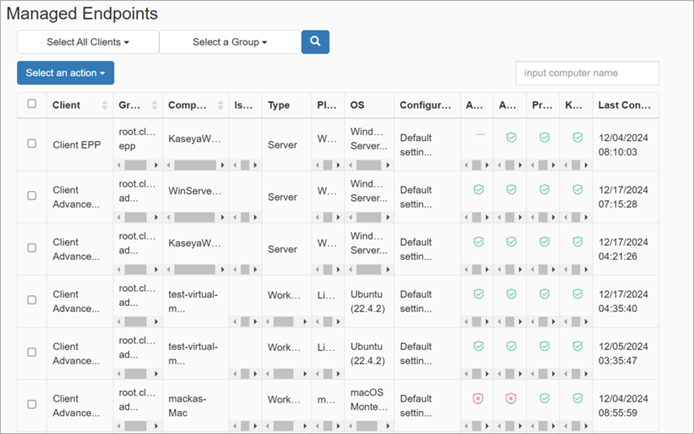
Manage Endpoints ページには、以下の列が表示されます:
- Client — クライアント アカウントの名前が表示されます。
- Group — Kaseya コンピュータ グループが表示されます。
- Computer — Endpoint コンピュータ名が表示されます。
- Isolation State — Endpoint コンピュータの分離状態が表示されます。
-
 Applying Isolation (分離の適用中)
  Isolated (隔離済み)
 Removing Isolation (分離の解除中)
-
- Type — Endpoint の種類が表示されます。たとえば、ノート PC やワークステーションです。
- Platform — クライアントに関連付けられた Endpoint プラットフォームを示します。たとえば、Windows や Linux です。
- OS — Endpoint の特定のオペレーティング システムを示します。たとえば、Windows 10 Pro 64 または Ubuntu 19.10 です。
- Configuration — セキュリティ構成名を表示します。
- WatchGuard Protection — WatchGuard 保護のバージョン番号を示します。例えば、8.00.19.0000 など。
- 高度な保護 — 高度な保護のステータスを示します。
 Installing (インストール中)
 Error (エラー)
 Enabled (有効)
 Disabled (無効)
 No License (ライセンスなし)
 Not Available (利用不可)
- Antivirus Status — デバイス上のウイルス対策保護のステータス。
- Installing (インストール中)
- Error (エラー)
- Enabled (有効)
- Disabled (無効)
- No License (ライセンスなし)
- Not Available (利用不可)
- Protection Status — 保護のステータスと、デバイスにアップデートのリリースが必要かどうか。
- Installing (インストール中)
- Error (エラー)
- Enabled (有効)
- Disabled (無効)
- No License (ライセンスなし)
- Knowledge Status —デバイス上のナレッジ署名ファイルのステータス。
- Enabled (有効)
- Disabled (無効)
- Last Connection — デバイスが最後にネットワークに接続された日時を示します。
クライアントとグループのドロップダウン リストから、アクションを実行するクライアントとグループを選択し、続いて必要なアクションを選択します。複数のデバイスを選択した場合、アクションは選択したすべてのデバイスに適用されます。
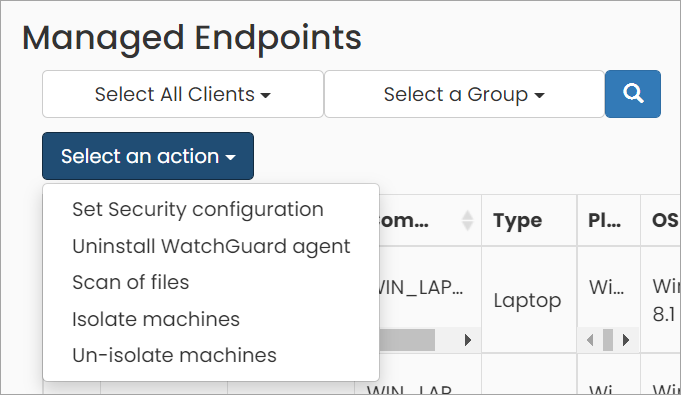
クライアントまたはグループを選択して、以下のアクションを実行することができます:
- Set Security Configuration — セキュリティ構成は、定義して管理対象デバイスに割り当てる WatchGuard Endpoint Security 設定のセットです。リストからセキュリティ構成を選択し、Yes をクリックします。Windows、Linux、Mac、および Android デバイスのセキュリティ構成を設定できます。
セキュリティ構成は 1 つのクライアントの Endpoint にのみ割り当てることができます。複数のクライアント用のセキュリティ構成の一括設定はサポートされていません。
- Uninstall WatchGuard Agent — WatchGuard Endpoint Security 製品をコンピュータからアンインストールします。
- Scan of Files — 選択した管理対象デバイスでファイル スキャンを実行します。ファイル スキャンを実行するには、デバイスがネットワークに接続されている必要があります。デバイスがネットワークに接続されていない場合、リクエストは (既定では) 7 日間アクティブです。スキャンは、デバイスがネットワークに接続されると実行されます。
- Isolate Machines — デバイスを隔離します。デバイスを隔離するには、デバイスがリクエストを受信するためネットワークに接続されている必要があります。接続されていないデバイスでは、リクエストは無期限にアクティブのままになります。デバイスがネットワークに接続すると隔離リクエストが実行されます。デバイスが隔離されると
 アイコンが表示されます。デバイスの隔離リクエストがアクティブである間、隔離アイコンが点滅します。
 - Un-isolate Machines — デバイスの隔離を停止します。デバイスの隔離を停止するには、デバイスがリクエストを受信するためネットワークに接続されている必要があります。接続されていないデバイスでは、リクエストは無期限にアクティブのままになります。デバイスがネットワークに接続すると隔離を停止するリクエストが実行されます。隔離を停止するリクエストがアクティブである間、隔離アイコンが点滅します。