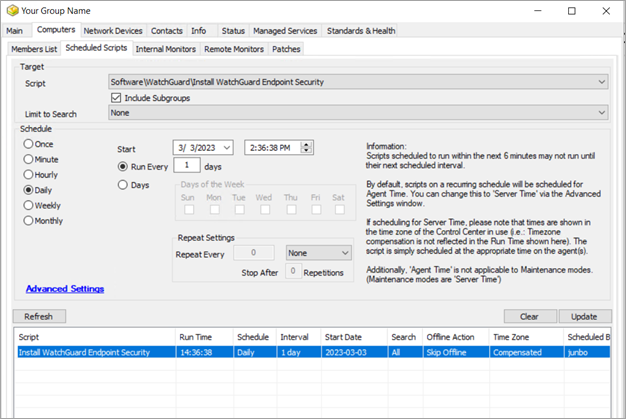
場合によっては、WatchGuard Endpoint Security 製品を ConnectWise から直接デバイスにインストールするのが適切なこともあります。タイマーによる自動配備機能を使用するか製品のインストールをスケジュールするように WatchGuard プラグインを構成する場合、ConnectWise がクライアントへのインストールをスケジュールするまでに最長 12 時間かかることがあります。
ConnectWise の検索機能を使用して、WatchGuard Endpoint Security 製品がインストールされていないコンピュータを検索することができます。作成した検索に基づいてただちに (または選択したスケジュールした時間に) WatchGuard Endpoint Securityをインストールするには、ConnectWise のグループ化機能を使用します。検索とグループを使用するには、以下を行う必要があります:
検索にクライアントを含める
クライアントの検索とグループを作成する前に、クライアントを ConnectWise Automate の検索に含められるように有効にする必要があります。含めることが可能なクライアントのみが作成した検索に表示されます。
ConnectWise Automate 検索にクライアントを含められるようにするには、Endpoint Security プラグインで以下の手順を実行します:
- Configuration > Map Clients の順に選択します。
Map Clients ページが開きます。
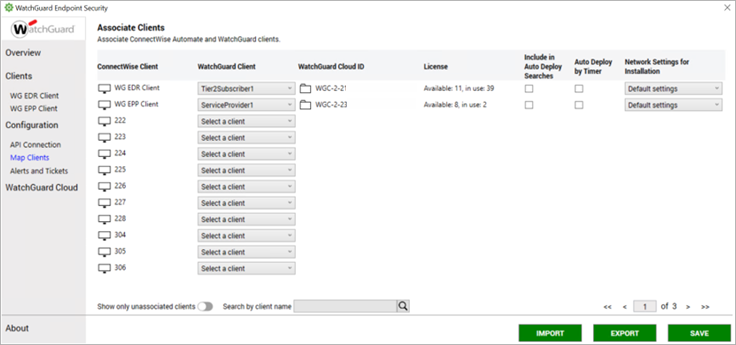
- リストで、検索に含めるクライアントごとに Include in Auto Deploy Searches チェックボックスを選択します。

- Save をクリックします。
ConnectWise で検索を作成する
クライアントを検索に含められるようにすると、ConnectWise で検索を作成し、そのクライアントと関連付けられたデバイスを検索できるようになります。
Include in Auto Deploy Searches が有効になっているクライアントのみが検索結果に表示されます。詳細については、次を参照してください:検索にクライアントを含める。
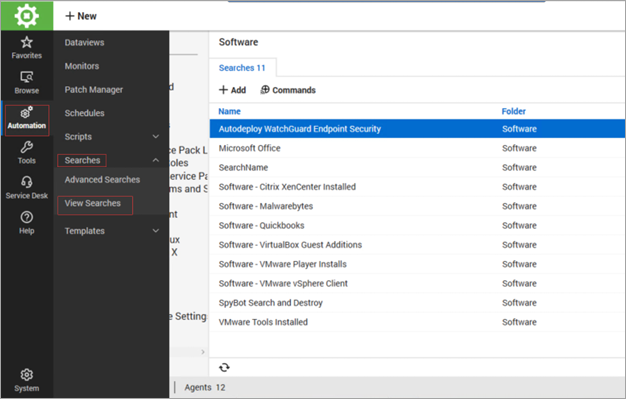
検索を作成するには、ConnectWise Automate コントロール センターから以下の手順を実行します:
- Automation > Searches > View Searches の順に選択します。
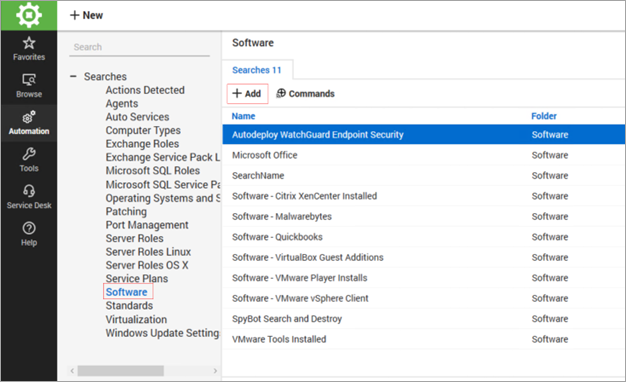
- Software をクリックします。
- +Add をクリックします。
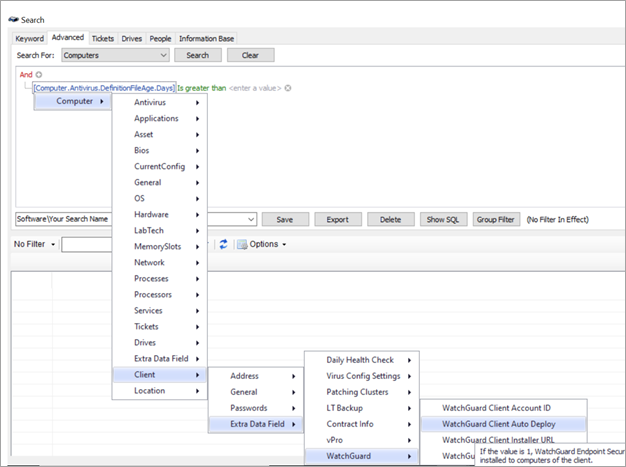
- Search For ドロップダウン リストから、Computer を選択します。
- + > Computer > Client > Extra Date Field > WatchGuard > WatchGuard Client Auto Deploy > Is true の順にクリックします。
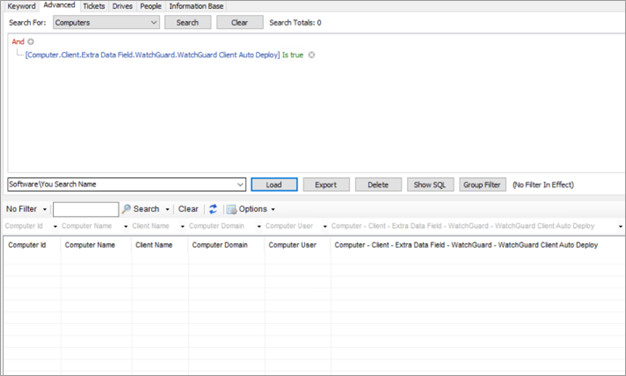
- Software\Your Search Name に名前を入力します。
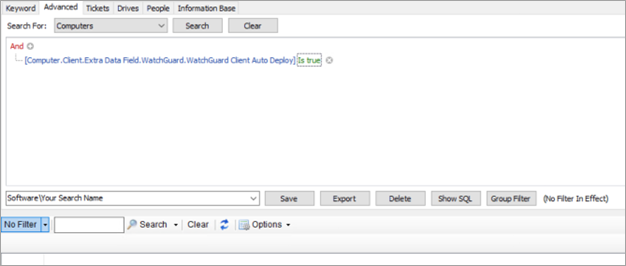
- Save をクリックします。
ConnectWise でグループを作成する
ConnectWise で検索を作成後、グループ化機能を使用して、それらの検索結果に基づいたデバイスのグループを作成し、WatchGuard Endpoint Security 製品インストールをスケジュールします。グループを作成するには、ConnectWise Automate Control Centerから以下の手順を実行します:
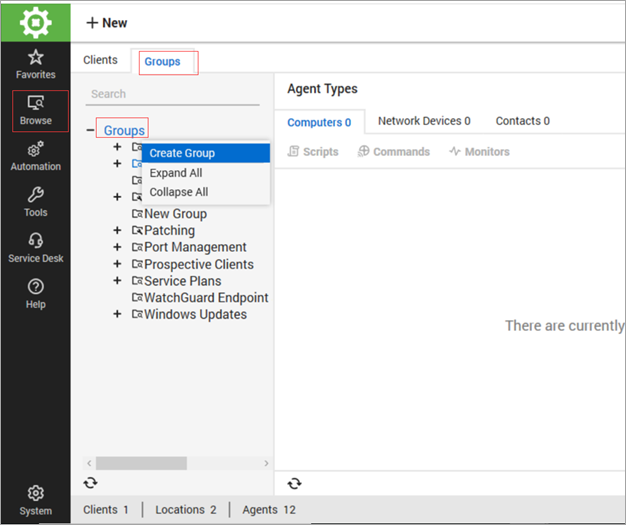
- Browse > Groups の順に選択します。
- Groups を右クリックします。
- Create Group をクリックします。
- Name テキスト ボックスに、グループ名を入力します。
- Computer ドロップダウン リストから、次で作成した検索を選択します:ConnectWise で検索を作成する。
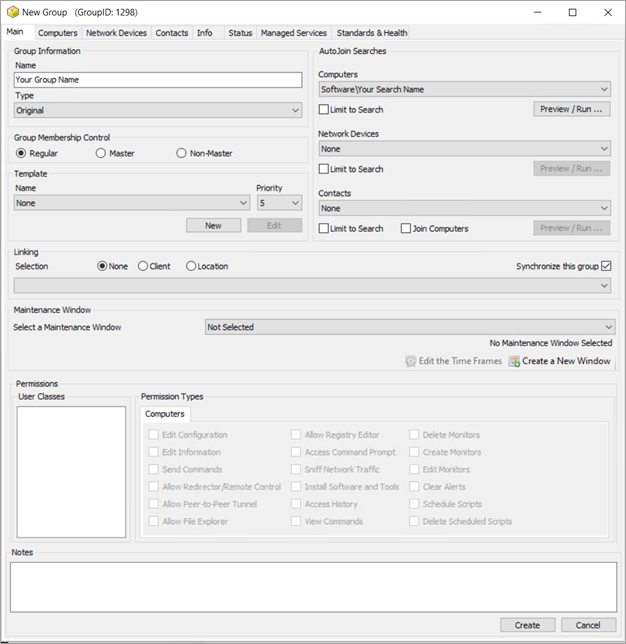
- 作成 をクリックします。
- Computer > Scheduled Scripts タブを選択します。
- Script ドロップダウン リストから、Software\WatchGuard\install WatchGuard Endpoint Security を選択します。
- WatchGuard Endpoint Security 製品をインストールする時刻とスケジュールを指定します。ConnectWise Automate は、ステップ 5 で指定した検索で見つかったコンピュータに WatchGuard Endpoint Security をインストールします。
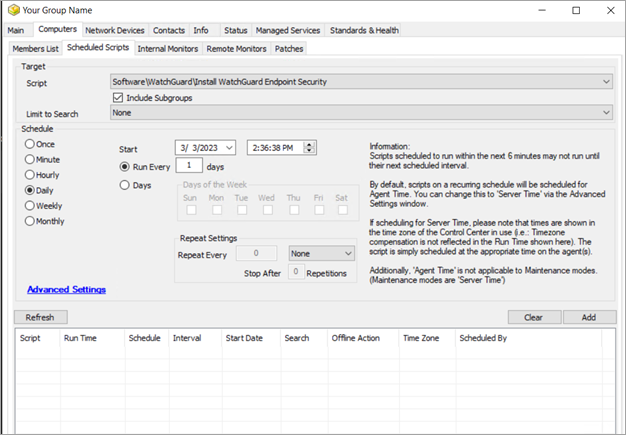
- 追加 をクリックします。