オンボーディング アプリケーションを使用してプラグインをインストールしたら、N-able N-central と統合するようにプラグインを構成する必要があります。プラグインを構成するには、以下の手順を実行する必要があります:
構成の完了後に N-able N-central によって何が監視されるかを確認するには、次を参照してください:サービスに監視されるアイテム 。
WatchGuard スクリプトをインポートする
N-able N-central 用 WatchGuard Endpoint Security プラグインをダウンロードすると、ダウンロードされたフォルダには WatchGuard スクリプトが含まれています。これらのスクリプトは、N-able N-central でアクションを実行するために必要です。
Windows アクションを実行するのに使用可能なスクリプトは以下の通りです:
- WatchGuard Endpoint Security – Install agent in Windows.amp
- WatchGuard Endpoint Security – Scan Windows device.amp
- WatchGuard Endpoint Security – Isolate Windows device.amp
- WatchGuard Endpoint Security – Unisolate Windows device.amp
- WatchGuard Endpoint Security – Uninstall agent in Windows.amp
macOS アクションを実行するのに使用可能なスクリプトは以下の通りです:
- WG-Install-Mac.sh (WatchGuard Endpoint Security – Install agent in mac)
- WG-Scan-Mac.sh (WatchGuard Endpoint Security – Scan mac device)
WatchGuard スクリプトをインポートするには、N-central から以下の手順を実行します:
- Configuration > Scheduled Tasks > Script/Software Repository の順に選択します。

- 追加 をクリックします。
ドロップダウン リストが開きます。
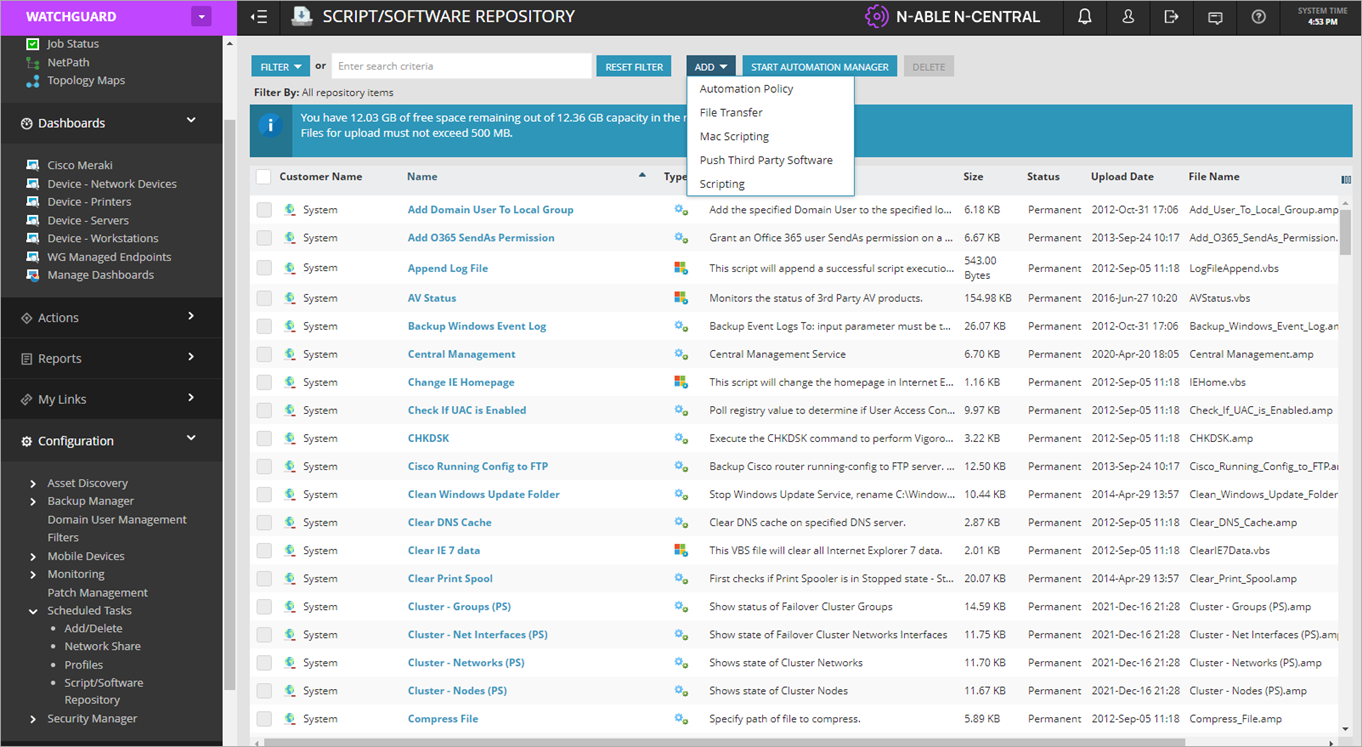
- ドロップダウン リストから、Automation Policy を選択して Windows デバイス用のスクリプトをインポートするか、Mac Scripting を選択して macOS デバイス用のスクリプトをインポートします。
Add Script/Software Repository Item ダイアログ ボックスが開きます。
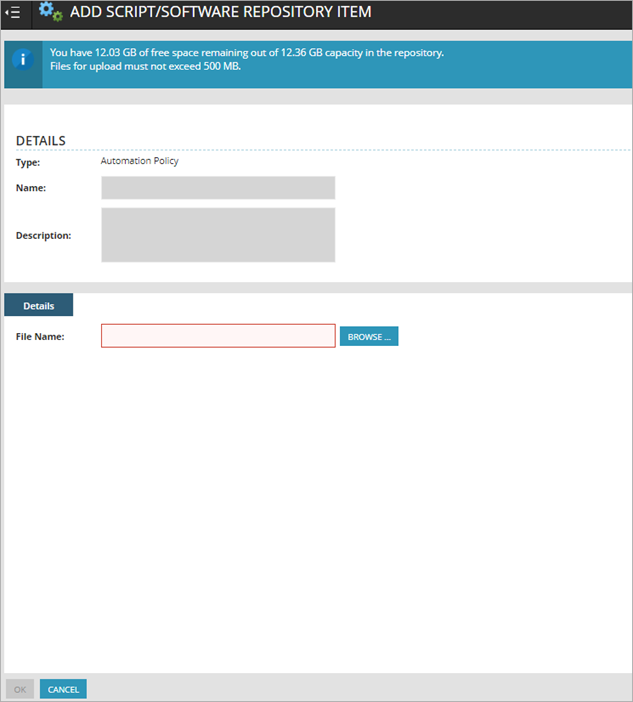
- Browse をクリックし、インポートするスクリプトを選択します。
- Windows スクリプトの場合は、名前 または 説明 を入力しないでください。
macOS スクリプトの場合は、名前 と 説明 を入力する必要があります。 - OK をクリックします。N-central では、これにより、スクリプト リストにインポートされたスクリプトが含まれるようになります。
- すべての Windows およびmacOS スクリプトでこの手順を繰り返します。
サービス監視を構成する
N-central でセキュリティ (検出された脅威やセキュリティ ステータス インシデントなど) を監視するには、以下の手順を実行する必要があります:
サービス テンプレートをインポートする
N-able N-central 用 WatchGuard Endpoint Security プラグインをダウンロードすると、ダウンロードされたフォルダには WatchGuard サービス テンプレートが含まれています。
サービス テンプレートをインポートするには、N-central で以下の手順を実行します:
- Administration > Service Management > Service Templates の順に選択します。

- Import をクリックします。
Import Service Template ページが開きます。

- Browse参照 をクリックし、NableInt フォルダからサービス テンプレートの zip ファイル (WatchGuard Endpoint Security – Monitor Windows device service template.zip) を選択します。
- Import Service Template をクリックします。
Add Service Template ページが開きます。

- (任意) サービス テンプレートの 名前 を編集します。
- Service Template Services セクションの 名前 列で、WatchGuard Endpoint Security – Monitor Windows device をクリックします。
WatchGuard Endpoint Security – Monitor Windows Device ダイアログ ボックスが開きます。

- Details タブのSelect or Enter Value 列で、ドロップダウン リストから以下のパラメータを選択します:
- WatchGuard Endpoint Security Integration API Key
- WatchGuard Endpoint Security Integration Client Account ID
- WatchGuard Endpoint Security Integration Service Provider Account ID

- Save をクリックします。
ルールを作成する
既存のすべてのコンピュータおよび今後追加するコンピュータでサービスの監視を使用するには、ルールを作成する必要があります。
ルールを作成するには、N-central で以下の手順を実行します:
- Configuration > Monitoring > Rules の順に選択します。
Rules ページが開きます。
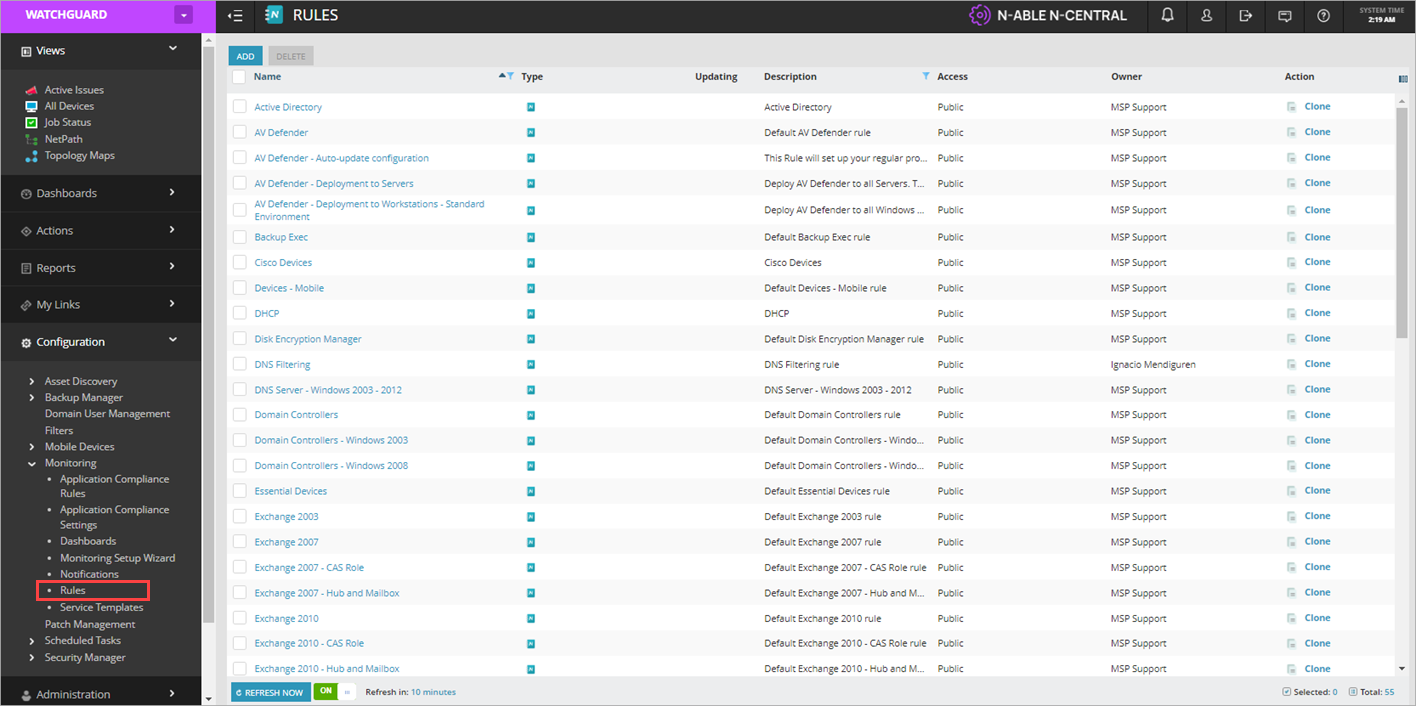
- 追加 をクリックします。
Rule Details ページが開きます。
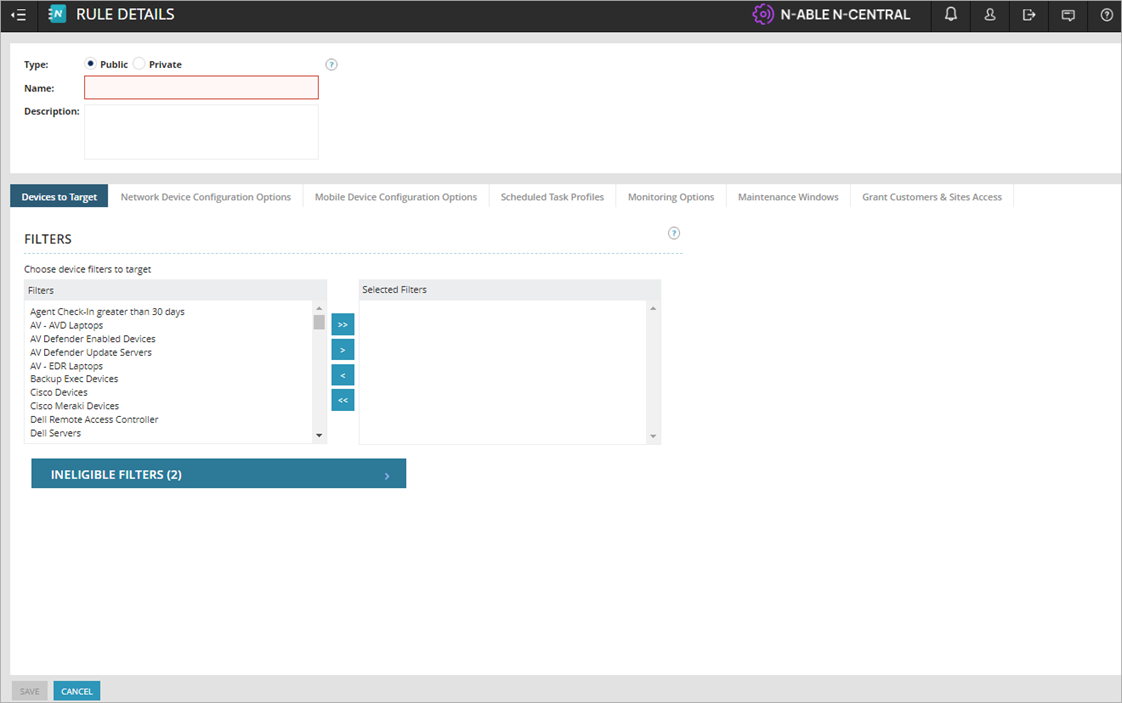
- ルールの名前と説明を入力します。
- Devices to Target タブのFilters セクションで、以下のフィルタを Selected Filters 列に移動します:
- Laptops - Windows
- Servers - Windows
- Workstations and Laptops - Windows

- Monitoring Options タブを選択します。
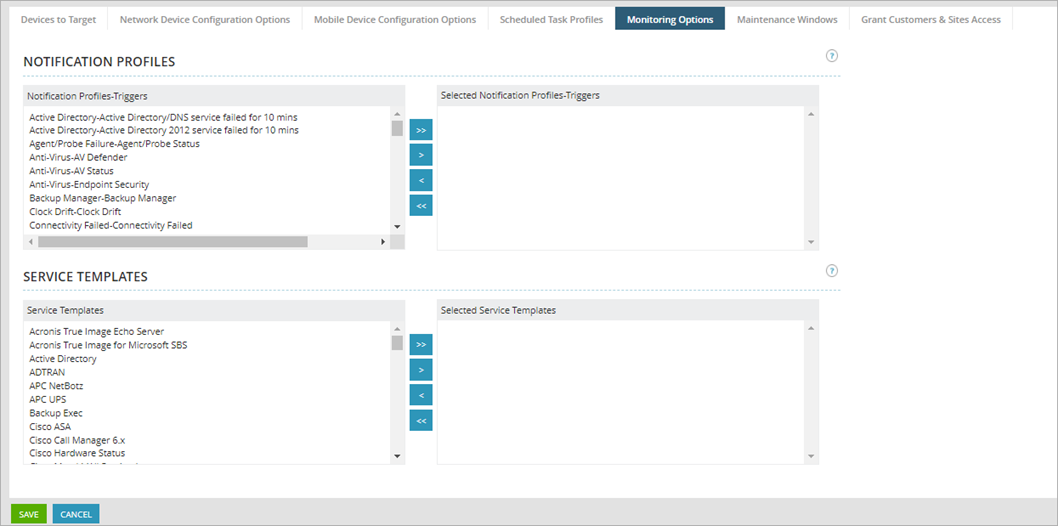
- Service Templates セクションの Service Templates 列でインポートしたサービス テンプレートを選択し、Selected Service Templates 列に移動します。
- Grant Customers & Sites Access タブを選択します。

- Customers/Site セクションで、サービスを監視する顧客/サイトを選択します。
- Save をクリックします。
通知を構成する
N-central のサービス監視の一環として、WatchGuard サービスによって監視されているアイテムで発生した障害の通知を構成することができます。
N-central で通知を構成するには、以下の手順を実行します:
- Configuration > Monitoring > Notifications の順に選択します。
Notifications ページが開きます。
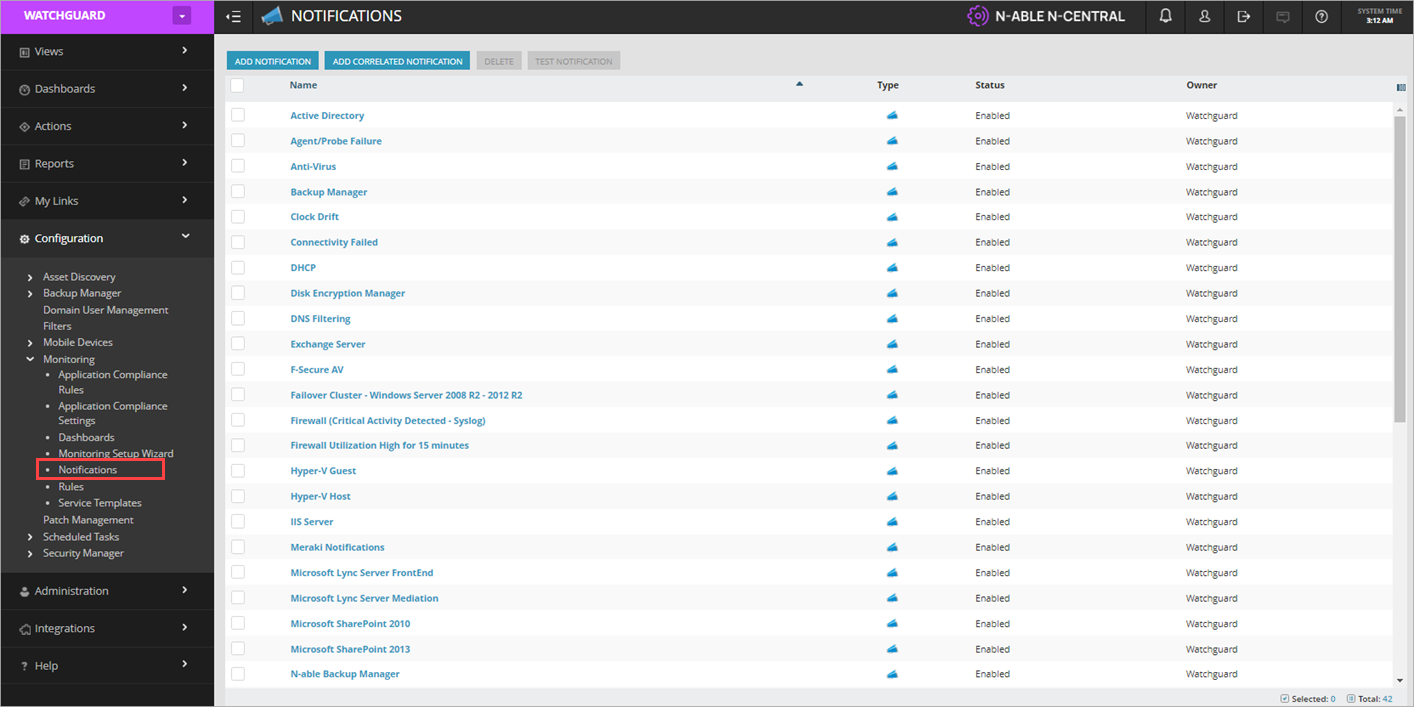
- Add Notification をクリックします。
Add Notification ページが開きます。
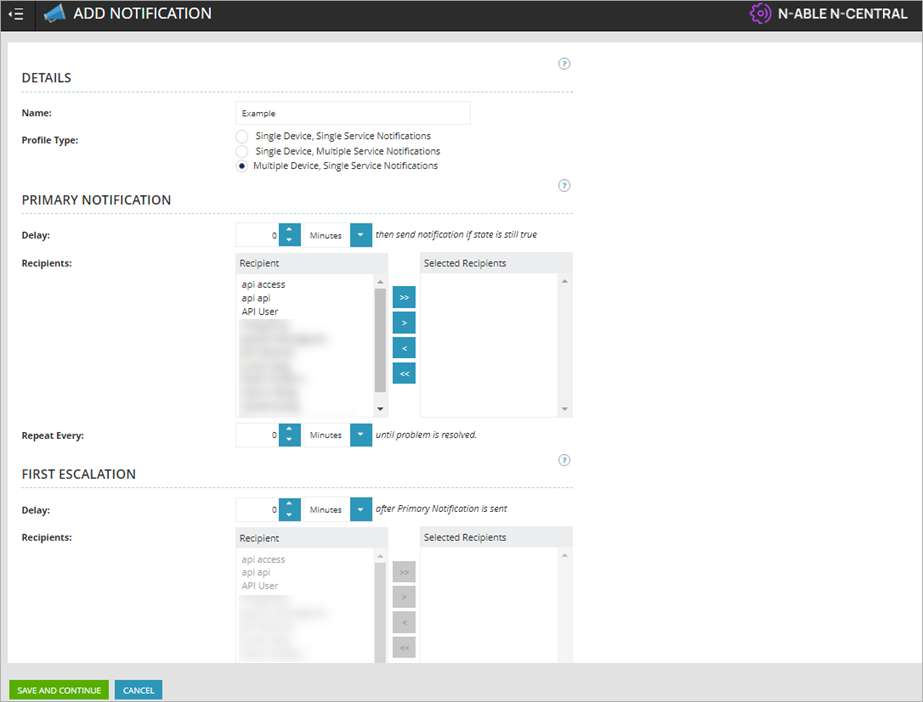
- 通知の名前を入力します。
- Profile Type で Multiple Device, Single Service Notifications を選択します。
- 通知を受信する受信者を選択します。
- Save And Continue をクリックします。
The Triggers Details ページ が開きます。
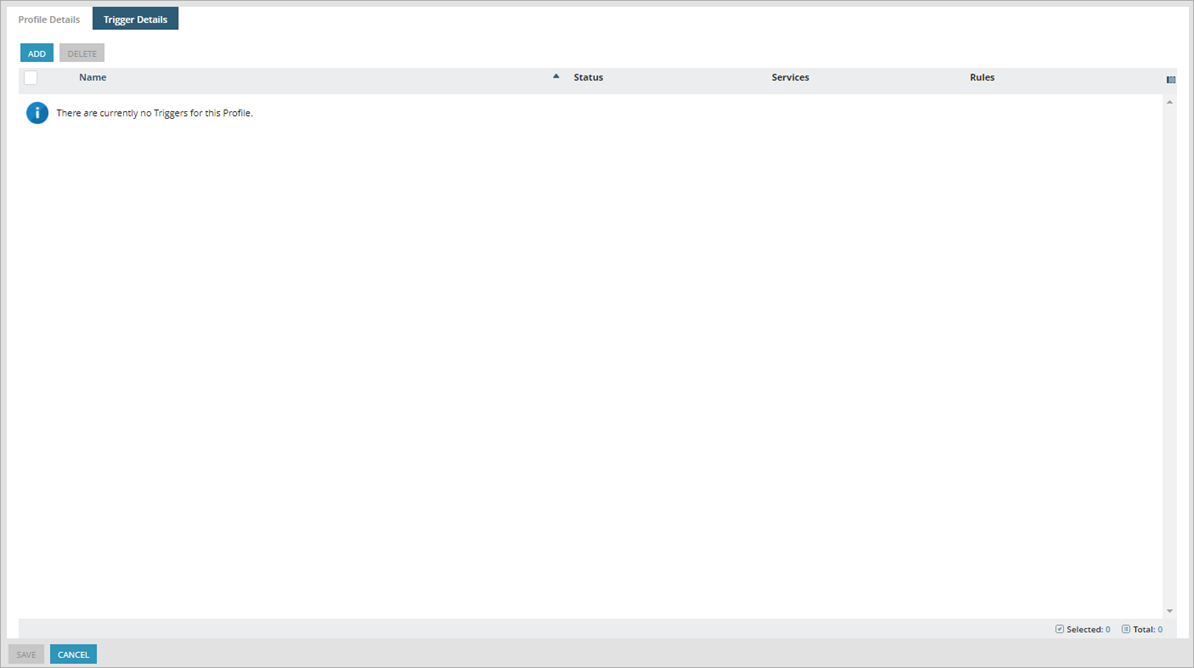
- 追加 をクリックします。
New Trigger Settings ダイアログ ボックスが開きます。
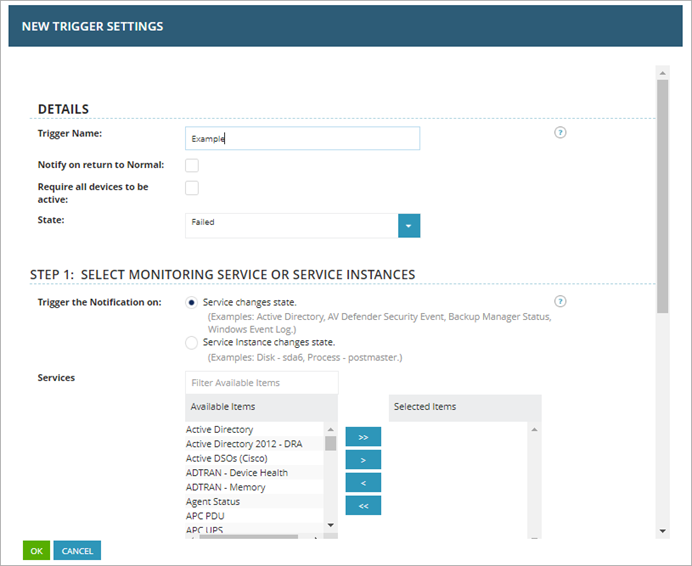
- トリガの名前を入力します。
- ステップ 1: Select Monitoring Service or Service Intakes の Services セクションで、WatchGuard Endpoint Security を Selected Items 列に移動します。
- ステップ 2: Apply the Notification Trigger to the Selected Devices の Rules セクションで、WatchGuard を Selected Items 列に移動します。
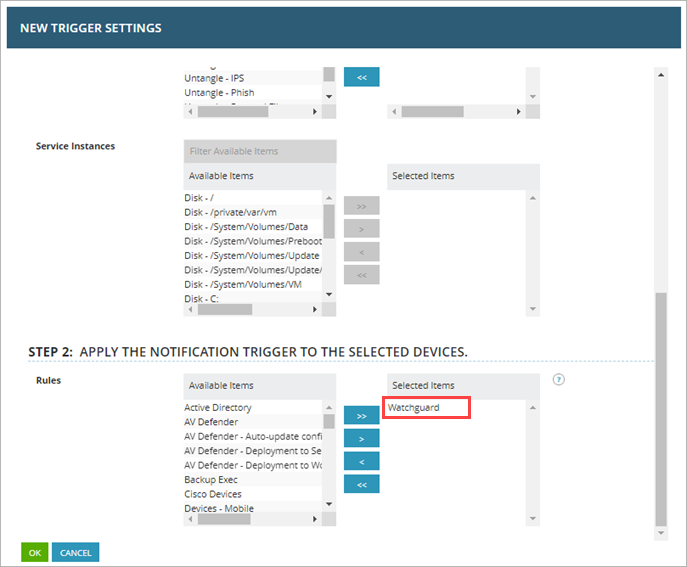
- OK をクリックします。
サービスに監視されるアイテム
下表には、WatchGuard Endpoint Security サービス モニタと、失敗したおよび正常な結果のメッセージが表示されます:
| 監視対象アイテム | 失敗した結果 | 正常な結果 |
|---|---|---|
|
攻撃の指標* |
1 件以上の検出された攻撃の指標。 | 攻撃の指標は検出されませんでした。 |
| PUP の実行* | 1 件以上の PUP の実行が検出されました。 | PUP の実行は検出されませんでした。 |
| マルウェアの実行* | 1 件以上のマルウェアの実行が検出されました。 | マルウェアの実行は検出されませんでした。 |
| Pending restart (再起動保留中) | 保留中の再起動があります。 | 保留中の再起動はありません。 |
| WatchGuard エージェントのインストール | WatchGuard エージェントのインストールが成功しませんでした。 | WatchGuard エージェントのインストールに成功しました。 |
| WatchGuard ライセンスの検証 | 有効な WatchGuard ライセンスが割り当てられていません。 | 有効な WatchGuard ライセンスが割り当てられています。 |
| 保護ステータス | 保護ステータスが正しくありません。 | 保護ステータスが正しいです。 |
|
脅威検出** |
1 件以上の脅威が検出されました。 | 脅威は検出されませんでした。 |
* WatchGuard Endpoint Security サービスは、過去 7 日間における攻撃の指標、PUP の実行、マルウェアの実行を監視します。
** 脅威の検出には、過去 7 日間における WatchGuard Endpoint Security の監視が含まれ、以下が含まれます:
- 検出されたマルウェア
- 検出された PUP
- ブロックされたプログラム
- エクスプロイト
- ウイルス
- スパイウェア
- ハッキング ツール
- フィッシング
- ブロックされた侵入試行
- ブロックされたマルウェア URL
- ブロックされたデバイス
WatchGuard Endpoint Security が脅威を検出した場合、サービスの監視の Status Details ページの Value 列に、検出の詳細がコピー可能な JSON 形式で表示されます。例:
{
"malwares": [
{
"eventDateTime": "2022-04-11T14:16:11.036",
"hostName": "WIN-LAPTOP-1",
"path": "C:\\Documents\\AAABC_d61266bfH.zip"
}
],
"puPs": [
{
"eventDateTime": "2022-04-11T11:01:12.52",
"hostName": "WIN-LAPTOP-1",
"itemName": "HackingTool/VulnerabilityScanner",
"path":"SYSTEMDRIVE|\\Users\\administrator\\Downloads\\vulnerabilityscanner.exe"
},
{
"eventDateTime": "2022-04-11T08:23:52",
"hostName": "WIN-LAPTOP-1",
"itemName": "Trj/WLT.C",
"path": "TEMP|\\62b2153392561255386e5f059c216110"
}
],
"ioAs":
[
{
"eventDateTime": "2022-04-07T00:33:05",
"hostName": "WIN-LAPTOP-1",
"ruleName": "Use of pipes to escalate privileges",
"ruleRisk": "Critical",
"action": "Undefined"
},
{
"eventDateTime": "2022-04-09T00:20:20.001",
"hostName": "WIN-LAPTOP-1",
"ruleName": "Credentials compromised after brute-force attack on RDP",
"ruleRisk": "Critical",
"action": "Attack Blocked"
},
{
"eventDateTime": "2022-04-09T00:20:20",
"hostName": "WIN-LAPTOP-1",
"ruleName": "In-memory execution of a remote script",
"ruleRisk": "Critical",
"action": "Undefined"
},
{
"eventDateTime": "2022-03-26T00:31:16.001",
"hostName": "WIN-LAPTOP-1",
"ruleName": "Credentials compromised after brute-force attack on RDP",
"ruleRisk": "Critical",
"action": "Attack Blocked"
},
{
"eventDateTime": "2022-04-11T00:33:38",
"hostName": "WIN-LAPTOP-1",
"ruleName": "Privilege escalation bypassing UAC",
"ruleRisk": "Critical","action": "Undefined"
}
]
}
N-able N-central 用 WatchGuard Endpoint Security プラグインについて
N-able N-central での Windows デバイスの自動化ポリシー