Applies To: WatchGuard Cloud
Closed-loop ticketing for PSA integration automates service ticket updates between WatchGuard Cloud and the PSA tool from ticket creation to resolution.
Closed-loop ticketing provides these benefits:
Efficient Incident Management
Only one ticket exists in the PSA for the same issue or incident. Ongoing issues do not create duplicate tickets, and closed tickets do not reopen. The ticket status automatically updates if the issue status changes, such as when the ticket is opened, updated, or closed.
For example, if a WatchGuard license is about to expire, the same ticket tracks when the issue is first detected at 45 days before expiration, then updates at 30, 15, and 7 days before expiration, and when the license expires. The same ticket closes automatically when you renew the license.
Ticket descriptions also update when the status changes. For example, a malware incident ticket updates when ThreatSync performs a response action to isolate a malware-infected endpoint or block an IP address.
PSA Ticket Generation from WatchGuard Cloud Alerts
You can select PSA ticket as the delivery method for closed-loop ticketing for these types of alerts generated by WatchGuard Cloud:
Licenses
- Activated license expiring soon or expired
- Allocated license expiring soon or expired
- Overallocation alerts
Firebox (requires Fireware v12.11.3 or higher for closed-loop ticketing)
- CPU usage exceeds threshold
- Memory usage exceeds threshold
- Total Connections exceeds threshold
- Mobile VPN with SSL or IKEv2 connections exceeds threshold
- BOVPN connections exceeds threshold
- FireCluster failover
- WAN failover
- Interface down
- Firebox disconnection from WatchGuard Cloud
- Certificate expiration
ThreatSync Incidents
Includes the ability to filter incidents for PSA notification by:
- Risk score
- Incident type
- Product (Firebox, access point, AuthPoint, Endpoint Security)
WatchGuard Endpoint Security
- Computers with protection disabled
- Computers with a protection installation issue
- New unmanaged or unprotected endpoints discovered
AuthPoint
- Customer gateway installed on the network is available or not available
Before You Begin
Before you use closed-loop ticketing with your PSA tool:
- Make sure you have configured the connection to your PSA tool.
- Make sure to synchronize your integration with the PSA tool if you made recent changes to accounts or ticketing information in your PSA tool or WatchGuard Cloud.
For more information, go to Connect WatchGuard Cloud to a PSA Tool
If you have an existing PSA integration for your cloud-managed Firebox or a locally-managed Firebox added to WatchGuard Cloud for reporting, we recommend you disable the integration in the Firebox configuration to prevent duplicate tickets or synchronization conflicts. For more information, go to About Firebox Technology Integrations (cloud-managed Fireboxes) or Technology Integrations (locally-managed Fireboxes).
Configure PSA Ticketing in WatchGuard Cloud
In WatchGuard Cloud, you can configure notification rules across multiple Subscriber accounts on the PSA Ticketing page. Notification rules determine which events generate alerts that can open and close tickets in your connected PSA tool. WatchGuard Cloud sends the notification to the connected PSA tool, and the PSA tool opens a corresponding ticket.
Notification rules for ThreatSync, WatchGuard Endpoint Security, Firebox, License alerts, and WatchGuard Cloud support closed-loop ticketing, which automates updates between WatchGuard Cloud and the PSA tool. For access points, FireCloud, WatchGuard NDR, WatchGuard SaaS DR, and some AuthPoint notification rules, you can use the rules to send data to the PSA tool but you must manually close the ticket in your PSA tool.
For more information, go to Configure PSA Ticketing Notification Rules.
PSA Ticketing Example
In this example, we enable a notification rule to send an alert to ConnectWise to create a ticket when an account is overallocated in WatchGuard Cloud.
- Select Administration > PSA Ticketing.
The PSA Ticketing page opens. - To get the latest static ticket data from ConnectWise, click Sync PSA Ticket Properties.
- In the Account Assignment section, click Add Accounts.
- From the list of accounts, select each account and account group to configure the notification rule for, then click Add.
- Enable Inventory Management.
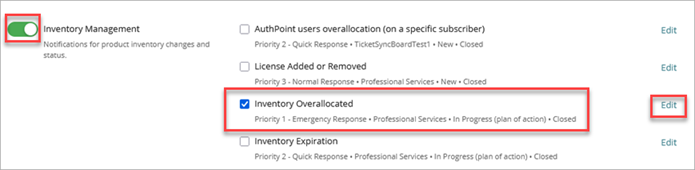
- Select the Inventory Overallocated check box, then click Edit.
The Edit Rule or Edit Ticketing Properties page opens.

- From the Priority, Service Board, New Status, and Close Status drop-down lists, select the values for the ticket that ConnectWise creates.
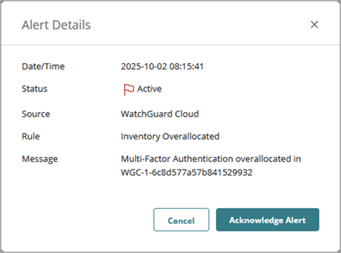
Some time after you configure this rule, an account you manage becomes overallocated for AuthPoint multi-factor authentication (MFA) users. WatchGuard Cloud generates this Inventory Overallocated alert:
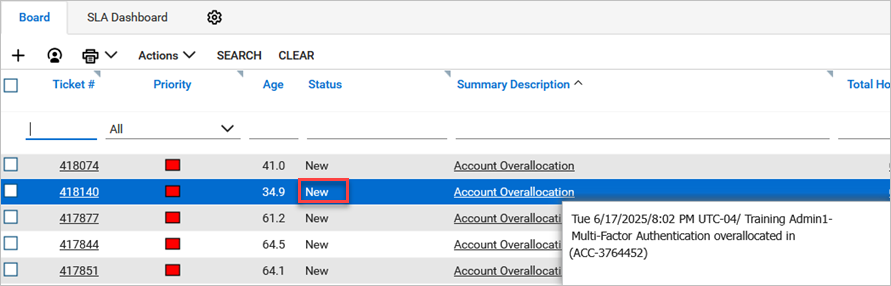
ConnectWise automatically creates a new ticket for the alert.
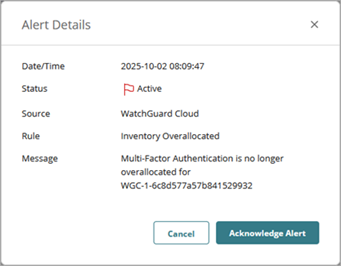
When you resolve the overallocation issue in the managed account, WatchGuard Cloud generates another alert, and ConnectWise automatically closes the ticket.

To allow WatchGuard Cloud to create the ticket, in Autotask you must edit the Ticket Category and set the default value for Due Date > # of Days From Application to 1 and set the default value for Due Time > # Hours From Application to 0.
About PSA Tool Integration with WatchGuard Cloud