Applies To: WatchGuard Cloud
Before you connect WatchGuard Cloud with Autotask, you must create an API User in Autotask and generate a pair of API keys to enable WatchGuard Cloud to communicate with the Autotask server. You must assign a security level to the API user that meets the minimum required permissions.
Create a Custom Security Level in Autotask
The default API User security level in Autotask does not have the necessary permissions to integrate with WatchGuard Cloud, so you must create a custom security level.
To create a custom security level in Autotask:
- Log in to Autotask PSA with an HR Admin security level user account.
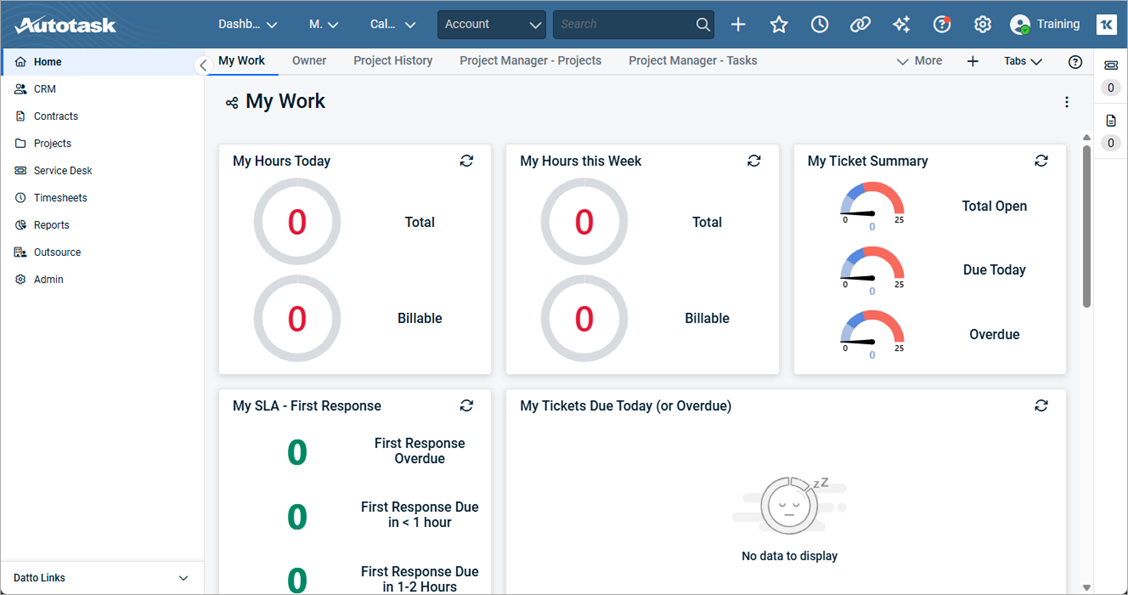
- From the main menu, select Admin > Account Settings & Users.
- Select the Extensions & Integrations tab.
- Expand Other Extensions & Tools.
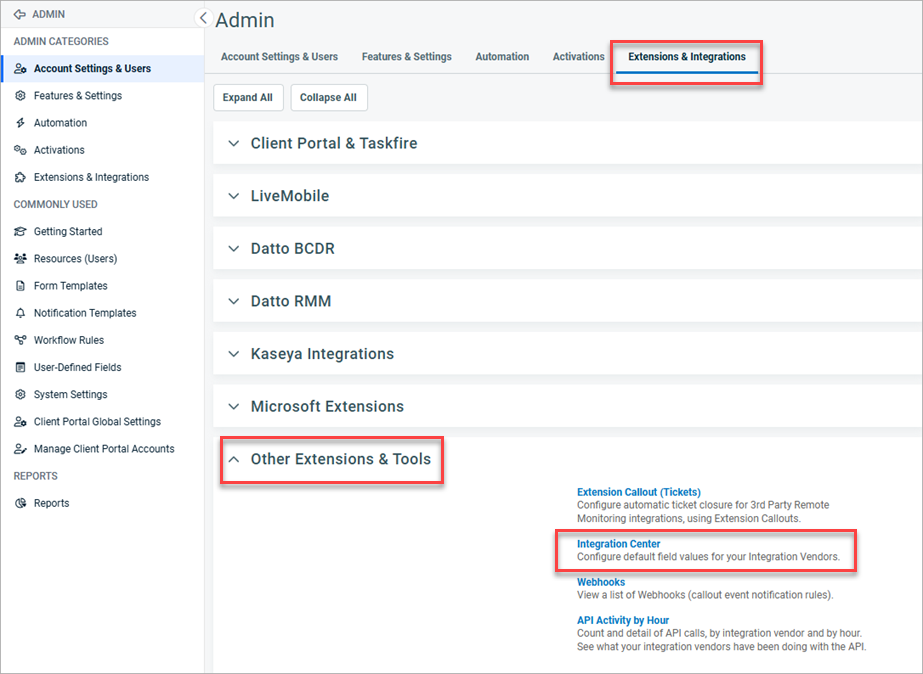
- Select Integration Center.
- Select the API Users tab.
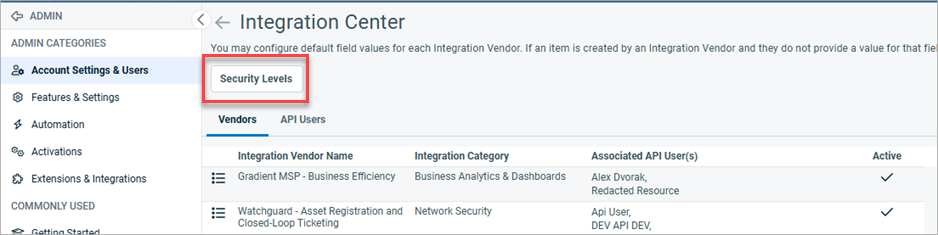
- Click Security Levels.
The Security Levels - API Users page opens. - Next to the API User (System) security level, click
 .
.
A menu opens. - From the menu, select Copy.
The Security Level - [Copy of]API User (System) dialog box opens.
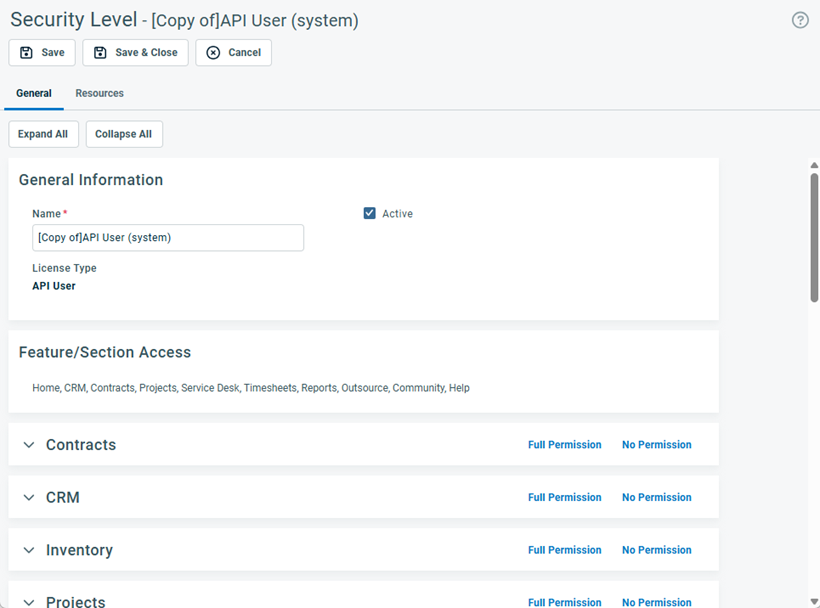
- In the Name text box, type a unique name for the security level.
- Expand Contracts.
- From the View drop-down box, select All.
- From the Add drop-down box, select Yes.
- Expand CRM.
- Next to Customer & Cancellation, Vendor & Partners, and Prospects, Leads, & Dead, from the Permission drop-down lists, select All.
- Expand Inventory.
- Next to Items, from the View, Add, Edit, and Delete drop-down boxes, select All.
- In the Feature Access section, select all check boxes.
- Expand Other.
- In the Webhooks section, select the Can Create Webhooks check box.
- In the Maximum Number of Webhooks text box, type 50.
- Click Save & Close.
Create a New Autotask API User Account
To create a new API User account in Autotask:
- Log in to Autotask PSA with an HR Admin security level user account.
- From the main menu, select Admin > Account Settings & Users.
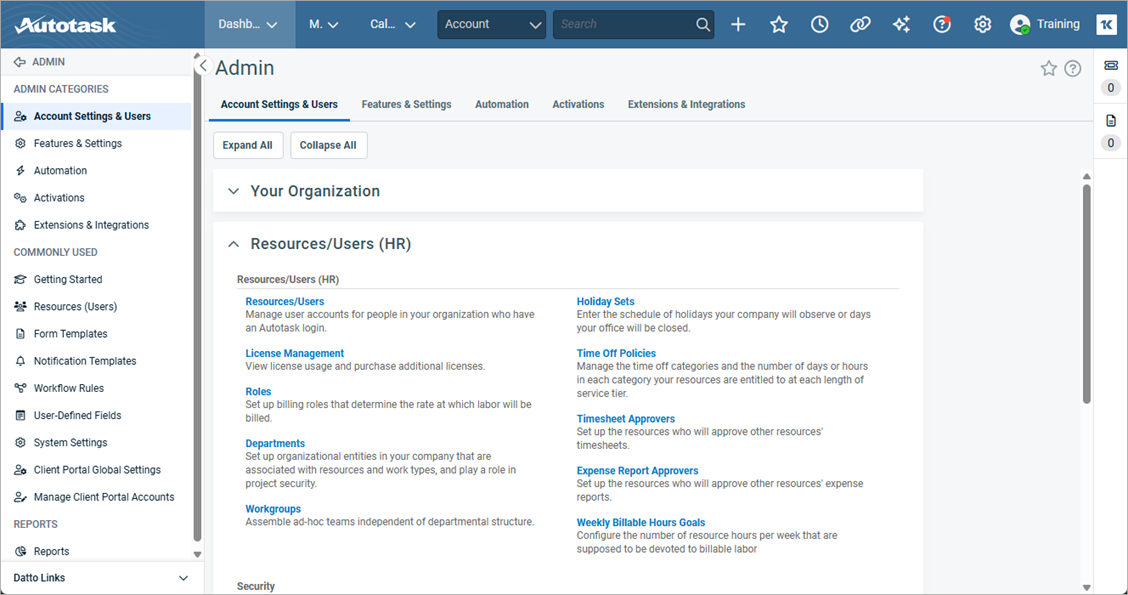
- In the Account Settings & Users tab, expand Resources/Users (HR).
- Select Resources/Users.
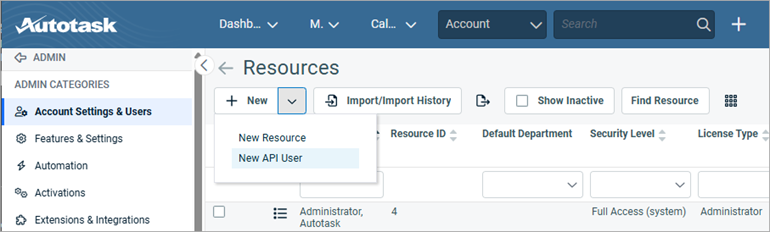
- From the New drop-down list, select New API User.
The Add API User dialog box opens.
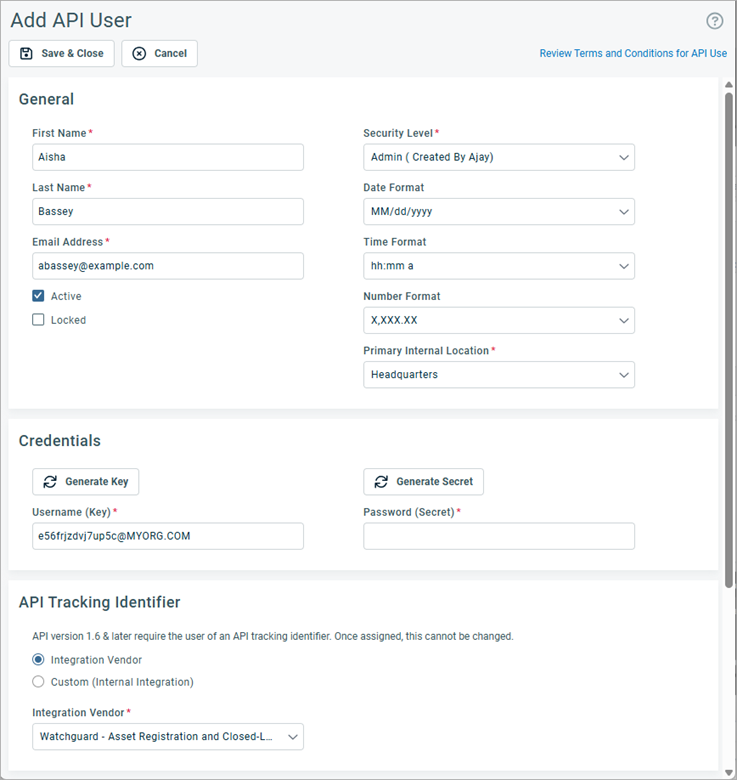
- Enter the First Name, Last Name, and Email Address.
- From the Security Level drop-down list, select the security level role you created in the last section.
- From the Credentials section, click Generate Key.
Autotask generates a Username (Key). - Click Generate Secret.
Autotask generates a Password (Secret). - Make a note of the Username (Key) and Password (Secret) values. You must have these values to configure your integration in WatchGuard Cloud to connect to Autotask.
After you save the new API User, you cannot see the Secret key again. - In the API Tracking Identifier section, from the Integration Vendor drop-down list, select WatchGuard - Asset Registration and Closed-Loop Ticketing.
- Click Save & Close.
After you create the API user and save the secret key, in WatchGuard Cloud, go to Administration > Integrations to connect WatchGuard Cloud to your Autotask PSA tool. For more information, go to Connect WatchGuard Cloud to a PSA Tool.