Applies To: DNSWatch in WatchGuard Cloud
References to DNSWatch in this topic relate to DNSWatch in WatchGuard Cloud. To learn about the legacy DNSWatch UI, go to About WatchGuard DNSWatch in Fireware Help.
DNSWatch is a subscription service available with the Prime Security Suite or Total Security Suite. Before you can enable DNSWatch on your Firebox you must have the DNSWatch subscription service enabled in the feature key.
Shared IP Addresses
To use DNSWatch in WatchGuard Cloud, the same public IP address cannot be associated with Fireboxes activated for two different accounts in the WatchGuard account.
If you enable DNSWatch on Fireboxes activated in two different WatchGuard accounts, and those Fireboxes use the same public IP address, DNSWatch associates the public IP address with the first Firebox that successfully registered with DNSWatch.
Any other Firebox with the same public IP address that is registered to a different DNSWatch account will receive an error and not receive the IP address of DNSWatch DNS servers. Make sure no other Fireboxes that use the same public IP address are activated to a different account in the WatchGuard account.
Recommendations
- Only enable DNSWatch on the gateway Firebox in a nested Firebox environment under a single account. This is typically the Firebox closest to the ISP equipment or public IP address.
- Do not enable DNSWatch on Fireboxes in different accounts using a shared public IP address. Choose one of the Fireboxes from one account to enable DNSWatch.
- Do not enable DNSWatch on Fireboxes that use a primary external interface that is behind an Internet service provider NAT (multiple individual networks behind a single or small group of public addresses).
Enable DNSWatch on a Cloud-Managed Firebox

- In the Networking section on the Device Configuration page for the Firebox, click the DNS widget.
The DNS configuration page opens. - Select the DNSWatch tab.
- Enable DNSWatch.

- Click Save.
Enable DNSWatch on a Locally-Managed Firebox
You can enable DNSWatch from Policy Manager, CLI, or Fireware Web UI. The registration status and the IP addresses of the DNSWatch DNS servers appear only in Fireware Web UI.
- Select Subscription Services > DNSWatch.
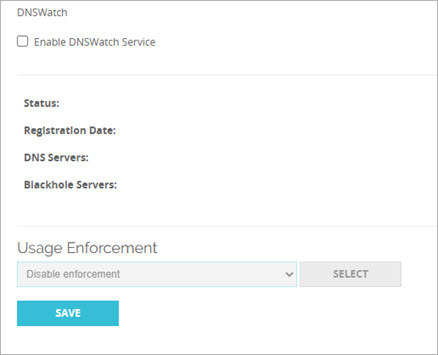
- Select the Enable DNSWatch Service check box.
- From the Usage Enforcement drop-down list, select the enforcement option.
The default option is Disable enforcement.
If your network does not have a local DNS server, we recommend you change this to enable enforcement on some or all internal interfaces. - If you selected Enforce on selected interfaces, to select the interfaces for enforcement, click Select.
The list of internal interfaces appears. By default, enforcement is enabled on all interfaces.
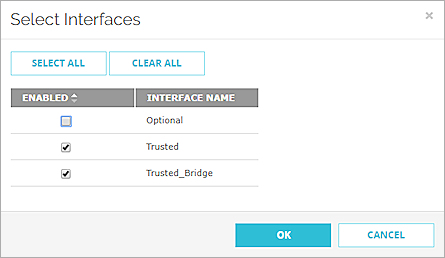
- Enforcement for all interfaces is enabled by default. To disable enforcement for an interface, clear the check box for that interface.
- Click OK.
- Click Save.
The Firebox connects to the DNSWatch account where the Firebox was activated and registers the Firebox to your DNSWatch account. Registration status and IP addresses of DNSWatch DNS Servers appear on the DNSWatch configuration page.
- Select Subscription Services > DNSWatch.
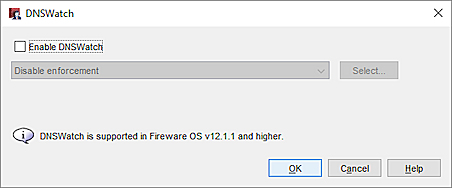
- Select the Enable DNSWatch check box.
- From the drop-down list, select the enforcement option.
The default option is Disable enforcement.
If your network does not have a local DNS server, we recommend you change this to enable enforcement on some or all internal interfaces. - If you selected Enforce on all Trusted, Optional and Custom interfaces, click Select to select the interfaces for enforcement.
The list of internal interfaces appears.
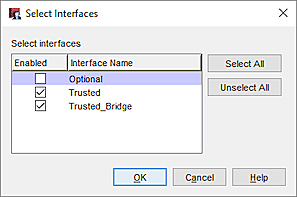
- Enforcement for all interfaces is enabled by default. To disable enforcement for an interface, clear the check box for that interface.
- Click OK.
- Save the configuration to the Firebox.
The Firebox connects to the DNSWatch account where the Firebox was activated and registers the Firebox to your DNSWatch account. Registration status and IP addresses of DNSWatch DNS Servers appear on the DNSWatch configuration page.
About DNSWatch Usage Enforcement
When you enable DNSWatch on a cloud-managed Firebox, usage enforcement is enabled on all Trusted, Optional, and Custom interfaces by default.
When you enable DNSWatch on a locally-managed Firebox, you must select a usage enforcement option. For each interface, enforcement can be Enabled or Disabled. The Usage Enforcement setting controls which outbound DNS requests the Firebox redirects to the DNSWatch DNS servers.
- Enabled — The Firebox redirects all outbound DNS requests from that interface to DNSWatch DNS servers.
- Disabled — The Firebox redirects outbound DNS requests from that interface to DNSWatch DNS servers only when the DNS request is addressed to the Firebox.
When you enable DNSWatch on a locally-managed Firebox, you must select one of these enforcement options:
- Enforce on all Trusted, Optional, and Custom interfaces
- Enforce on selected interfaces
- Disable enforcement
For most networks, we recommend that you enable enforcement on all interfaces.
DNSWatch Configuration Recommendations
DNSWatch interacts with other DNS settings on the Firebox. In most cases, it is not necessary to change your existing DNS configuration when you enable DNSWatch. Here are some specific recommendations:
Usage Enforcement
On cloud-managed Fireboxes, usage enforcement is enabled on all interfaces by default.
On locally-managed Fireworks, we recommend that you enable DNSWatch enforcement on all interfaces. If you determine that DNSWatch causes problems with DNS resolution for a network client that must use a specific DNS server, disable usage enforcement for only the interface that client connects to. If you disable enforcement, it might be necessary for you to change other DNS settings.
If you disable enforcement for an interface, enable DNS forwarding for that interface in the Firebox Network DNS settings. When DNS forwarding is enabled, and the Firebox is configured as a DHCP server, the Firebox sends its own IP address to DHCP clients as the DNS server IP address. The Firebox forwards outbound DNS requests addressed to the Firebox to DNSWatch DNS servers.
Default DNS Servers
For cloud-managed Fireboxes, you configure default DNS servers as Public DNS servers. For locally-managed Fireboxes, you configure the default DNS servers as Network (Global) DNS servers.
If your network has an internal DNS server, make sure that the internal DNS server appears first in the default DNS settings. The Firebox uses the default DNS servers for DNS queries that cannot be resolved by the DNSWatch DNS servers.
DNS Forwarding Rules
DNSWatch has DNS servers in multiple regions. DNSWatch sends the Firebox the IP addresses of DNSWatch DNS servers in the closest region.
Many WatchGuard products and services are hosted on regional servers. For locally-managed Fireboxes, if enforcement is disabled on all interfaces, add DNS forwarding rules for these domains to make sure that the services resolve to servers in your local region:
- watchguard.com
- ctmail.com
- rp.cloud.threatseeker.com
These DNS forwarding rules are not necessary when enforcement is enabled. Enforcement is enabled on all cloud-managed Fireboxes by default. When enforcement is enabled, DNSWatch does not send DNS requests for these domains to DNSWatch and instead uses a DNS server specified in the network DNS settings on the Firebox.
Local DNS Server
If you disable DNSWatch enforcement for the Firebox interface that your local DNS server connects to, configure the DNS server to use the Firebox interface IP address as the DNS server for DNS queries it cannot resolve. The Firebox then forwards outbound DNS queries it receives from the DNS server to DNSWatch DNS servers.
DNSWatch on a Firebox in Bridge Mode (Locally-Managed Fireboxes)
You can enable DNSWatch on a Firebox configured in Bridge Mode. A Firebox in Bridge Mode has the same Usage Enforcement options as a Firebox configured in Mixed Routing Mode. The interface is named Global Bridge in the Protected Fireboxes interfaces list in DNSWatch.
A Firebox in Bridge Mode with DNSWatch enabled cannot resolve host names on local domains unless you create DNS forwarding rules for local domains.
The enforcement option you choose affects whether DNSWatch takes precedence over other DNS settings configured on your Firebox. For more information, go to Precedence for DNSWatch in WatchGuard Cloud.
DNSWatch Registration Status (Locally-Managed Fireboxes)
After you enable DNSWatch on your locally-managed Firebox, the registration status appears in Fireware Web UI on the Front Panel dashboard and on the DNSWatch configuration page. DNSWatch registration status is not available in Policy Manager.
To view the DNSWatch registration status, from Fireware Web UI:
- Log in to Fireware Web UI.
- Select Subscription Services > DNSWatch.
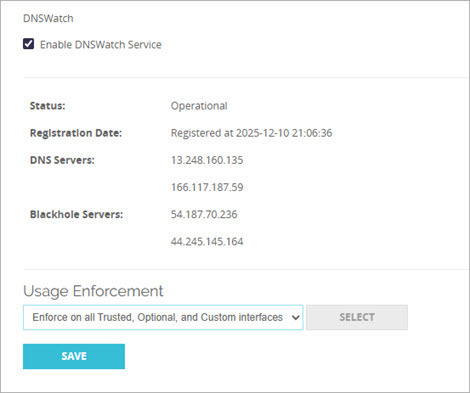
The DNSWatch page shows the DNSWatch registration status of your Firebox and the IP addresses of the DNSWatch DNS servers.
- Status — Indicates the status of DNSWatch. Status can be one of these values:
- Disabled — DNSWatch is not enabled.
- Registration date — The Firebox registration is not yet complete.
- Retrieving addresses — The Firebox is registered but has not yet received IP addresses from DNSWatch.
- Operational — The Firebox has successfully registered and retrieved IP addresses.
- Error — An error occurred.
- Registration Date — Indicates the date and time when your Firebox successfully registered.
- DNS Servers — The IP addresses of the DNSWatch in WatchGuard Cloud DNS servers the Firebox uses for DNS resolution.
- Blackhole Servers — The IP addresses of the DNSWatch Blackhole Servers. For more information, go to About the Blackhole Server for DNSWatch in WatchGuard Cloud.
DNSWatch status also appears in the Front Panel dashboard in Fireware Web UI and in the Front Panel tab in Firebox System Manager.
About DNSWatch in WatchGuard Cloud