Applies To: Endpoint Security Elite, Endpoint Security 360, Endpoint Security Prime, Endpoint Security Basic
When you suspect the WatchGuard Agent contributes to a problem on an endpoint — such as a conflict with third-party software or system performance issues — you must identify the Endpoint Security setting that causes the issue.
A minimal configuration approach can help you resolve a WatchGuard Agent issue or determine the diagnostic data to collect for further analysis by Support.
Your operator role determines what you can see and do in WatchGuard Cloud. Your role must have the Configure Security for Workstations and Servers permission to view or configure this feature. For more information, go to Manage WatchGuard Cloud Operators and Roles.
Create a Minimal Configuration
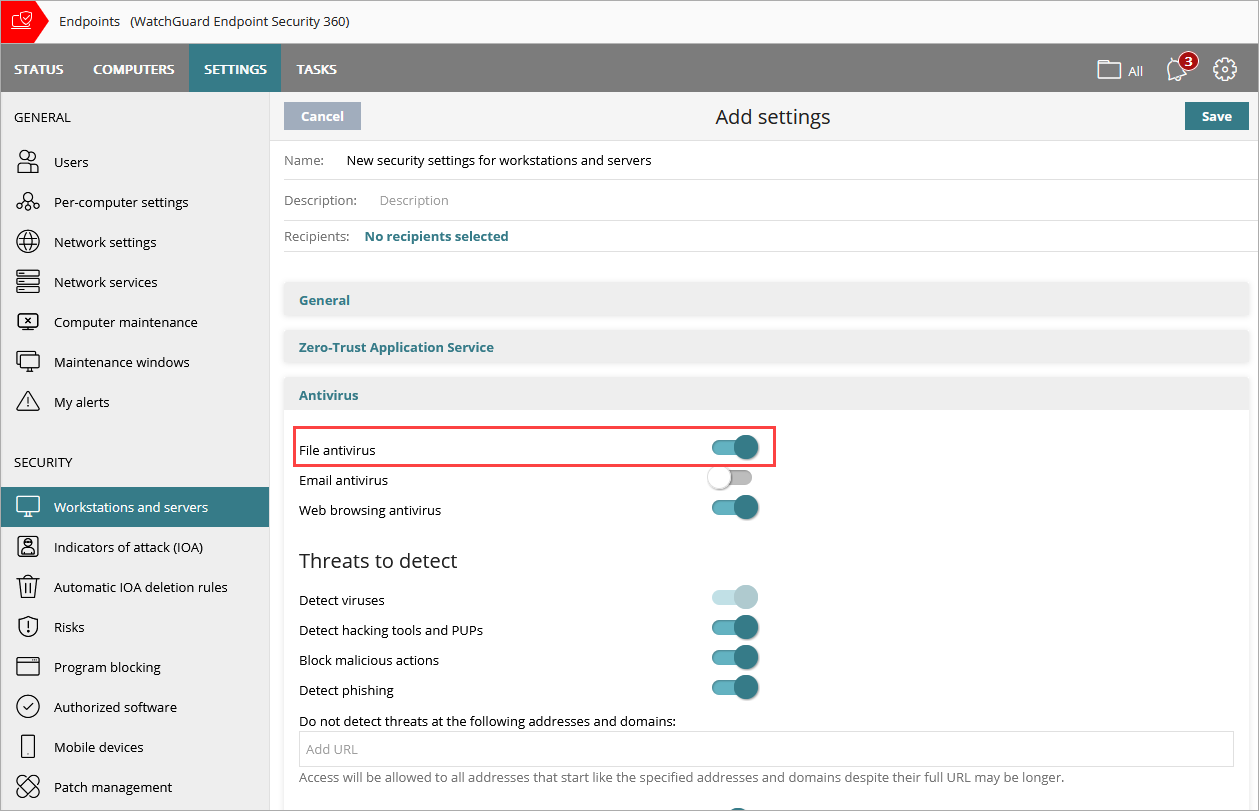
Begin with the most basic configuration of Endpoint Security settings. In this example, we enable only the File Antivirus setting and disable all others. You can then apply the configuration to one of the affected endpoints and begin your testing of the WatchGuard Agent issue.
Caution: We do not recommend that you enable Audit mode to mitigate performance issues. When enabled, all underlying protection remains active and switches to reporting only, instead of enforcement. This does not result in any meaningful improvement to performance.
To apply a minimal configuration of settings, in WatchGuard Cloud:
- Select Configure > Endpoint Security.
- Select Settings.
- From the left pane, select Workstations and Servers.
- Select an existing security settings profile to edit.
- Disable all settings.
- From the Antivirus section, enable only File Antivirus.
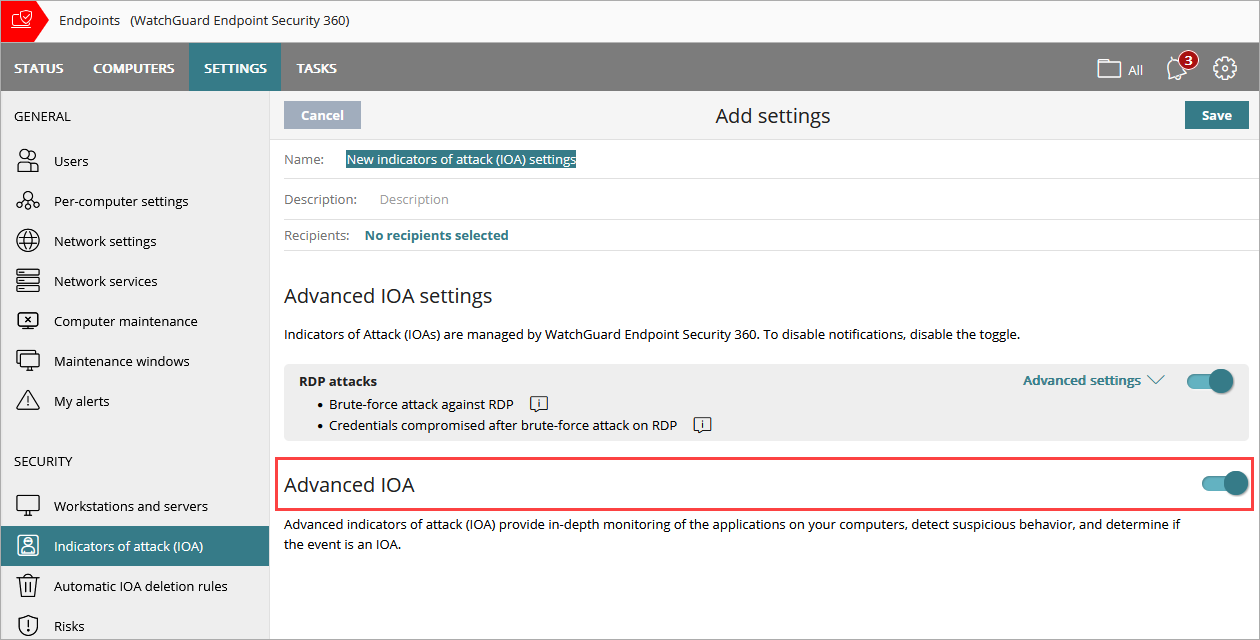
- From the left pane, select Indicators of Attack (IOA).
- Select an existing security settings profile to edit and disable Advanced IOA.
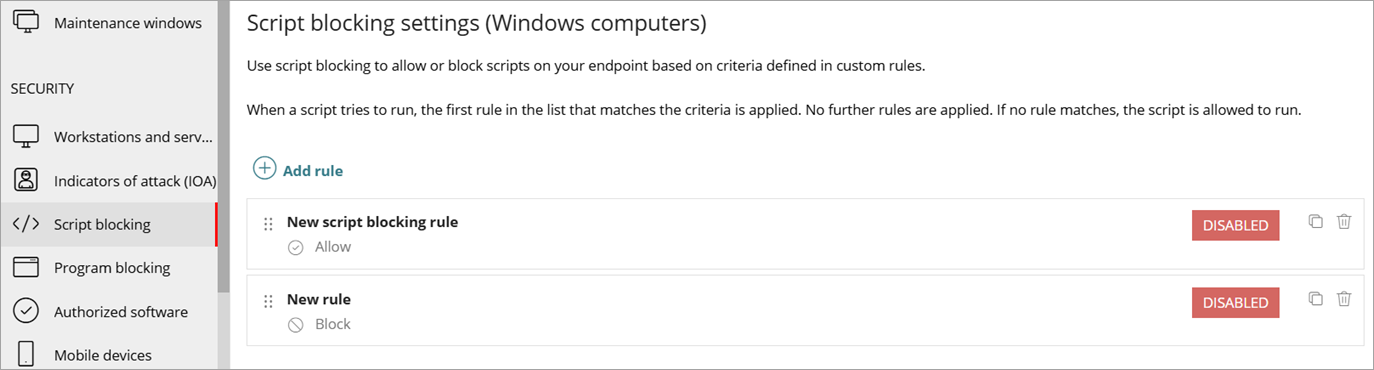
- If you use Endpoint Security Elite, from the left pane, select Script Blocking.
- Select an existing security settings profile to edit and disable any rules.
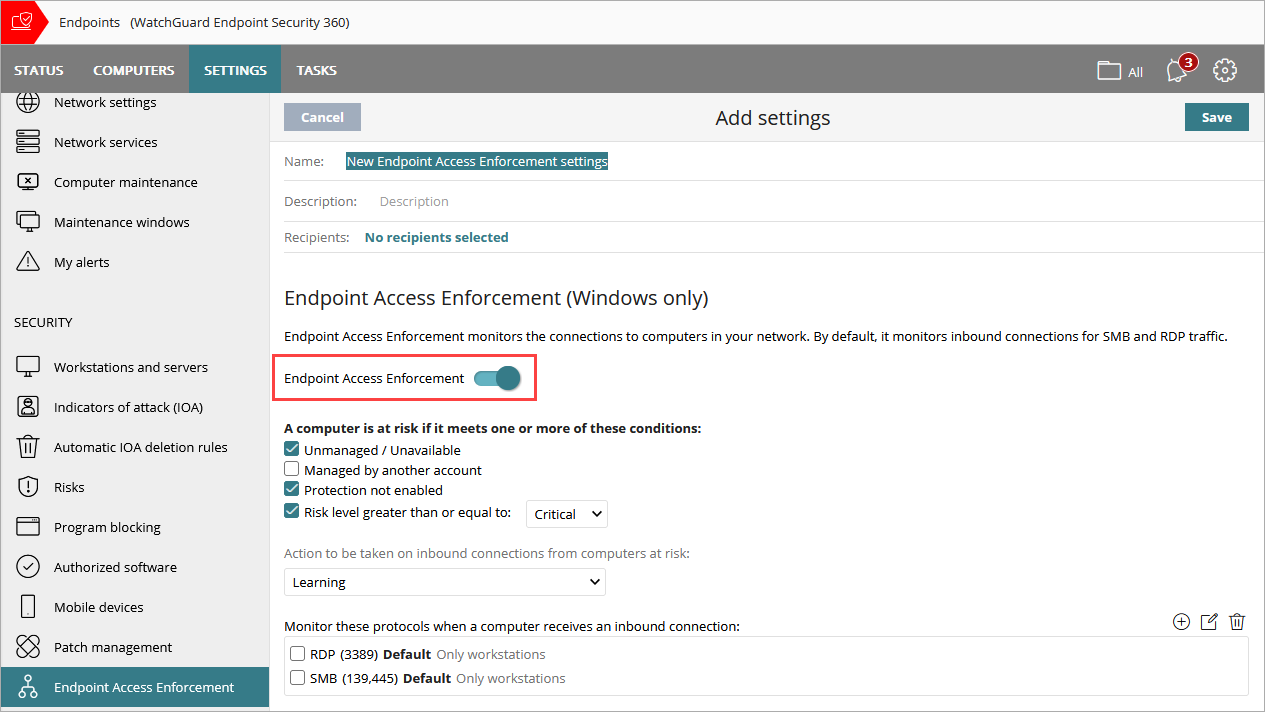
- From the left pane, select Endpoint Access Enforcement.
- Select an existing security settings profile to edit and disable Endpoint Access Enforcement.
After you apply these configuration changes, restart the endpoint and make sure the new configuration loads. After you restart it, test the endpoint to verify whether the WatchGuard Agent issue persists.
- If the issue persists, contact Support and provide any requested information.
- If the issue does not persist, to identify the setting responsible, continue to enable settings individually.
Enable Settings Individually
You can enable settings individually and test the system after each configuration change to identify the setting that causes the WatchGuard Agent issue.
- Select Configure > Endpoint Security.
- Select Settings.
- If you use Endpoint Security Elite, from the left pane, select Script Blocking and enable any rules.
- From the left pane, select Indicators of Attack (IOA). Select the security settings profile to edit and enable Advanced IOA.
- From the left pane, select Endpoint Access Enforcement. Select the security settings profile to edit and enable Endpoint Access Enforcement.
- From the left pane, select Workstations and Servers. Select the security settings profile to edit.
- From the Antivirus section, enable Web Browsing Antivirus.
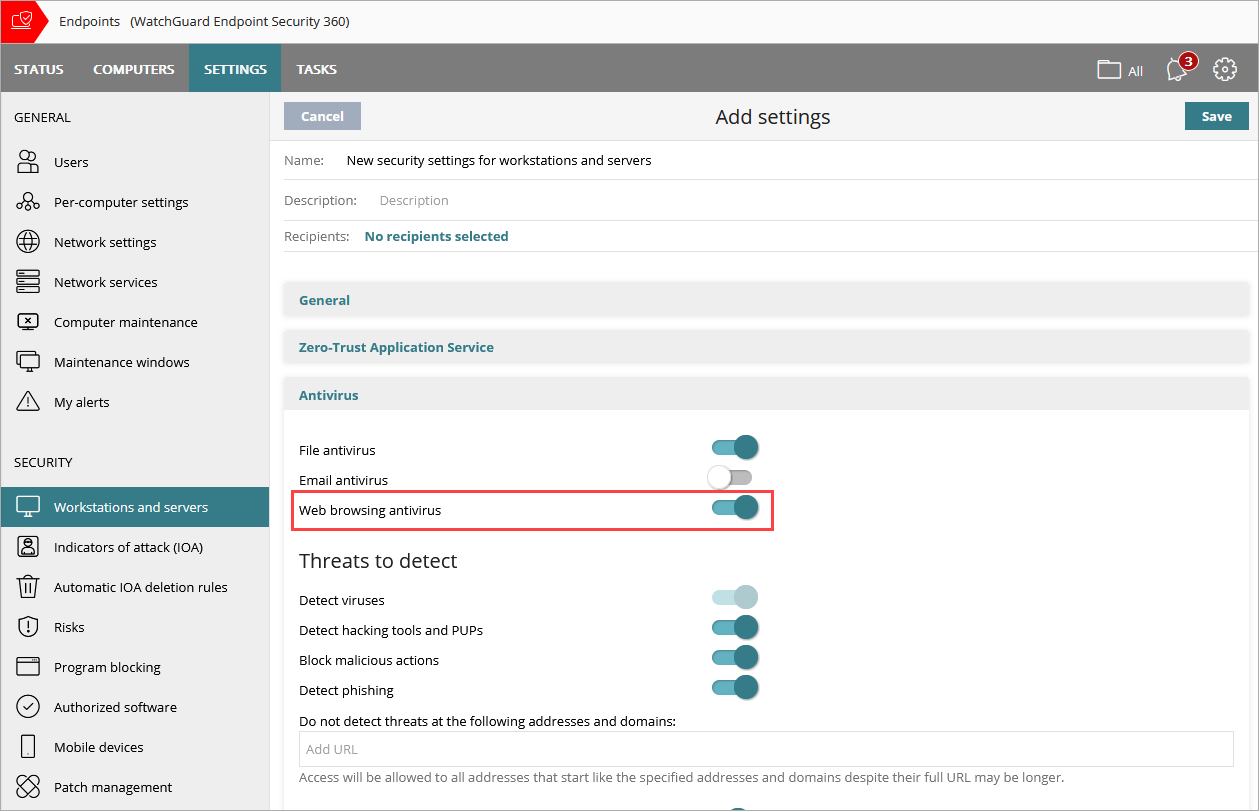
- If the issue no longer occurs after you enable Web Browsing Antivirus, in the Zero-Trust Application Service section, enable Zero-Trust Application Service.
Restart the endpoint after you enable the Zero-Trust Application Service.
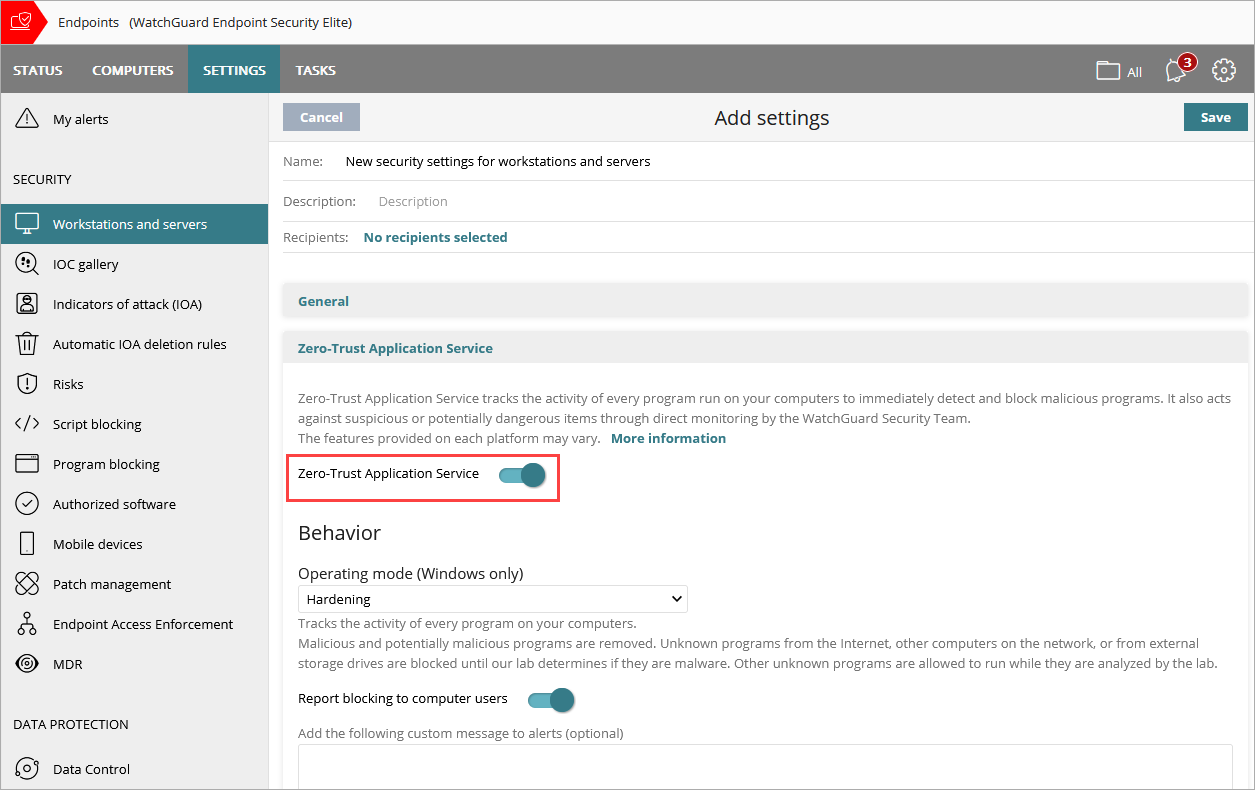
- If the issue occurs after you enable the Zero-Trust Application Service, in the Anti-Exploit section, disable Code Injection.
Restart the endpoint after you disable the Anti-Exploit > Code Injection setting.
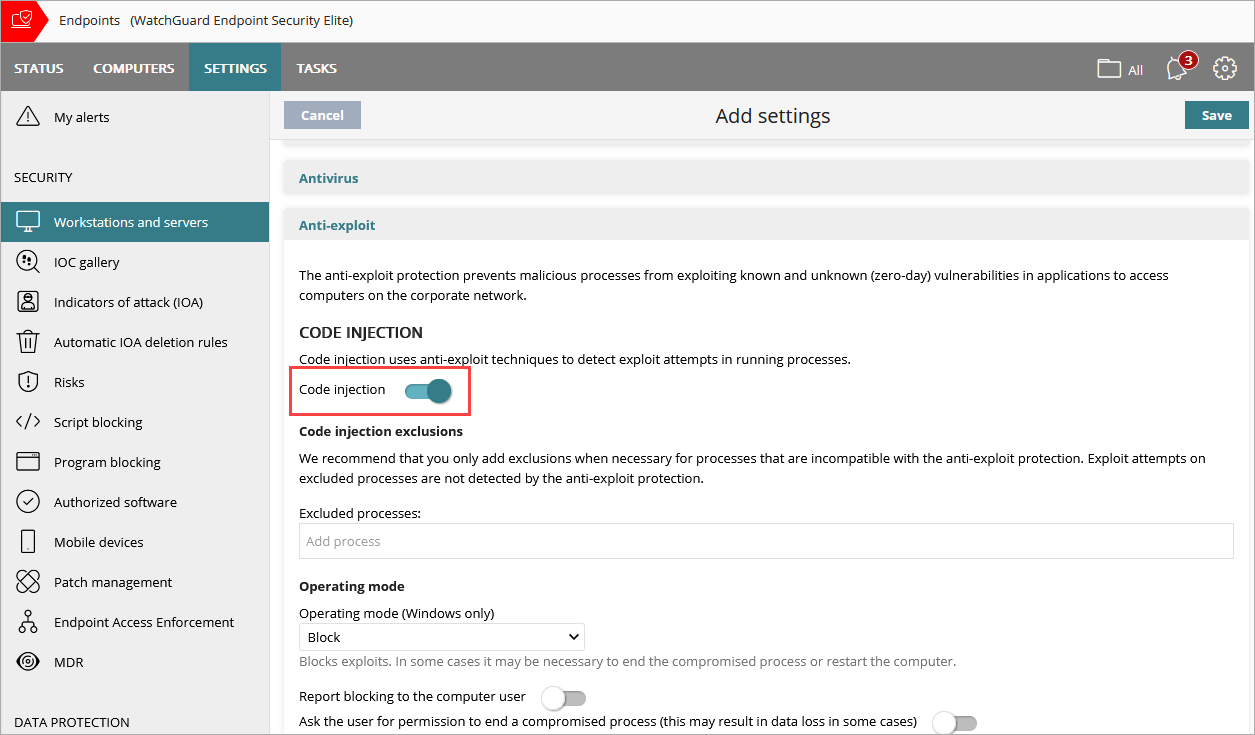
If the issue does not occur when you change these settings, continue to enable the remaining settings one at a time until you identify the setting that caused the issue.
Collect Data
After you identify the problematic setting, contact Support and provide the requested logs and information to help resolve the issue.
For each module, you can find the required information at Protection and Detection (Windows) > Troubleshoot Endpoint Protection on the Troubleshoot WatchGuard Endpoint Security page.