Applies To: Endpoint Security Elite, Endpoint Security 360, and WatchGuard EDR
When you use the Zero-Trust Application Service to block malicious programs, you might see on the Security dashboard that the Zero-Trust Application Service blocks a third-party program that you want to run. For more information, go to Configure the Zero-Trust Application Service. This topic provides information about causes and resolutions for a blocked program.
When the Zero-Trust Application Service blocks a program, the dashboard shows the program in the Currently Blocked Programs Being Classified tile. The tile shows the number of programs that your endpoint security product currently blocks.
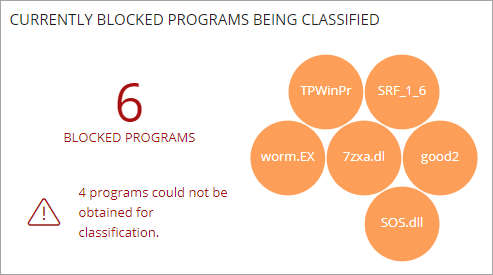
Endpoint Security products block third-party software at the endpoint. There is no block in the management UI.
Unblock a Program
A program or file remains blocked until your endpoint security product classifies the program or file as goodware, malware, or a PUP.
To see the list of programs that the Zero-Trust Application Service determines to be a risk before classification, click the Currently Blocked Programs Being Classified tile . To remove a program or file from the list, from the options menu for an entry, select Delete from List.
- If you do not see the program in the Currently Blocked Programs Being Classified list, click View History of Blocked Items to see whether the Zero-Trust Application Service labels the program as Reclassified as Goodware.
- If the Zero-Trust Application Service classifies the program as goodware, but still blocks it, use URL Checker to make sure that the WatchGuard Agent on your computer can communicate any updates to Endpoint Security servers. For more information, go to PSInfo URL Checker.
- If the Zero-Trust Application Service classifies the program as malware, or the program is unknown, use URL Checker to make sure the WatchGuard Agent on your computer can communicate any updates to Endpoint Security servers.
- If you do not have a communication issue and want to contact Support, use the PSErrorTrace tool to generate a diagnostic file that might help with your Support case, and use the PSInfo tool to provide more diagnostic logs to help Support troubleshoot your issue. For more information, go to Get Started with PSInfo.