Applies To: WatchGuard Patch Management
If you never want to install a patch, because it has known issues or makes unwanted changes to a program, you can exclude the patch in Patch Management. You cannot install excluded patches.
When you exclude a patch, you exclude a specific version of the patch. If the software vendor releases a later version of that patch, it is not automatically excluded.
Your operator role determines what you can see and do in WatchGuard Cloud. Your role must have the Install, Uninstall and Exclude Patches permission to view or configure this feature. For more information, go to Manage WatchGuard Cloud Operators and Roles.
To exclude a patch:
- In WatchGuard Cloud, select Monitor > Endpoint Security.
- Select Status.
- From the left pane, select Patch Management.
The Patch Management dashboard opens. - In the Available Patches tile, click a type of patch or click View All Available Patches.
The Available Patches list opens.
- To search the list, type text in the Search box, and click
 .
. - To filter the list, select Filters, specify the types of patches you want to exclude, and click Filter.
- In the row of the patch you want to exclude, click
 and select Exclude.
The Exclude Patch dialog box opens.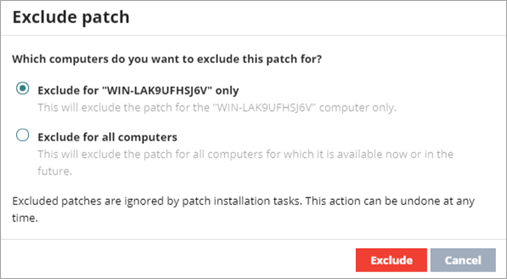
Exclude Patches dialog box for Subscriber accounts
- Select whether you want to exclude the patch for the selected computer or all managed computers in your network.
Service Providers can select whether to exclude the patch for all computers in the current account, or for all computers in all managed accounts. For more information, go to Multi-Tenant Management — Excluded Patches. Patch exclusion can take a few minutes to complete. - Click Exclude.
To unexclude an excluded patch:
- In WatchGuard Cloud, select Monitor > Endpoint Security.
- Select Status.
- From the left pane, select Patch Management.
The Patch Management dashboard opens. - In the Available Patches tile, click View Excluded Patches.
The Excluded Patches list opens.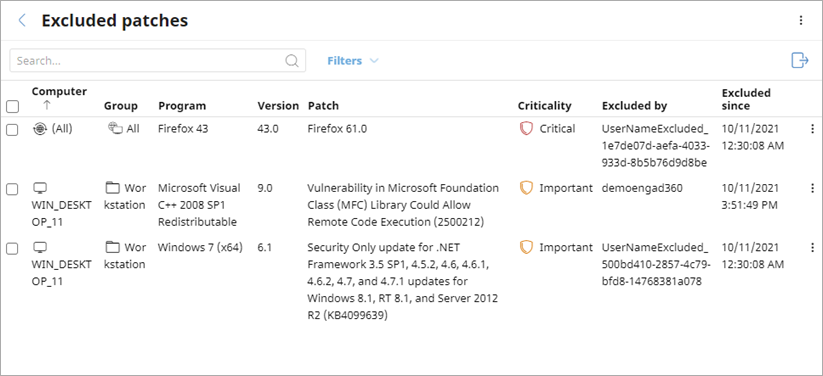
- In the row of the patch you no longer want to exclude, click and select Stop Excluding.
If your Service Provider has excluded a patch, a Partner label shows in the Excluded by column. You cannot include or exclude that patch.
Excluded Patches List
The list displays information about excluded patches for each account. You can sort the list by the Computer column.
The list includes these columns:
Computer
The name of the computer or endpoint group with at least one available patch.
Group
The name of the WatchGuard Cloud account group that the account belongs to.
Program
The name of the program with the available patch.
Version
The version of the program with an available patch.
Patch
The name of the patch.
Criticality
Patch severity, as determined by the vendor (for example, Critical, Important, Moderate, Low).
Excluded By
The name of the operator who excluded the patch.
Excluded Since
The date when the operator excluded the patch.
Excluded Patch Details
To open the details page for an excluded patch, click the row for an excluded patch. On the Excluded Patch details page, you can review the patch details and patch installation status, including:
- To review a list of the computers where the patch was installed, click a number of affected computers in the account.
- To review the tasks used to install the patch, click the task name.
- To no longer exclude the patch, click Stop Excluding.