Applies To: Cloud-managed Fireboxes, Locally-managed Fireboxes
In WatchGuard Cloud, you can configure notification rules that enable WatchGuard Cloud to generate alerts and send email notifications for Firebox events in your account. Notification rules determine which events generate alerts.
Service Providers can create email notifications at the Service Provider level so that they can configure email alerts that apply to multiple Subscriber accounts. For more information, go to Configure Email Notifications for Service Providers.
On the Firebox, an alarm is an event that triggers a notification to tell a network administrator about a condition in the network. For example, a policy can generate an alarm when traffic matches, or does not match, a rule in the policy. A security service such as APT Blocker can generate an alarm when it detects a threat.
For a locally-managed Firebox, you must first configure notification settings on the Firebox. For steps, go to Configure Notification Settings on a Locally-Managed Firebox.
Cloud-managed Fireboxes automatically generate alarms when events occur. You do not have to configure notification settings on a cloud-managed Firebox.
Your operator role determines what you can see and do in WatchGuard Cloud. Your role must have the Configure Notification Rules permission to view or configure this feature. For more information, go to Manage WatchGuard Cloud Operators and Roles.
Configure Notification Settings on a Locally-Managed Firebox
For a locally-managed Firebox to send alarms to WatchGuard Cloud, you must enable notification settings on the device. You can configure notification settings in policies and proxy actions, and for services and features that generate alarms. For example, if you want to generate an alert in WatchGuard Cloud when APT Blocker or IPS blocks a threat, configure those services to send notification.
To enable the Firebox to send an alarm notification, from Fireware Web UI or Policy Manager:
- Edit the policy, proxy action, or feature you want to receive notification for.
- In the notification settings, select:
- Fireware v12.11 and higher: Send Email Notification.
- Fireware v12.10.4 and lower: Send Notification. Then select the Email notification method.
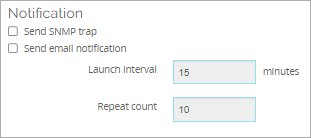
Example: Notification settings for the IPS service, in Fireware Web UI
In the notification settings on the Firebox in Fireware v12.10.4 and lower, you must select the Email notification method, regardless of the delivery method you select in the notification rule in WatchGuard Cloud.
You must enable email notification for each service or policy that you want to receive notification for. For more information about notification settings on locally-managed Fireboxes, go to Set Logging and Notification Preferences.
Configure Notification Rules in WatchGuard Cloud
On the Rules page, you can view all notification rules configured for your account. The default predefined rules that show in the list are based on the products in your account. You can edit the default rules to change the name, description, and delivery method. If you select Email for the delivery method, you can also change the frequency of the alerts. There are some default system rules you cannot delete.
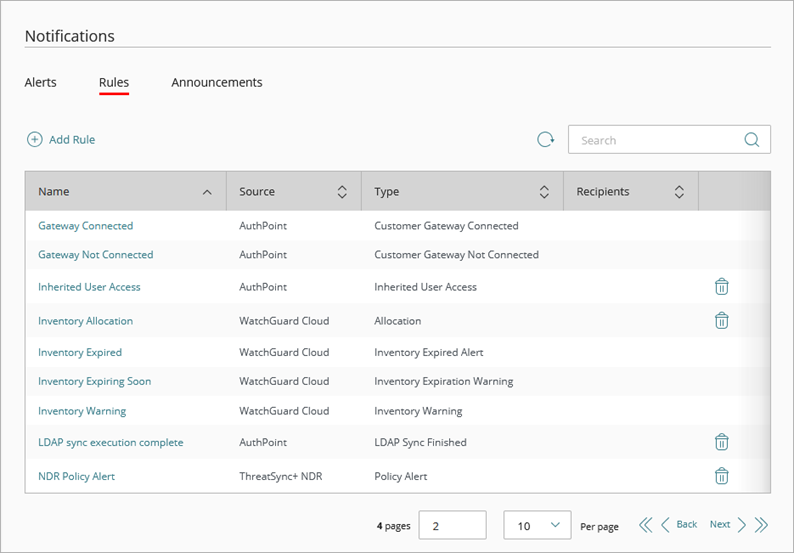
Firebox Notification Types
Each notification rule in WatchGuard Cloud uses a Notification Type that specifies the action or event that causes the rule to generate an alert.
Notification types for Fireboxes are available from two notification sources:
- The Devices notification source, which is also used for access point notifications, generates alerts based on changes to device status in WatchGuard Cloud and alarms received from the Firebox or access point.
- The Firebox notification source, which is used for Fireboxes only when you have configured a PSA integration with WatchGuard Cloud, generates alerts for Firebox events, such as when connection usage exceeds a specific threshold. For more information about PSA integration, go to About PSA Tool Integration with WatchGuard Cloud.
Notifications Types for the Devices Source
When you connect a Firebox to an account, you can configure notification rules to generate alerts for these notification types:
Data Retention Change
Generates an alert when the data retention license for a Firebox changes.
Device Alarms
Generates an alert for alarm events received from Fireboxes and access points. The Device Alarms rule generates device notifications for many types of alert conditions for both Firebox and access point devices. This might increase the volume of email messages you receive if the delivery method in the notification rule is Email.
Device Deleted
Generates an alert when a Firebox or access point is removed from your account.
Device Registered
Generates an alert when a Firebox or access point is added to your account.
Cloud Connection Status
Generates an alert when a Firebox or access point connects or disconnects from WatchGuard Cloud.
Device Clock Drift
Generates an alert when clock drift is detected beyond the threshold of +/- 8 hours on a Firebox.
DNSWatch Temporary Block
Generates an alert when DNSWatch temporarily blocks DNS traffic due to a high rate of DNS ANY queries or NXDOMAIN (non-existent domain) errors.
Notification Types for the Firebox Source (PSA Integration Only)
The Firebox notification source appears only when you have configured a PSA integration with WatchGuard Cloud. PSA integration generates alerts for Firebox events, such as when connection usage exceeds a specific threshold. For more information about PSA integration, go to About PSA Tool Integration with WatchGuard Cloud.
Firebox BOVPN Connections
Generates an alert when BOVPN connection usage exceeds 50% of your system limit for over 1 minute. This rule type is available with Fireware v12.11.3 and higher.
Firebox Certificates Expiring Soon
Generates an alert if any system certificates will expire in 10 or 30 days. This rule type is available with Fireware v12.11.3 and higher.
Firebox CPU Usage
Generates an alert when the Firebox CPU usage exceeds 50% of your system limit for over 1 minute. This rule type is available with Fireware v12.11.3 and higher.
Firebox Disconnected
Generates an alert when a Firebox is disconnected from WatchGuard Cloud. This rule type is available with Fireware v12.11.3 and higher.
Firebox Interface Down
Generates an alert when any network interface is down for over 1 minute. This rule type is available with Fireware v12.11.3 and higher.
Firebox Memory Usage
Generates an alert when the Firebox memory usage exceeds 70% of your system limit for over 1 minute. This notification type is available with Fireware v12.11.3 and higher.
Firebox Mobile VPN with IKEv2 Connections
Generates an alert when Mobile VPN with IKEv2 connection usage exceeds 50% of your system limit for over 1 minute. This notification type is available with Fireware v12.11.3 and higher.
Firebox Mobile VPN with SSL Connections
Generates an alert when Mobile VPN with SSL connection usage exceeds 50% of your system limit for over 1 minute. This notification type is available with Fireware v12.11.3 and higher.
Firebox Total Connections
Generates an alert when the Firebox total connection usage exceeds 50% of your system limit for over 1 minute. This notification type is available with Fireware v12.11.3 and higher.
Firebox WAN Failover
Generates an alert when a WAN failover occurs. This notification type is available with Fireware v12.11.3 and higher.
FireCluster Failover
Generates an alert when a FireCluster failover occurs. This notification type is available with Fireware v12.11.3 and higher.
New Fireware Version Available
Generates an alert when a new version of Fireware is available. This notification type is available with Fireware v12.11.3 and higher.
Add a Notification Rule for Fireboxes
Your operator role determines what you can see and do in WatchGuard Cloud. Your role must have the Configure Notification Rules permission to view or configure this feature. For more information, go to Manage WatchGuard Cloud Operators and Roles.
To add a new notification rule, from WatchGuard Cloud:
- From Account Manager, select the account you want to create the notification for. For Service Provider accounts, select My Account.
- Select Administration > Notifications.
- Select the Rules tab.
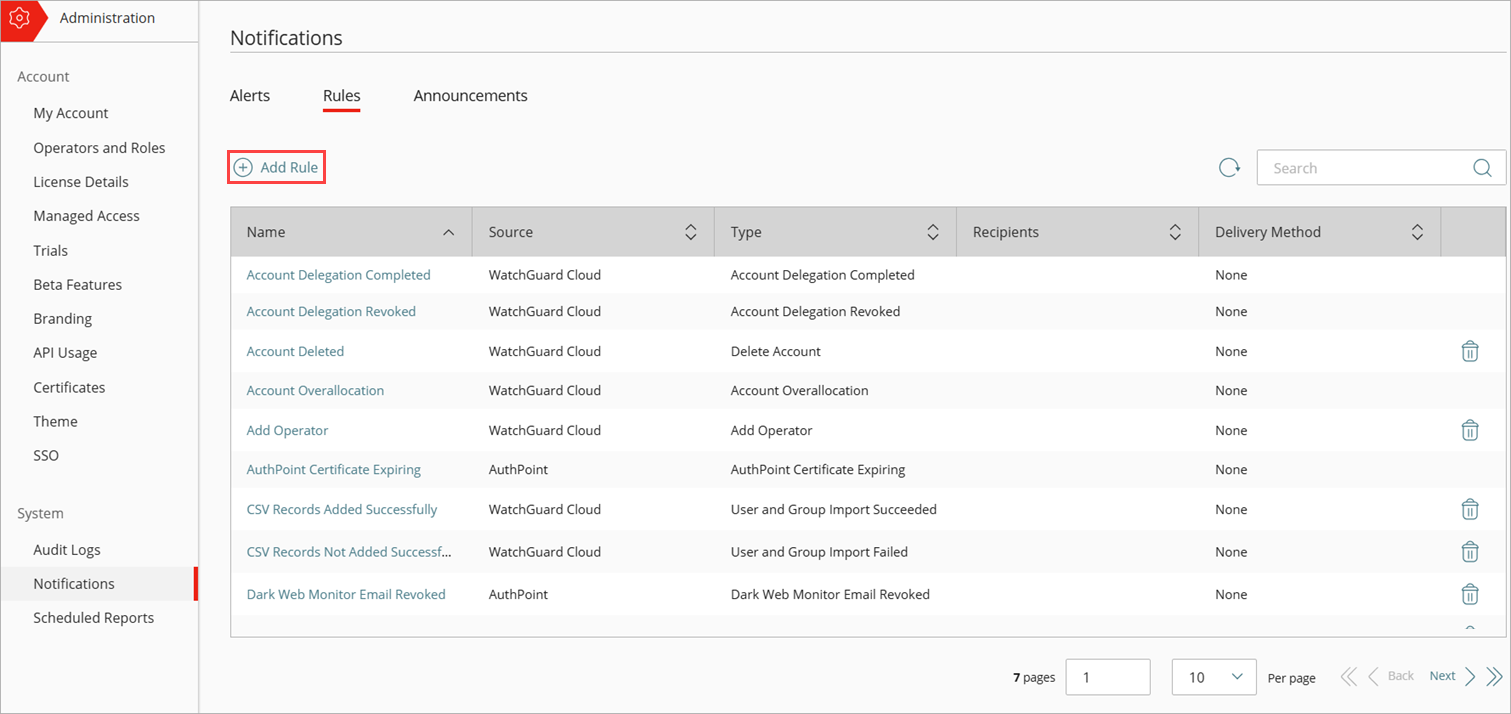
- Click Add Rule.
- On the Add Rule page, in the Name text box, type a name for your rule to help you identify it.
- From the Notification Source drop-down list, select Devices. Or, if you have a PSA integration configured in WatchGuard Cloud, you can also select Firebox for additional notification rule types.
- From the Notification Type drop-down list, select the action or event that causes this rule to generate an alert.
- (Optional) Type a description for your rule.
- To send a notification email to the specified recipients, in the Delivery Method section, select or enable Email.
- From the Frequency drop-down list, configure how many emails the rule can send per day:
- To send an email for each alert the rule generates, select Send All Alerts.
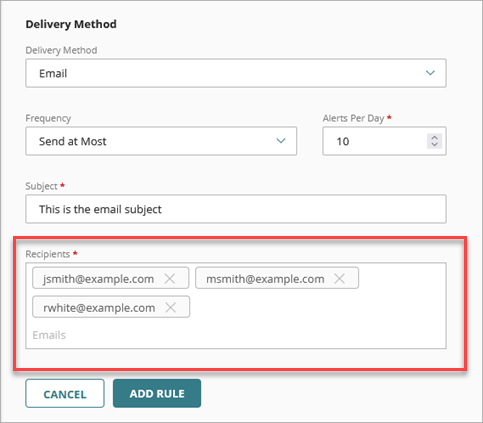
- To restrict how many email messages the rule sends each day, select Send At Most. In the Alerts Per Day text box, type the maximum number of email messages this rule can send each day. You can set specify a value of up to 20,000 alerts per day.
- In the Subject text box, type the subject line for the email message this rule sends when it generates an alert. You can type a maximum of 78 characters.
- In the Recipients text box, type the email address for each person you want to receive an email message when this rule generates an alert. You can type multiple email addresses. Press Enter after each email address or separate the email addresses with a space, comma, or semicolon.
- From the Frequency drop-down list, configure how many emails the rule can send per day:
WatchGuard Cloud email notifications use Coordinated Universal Time (UTC) for time stamps.
- Click Add Rule.
If you have PSA Integration configured, to manage notification rules, go to Overview > Administration > PSA Ticketing. For more information about notification rules for PSA ticketing, go to Configure PSA Ticketing Notification Rules.
To delete a notification rule, click in the row for the rule you want to delete.
For more information on how to manage alerts, go to Manage WatchGuard Cloud Alerts for Subscribers.
You can view all alarms received from a Firebox in the Alarms report. For more information, go to Alarms Report.