Applies To: WatchGuard Cloud
Use the Endpoint Details page in WatchGuard Cloud to review details for all endpoints with the WatchGuard Agent installed. This includes WatchGuard Agent connection and version information, as well as the status of products and components such as FireCloud, WatchGuard NDR, WatchGuard MDR Syslog Collector, Endpoint Security, Full Encryption, and Data Control data protection.
Your operator role determines what you can see and do in WatchGuard Cloud. Your role must have the Manage Endpoints permission to view or configure this feature. You must also have the Endpoint Security permissions enabled (Add, Discover, and Delete Computers and Restart and Repair Computers). For more information, go to Manage WatchGuard Cloud Operators and Roles.
To open the Endpoint Details page, in WatchGuard Cloud:
- Select Monitor > Endpoints.
- Select an endpoint from the Endpoints list.
The Endpoint Details page opens for the selected endpoint.
In the upper-right corner of the page, click a button in the toolbar to perform an action:
| Action | Description |
|---|---|
| Sync | Sync the endpoint with the WatchGuard servers and refresh the page. |
| Move to | Move the endpoint to another endpoint group. |
| Move to Active Directory Path | Move the endpoint to its Active Directory Path group. This feature is only available for Windows, Linux, and Mac endpoints. |
| Delete | Delete the endpoint and remove it from the list of endpoints. This feature is only available for Windows, Linux, and Mac endpoints. |
| Restart | Restart the endpoint. This feature is only available for Windows, Linux, and Mac endpoints. |
Click a tab to review information on these pages:
Details Page
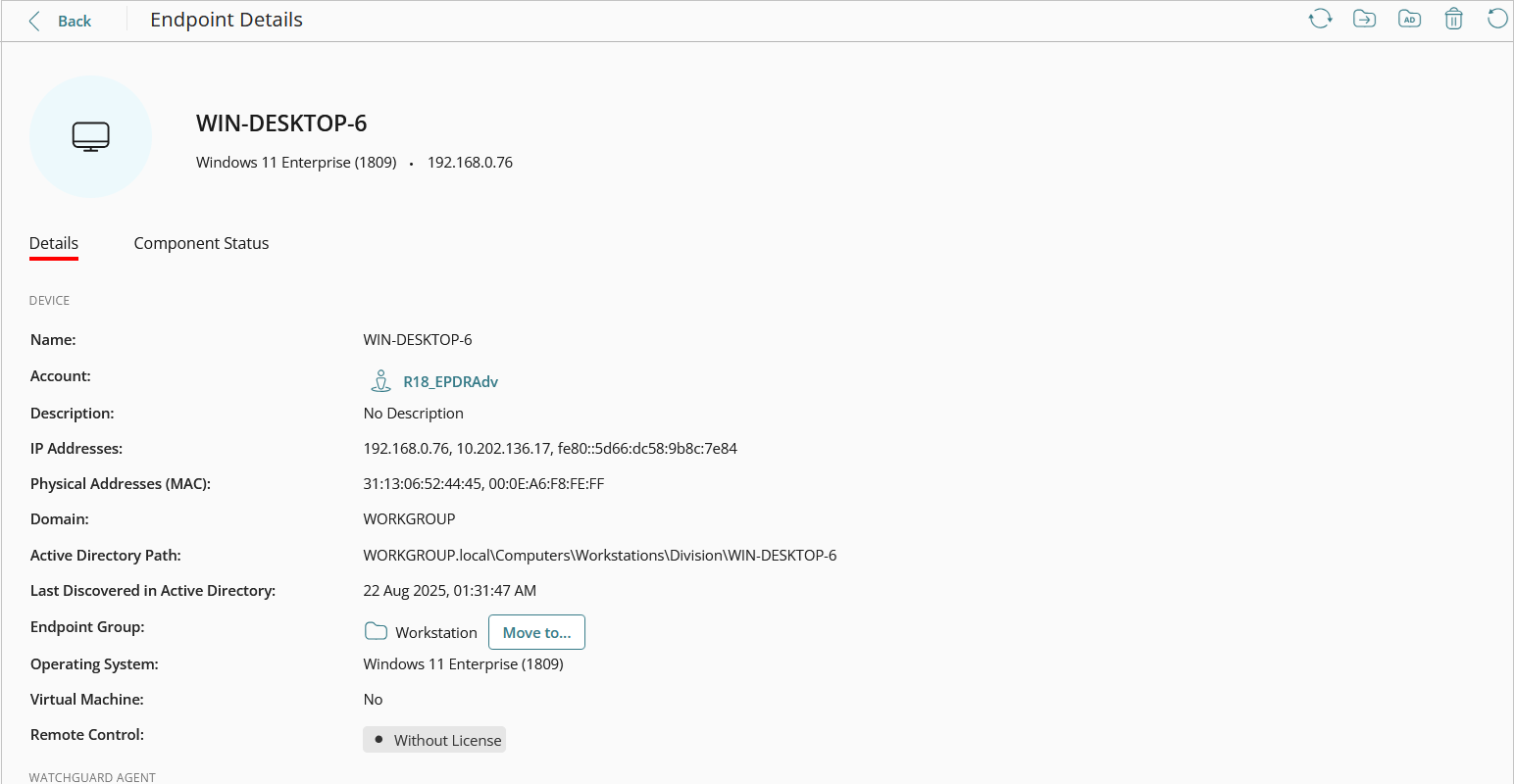
On the Details page, the information available depends on the type of endpoint (for example, mobile device, computer, server) and operating system. Device details can include:
- Name — Name of the endpoint. This name also shows in the upper section of the page.
- Account — Service Provider account that owns the endpoint. Click the account name to open the Endpoints page for the account.
- Description — Description assigned to the endpoint.
- IP Addresses — Primary IP address of the endpoint. There can be more than one IP address, separated by commas for each hardware network connection.
- Physical Addresses (MAC) — Comma-separated list of the physical addresses of each network interface installed on the computer.
- Domain — Windows domain the endpoint belongs to.
- Active Directory Path — Full path to the computer in the company Active Directory.
- Endpoint Group — Assigned group for the endpoint. Click Move To to move the endpoint to a different endpoint group.
- Operating System — Operating system name and version installed on the endpoint.
- Virtual Machine — Shows whether the endpoint is a virtual machine or not (Yes or No).
- Remote Control — Shows the feature status (Enabled, Disabled, Installation error, No license, No information).
In the WatchGuard Agent section of the page, you can review these details when there is information available:
- Version — WatchGuard Agent version (for example, v1.23.1.0000) installed on the endpoint.
- Last Start — Last date and time the protection software started on the endpoint.
- Installed — Date and time the WatchGuard Agent was installed on the endpoint.
- Last Proxy Used — Name of the last proxy that the WatchGuard Agent connected to.
- Last Connection — Last date and time the WatchGuard Agent connected to the WatchGuard servers.
- Last Settings Check — Last date and time the WatchGuard Agent checked for updated settings.
- Installed Components — Lists the product components that the WatchGuard Agent has installed on the endpoint (for example, Endpoint Security, FireCloud, WatchGuard NDR).
- Endpoint Roles — Lists the products and features that the WatchGuard Agent supports (for example, FireCloud Gateway, MDR Syslog Collector, Endpoint Security).
Component Status Page
On the Component Status page, you can review the settings and status of products and components such as Endpoint Security, FireCloud, WatchGuard NDR, and data protection from Full Encryption and Data Control. Expand each section to view the settings and status for a component. When a status error shows, point to the error or click More Information to review information on the error.
Endpoint Security
Expand this section to review the connection status (Enabled or Error) for:
- Advanced Protection
- File Antivirus
- Mail Antivirus
- Web Browsing Antivirus
- Firewall
- Web Access Control
- Patch Management
- Patch Installation
- Program Blocking
- Connection to Knowledge Servers
You can also review:
- Last Checked Date — Date and time when connection of the Endpoint Security protection to the WatchGuard servers was checked.
- Protection Version — Version of the Endpoint Security protection on the endpoint (for example, v8.00.19.0001).
- Knowledge Update Date — Date and time when signature files (knowledge files) were last updated on the endpoint.
FireCloud
Expand this section to review details for the FireCloud Connection Manager, including:
- Status — Active, Inactive, Installing, Not Installed, or Install Error
- Client Version
For information on the Connection Manager, go to About the WatchGuard Connection Manager.
Open MDR
Expand this section to review details for the WatchGuard MDR Syslog Collector, including:
- Status — Enabled, Disabled, Error, Error Installing
- Client Version
WatchGuard NDR
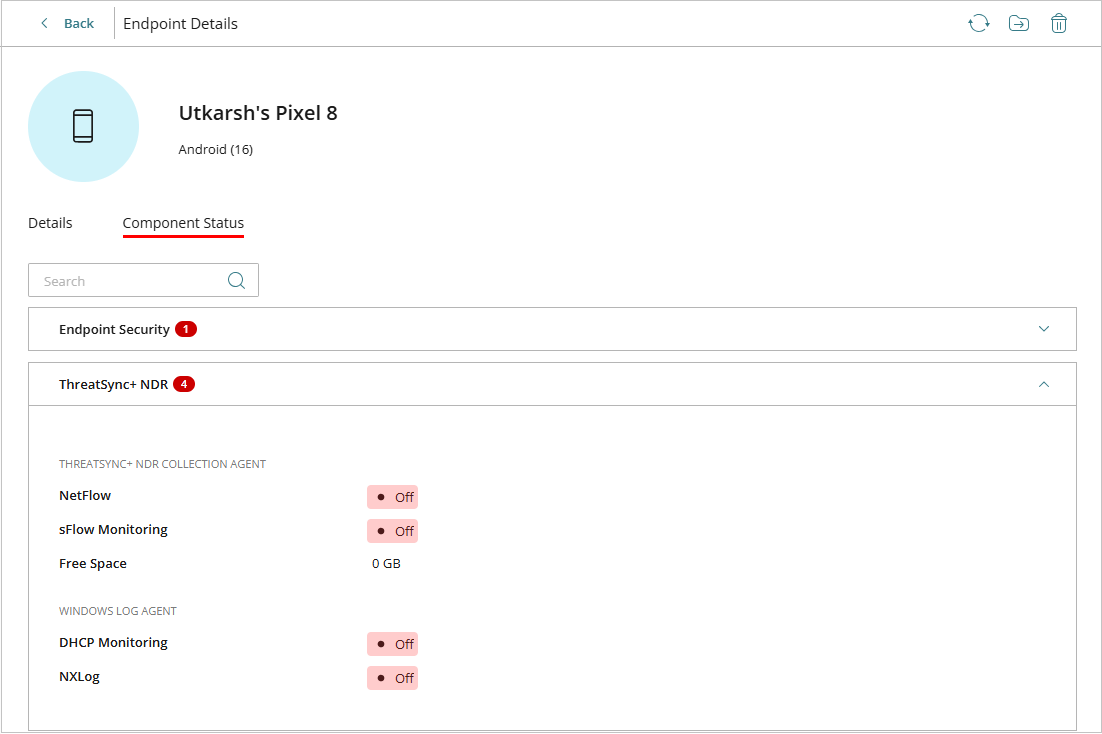
Expand this section to review status details for the WatchGuard NDR Collection Agent, including:
- NetFlow — On, Off
- sFlow Monitoring — On, Off
- Free Space — Space available on the agent computer (GB)
- Status — Enabled, Disabled, Installing, Not Installed, or Install Error
You can also review status details for the WatchGuard NDR Windows Log Agent, including:
- DHCP Monitoring — On, Off
- NXLog — On, Off
- Status — Enabled, Disabled, Installing, Not Installed, or Install Error
For information on the collection agents, go to About WatchGuard NDR Collection Agents.
Data Protection
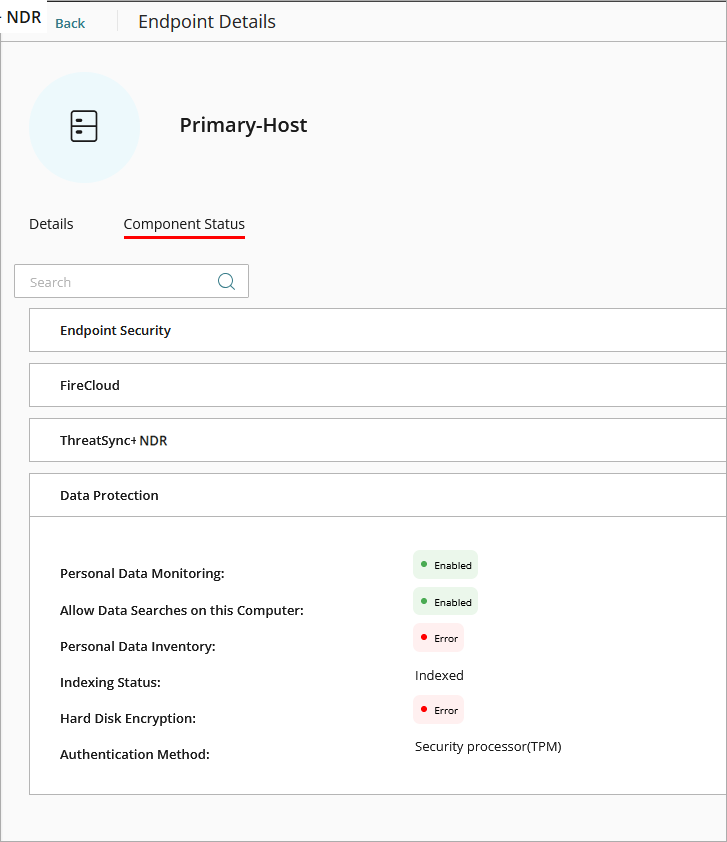
For endpoints with the WatchGuard Data Control and Full Encryption endpoint security modules, expand this section to review the status of these features that protect the data stored on the computer:
- Personal Data Monitoring — Enabled, Error
- Allow Data Searches on this Computer — Enabled, Error
- Personal Data Inventory — Enabled, Error
- Indexing Status — Not indexed, Indexed, Indexed (text only), Indexed (all content), or Indexing
- Hard Disk Encryption — Not Available, No Information, Enabled, Disabled, Error, Error Installing, or No License
- Authentication Method — Unknown, Security Processor (TPM), Security Processor (TPM) + Password, Password, USB Drive, or None
Manage Endpoints in WatchGuard Cloud
About WatchGuard NDR Collection Agents
Configure Third-Party Firewall Syslog Collection for WatchGuard Open MDR